
A product update video should show a specific customer what changed, whether it applies to them, and what to do next. Start with an actual user task and current product assets. Keep the feature name, access conditions, and approved wording accurate before adding pace or visual polish. The useful result is a viewer who can take the intended next step. A polished announcement can still miss that goal if it shows an unavailable feature, skips the entry point, or sends every customer to the same call to action. This guide is for product marketing and customer success teams that need a repeatable process for short updates. It separates an announcement from a tutorial, explains how to choose the right audience, and gives you a review method that survives the next product change.
01
Choose a product update video that needs a demonstration
Use video when seeing the change helps someone act. A new workflow, a changed control, or a result that is hard to explain in a short sentence can justify a demonstration. A small correction with no visible user action may be clearer as a written note.
Write the task in one sentence before scripting: "After this video, an eligible user can find the setting and complete the action." Replace "learn about our exciting update" with something you can check. If the task is too broad to show clearly, split the explanation or keep some detail in the documentation.
Also decide whether you are announcing a future change or explaining a shipped feature. A preview can use clearly labeled planned behavior. A how-to video must show a path that its intended audience can actually follow. Do not move between those two promises halfway through the script.
VideoRequest's guide provides a detailed pre-launch script and production workflow. It is useful for planning a preview. For a shipped update, replace a projected date with verified availability and a working next step. Keep the distinction visible rather than implying that a preview screen proves current access.
An update is also a different job from a launch. When you introduce a new product or a major release to people who do not use it yet, the format, length, and proof change. TapVid's product launch video maker covers that promotional job, and these product launch video examples show how complete launch films are built. This guide stays with recurring updates for people who already use the product.
Choose one primary placement as well. A help article, an in-app announcement, and a social post can share source material, but they do not have the same context. A help article can assume the viewer has a task. A social post may need to establish the product and audience first.
02
State who can use the change
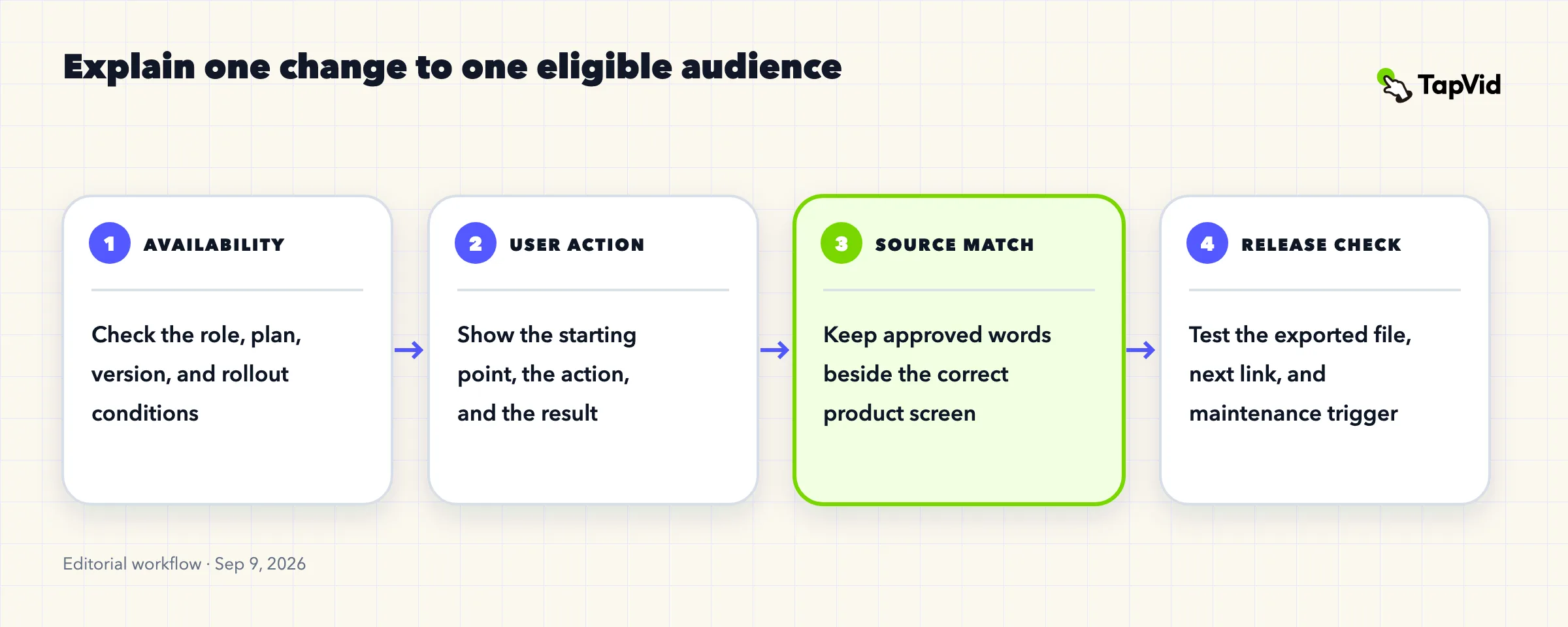
Define the audience before you record the screen. Check whether access depends on a plan, role, workspace setting, region, app version, or gradual rollout. If a condition affects whether the viewer can follow the instructions, it belongs beside the relevant step.
This is a real communication problem. In a ProductManagement discussion, the author wrote that most of their release cycles contain "items that are only applicable to certain subsets of customers." That one account does not establish how common the problem is. It does show why a general announcement can be wrong for a particular recipient.
Build a small audience table with the condition, the supporting source, and the next action. A user who can enable the feature may need a settings link. A user waiting for access may need a rollout explanation. Someone without permission may need to contact an administrator. Do not tell all three to click a button they may not see.
Check the demonstration account against that table. An administrator's screen can expose controls that regular users do not have. A test workspace may show an unreleased version. Label any difference that is necessary for the demonstration, and avoid presenting it as the default customer experience.
If the audience cannot be determined, pause the distribution decision. You can still prepare the source material and outline. What you cannot responsibly finalize is a claim that every customer has access.
03
Write around one action and one visible result
Use a direct sequence: identify the change, show where to start, demonstrate the action, show the result, and offer the next step. Keep each sentence close to the screen state it explains. A viewer should not need to remember an instruction while watching an unrelated graphic.
The first sentence should answer a user question. "You can now find this control in Settings" is more useful than a long statement about the team's commitment to innovation, provided that location and availability are verified. Avoid turning a simple update into a complete product tour.
Distinguish the technical source from the approved customer copy. Product managers may describe implementation details that do not belong in the video. Marketing can prepare a clearer explanation, but the product owner should check its meaning before it becomes fixed input for production.
Do not remove a limitation just to shorten the sentence. If the feature only applies to a certain role, write that condition in plain language. If a term is necessary, explain it the first time. Keep exact names unchanged so viewers can match the words to the product.
Read the script while stepping through the real workflow. That reveals missing transitions: an unmentioned menu, a confirmation dialog, or a waiting state between the click and the result. Add the information a reader needs to repeat the action, and remove narration that merely describes decoration.
04
Show current assets instead of imagined screens
Capture the product state that supports the instruction. Use a safe demonstration account and remove private data from the source before recording. A real-looking generated interface is not a substitute for the screen a customer will encounter.
Keep the decisive area large enough to read. If the action happens in a small control, show enough surrounding context to establish its location, then direct attention to it. Cropping away every navigation cue can make an attractive close-up difficult to reproduce.
Some updates do not need a full screen recording. A fixed screenshot, a product image, or a short sequence of approved text can be enough when the task is conceptual. Be clear about the evidence each format provides: a screenshot shows a state; a recording can show the path between states.
TapVid is an Explainer Video Engine that can work from prepared copy and source materials. Its role in this workflow is to help turn those inputs into a reviewable explanation. Keep the source pack and the approved copy available so you can compare them with the resulting video rather than judging polish alone.
For the production entry point, see TapVid's feature announcement page. For a wider mix of customer-facing video tasks, the SaaS video marketing guide provides broader context. This update process stays focused on one change and one user action.
05
Review the words, screen, and call to action together
Review each scene against the approved source. Check the product name, action, access condition, visible screen, and destination link as a set. A correct sentence paired with the wrong screen is still a misleading instruction.
Use two passes. In the first, check whether the explanation is true and repeatable. In the second, check whether it is easy to follow at the size and sound setting of the intended placement. Keeping these questions separate prevents visual polish from hiding a factual problem.
Have a reviewer from the intended audience follow the steps without extra coaching. Record where they stop, which control they look for, and whether they reach the expected state. If you supply an explanation during the test, the video has not yet supplied that explanation on its own.
Test the call to action from the published environment before sending the announcement. A correct help link may still open the wrong language or require access that the audience lacks. A social post can point to documentation while an in-app message points to the feature itself.
Keep the release owner responsible for availability, the editor responsible for source matching, and the channel owner responsible for distribution. One person can fill all three roles on a small team, but the three checks still need to happen.
06
Use a source check before turning an update into a claim
A useful source check is to take one important condition and follow it through the script and final screen. For example, the public TapVid developer guide states that an API key is shown only once and should be stored securely. If a video explains creating that key but drops that condition, a shorter script has lost useful information.
Use this as a review exercise, not as a claim that API keys are a new release. The source is current documentation; it does not, by itself, establish a launch date. A production update needs its own release record if the video says "new" or "now available."
In the source table, put the original condition next to the approved sentence and the intended screen. Then inspect the output for both the action and the condition. Keep real credentials out of the input, screenshots, and finished video. A generic label can explain the concept without exposing a key.
The same method applies to trial access, administrator permissions, and migration steps. The condition should appear where it changes the user's decision, not in an unrelated note that the viewer may never see.
We tested that source-to-screen exercise on September 9, 2026, using a 16:9 TapVid request built from the public developer guide, with no real credentials in the input. The downloaded file was 1920 by 1080 pixels and 31.13 seconds long. Its frames sampled at five-second intervals were white apart from the watermark; the key-storage condition was not visible in those samples.

We rejected this export. It does not demonstrate successful condition retention, a shipped release, or a customer outcome. It does show why opening the output and checking the required words must remain part of the workflow. We cannot recommend this particular file for use.
07
Publish with an owner and an update trigger
Attach the video to the place where the audience can act, and record who maintains it. Save the source date, file version, destination URL, and the product conditions checked during review. This gives the next editor a starting point when the interface changes.
Define what makes the video stale. Examples include a moved control, a changed permission, a retired plan, or an incorrect link. Review the affected scenes when one of those events occurs. Do not assume a video remains correct because its file still plays.
Measure the next action separately from the view. Plays can tell you whether the content was encountered. They do not prove that the feature was understood or used. Choose an eligible audience and a relevant follow-up action, then account for other communications before attributing a change to the video.
08
Product update video questions
Does every release need a video?
No. Choose changes where a demonstration helps the intended audience complete a task. Keep minor details in searchable written notes when that serves the reader better.
Can the same video go to every customer?
Only when its instructions and availability statements apply to every recipient. Otherwise, adjust the audience, explanation, or call to action.
Should the video replace release notes?
No. Keep a source of record for details, conditions, and later retrieval. Use the video to explain the action that benefits from being seen.