Original video · Y Combinator
Y Combinator’s published video, including its existing captions. Watch the original on YouTube.
Keep your message, figures, and product visuals accurate as you turn them into a presentation people can watch without a live presenter.
Use materials you are allowed to include. Label the product or point each file supports; current upload limits appear in the app.
This example enhances a recorded product presentation. It does not demonstrate conversion from a slide deck or a written script. Compare Y Combinator’s original published video with the TapVid version of the same talk. The original already includes captions; it is not unedited camera footage.
Y Combinator’s published video, including its existing captions. Watch the original on YouTube.
The finished video keeps the speaker and message while adding captions, diagrams, and motion.
Paste the approved script or upload a deck. Name the audience, the decision or task the video supports, and any wording that must appear exactly. Add the matching visuals in the app.
Check the script, narration, and scene plan before rendering. Confirm that each product, figure, or instruction appears with the right visual and that the next step is clear.
Replace an outdated screenshot or revise a line, then rerun the affected scene. Watch the complete result before sharing it with customers or your team.
A video presentation combines your explanation with timed visuals so the viewer can follow it without attending a meeting. For a sales follow-up, product update, or internal briefing, the job is to carry the intended message when you are not there to explain the slides.
TapVid is an Explainer Video Engine. Start with approved wording and the materials that support it. Supplied images, logos, and screenshots stay intact; names, figures, and claims stay literal; the scene plan lets you check which visual accompanies each point.
Already have a finished deck? Use the PowerPoint input or the dedicated PPT to Video page. Starting from a script and separate product materials? Build the presentation around those sources without making a slide deck first.
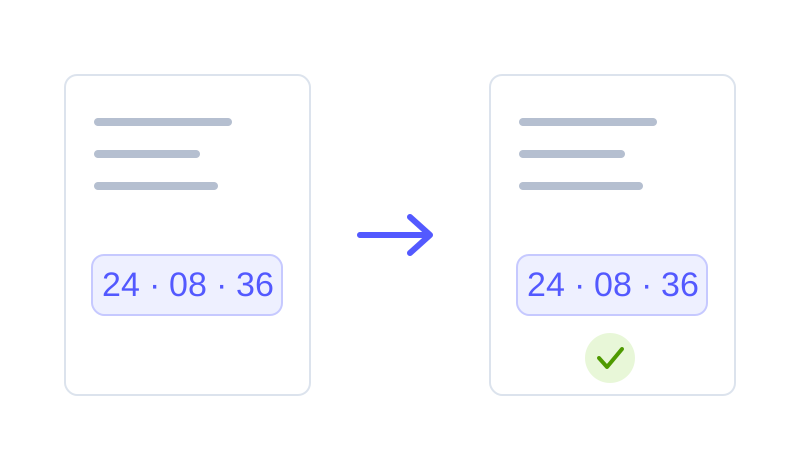
Product names, numbers, prices, and required statements remain as supplied. Separate exact copy from creative direction so a request for a shorter scene does not become permission to change a claim.
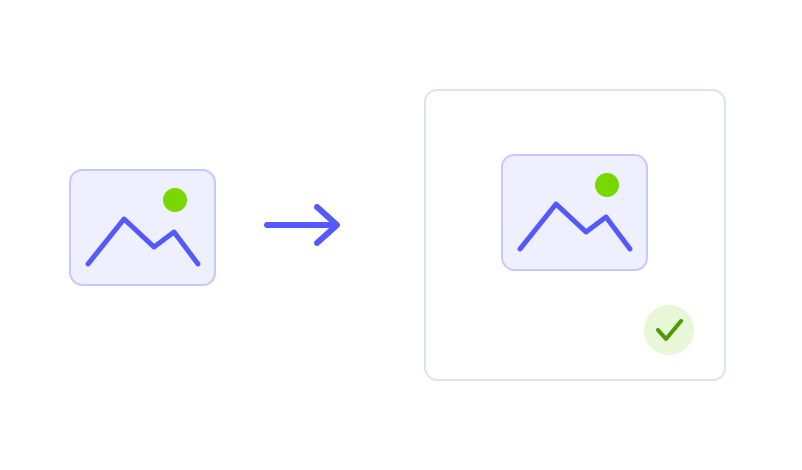
Use the screenshots, images, logos, and footage you provide. A viewer should see the product you are describing, with no invented interface or redrawn packaging standing in for it.
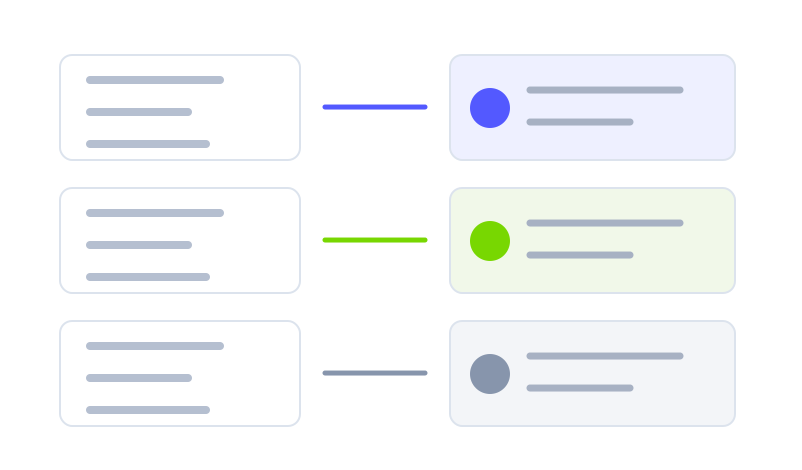
Review the planned scene alongside its script and narration. When a presentation compares two products or explains several steps, verify each match before the final render.
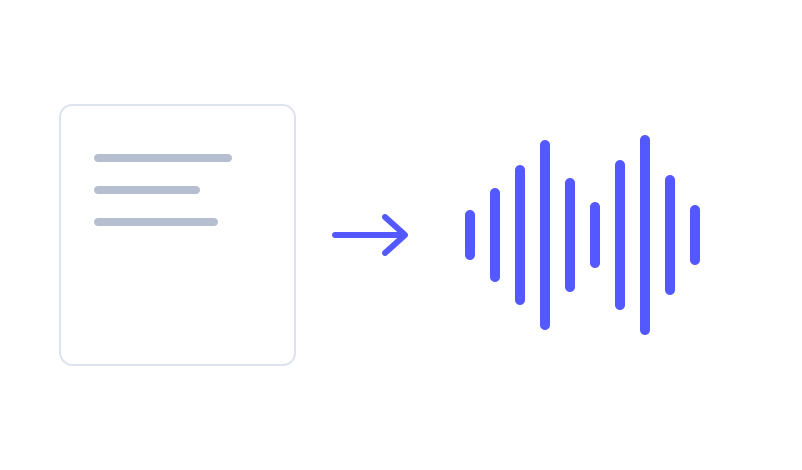
Start from written content and supplied visuals when you do not need an on-camera presenter. Review the narration script and choose from the voice options currently available in the app.
A new screenshot or revised sentence can be handled in its own scene. Keep the unaffected scenes and earlier versions available while you prepare the next presentation.
Explain one customer problem, show the relevant product evidence, and finish with the approved next step. Give the prospect something they can revisit or forward after a call.
Pair each announced change with the current screenshot or supplied clip. Keep availability, plan names, and release details explicit so the video does not turn a future promise into a current feature.
Present an approved process, project update, or decision with the correct figures and supporting material. Identify the audience and owner of each next step in the source script.
Simple videos use about 4 credits per second: about 120 credits for 30 seconds or 240 for a minute. Cinematic scenes use more. These are display estimates; use the credit quote shown in the app before generation.
$49/mo
2,000 credits / mo
$99/mo
6,000 credits / mo
$199/mo
14,000 credits / mo
What you see is your product: nothing redrawn, nothing rewritten.