
TL;DR
Use video when employees need tone, demonstration, sequence, or shared context. Keep the official document as the source of record. Give the video one audience and one action. Lock exact facts before production, assign review by risk, add captions, and keep independent topics in separate scenes so a later change stays local.
An internal communications video should help a defined employee audience understand one message and take one next step. It might explain a policy change, show a new workflow, give context to a leadership decision, or summarize an event. It should not turn every email into a production project.
01
Overview
This guide gives you 12 practical ideas, but the list is only the starting point. You will also get a channel chooser, a source-lock brief, a risk-based review plan, and an update workflow. Together, those tools help a small HR, operations, or communications team create a useful video without losing the approved facts or rebuilding the whole asset when one detail changes.
02
What is an internal communications video?
An internal communications video is made for employees, contractors, or partners inside an organization. Its job is usually to answer three questions: What changed? Why does it matter to me? What should I do next?
That makes it different from several neighboring formats:
- A training video teaches someone how to perform a durable task correctly.
- A searchable document holds the official detail people may need to quote or reference later.
- A live meeting creates space for discussion, negotiation, and immediate questions.
- An internal communications video provides context and directs an audience toward a specific response.
The boundaries can overlap. A policy rollout may use a two-minute announcement video for context, an official policy page for exact terms, a live question session for exceptions, and a separate tutorial video for the new workflow. Video is one part of the communication system, not a replacement for the source of record.
03
When should you use video instead of email or a meeting?
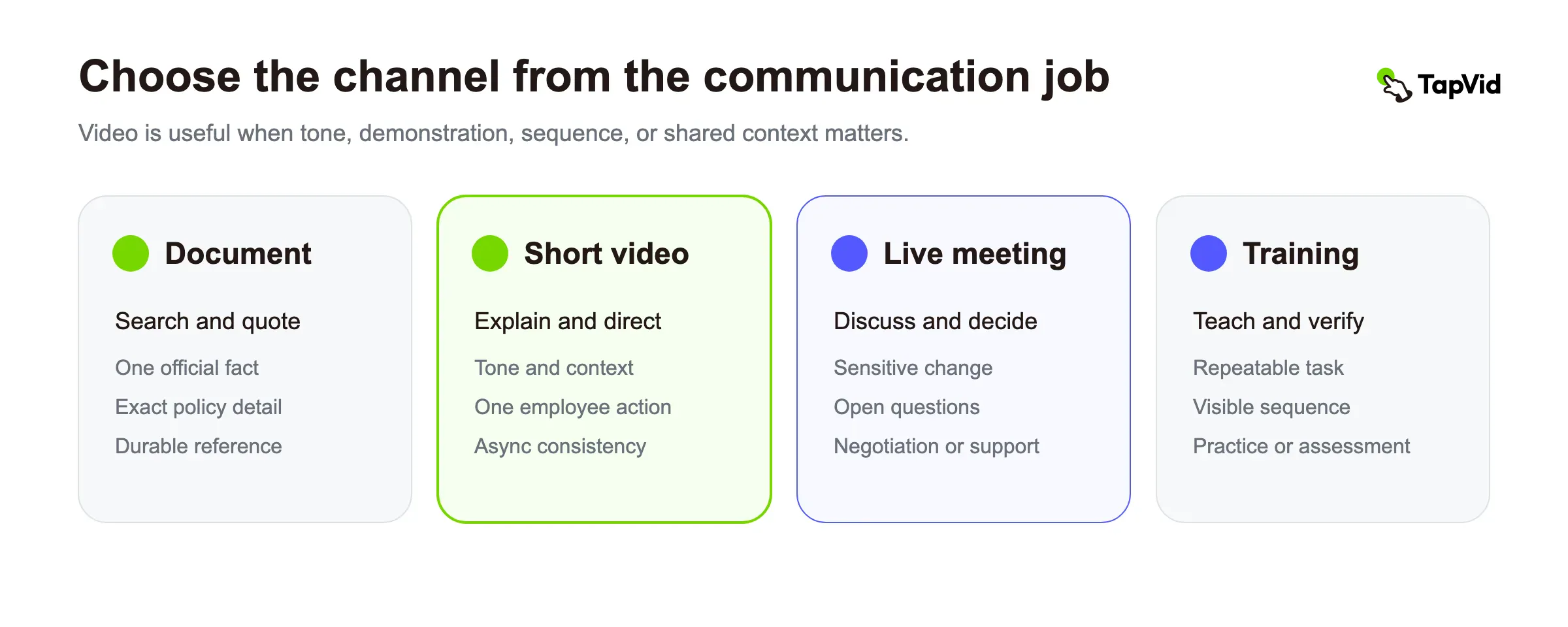
Choose the channel from the communication job. Do not begin with the assumption that every important message needs video.
| Communication job | Best primary format | Add video when |
|---|---|---|
| Share one searchable fact | Email or document | Tone or a visible example changes how the fact will be understood |
| Explain a decision | Short video plus written summary | Employees need to hear the reasoning from the accountable leader |
| Demonstrate a process | Training or screen-recorded video | Sequence, motion, location, or correct behavior matters |
| Discuss a sensitive change | Live meeting plus written follow-up | A short video can provide consistent context before the discussion |
| Repeat an update across shifts or locations | Short video plus source document | The same explanation must reach people asynchronously |
| Resolve an individual exception | Direct conversation or ticket | A reusable video can answer the common part, but not the exception |
Video is a good candidate when at least one of these conditions is true:
- 1. Employees need to see an interface, process, location, diagram, or behavior.
- 2. The speaker's tone is part of the meaning.
- 3. The message must stay consistent across time zones, shifts, or offices.
- 4. A dense source needs a short orientation before people read the full document.
- 5. The message will be reused often enough to justify maintaining it.
Stay with text when the update is brief, highly searchable, likely to change again soon, or only relevant to a few people. Use a live meeting when the real task is to listen, decide, or answer questions. If the organization has not made a decision yet, polished video will not make the uncertainty disappear.
TapVid example video: A 44-second explainer about how people allocate time across life, selected from the TapVid introduction deck. It demonstrates where video adds value over plain text: narration, data visualization, and motion work together to make a dense idea easier to follow.
04
12 internal communications video ideas
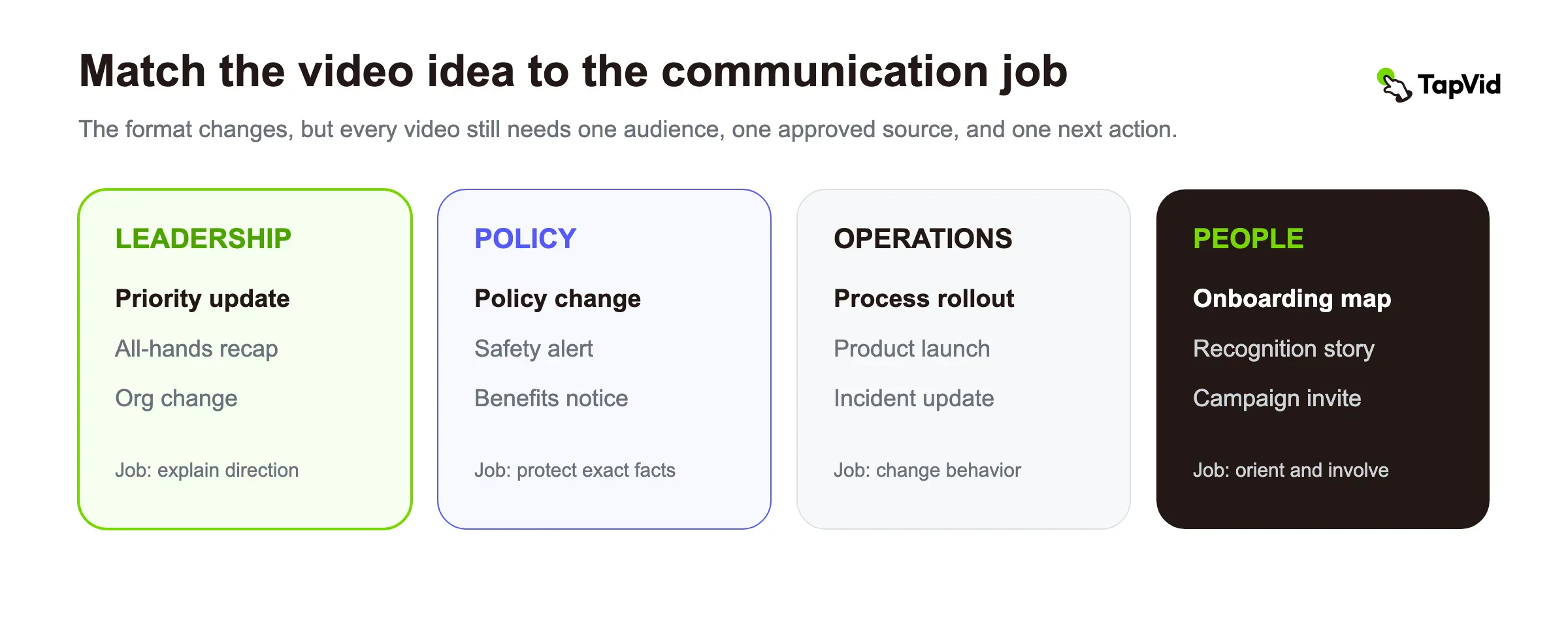
The following are illustrative briefs, not TapVid customer stories. Replace every sample name, date, threshold, and action with an approved source from your organization.
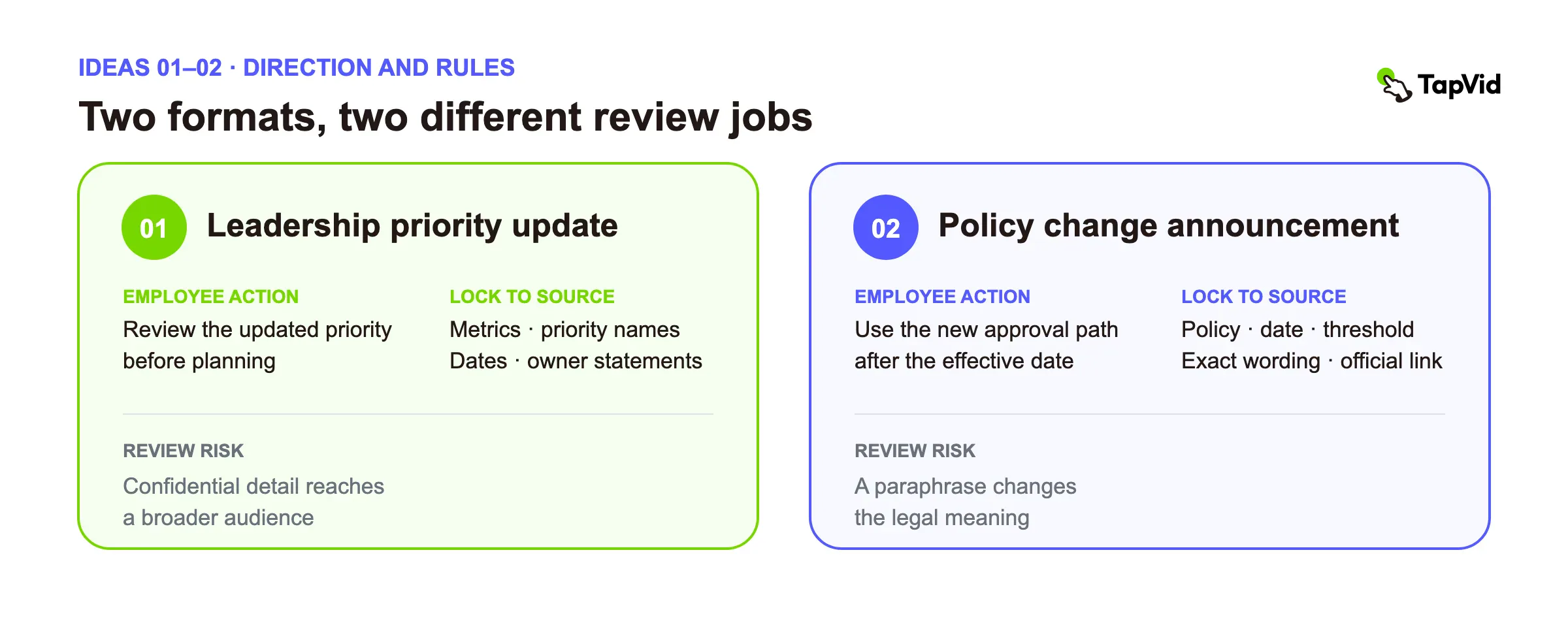
1. Leadership priority update
Use this format when a leader needs to connect business context with the work teams should prioritize now. A useful leadership update is not a spoken copy of a long memo. It should state what changed, why it changed, what continues, and what teams should do next.
Illustrative brief: A founder explains that the next planning cycle will focus on onboarding reliability rather than adding new features. Three visual cards show the reason, the work that continues, and the work that pauses.
- Lock as source: approved metrics, priority names, dates, and owner statements.
- Employee action: review the updated priority before the next planning session.
- Best companion: a written summary with links to the current plan.
- Main risk: mixing confidential business detail into a broadly shared version.
2. Policy change announcement
Use this format when a policy change affects employee behavior. The video should orient people to the change, not replace the official policy.
Illustrative brief: A 90-second video explains a revised travel approval path. The first scene states the effective date. The next scenes compare the old and new path. The final scene points to the full policy and names the channel for questions.
- Lock as source: policy name, effective date, thresholds, approved wording, and official link.
- Employee action: use the new approval path for bookings made after the effective date.
- Best companion: the complete policy and an exception process.
- Main risk: paraphrasing a legal phrase or threshold in a way that changes its meaning.
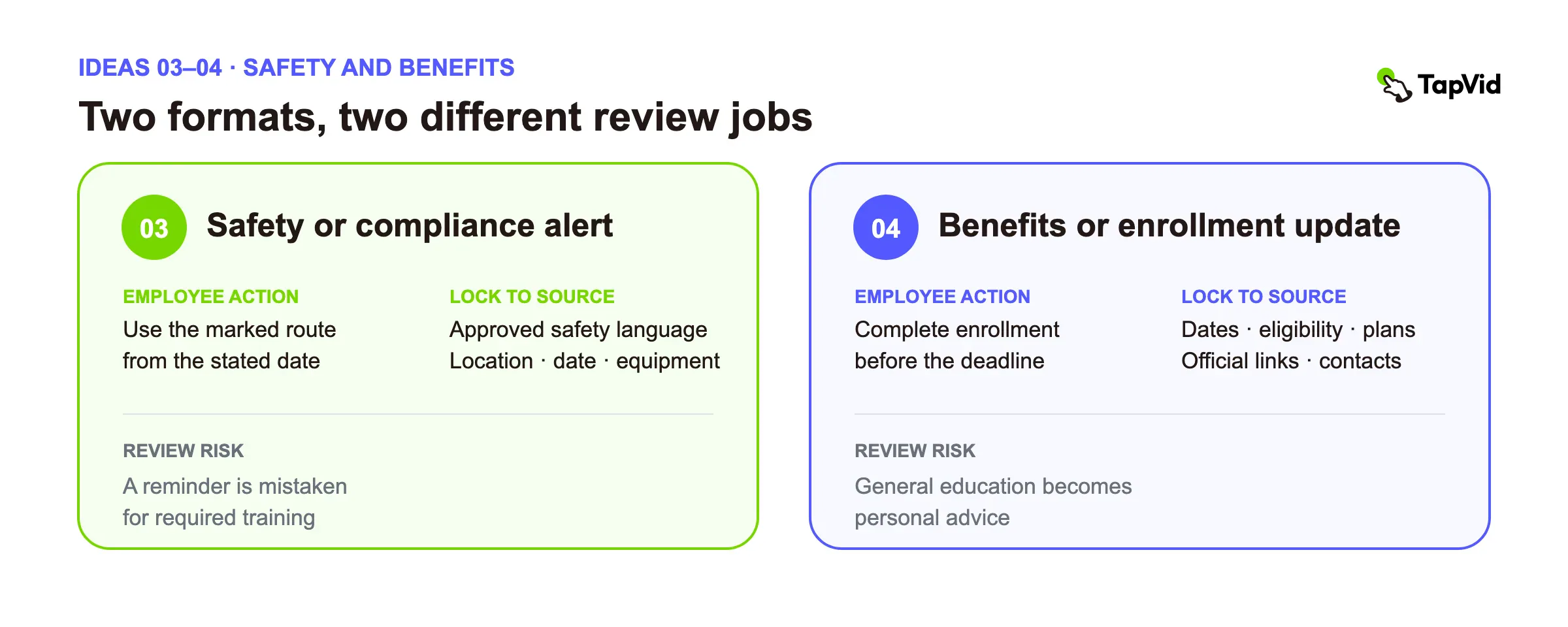
3. Safety or compliance alert
Use this format for a new requirement, a recurring hazard, or a procedure employees must follow immediately. A short alert announces the change. A separate training asset should teach the complete task when practice or assessment is required.
Illustrative brief: A warehouse update identifies a newly restricted walkway, shows the correct route, and repeats the date the route becomes mandatory.
- Lock as source: approved safety language, locations, dates, required equipment, and escalation contact.
- Employee action: use the marked route from the stated date.
- Best companion: the official safety notice and supervisor briefing.
- Main risk: presenting a general reminder as a complete substitute for required training.
4. Benefits or enrollment update
Use this format when employees need help understanding a deadline, a changed option, or the path to complete enrollment. Keep private employee situations out of a general video.
Illustrative brief: A benefits coordinator explains the enrollment window, shows the three screens employees must complete, and points to the official plan documents for coverage details.
- Lock as source: dates, eligibility wording, plan names, official links, and contact information.
- Employee action: complete enrollment before the published deadline.
- Best companion: plan documents, an FAQ, and a private support channel.
- Main risk: turning general education into personal financial, medical, or legal advice.
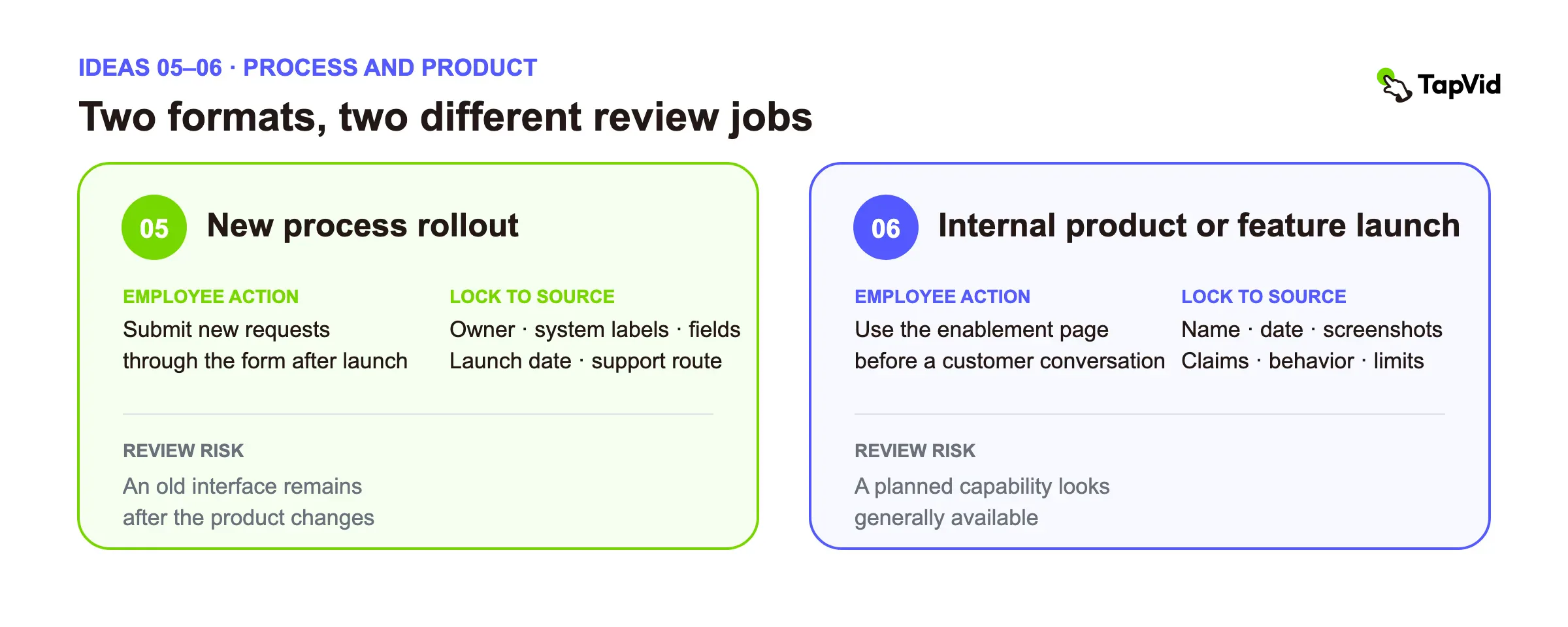
5. New process rollout
Use this format when a team must adopt a new sequence, approval path, or responsibility. Show the point where the employee's behavior changes. Move durable task instruction into a training module if the workflow needs practice.
Illustrative brief: An operations team replaces an email request with a ticket form. The video shows where to open the form, which three fields are required, and where the request status appears.
- Lock as source: workflow owner, system labels, required fields, launch date, and support route.
- Employee action: submit new requests through the form after launch.
- Best companion: the live SOP and a short training video software guide for teams building a larger learning library.
- Main risk: letting an old interface remain in the video after the product changes.
6. Internal product or feature launch
Use this format before sales, support, customer success, or operations teams encounter a new product externally. The internal launch should explain who it serves, what changed, what can be said, and where uncertain questions should go.
Illustrative brief: A product marketer introduces a new reporting view. One scene shows the customer problem. One shows the approved feature behavior. One lists the claims that should not be made yet.
TapVid example video: An enterprise AI operating system explainer, selected from the TapVid introduction deck. This shows how a product narrative can be turned into a structured launch or enablement video while keeping the supplied assets visible.
- Lock as source: product name, launch date, supported behavior, screenshots, approved claims, and limitations.
- Employee action: use the new enablement page before the next customer conversation.
- Best companion: release notes, demo environment, and objection guide.
- Main risk: presenting a planned capability as if it were already available.
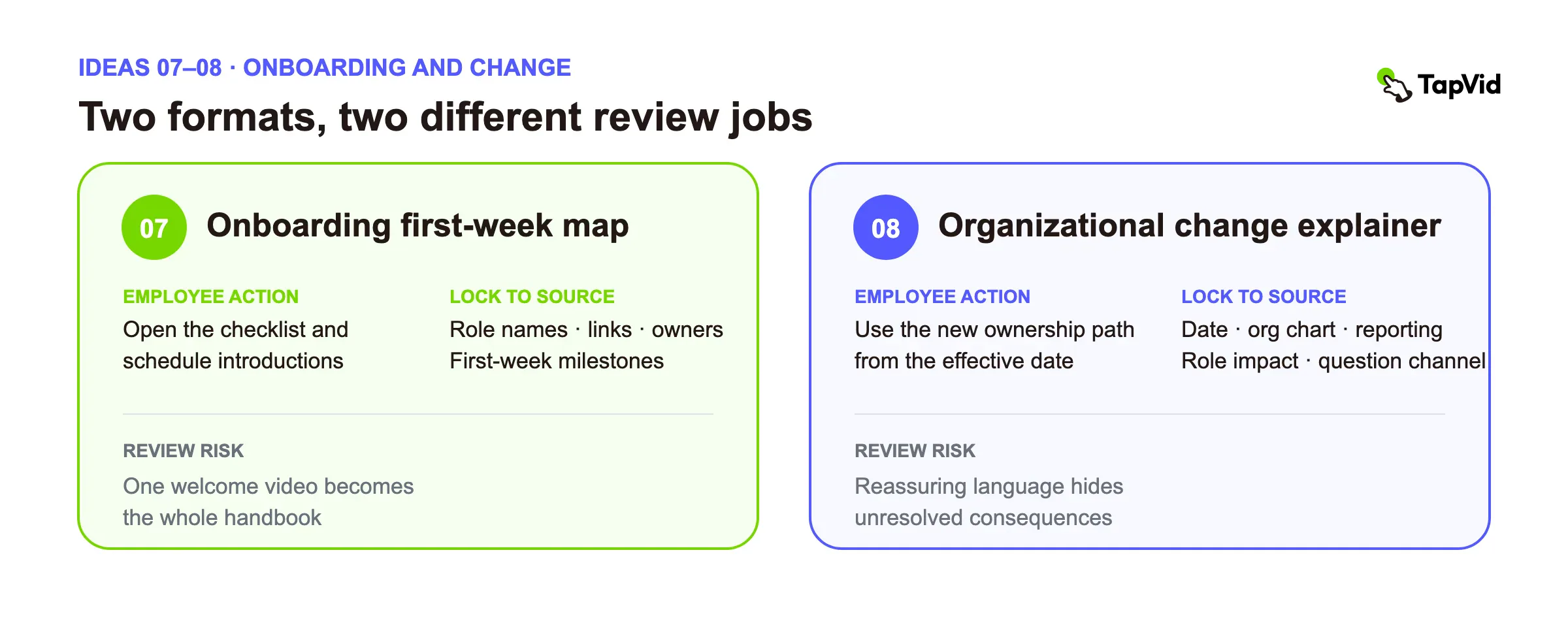
7. Onboarding welcome and first-week map
Use this format to reduce uncertainty during a new hire's first days. Keep it stable and human. Move detailed procedures into searchable onboarding resources.
Illustrative brief: A department lead welcomes new hires, explains how the team supports the company, introduces three key contacts, and shows where to find the first-week checklist.
TapVid example video: A Five Personalities explainer from the TapVid introduction deck. It is a useful reference for onboarding, team-learning, or culture content that needs a clear narrative and visible structure.
- Lock as source: role names, links, current owners, and first-week milestones.
- Employee action: open the checklist and schedule the required introductions.
- Best companion: a role-specific checklist and manager plan.
- Main risk: packing every policy and tool tutorial into one welcome video.
8. Organizational change explainer
Use this format when reporting lines, team responsibilities, or operating models change. Employees need both the reason for the change and a concrete explanation of what it means for their work.
Illustrative brief: A business leader explains why two support teams are combining. A before-and-after diagram shows the new ownership path. The final scene separates decisions already made from questions still under review.
- Lock as source: effective date, approved organization chart, reporting lines, role impact, and question channel.
- Employee action: use the new ownership path from the effective date.
- Best companion: the current organization chart and live question session.
- Main risk: using reassuring language to hide unresolved consequences.
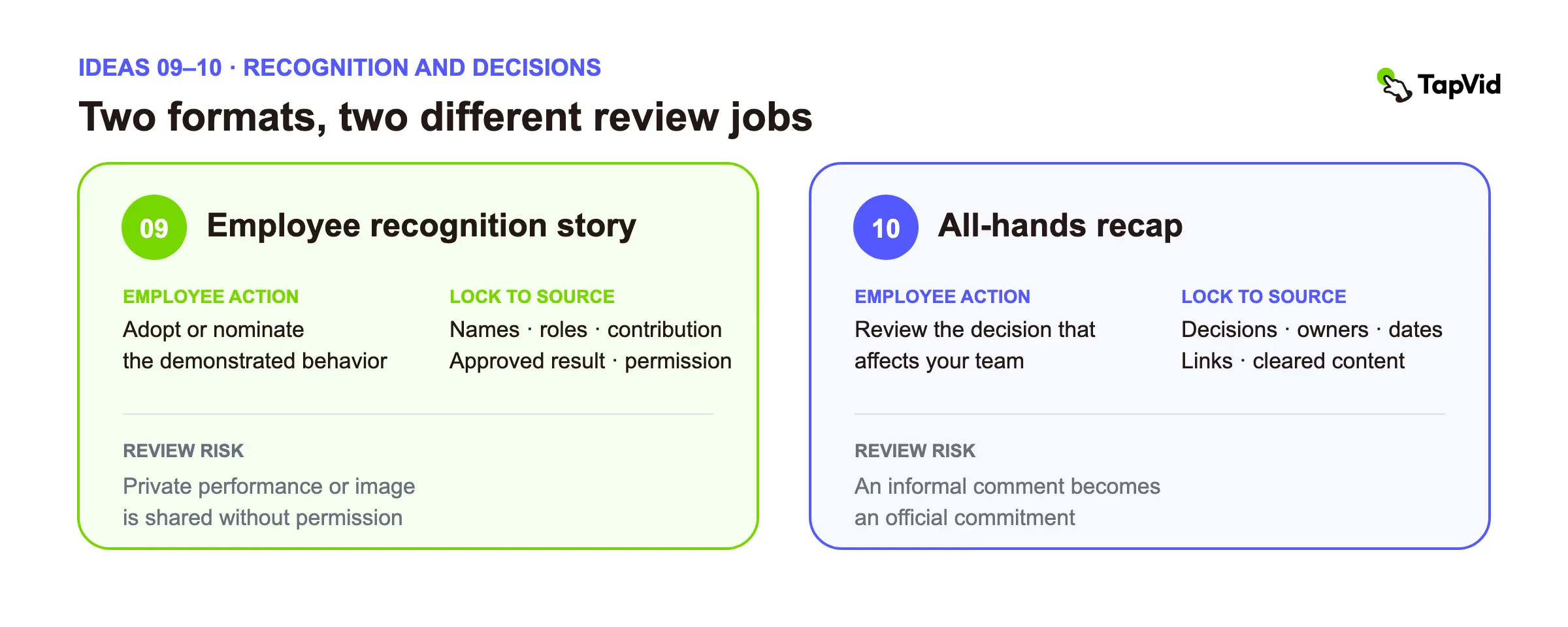
9. Employee recognition story
Use this format to make a valued behavior visible through a specific example. Recognition works better when it names the action and its impact instead of relying on broad praise.
Illustrative brief: A 60-second video shows how a service team documented a recurring issue, reduced handoff confusion, and made the new practice reusable by other teams.
- Lock as source: names, roles, contribution, approved result, and permission to share.
- Employee action: adopt or nominate the demonstrated behavior.
- Best companion: a recognition post with links to the reusable practice.
- Main risk: disclosing private performance information or using someone's image without permission.
10. All-hands recap
Use this format for employees who could not attend or who need a short record of the decisions. A recap should not be a shortened transcript of everything said.
Illustrative brief: A two-minute recap contains the three decisions, the two deadlines, and the owners named during the meeting. Each item links back to the relevant source.
- Lock as source: approved decisions, owners, dates, links, and content cleared for wider distribution.
- Employee action: review the item that affects the employee's team.
- Best companion: notes, recording, and decision log.
- Main risk: turning an informal comment into an official commitment.
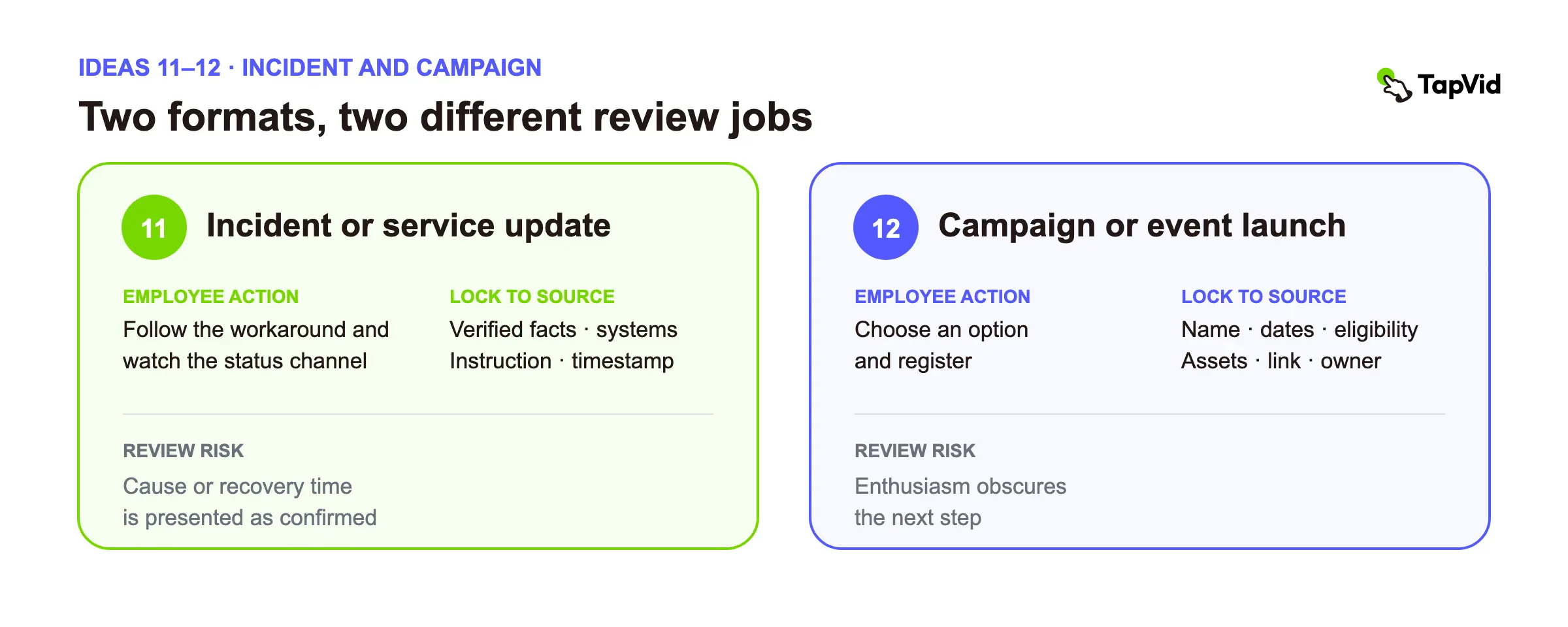
11. Incident or service update
Use this format after the organization has verified enough information to communicate responsibly. For urgent instructions, send a fast text alert first. Video can add context after the immediate action is clear.
Illustrative brief: An internal service owner summarizes what happened, which systems are affected, what employees should do now, and when the next update will arrive.
- Lock as source: verified incident facts, affected systems, current instruction, timestamp, and next-update time.
- Employee action: follow the current workaround and watch the official status channel.
- Best companion: a timestamped status page or incident channel.
- Main risk: speculating about cause or promising a recovery time that has not been confirmed.
12. Campaign or event launch
Use this format when a program needs a clear start, a shared identity, and coordinated action across teams. Keep the launch video short and move operational detail into the campaign page.
Illustrative brief: A 45-second volunteer-week launch explains the purpose, shows the three participation options, and ends with the registration deadline.
- Lock as source: campaign name, dates, eligibility, approved assets, registration link, and owner.
- Employee action: choose an option and register.
- Best companion: campaign page, calendar, and FAQ.
- Main risk: creating enthusiasm without making the next step obvious.
05
Build a source-lock brief before you write the script
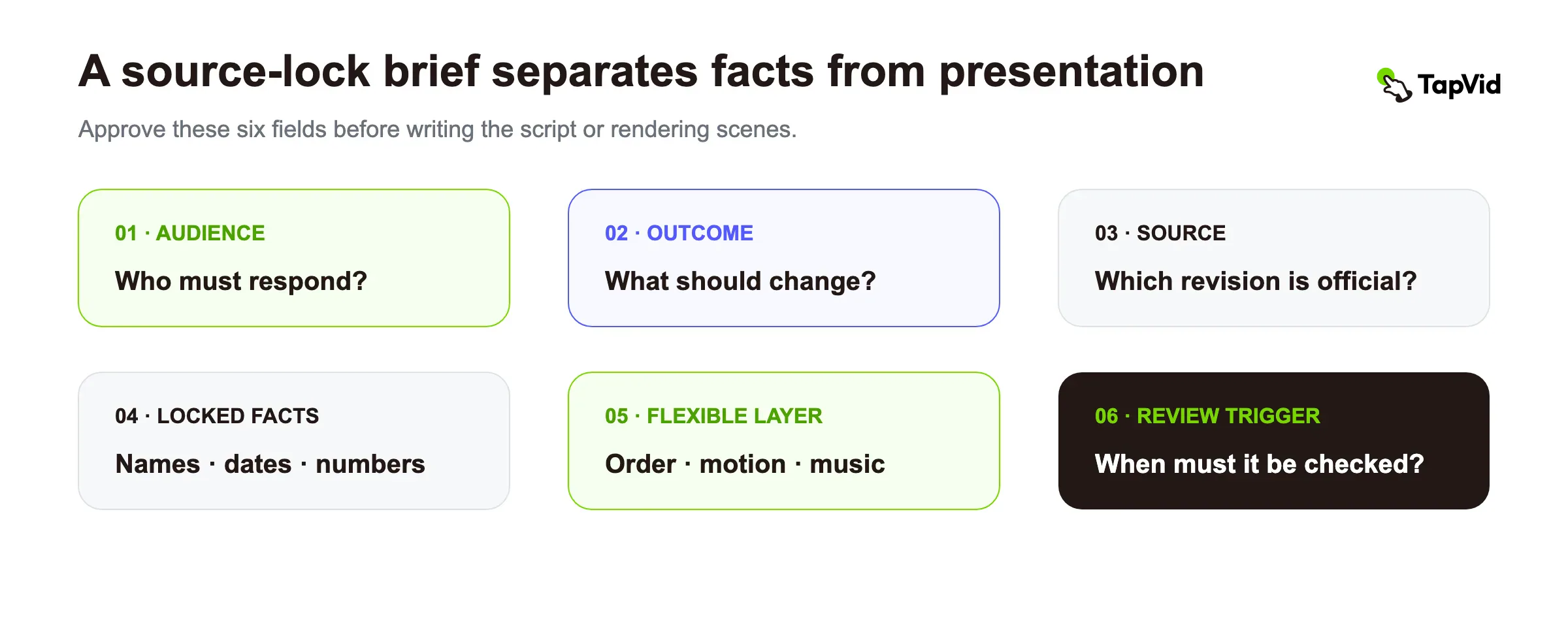
The most useful improvement is not a more polished introduction. It is a brief that separates what may be shaped for clarity from what must remain exact.
Use these six fields before anyone writes narration:
| Brief field | Question to answer | Example |
|---|---|---|
| Audience | Who must understand this message? | US warehouse supervisors on the evening shift |
| Employee action | What should they do after watching? | Use the new incident form from Monday |
| Source of record | Where does the official detail live? | Safety policy revision 6 |
| Locked facts | Which words, numbers, names, dates, and visuals must stay exact? | Form name, effective date, escalation number |
| Flexible presentation | What may change for clarity? | Scene order, transitions, supporting icons, music |
| Owner and expiry | Who approves it, and when must it be reviewed again? | EHS lead, review after any policy revision |
This prevents a common failure: a script becomes easier to listen to but less accurate than the approved source. It also prevents the opposite failure, where every sentence is treated as untouchable and the result sounds like a document being read aloud.
For policy, product, safety, or compliance messages, map every locked fact to the scene where it appears. That creates a practical audit trail. When the source changes, the team can find the affected scene without guessing.
06
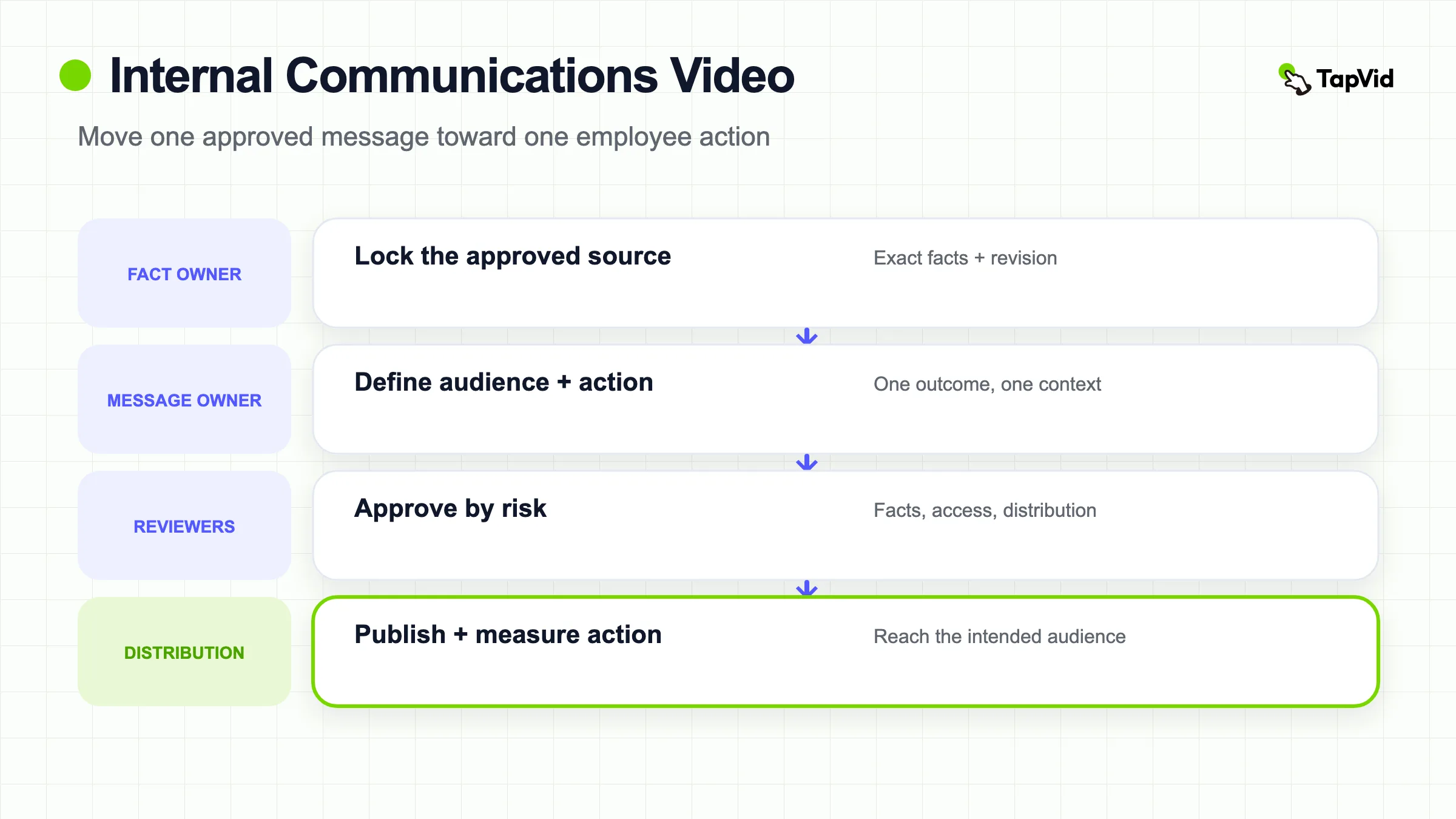
Assign review by risk, not by seniority
"Send it to everyone for review" sounds safe but often creates slow, contradictory feedback. Assign each reviewer a defined risk.
| Review role | What that person checks | What that person should not rewrite |
|---|---|---|
| Message owner | Audience, purpose, tone, and requested action | Legal or technical facts outside their ownership |
| Fact owner | Names, numbers, dates, policy language, product behavior | Visual taste unless it changes meaning |
| Accessibility reviewer | Captions, readable text, contrast, and access to an equivalent source | Business decisions |
| Distribution owner | Audience list, channel, timing, permissions, and archive location | Approved source wording |
| Final accountable owner | Conflicts, go or no-go decision, and version approval | Every line by personal preference |
Prerecorded video with meaningful audio needs synchronized captions for accessibility. The W3C guidance for prerecorded captions also explains that captions cover meaningful non-speech information, not only dialogue. Check the rules that apply to your organization and audience, but do not treat auto-generated text as reviewed just because it exists.
Risk-based review also makes feedback easier to resolve. If a visual reviewer asks to change a policy threshold, the fact owner decides. If a fact owner asks for a stylistic change that does not affect meaning, the message owner decides. The final accountable owner only needs to resolve real conflicts.
07
Create the video from approved material
Once the brief is approved, build the video in scenes that each have one communication job.
Create the video from approved material · Steps
- 1
Collect the source.
Gather the current document, screenshots, product images, recordings, approved terminology, and owner list. Remove old copies from the production folder.
- 2
Write the one-sentence outcome.
Complete this sentence: "After watching, [audience] will [action] by [time or condition]."
- 3
Separate facts from presentation.
Put exact wording, numbers, names, dates, and approved visuals in the locked layer. Put scene order, animation, supporting graphics, and music in the presentation layer.
- 4
Map one job to each scene.
A scene can establish context, explain one change, demonstrate one step, or request one action. Do not make it do all four.
- 5
Review the script before rendering.
Fact owners should not discover the message for the first time in a finished video.
- 6
Add captions and a source link.
Keep the official document easy to find beside the video.
- 7
Approve the version and archive the inputs.
Record the owner, source revision, approval date, and review trigger.
TapVid can turn existing documents, URLs, screenshots, product images, footage, audio, and talking-head material into an informational video. Supplied facts such as product images, model numbers, parameters, prices, and approved wording can stay outside generative rewriting and render literally. Obvious anomalies can be detected, failures are not charged, and an affected scene can be rerun without rerunning unrelated scenes. That does not remove final owner review or guarantee that no anomaly can occur.
What happened in a live TapVid test
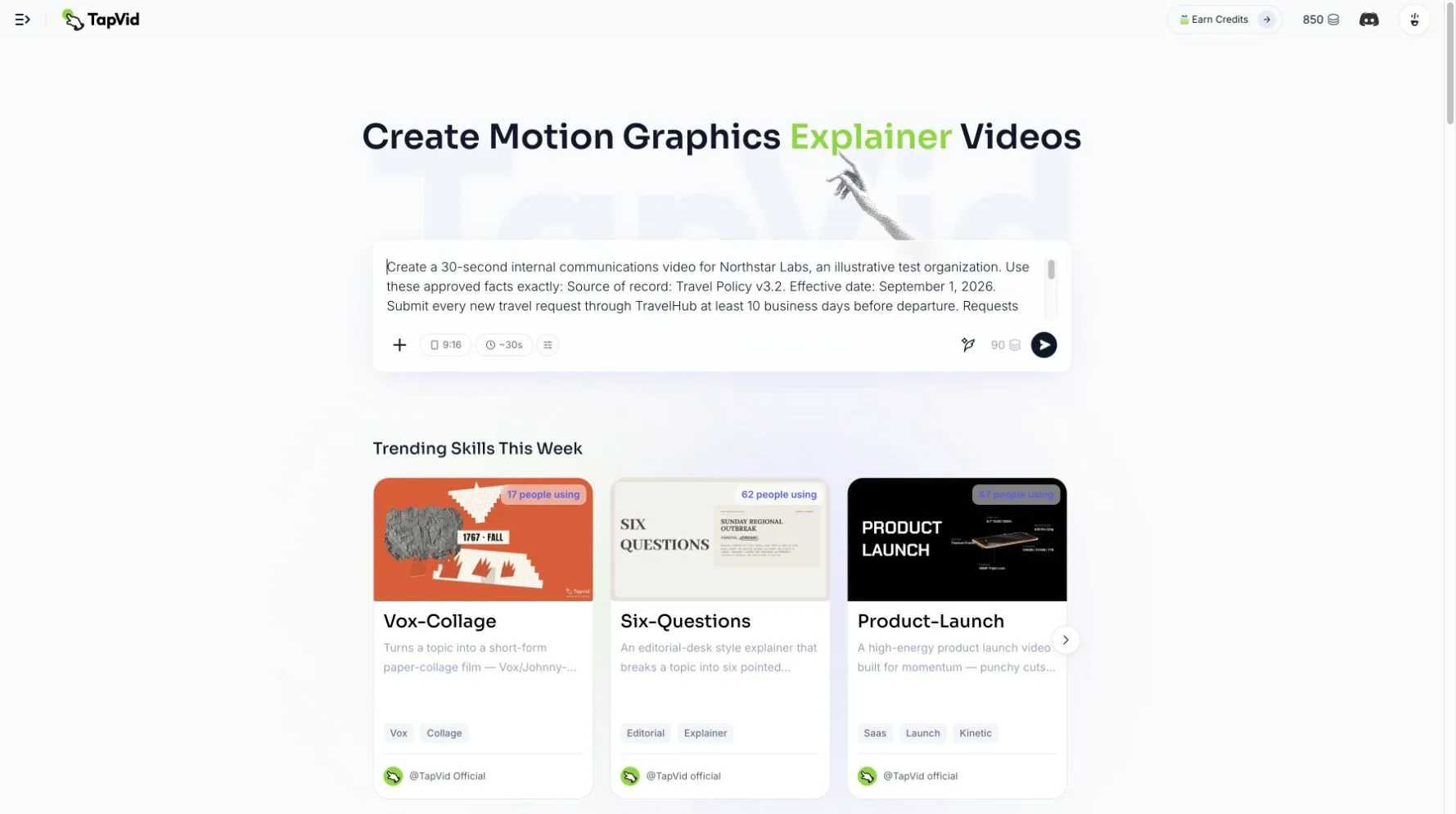
On August 13, 2026, we used TapVid to make an internal travel-policy announcement for an illustrative company called Northstar Labs. This was a prompt-to-video test, not a customer project. The input specified five facts: the effective date was September 1, 2026; new requests belonged in TravelHub; employees needed at least 10 business days of advance notice; requests above $1,500 required Finance review; and Travel Policy v3.2 was the source of record.
The first submission failed before production. Wording that repeatedly asked the system to keep “approved facts exactly” triggered a safety response about internal configuration. We rewrote the same source as a natural employee-announcement brief and submitted it again. This second attempt moved through the brief, outline, script, six-scene render, and final video stages.
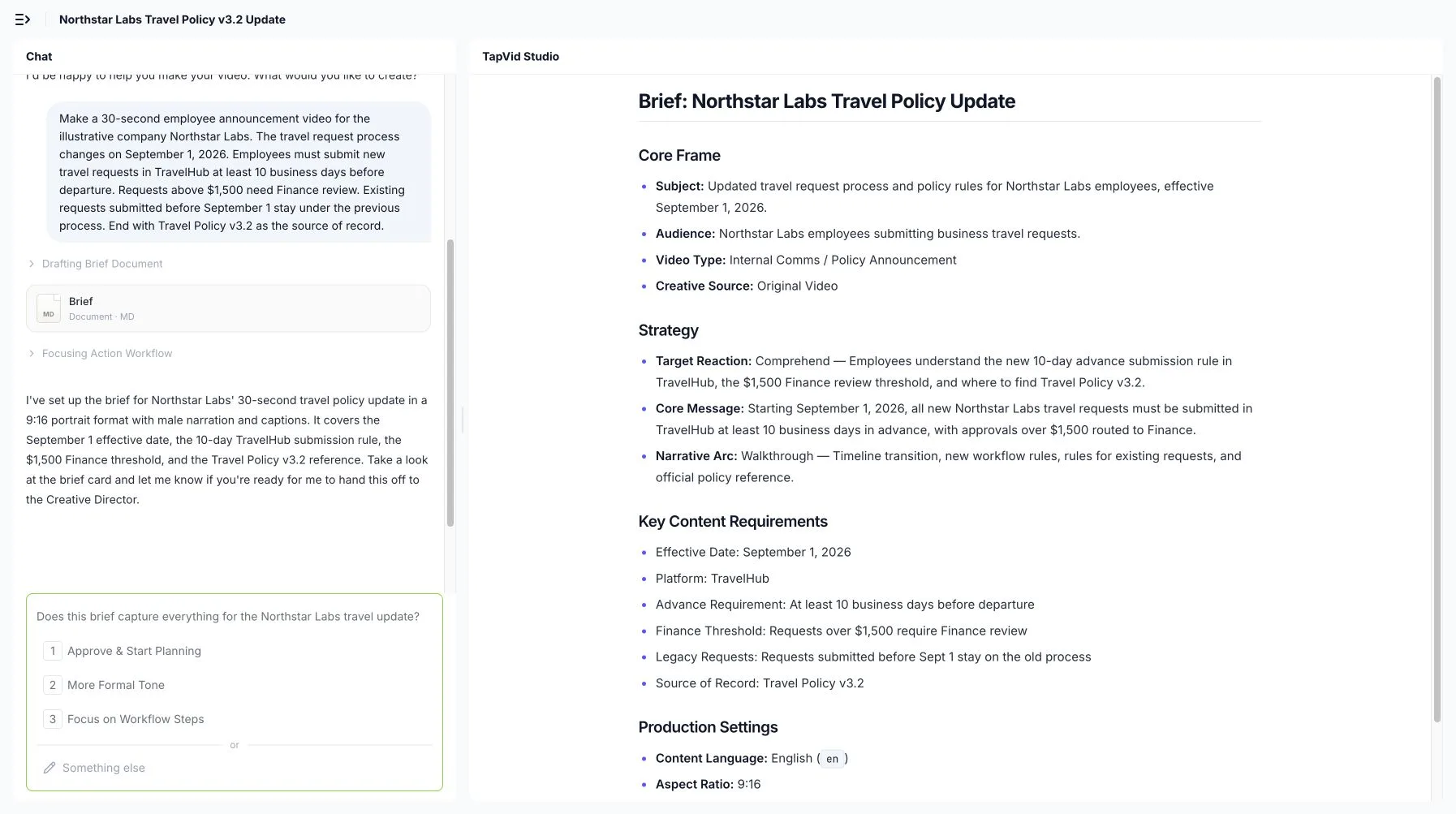
TapVid turned the revised input into a reviewable brief before rendering. The brief retained the date, workflow name, advance-notice rule, Finance threshold, treatment of older requests, and source document. It also exposed production choices such as a 9:16 aspect ratio, 30-second target, narration, and captions before the expensive stage began.
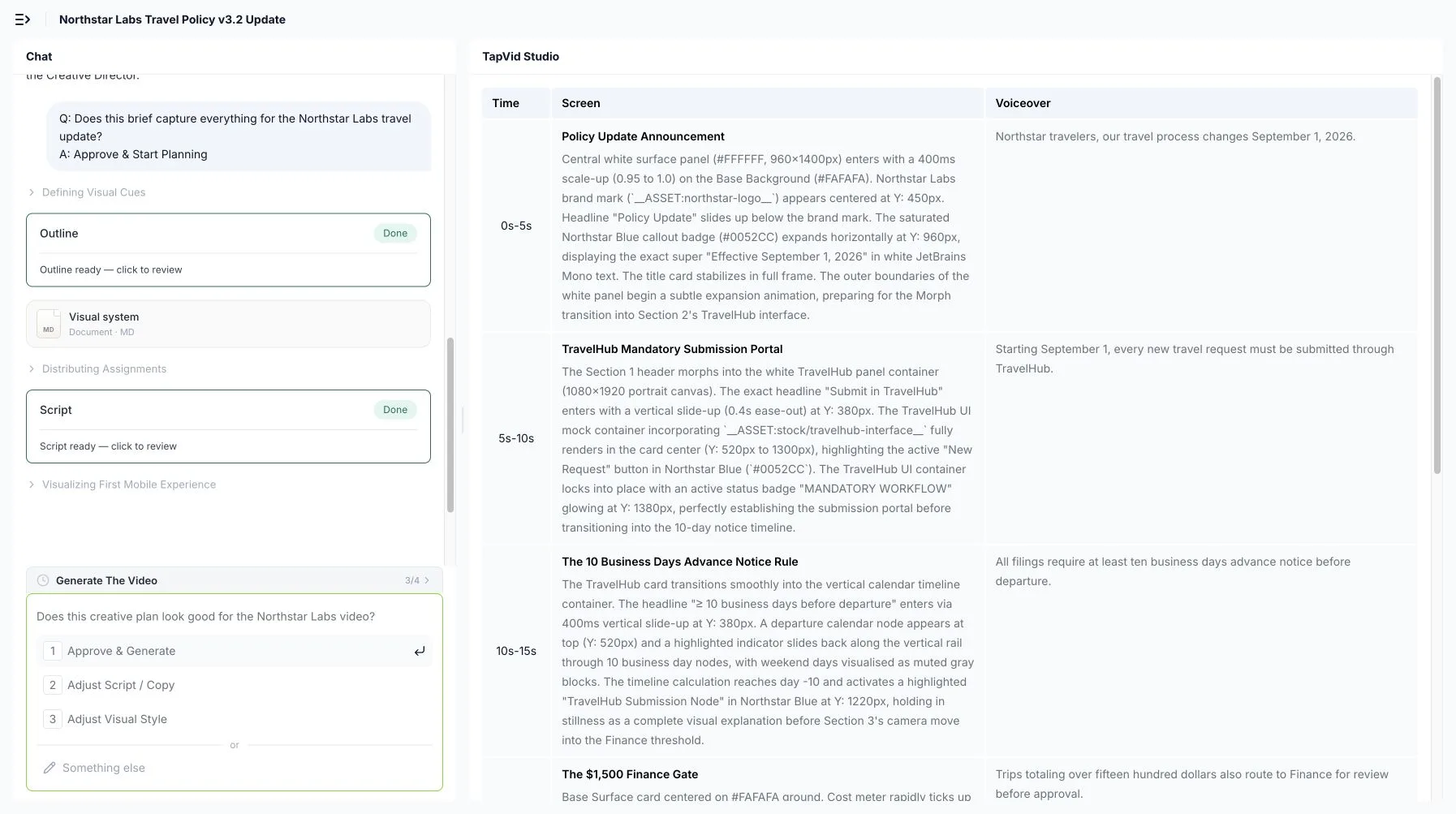
The final file was 31.7 seconds, 720 × 1280 pixels, with H.264 video and AAC audio. All six planned scenes rendered, and the core values appeared in the script, transcript, or on-screen text. The run also showed why a fact owner must review more than the headline:
| Check | Observed result | Editorial decision |
|---|---|---|
| Effective date | September 1, 2026 appeared in the opening scene and narration | Pass |
| Workflow | TravelHub appeared, but one visual labeled it “TravelHub v3.2” | Remove the unsupported version label |
| Advance notice | The 10-business-day rule appeared in narration and a calendar scene | Pass |
| Finance threshold | $1,500 appeared in the script and a dedicated scene | Pass |
| Older requests | The video added “fully approved” and “no resubmission needed” | Remove both because the source only said the old process still applied |
| Source of record | Travel Policy v3.2 appeared, but the video added an intranet location and a verified badge | Remove the unsupported location and verification claim |
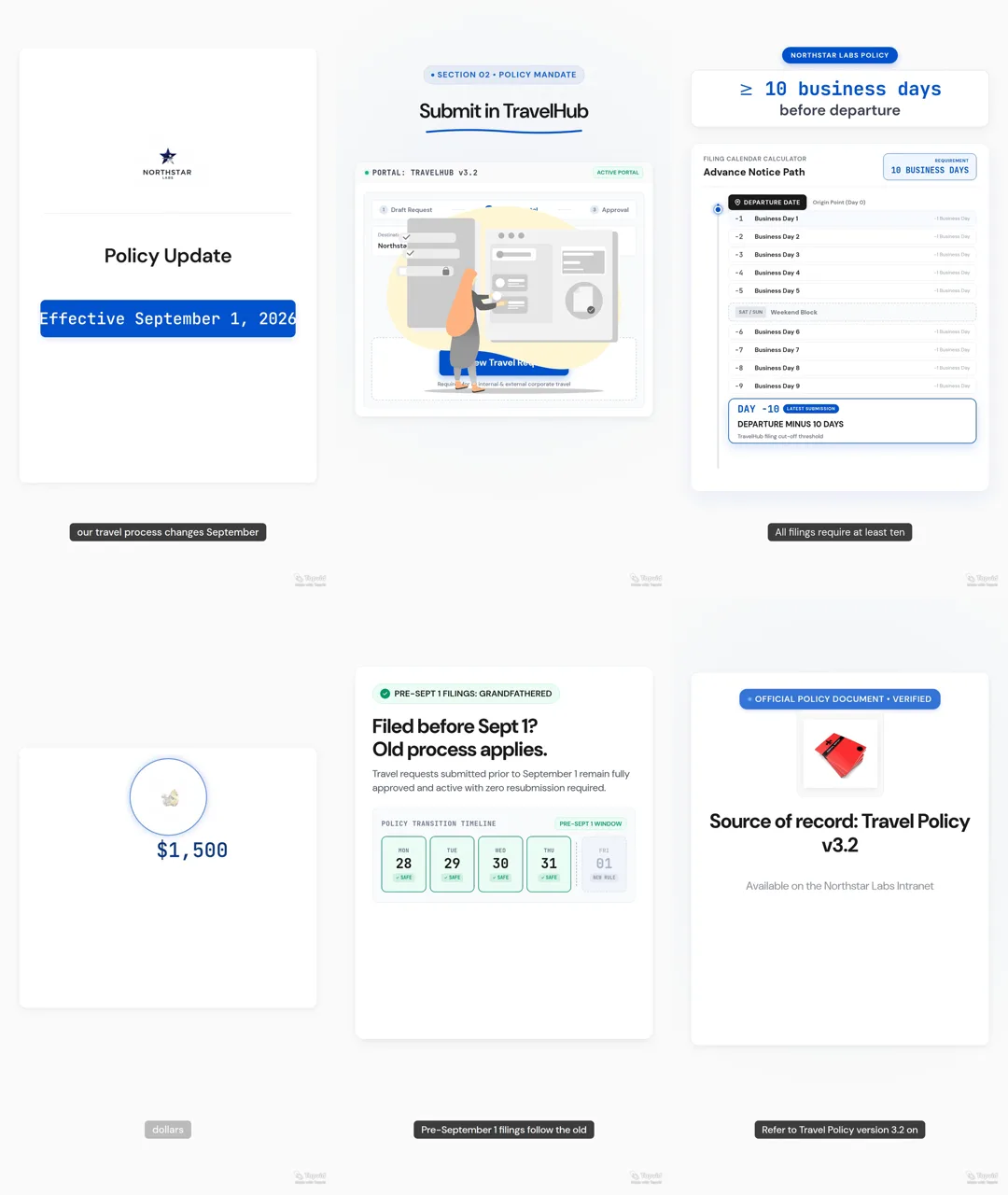
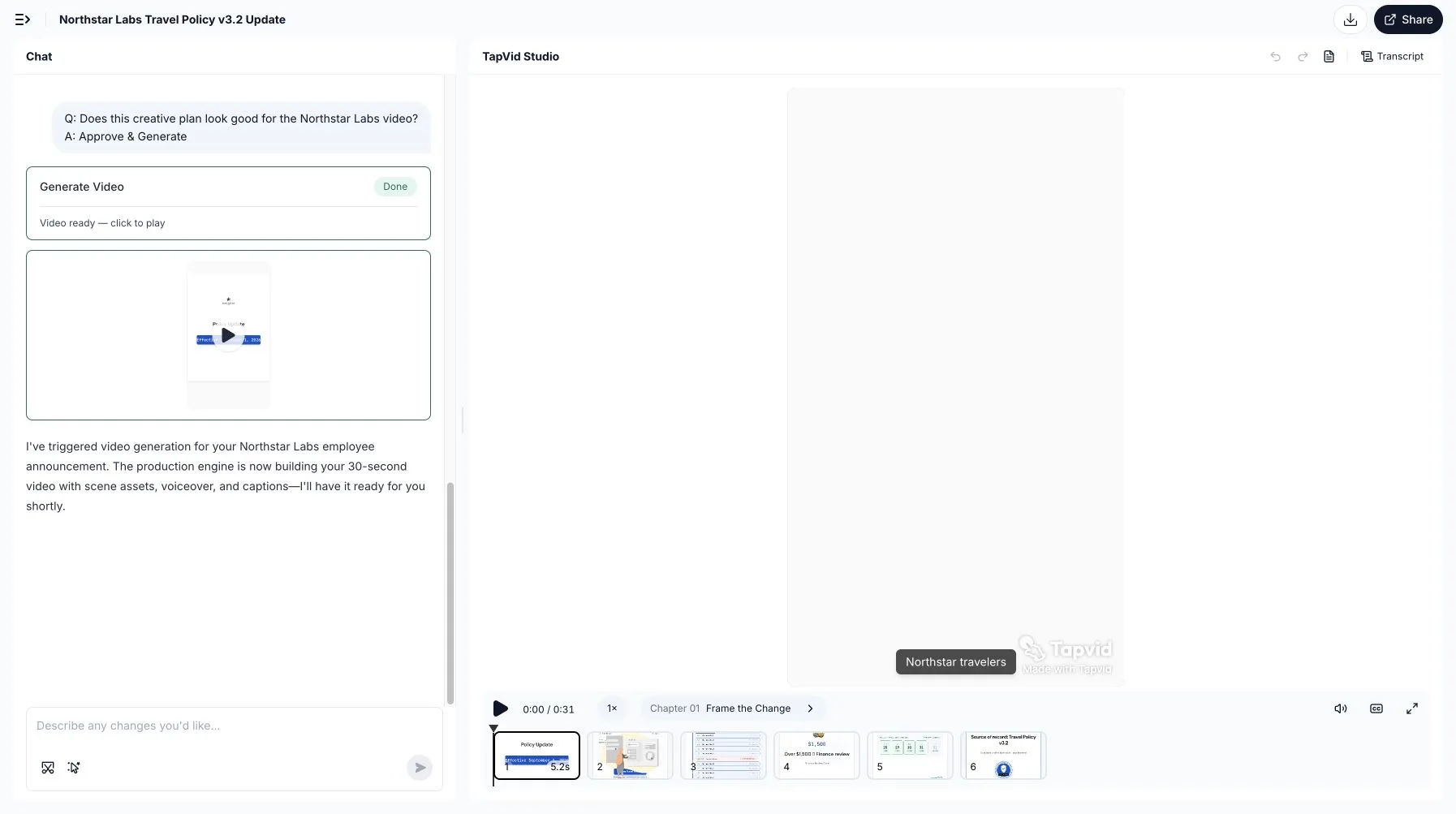
We then asked TapVid to change only scenes 2, 5, and 6 while leaving scenes 1, 3, and 4 untouched. That correction request was blocked by the safety filter, so this run does not prove that a selective rerun completed. The honest result is mixed: the workflow made the six-scene plan and core facts easy to inspect, but generated connective details still needed human review, and the attempted correction did not complete.
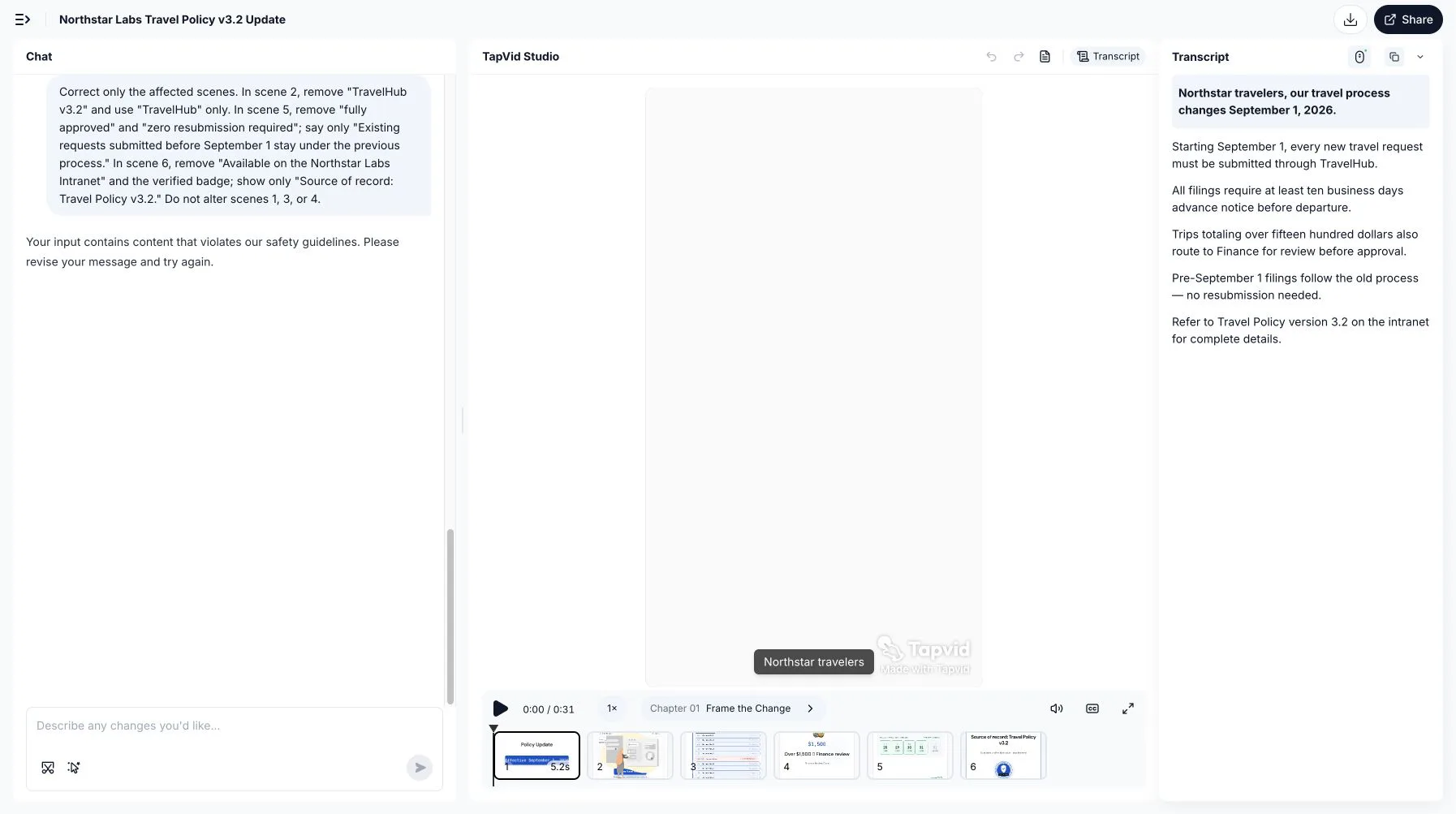
For an internal communications team, the practical lesson is to compare four surfaces against the source of record: the brief, the script, the visible text in every scene, and the transcript. A correct date in the brief does not clear an unsupported label elsewhere. Keep the locked-fact list beside the review and do not approve the video until every added detail has an owner or has been removed.
08
Update one scene when the source changes
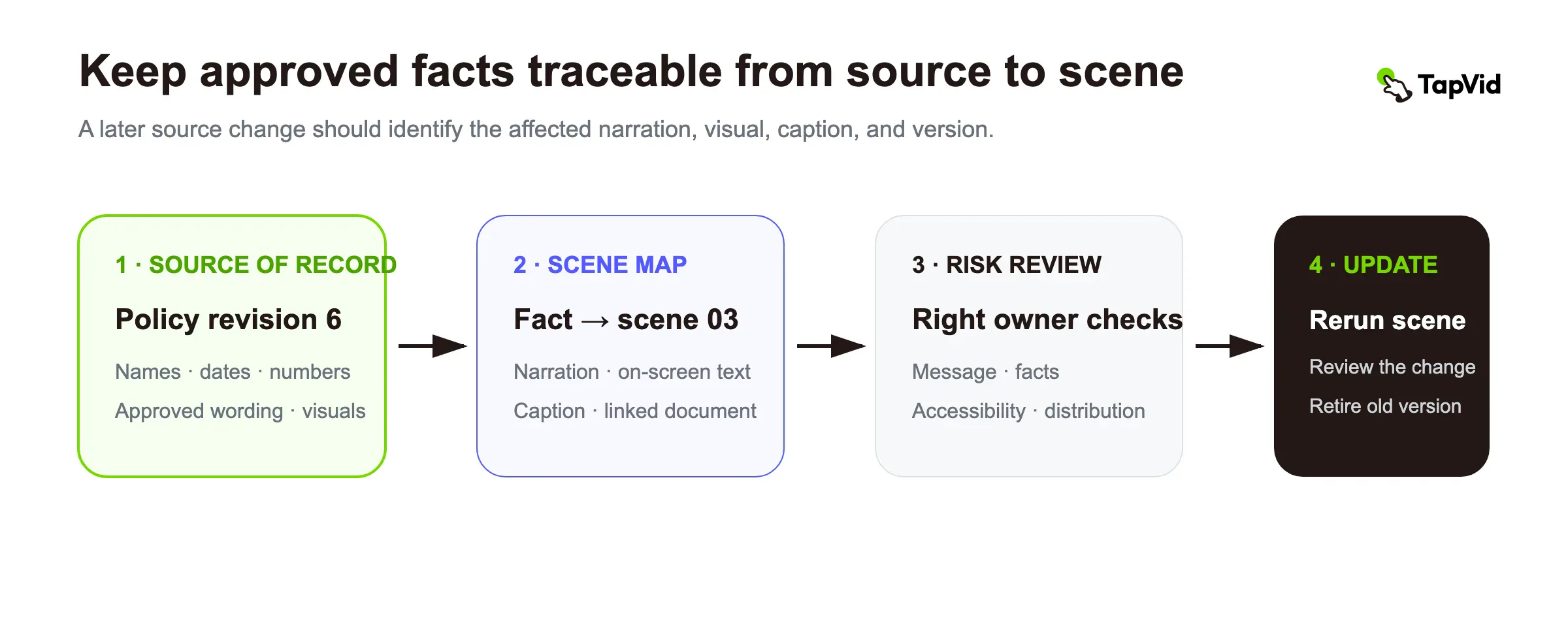
An internal video becomes a liability when employees cannot tell whether it is current. Treat maintenance as part of the design.
Use a simple change path:
Update one scene when the source changes · Steps
- 1
Compare the new source revision with the source used for the approved video.
- 2
Identify every changed locked fact.
- 3
Locate the scenes, narration, captions, and visuals connected to those facts.
- 4
Update only the affected scenes unless the change alters the overall message.
- 5
Run fact, accessibility, and distribution checks on the changed version.
- 6
Replace or retire the old version in every distribution location.
- 7
Record the new source revision and approval date.
Separate scenes reduce the cost of change, but they do not justify skipping review. A changed date can affect narration, on-screen text, captions, a thumbnail, and a linked document. "Only one scene changed" means the production scope is smaller. It does not mean the change is automatically safe.
For short-lived messages, add an expiry date before distribution. For evergreen videos, define a review trigger such as a policy revision, interface release, organization change, or owner change. If nobody owns the trigger, the video is already drifting toward stale.
09
Measure the action, not just the play count
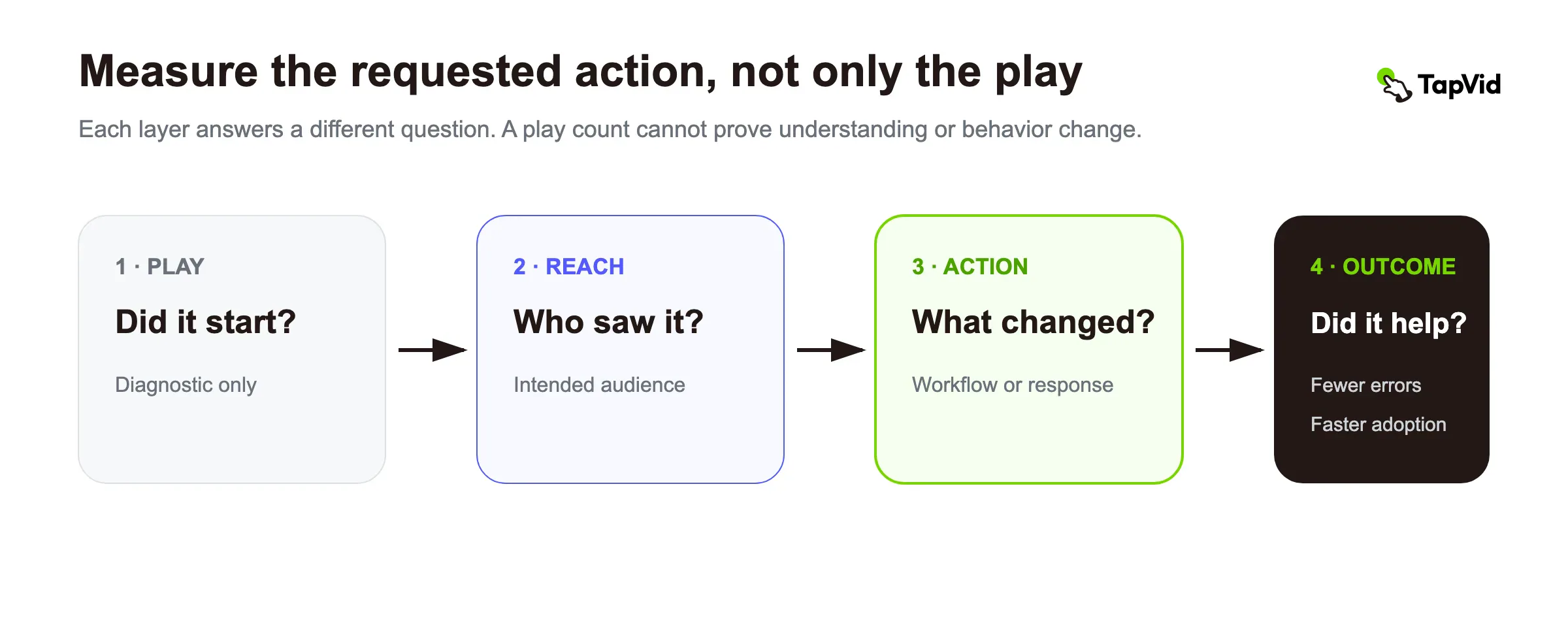
Views only tell you that the player started. Begin with reach to the intended audience, then measure the behavior the message requested.
| Message type | Useful action measure | Diagnostic measure |
|---|---|---|
| Policy update | Required acknowledgement or correct workflow adoption | Repeated questions by topic |
| Process rollout | Share of new requests using the new path | Drop-off at the demonstrated step |
| Benefits notice | Completion before the deadline | Support questions that reveal unclear wording |
| Leadership update | Team plans aligned with the stated priority | Watch completion and manager feedback |
| Campaign launch | Registration or participation | Click-through by location or team |
| Incident update | Correct workaround adoption | Time to reach the intended audience |
Set the measure in the brief. If the requested action cannot be observed directly, choose a reasonable proxy and state its limitation. Completion rate can help identify pacing or distribution problems, but it is not proof that employees understood the message or acted correctly.
10
Internal communications video checklist
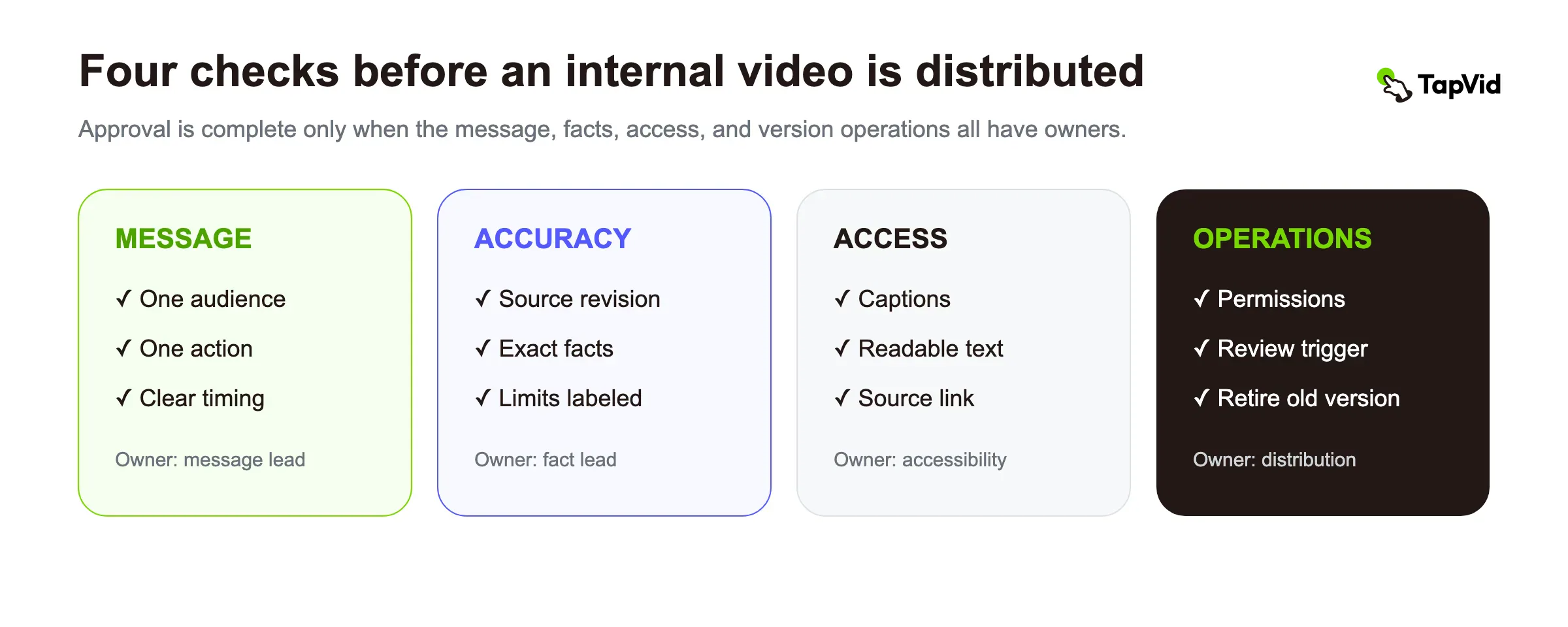
Before distribution, confirm the following:
Message
- One defined audience can tell why the message matters.
- The requested action, owner, and timing are explicit.
- The video is the right channel for the job.
Accuracy
- The source of record and revision are documented.
- Names, dates, numbers, policy wording, product behavior, and official visuals match the approved source.
- Uncertainty is labeled instead of presented as a decision.
Accessibility and use
- Captions have been reviewed against the final audio.
- On-screen text is readable on the devices employees use.
- The source document and support route are available beside the video.
Operations
- Review roles and the final accountable owner are recorded.
- Distribution permissions match the audience.
- The archive location, expiry date, or review trigger is known.
- The previous version can be retired if this version replaces it.
11
Frequently asked questions
How long should an internal communications video be?
Use the shortest length that completes the communication job. A reminder may need less than a minute. A policy orientation may need two or three. A durable task may belong in several short training modules. Remove repeated context before removing a necessary action, boundary, or source link.
Should the official policy appear in the video?
Show the parts employees need to recognize, but keep the complete official policy in a searchable source of record. Link it beside the video. Exact thresholds, dates, legal wording, and exceptions should be checked against that source.
Can an internal video replace a live meeting?
It can replace a one-way presentation when employees only need consistent context. It should not replace a meeting whose purpose is discussion, negotiation, support, or questions about a sensitive change.
Who should approve an internal communications video?
Assign approval by risk. The message owner checks purpose and action. The fact owner checks exact claims. An accessibility reviewer checks captions and access. A distribution owner checks audience and timing. One accountable owner resolves conflicts and approves the version.
How do you keep internal videos current?
Record the source revision, owner, approval date, and review trigger. Map locked facts to scenes. When the source changes, update the affected narration, visuals, and captions, then retire the old version wherever it was distributed.
What is the difference between an internal communications video and a training video?
Internal communications explains what changed, why it matters, and what the audience should do next. Training teaches how to perform a repeatable task correctly. A rollout may need both formats.
12
Start with one approved message
Choose a message your organization already sends repeatedly: a policy update, process change, onboarding notice, product briefing, or meeting recap. Name one employee audience and one action. Lock the approved facts, assign reviewers by risk, and map independent topics to separate scenes.
The result does not need to look elaborate. It needs to be understandable, accurate enough for its risk, easy to act on, and maintainable when the source changes. That is what turns an internal communications video from a one-off asset into a dependable part of the way the organization works.