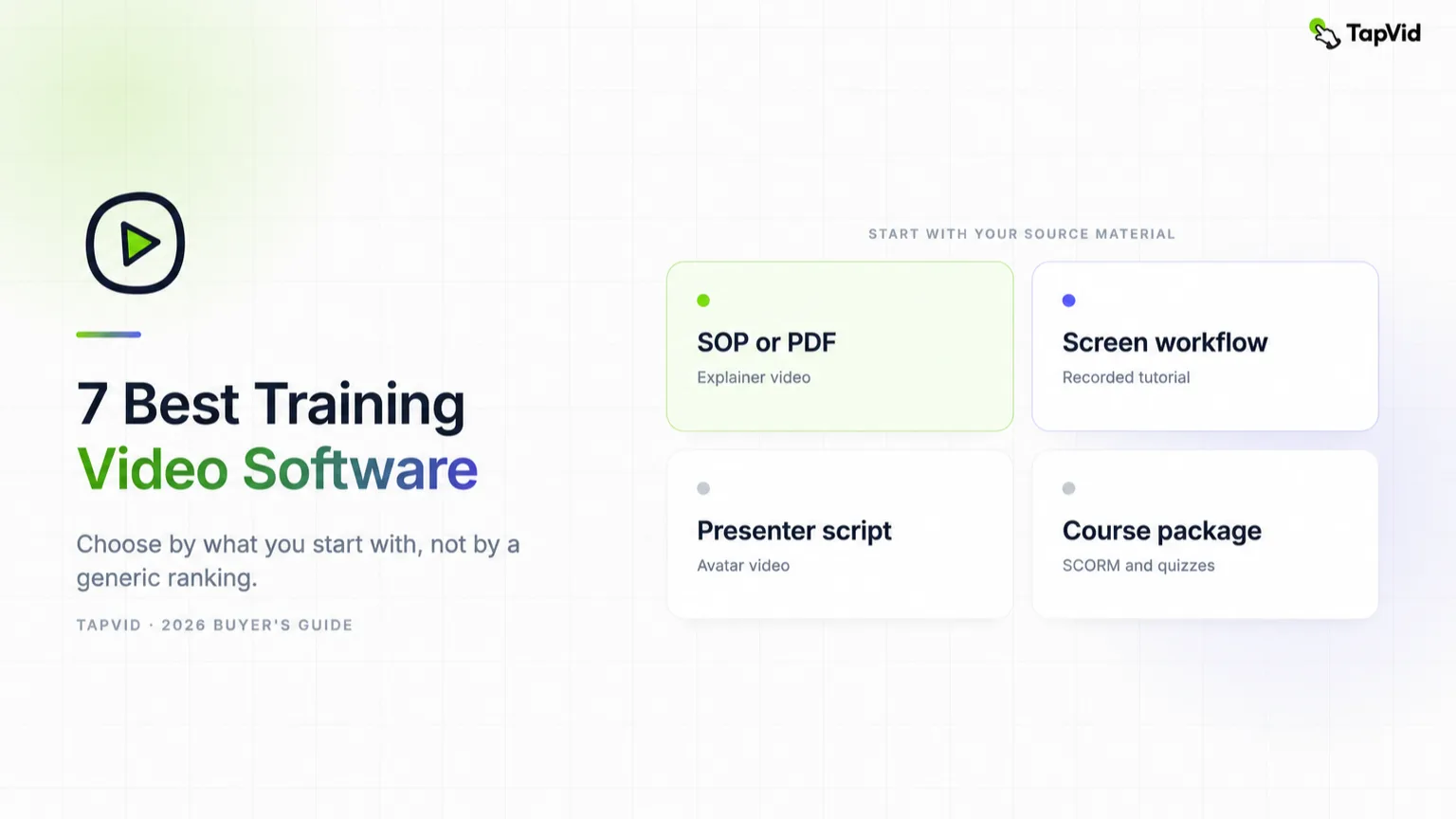

The best training video software depends on what you already have. A team with a finished SOP needs a different product from someone recording a software walkthrough. An L&D manager who needs SCORM, quizzes, and learner records has another job again.
That distinction matters because most comparison pages rank screen recorders, AI avatar makers, animation tools, and learning platforms in one list. The result looks useful but makes buying harder. This guide sorts seven browser-based tools by input, output, and delivery requirement. I ran the same 205-word customer-support SOP through six products as far as their free accounts or existing workspaces allowed. The test exposed differences that pricing pages hide: Vyond produced a complete 87-second draft in 46 seconds, Knowlify rendered only the first 14 seconds of a planned 62-second video, Synthesia remained at 18% after ten minutes, and Descript would not start with the credits available. Loom's Atlassian sign-up stopped at a human reCAPTCHA, so Loom received an access check rather than an editor test and its section is explicitly limited to vendor-published facts.
Disclosure: I lead go-to-market at TapVid, one of the products in this guide. TapVid is an Explainer Video Engine that turns existing text, articles, PDFs, scripts, PRDs, and product copy into structured explainer videos. I have placed it only in the use case it is built for and have called out the checks a training team should make before buying.
01
Current TapVid terms — October 14, 2026
The dated tests and price observations below are historical records, including any 3-credit-per-second or 180-credit quote. They do not establish today’s price. Simple videos are currently estimated at about 4 credits per second; scene complexity can increase usage. Use the credit quote shown in the app before generating.
The $4.99 trial includes one video generation for 3 days and renews as Pro at $49/month unless canceled before it ends. Subscription credits do not roll over; add-on packs are valid for 12 months. Pro, Max and Ultra include watermark-free 1080p MP4 export. A free account does not establish a free generation or export entitlement. Check current plans, prices and trial terms before purchase.
02
The short answer
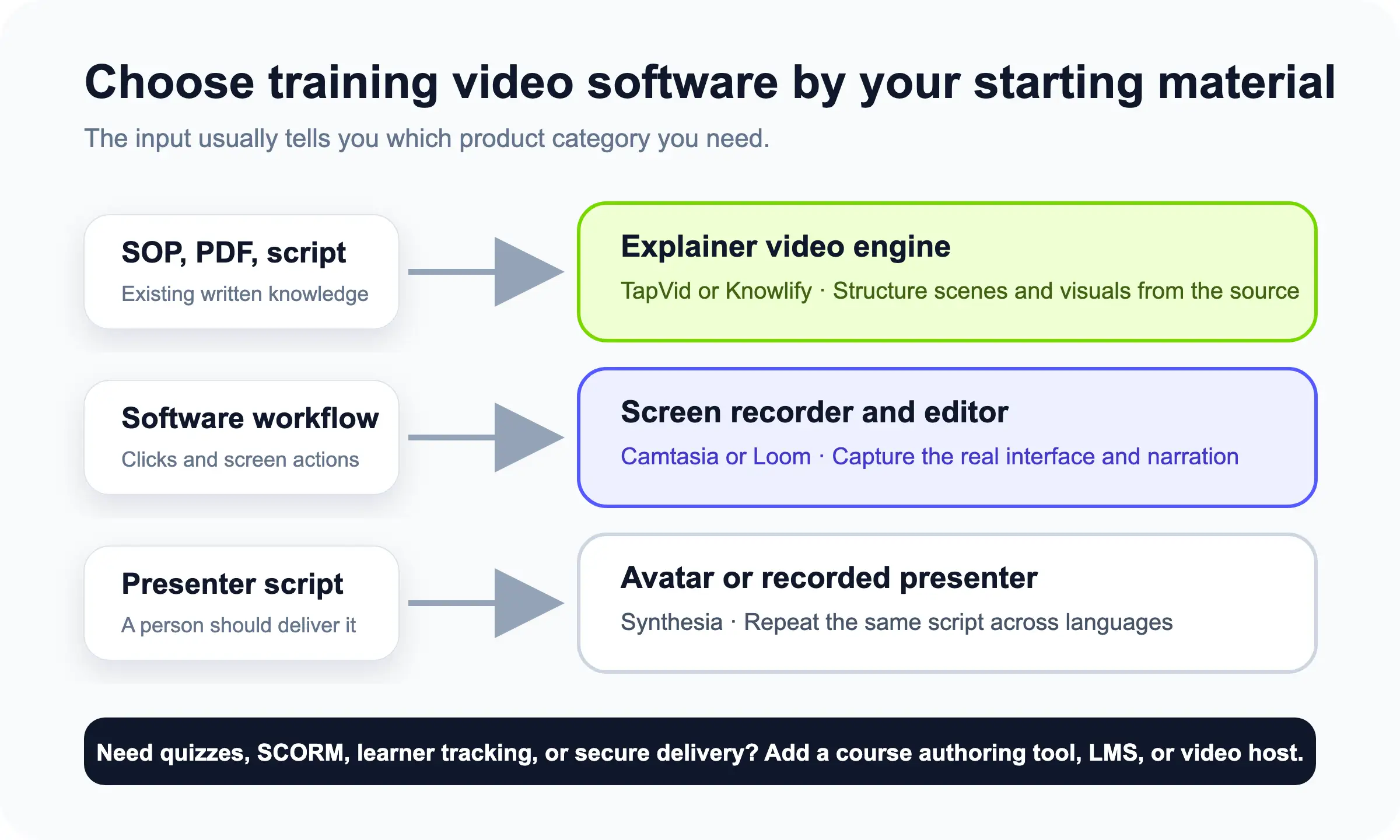
If you start with an SOP, PDF, or script and want a motion-rich explainer, shortlist TapVid and Knowlify. Choose Synthesia when a consistent avatar presenter and language coverage matter. Use Vyond for character-led workplace scenarios, Vimeo for lightweight template editing plus hosting, and Descript when the source is recorded speech. For exact software clicks, use a dedicated screen recorder; I did not rank a desktop recorder because this test excluded products that required a download.
| Tool | Best for | Main input | Main output | Shared SOP test result |
|---|---|---|---|---|
| TapVid | Turning existing SOPs and scripts into visual explainers | Text, PDF, link, script | Motion-rich explainer video | Full script loaded; setup and credit preview verified, final render not run |
| Knowlify | Document-to-training workflows | Document, URL, video | AI training video | 14-second preview from a planned 62-second video; editing required paid access |
| Synthesia | Avatar-led multilingual training | Script, document | Presenter video | Complete script submitted; render remained at 18% after ten minutes |
| Vyond | Animated workplace scenarios | Prompt, script, document | Character and mixed-style animation | Complete 87-second talking-head draft generated in 46 seconds |
| Vimeo | Hosting, access, and viewer data | Finished video, live stream | Hosted interactive video | Eight-scene, 29.7-second employee-training template draft created |
| Descript | Editing recorded training by transcript | Audio, screen, video | Edited recorded lesson | Script accepted, but generation was disabled because the account lacked credits |
| Loom | Fast internal screen walkthroughs | Screen, camera, audio | Shareable screen recording | Access check only: human reCAPTCHA blocked editor and recorder verification |
The same 205-word customer-support SOP was used wherever account access allowed. A completed draft, partial preview, stalled render, or blocked sign-up is reported as observed rather than normalized into a marketing score. Pricing and plan limits are checked in each product section; recheck the linked official page before purchase.
03
What counts as training video software?
Training video software is any product used to create, edit, package, host, or measure video that teaches a defined task or concept. That definition covers several product categories, but a single team rarely needs every category.
Creation tools turn source knowledge into a video. Delivery tools control where the video lives, who can watch it, and what the team can measure. Course authoring tools add quizzes, navigation, or LMS packaging. A screen recorder can be excellent at showing a workflow and still be the wrong purchase for a policy explanation.
This split also changes how you judge quality. Research on educational video gives us useful criteria, even though it does not name a winning product. Guo, Kim, and Rubin analyzed 6.9 million viewing sessions across four edX courses in 2014 and found that shorter videos were more engaging in that MOOC setting. It would be wrong to turn that into a universal corporate rule, but it is a good reason to test whether a tool helps you break long material into focused sections.
Cynthia Brame's 2016 peer-reviewed review of effective educational videos organizes the work around cognitive load, engagement, and active learning. Those are better buying criteria than the size of a template library. A useful tool should help the learner follow the explanation, not merely make the video look busy.
04
How I evaluated the seven tools
I used six questions that map to an actual production decision:
- What can you start with? A finished SOP, a rough script, a live screen workflow, a recording, or a PowerPoint deck.
- What does the product create? Motion graphics, an avatar presenter, character animation, a screen recording, or a course package.
- How much editing control is available? Check scene structure, narration, captions, brand styling, timing, and replaceable assets.
- Can the result be delivered where your learners are? A downloadable file is different from a secure link, an LMS package, or an interactive lesson.
- What accessibility work remains? Captions, transcripts, contrast, and keyboard access need a specific owner.
- What does the published plan include? Video minutes, export resolution, watermark rules, storage, seats, and AI usage can change the price quickly.
The first research pass used official product and pricing pages for product-specific facts. I then used one shared brief, titled “How to handle a customer bug report,” in every browser product. The script contained six required steps plus an explicit warning never to request passwords, payment-card numbers, or API keys. I recorded access friction, free-account limits, source fidelity, generation time, captions, watermarks, and export restrictions. A blocked or incomplete run is reported as such rather than treated as a successful test.
05
Best training video software, reviewed by use case
06
1. TapVid: best for turning an existing SOP into a visual explainer
Best for: creators and small teams that already have written knowledge and want a structured explainer without building motion graphics from a blank canvas.
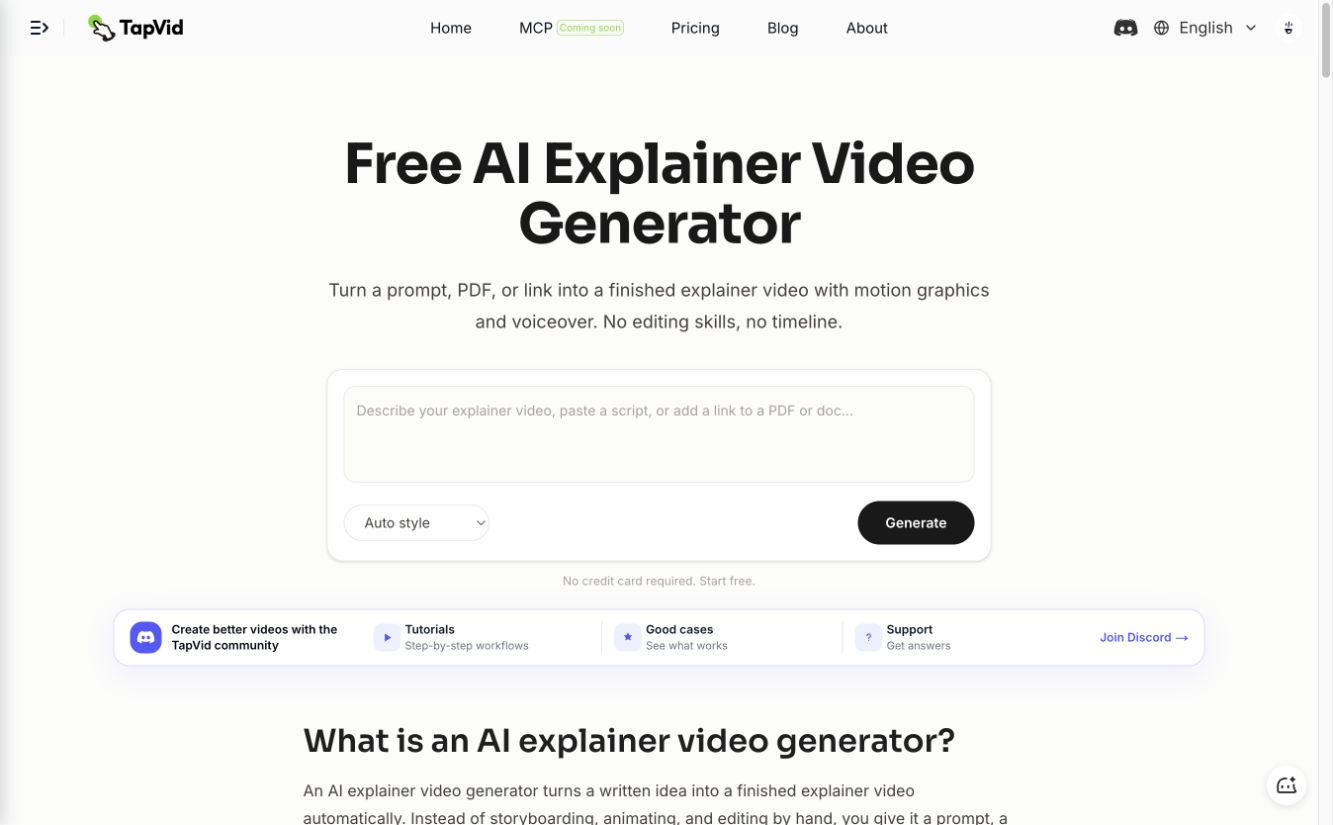
TapVid accepts prompts, PDFs, links, and existing text, then turns the material into an explainer video with scenes, motion graphics, narration, and captions. Its clearest training use case is a concept-heavy SOP, onboarding document, or enablement script where the viewer needs to understand the logic, not watch every mouse click.
The product category matters here. TapVid is an Explainer Video Engine, not a general text-to-cinematic model. It is meant to organize and visualize knowledge you already have. For a policy change, product concept, or process overview, that can reduce the work between the approved source and a watchable explanation.
It is not the automatic pick for every training job. If the learner must reproduce an exact workflow inside a live interface, a real screen recording is safer. If native SCORM packaging, quizzes, learner tracking, or secure hosting is mandatory, verify those requirements before choosing TapVid or pair the finished video with a dedicated course or delivery platform.
TapVid's current pricing lists a $4.99 one-video trial for first-time customers. Monthly plans currently start with Pro at $49 for 2,000 credits and clips up to three minutes; Max and Ultra add more credits, while Ultra allows clips up to five minutes. At about 3 credits per successfully rendered second, estimate the library by duration and recheck the page before purchase.
Hands-on result: I signed into an existing Ultra workspace and loaded the shared SOP. Before generation, the form exposed style, language, voice, aspect ratio, duration, subtitles, and background music. The live quote was 180 credits for about 60 seconds, matching the public rule of roughly 3 credits per rendered second. I stopped before a new render, so this check verifies the current setup and cost preview—not final-render quality. Existing completed projects in the same workspace confirm that the workflow continues through brief, outline, script, render, and export checkpoints.
07
2. Knowlify: best for a document-first training workflow
Best for: teams that want a product marketed specifically around converting documents, URLs, and existing videos into training content.
Knowlify is the closest direct comparison to TapVid in this list because both begin with existing material instead of a blank recording. Its site presents document-to-video, URL-to-video, and video-to-video workflows. That makes it relevant when the source of truth already lives in a manual, policy file, or knowledge-base page.
The buying question is not whether it has AI. Ask how faithfully it preserves the source, how it segments long documents, and how easy it is to correct a wrong scene without regenerating the whole lesson. Training content often contains exact steps or compliance language, so a fluent paraphrase can still be an error.
Knowlify pricing starts at $24 per month when billed annually, or $29 on monthly billing, for a plan that lists 1.5 video minutes. Its Basic plan lists six minutes at $82 per month billed annually or $99 monthly. Those minute caps make a small pilot important before a large rollout.
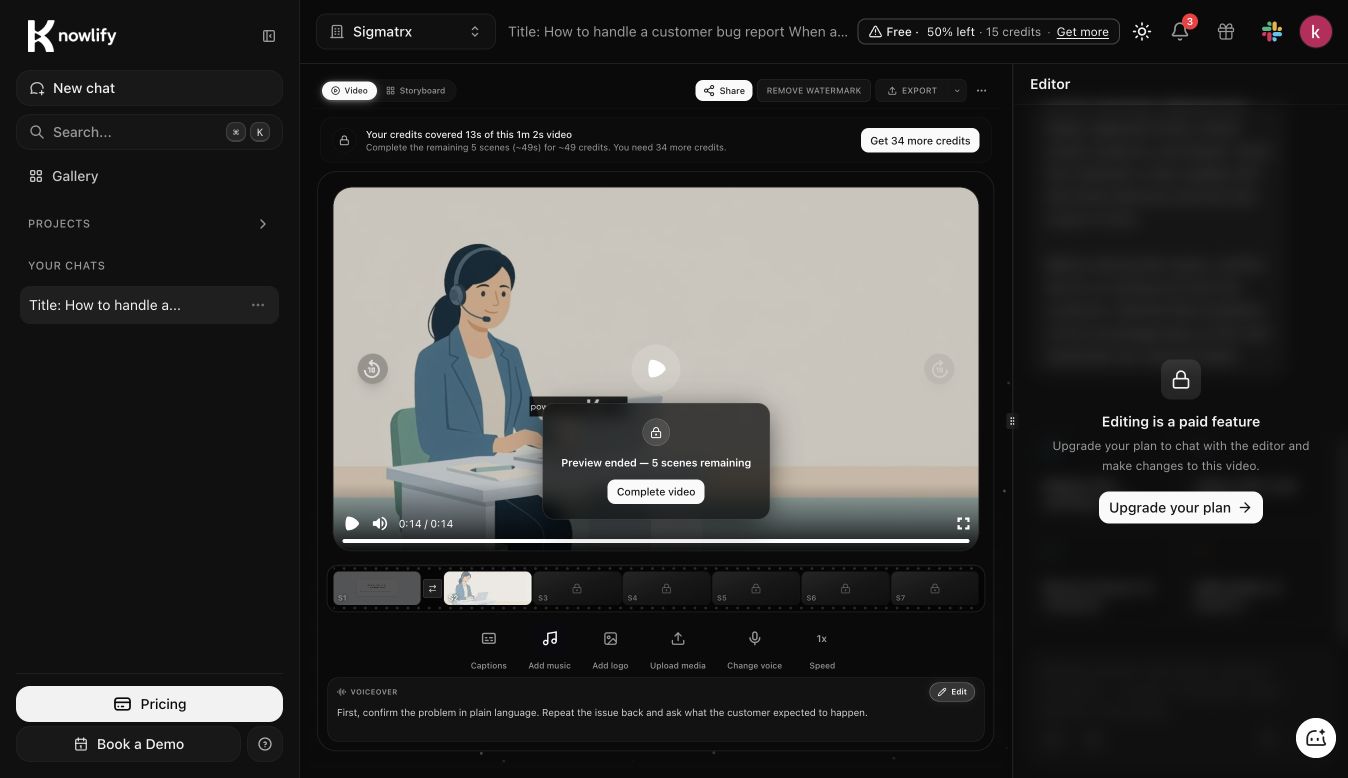
Hands-on result: A new Google-authenticated account showed zero credits on the home screen, but the generation dialog offered 30 free seconds. Knowlify first rewrote the 205-word source into a 139-word, 69.5-second voiceover. It preserved the six-step sequence and the warning about passwords, card numbers, and API keys, but paraphrased most sentences. The free render ultimately produced a 14-second preview covering the opening step only. The editor reported that the planned video was 1:02, five scenes and about 49 seconds remained, and 34 more credits were required. Editing was marked as a paid feature.
08
3. Synthesia: best for avatar-led multilingual training
Best for: teams that need a consistent presenter on screen and expect to localize the same lesson into multiple languages.
Synthesia builds videos around a digital presenter reading a script. That format works when a human-like host improves familiarity or when the organization wants the same on-screen format across many modules. It is less suited to a lesson whose core value is showing a complex diagram or an exact software interaction.
The important comparison with TapVid and Knowlify is output shape. Synthesia puts the presenter at the center. A document-to-explainer tool puts the ideas and visual structure at the center. Neither format wins in every lesson. The right question is whether the learner needs a presenter, a visual explanation, or a real interface demonstration.
Synthesia pricing currently includes a free plan. In the live upgrade dialog, Starter was $19 per month or $14 per month on annual billing. Confirm language, avatar, collaboration, and usage rights on the plan you choose because the logged-in offer may differ by account and billing cycle.
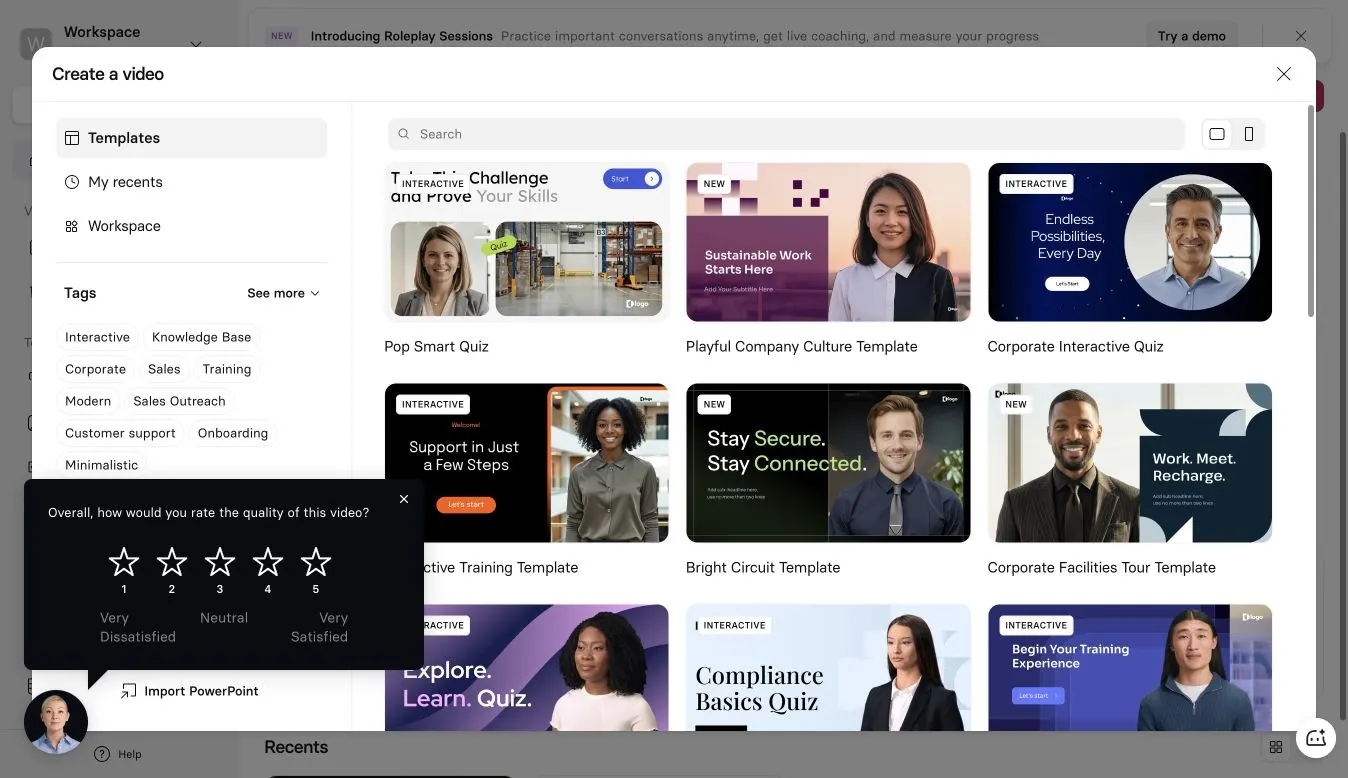
Hands-on result: The free workspace allowed a blank project, a stock avatar, the complete script, and burned-in captions. The script review found no issues, and submitting the project left 587 seconds of free creation time. The AI Assistant that turns a prompt into a structured video was not included in Free; it opened the Starter upgrade dialog. The manual project was still at 18% after ten minutes, so I could not verify the final voice, caption timing, or download. That stalled render is a reason to test with your own account before committing to a deadline.
09
4. Vyond: best for animated workplace scenarios
Best for: HR, compliance, and manager training that uses characters to act out a conversation or decision.
Vyond is strongest when the lesson is a scenario. A manager giving feedback, an employee spotting a safety risk, or a customer conversation can be easier to follow when characters make the situation concrete. Vyond combines a large scene library with character animation and AI-assisted creation from prompts, scripts, documents, and URLs.
Compared with Synthesia, Vyond gives you animated characters rather than a presenter addressing the camera. Compared with TapVid, it asks you to think more about scenes, characters, and staging. That is useful when behavior is the lesson. It is extra production work when the lesson is an abstract process.
Vyond plans currently list Starter at $699 per year, shown as $58 per month billed annually. Professional is listed at $1,199 per year. Check plan differences for collaboration, brand controls, translation, and export rights.
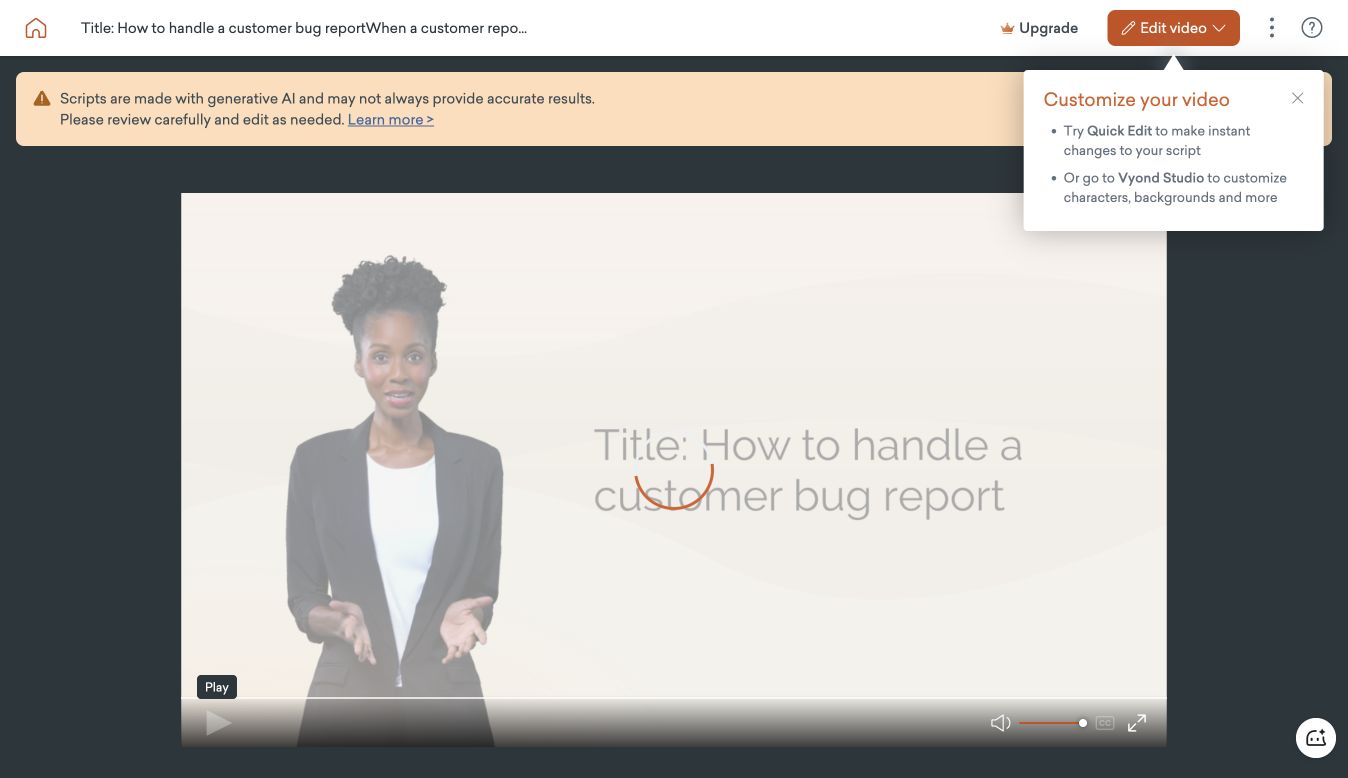
Hands-on result: A new free account included three video slots and 2,000 credits. Vyond Go charged 800 free credits for the shared script and returned a complete 1:27 talking-head draft in 46 seconds. The draft used a realistic presenter and kept the script in order. Two rough edges appeared immediately: the generated project title concatenated the beginning of the script, and the player reported captions unavailable. Quick Edit and full Vyond Studio were both offered for revisions.
10
5. Vimeo: best for hosting, controlled access, and viewer data
Best for: teams that already have finished training videos and need a place to host, share, organize, or measure them.
Vimeo belongs on this list because creating the file is only half the job. A team may need private links, embedded players, folders, live sessions, viewer data, or interactive elements. Vimeo focuses more on that delivery layer than TapVid, Knowlify, Vyond, or Descript.
Do not compare Vimeo's editor with a source-to-video engine as if they are substitutes. A practical stack can use one product to create the lesson and Vimeo to distribute it. Before buying, define whether you need person-level viewing records, domain restrictions, single sign-on, or only aggregate watch data. Those details decide whether a video host is enough or an LMS is required.
Vimeo offers free and paid plans on its current plan page. Pricing and product packaging have changed over time, so verify storage, bandwidth, privacy, analytics, and interactive-video access on the date of purchase.
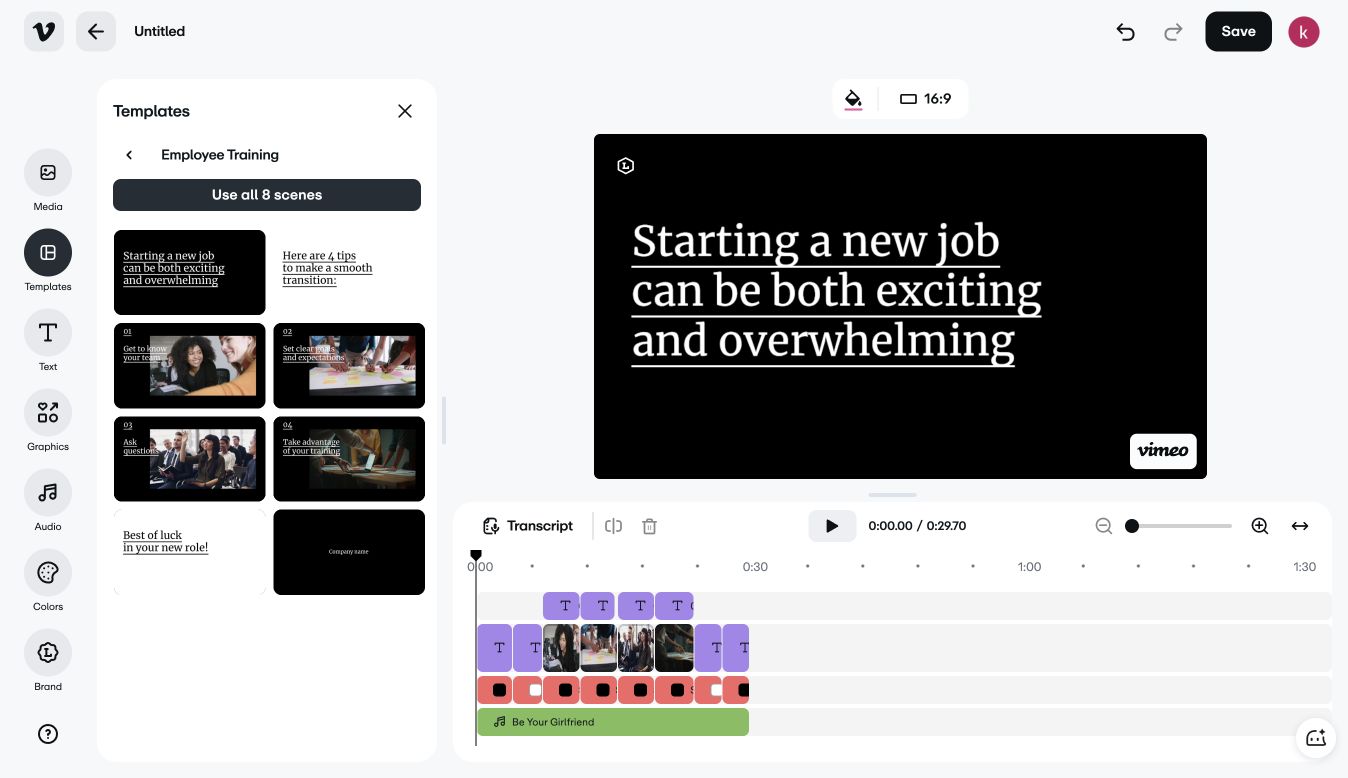
Hands-on result: A new free account provided 1 GB of storage, upload, screen recording, analytics, and a browser editor. Searching the editor for “training” returned dedicated Interview Training, Employee Training, meeting, refund, first-day, and onboarding templates. I applied the 29.7-second Employee Training template with eight scenes. The draft included editable text, audio, graphics, transcript controls, and a Vimeo watermark. This confirmed that Vimeo can assemble a lightweight training draft, but I did not upload a finished MP4 or grant screen-recording permissions in this test.
11
6. Descript: best for editing recorded training through text
Best for: subject-matter experts who record a lesson and want to edit speech by changing the transcript.
Descript treats a recording like a document. Delete words in the transcript and the corresponding media is cut. That approach can make narration-heavy lessons less intimidating for an author who does not want a conventional timeline. It also supports screen recording, captions, and cleanup tools.
The main distinction is source material. Descript works well after someone has spoken or recorded. TapVid and Knowlify begin earlier, when the source is still written. A dedicated desktop editor may offer deeper screen-tutorial editing. Choose Descript when spoken delivery is the asset you want to preserve.
Descript pricing lists Hobbyist at $16 per month on annual billing, or $24 monthly, with ten media hours. Creator is listed at $24 per month annually, or $35 monthly, with 30 media hours. AI usage and collaboration limits should be checked for the selected plan.
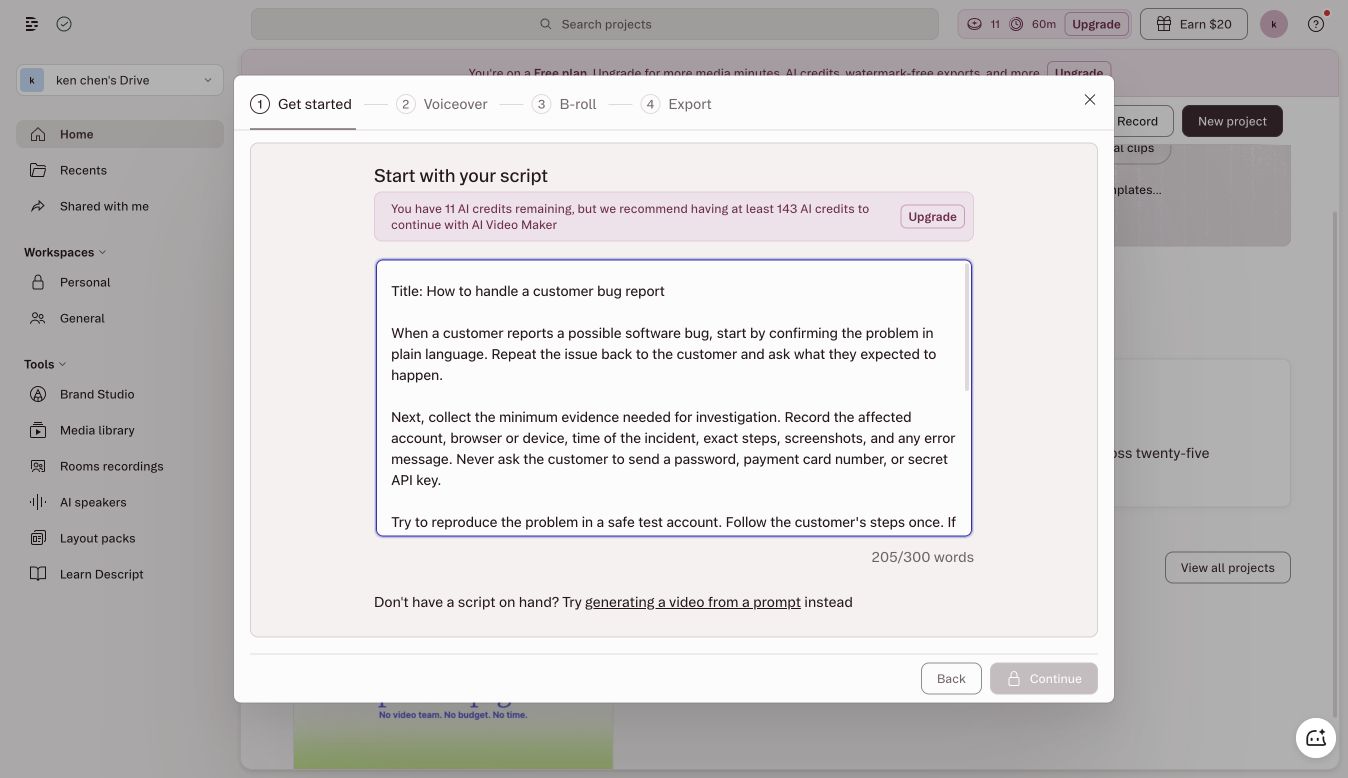
Hands-on result: The existing free workspace showed 60 media minutes and 11 AI credits. Descript's AI Video Maker accepted the complete 205-word script, but the next step required at least 143 AI credits and disabled Continue. I therefore could not generate a fair sample without buying credits. The product clearly exposed separate flows for prompt-to-video, pasted-script video, avatar video, screen recording, transcript editing, B-roll, and export; the free-credit limit was the blocker, not the input format.
12
7. Loom: best for fast internal walkthroughs
Best for: quick, informal knowledge sharing where speed matters more than polished production.
Loom removes most setup from screen recording. Press record, talk through the task, and share a link. That is often enough for a one-off internal explanation or a fast answer to a teammate. It can be the best training video maker when the real requirement is to document knowledge before it disappears.
The same speed creates limits. A casual recording can contain dead time, navigation mistakes, outdated screens, or information that should not be visible. A growing training library also needs naming, ownership, retention, and update rules. Use Loom for short-lived or fast-changing knowledge, then promote repeatable lessons into a maintained format.
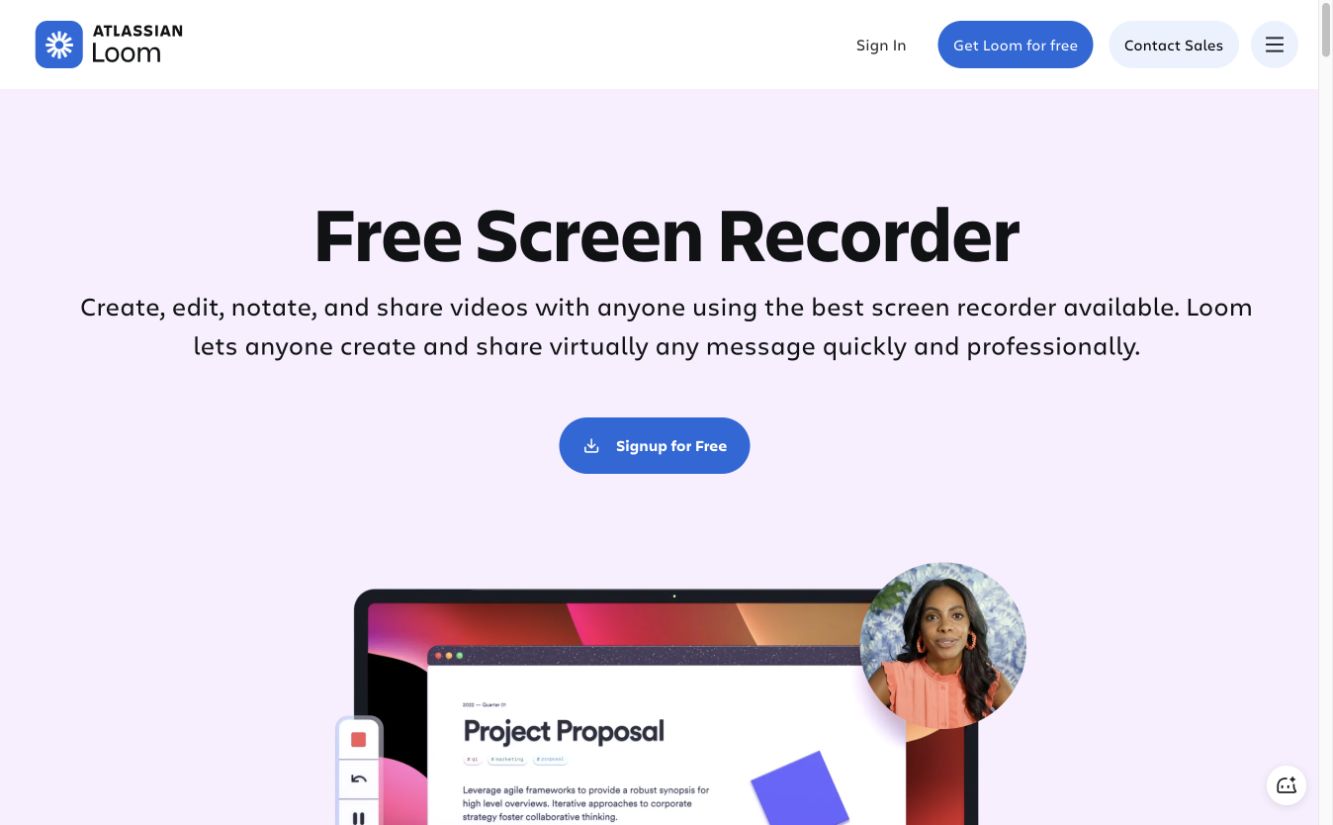
The Loom pricing page lists a free Starter plan with up to 25 recordings per person, a five-minute limit per video, and 720p recording. Paid plans raise recording and quality limits. Verify current team administration, privacy, and AI feature limits.
Access-test result: Google sign-in reached Atlassian account creation, then required a human reCAPTCHA. I did not bypass it, so Loom is the only ranked product whose editor and recorder were not directly verified in this run. Treat the plan limits above as vendor-published facts rather than a completed hands-on review.
13
Why Camtasia and iSpring Suite are not ranked
This round excluded products that required a desktop download. Camtasia therefore was not installed or tested. iSpring Suite's full authoring workflow is built around Windows and PowerPoint, so it was also excluded from the Mac-based browser test. Both may still belong on a desktop-first shortlist, but ranking them beside products I actually opened would overstate the evidence.
14
Creation and delivery may require two products
The product that makes the clearest video may not be the product that reports learner completion. Treat those as separate decisions.
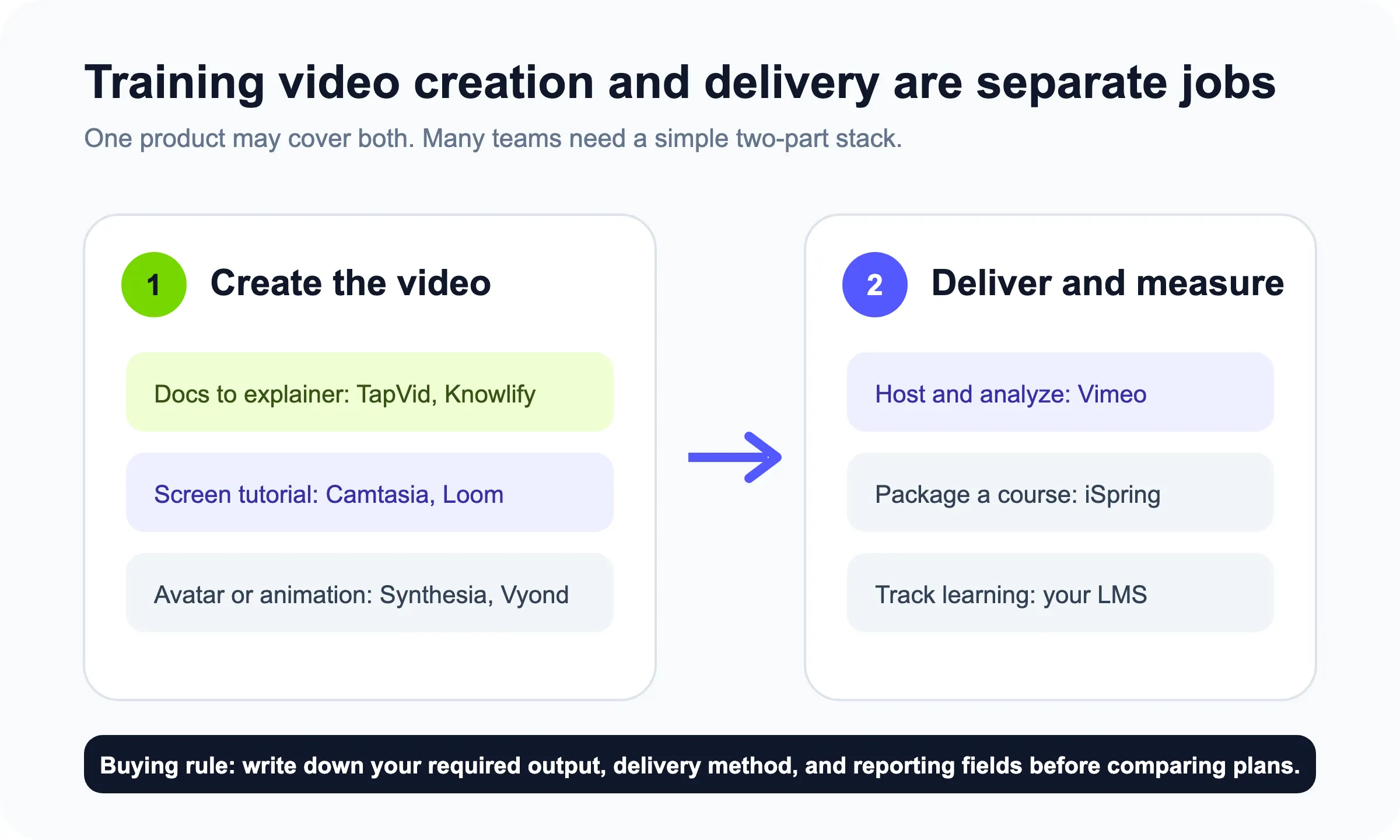
For example, a team can turn an approved SOP into an explainer in TapVid, export the video, and place it in the delivery system it already uses. Another team can record an exact interface flow, upload the result to Vimeo, and add assessment in the LMS it already uses.
Write the delivery requirement before you compare plans:
- Where will the learner watch?
- Must access be restricted by person, group, or company?
- Do you need completion, score, watch time, or only total views?
- Must the content run inside an LMS?
- Who owns updates when the process or interface changes?
This avoids paying for a large course platform when a hosted video is enough. It also avoids buying a good editor and discovering late that it cannot meet the reporting contract.
15
How to choose the best software to make training videos
16
Start with the teaching task
Use a screen recorder when the learner must copy exact actions. Use an explainer format when the learner must understand a process, policy, or concept. Use a scenario tool when judgment or conversation is the lesson. Use a course authoring product when assessment and LMS reporting are part of the deliverable.
17
Run one shared pilot
Do not compare vendor demos. Give each shortlisted tool the same 90-second source and record:
- Minutes from source to first draft
- Number of factual or sequencing corrections
- Caption corrections per minute
- Manual edit time
- Export format and quality
- Cost for the expected monthly output
- Update time after changing one source step
The update test is easy to skip and often decides the real winner. Training material becomes expensive when every policy change requires a full rerecord.
18
Check accessibility in the actual player
Captions are a baseline requirement for many audiences. WCAG 2.2 Success Criterion 1.2.2 requires captions for prerecorded synchronized audio in covered content, except when the media is an alternative for text and is clearly labeled as such. Your legal obligations depend on jurisdiction and context, but the product test is concrete: generate captions, correct them, publish the video, and confirm that viewers can turn them on in the final player.
Also check transcript access, text contrast, keyboard control, audio clarity, and whether critical information is conveyed only by color. An editor may generate captions while the chosen delivery platform fails to expose them correctly.
19
Price the workflow, not the sticker
Published monthly prices omit staff time, retakes, localization, storage, and maintenance. Estimate the cost of a small real library. Ten three-minute videos can land very differently under per-minute AI plans, seat-based authoring tools, and unlimited recorders.
Use this simple model:
annual software cost + author hours + review hours + localization + update hours
If the product saves author time but makes reviews harder, the total can still rise. Compliance-heavy material may justify a slower tool with stronger review and delivery controls.
20
Frequently asked questions
What is the best training video software?
The best training video software matches the source and delivery requirement. TapVid or Knowlify fit existing SOPs and documents. Synthesia fits avatar-led localization. Vyond fits animated scenarios, Descript fits spoken recordings, and Vimeo fits lightweight creation plus hosting and viewer data. Run one shared pilot before choosing.
What is the best training video maker for an SOP?
For a written SOP, start with a document-to-explainer product such as TapVid or Knowlify. Both are designed to begin with existing source material. Test whether the tool preserves exact steps, segments the document correctly, and lets you revise one scene without rebuilding the whole video. Use a screen recorder instead when precise interface actions are the lesson.
Can AI make employee training videos from a PDF?
Yes. Products such as TapVid and Knowlify accept PDFs or other written sources and generate a video draft. A human still needs to check every instruction, compliance phrase, caption, and visual interpretation. AI can reduce assembly work, but the approved source and a named reviewer should remain the authority.
Do I need an LMS for training videos?
You need an LMS when the program requires formal enrollment, completion records, scores, assignments, or integrations with other learning systems. A secure video host may be enough when you only need controlled access and viewing data. Define the required reporting fields first, then choose the lightest delivery system that meets them.
What features should training video software include?
At minimum, check source import, scene or timeline editing, captions, narration control, brand settings, export quality, and a workable review process. Then add requirements for privacy, localization, quizzes, SCORM, analytics, or LMS delivery. A large feature list is less useful than proving the five steps your team will repeat every week.
How long should a training video be?
There is no universal limit. The best length is the shortest version that completes one defined learning task. A 2014 study of 6.9 million edX viewing sessions found stronger engagement with shorter videos in those online courses, but corporate audiences and tasks differ. Split long material by objective, then test completion and comprehension with your learners.
21
Final recommendation
Choose training video software from the source material forward. For an existing SOP, PDF, script, or product document, test TapVid and Knowlify. For exact interface actions, use a dedicated screen recorder. For a presenter-led lesson, test Synthesia. Add Vyond for behavioral scenarios, Vimeo for delivery, or Descript for recorded narration.
TapVid is the relevant choice when your knowledge already exists and the output should be a clear, motion-rich explainer. You can try the AI explainer video generator, review the broader AI video generator, or check current pricing. The only remaining gap in this comparison is TapVid's final render: the live test stopped at the clearly displayed credit charge rather than spend an existing account balance without approval.
22
Hands-on test summary
Read this table as an access and workflow record, not a normalized performance ranking. Each row states the furthest point reached with the same source brief and the limit observed in that account during the July 30, 2026 test.
| Product | What the shared test reached | Directly observed limit |
|---|---|---|
| TapVid | Full script loaded and generation configured | Final render would use 90–360 existing credits depending on length |
| Knowlify | 14-second preview from a planned 62-second video | Free credits covered only the opening two scenes; editing required paid access |
| Synthesia | Complete script submitted with stock avatar and burned-in captions | AI Assistant was paid; manual render stayed at 18% after ten minutes |
| Vyond | Complete 87-second talking-head video | Used 800 of 2,000 free credits; captions were unavailable in the result player |
| Vimeo | Eight-scene, 29.7-second employee-training template draft | Free account showed 1 GB storage and a Vimeo watermark |
| Descript | Complete 205-word script accepted by AI Video Maker | 11 credits available; at least 143 recommended, so Continue was disabled |
| Loom | Google and Atlassian sign-up reached | Human reCAPTCHA blocked editor verification |