
An explainer video works when it makes a hard idea simple. The trouble in 2026 is that "AI explainer video maker" bundles four very different kinds of tool, and a list that ranks them one to ten hides that. An avatar tool and a motion-graphics tool are not competing for the same spot, they are doing different jobs.
01
What a TapVid explainer looks like
I work in product and design, so I make explainers often. If the categories below are new to you, start with what an explainer video is and the main explainer video types. Then use this shortlist to match the format to the maker.
02
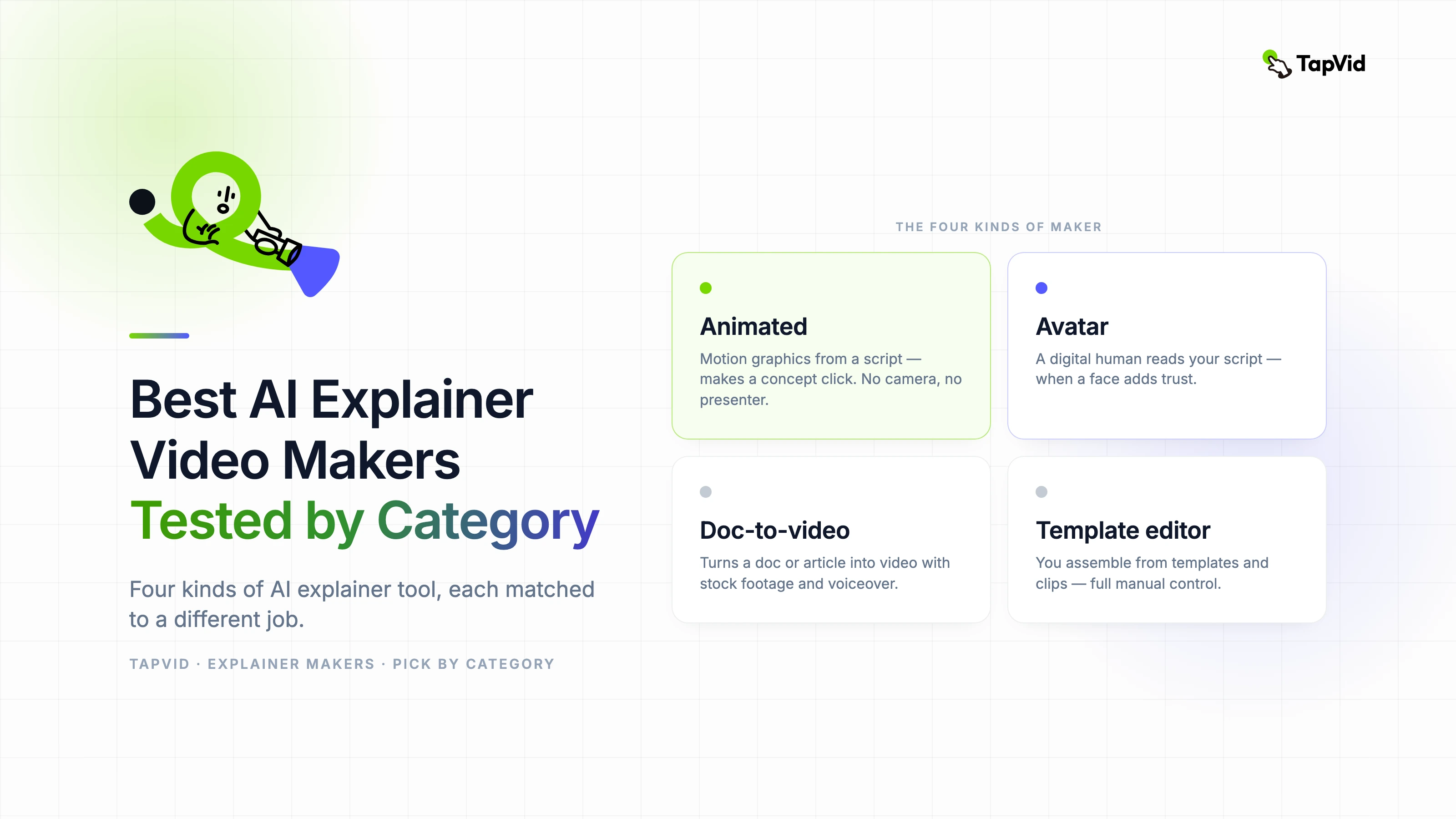
The four kinds of AI explainer video maker
- Animated (motion graphics): builds the explainer from a script into moving shapes, text, and illustration. Best for making a concept click. No camera, no presenter.
- Avatar: a digital human reads your script on screen. Best when a face adds trust, like training or a sales message.
- Doc-to-video: turns a document, article, or slides into a video with stock footage and voiceover. Best for repurposing content you already have.
- Template editor: you assemble the video from templates and clips yourself. Best when you want manual control.
03
How we compared the tools
This is a category comparison, not a claim that one reviewer completed a paid render in every product. Product capabilities, free-tier rules, and positioning were checked against each vendor’s public product and pricing pages. TapVid was checked inside a signed-in Ultra workspace; where a competitor fact could not be verified from a current official page, it was left out rather than inferred from an older roundup.
We used the same decision frame for every tool: what source material it accepts, what appears on screen, how much manual editing the workflow expects, what the free route actually lets a creator export, and which production job the product is built to solve. Those criteria matter more than the raw number of templates or AI features because they determine whether the first draft is structurally useful.
- Source fit: prompt, script, article, PDF, slides, recorded footage, or a blank canvas.
- Visual language: motion graphics, avatar presenter, stock footage, or manually assembled templates.
- Review workflow: whether you can correct the idea before rendering or only repair a finished clip.
- Publishing constraints: watermark, resolution, duration, credits, and export access on the relevant plan.
- Best-fit job: concept explanation, training, repurposing, social production, or detailed art direction.
In the TapVid check, the signed-in workspace exposed style, language, voice, aspect ratio, duration, subtitles, and background music before generation. A roughly 60-second brief quoted 180 credits, consistent with the public pricing rule of about 3 credits per successfully rendered second. Existing completed projects showed the product’s staged path from source and direction through brief, outline, timed script, render, and export. That is useful evidence for workflow and cost visibility, but it does not prove that every prompt produces equally strong visuals.
The fairest way to use this guide is to shortlist one tool from the category that matches your job, then run the same 30-second brief through each finalist. Keep the script, target audience, format, and success criteria fixed. Record the date because pricing and free-tier limits change quickly. Compare the number of corrections required before you would publish, not merely which product generated something first. A fast draft that needs a full rebuild is slower than a deliberate workflow that lets you catch a weak angle before rendering.
04
Quick comparison
| Tool | Category | On-screen style | Best for | Free tier |
|---|---|---|---|---|
| TapVid | Animated | Motion graphics | Concept and product explainers | Yes, with watermark |
| Synthesia | Avatar | Talking head | Multilingual training and corporate | Limited |
| HeyGen | Avatar | Talking head | Realistic presenter, many languages | Limited |
| Pictory | Doc-to-video | Stock footage | Repurposing articles and scripts | Limited |
| Invideo AI | Doc-to-video | Stock plus avatar | Quick text-to-video with footage | Yes |
| Canva | Template | Templates | Hands-on edits, familiar editor | Yes |
| Powtoon | Template | Templates | Cartoon-style custom builds | Limited |
05
Animated explainer makers
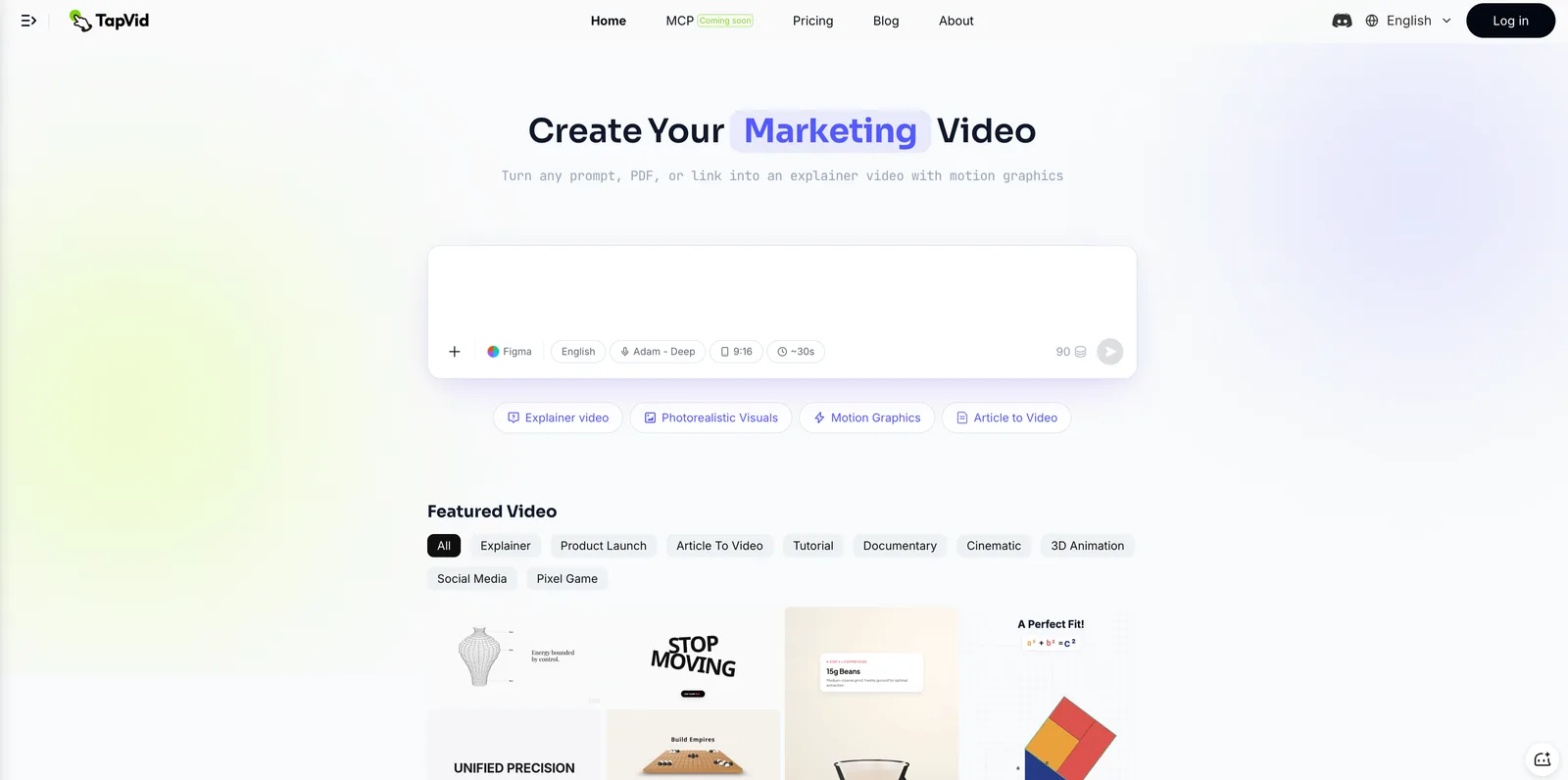
TapVid — best for turning a concept or product into an animated, motion-graphics explainer.
When the goal is to make an idea click, animation carries it better than a talking head, because motion can show how something works. With TapVid you write a script or a prompt and it builds the explainer with narration and captions, no presenter and no editing timeline.
Where it fits:
- Concept explainers for something abstract or not yet shipped.
- Product explainers where you want energy and motion, not a slow walkthrough.
- Social and ad cuts that need to grab attention fast.
Where it does not fit, and I would send you elsewhere:
- You need a human presenter on camera — use an avatar tool.
- You want to repurpose a long article with stock footage — use a doc-to-video tool.
- Watermark: the free tier exports with a watermark, and paid plans remove it.
See how to make an AI explainer video for the full workflow, or start on the AI explainer video maker.
Vyond — best for hands-on animated explainers when you have a designer and time. More control than most, and a steeper learning curve to match.
06
Avatar explainer makers
Synthesia — best for presenter-led training and corporate explainers in many languages. A digital human reads your script, with support for 140+ languages. Strong for consistent, on-camera delivery. It cannot animate a concept the way a motion tool can, so it fits explainers that are really scripted talks. If you like the format but not the tool, weigh the Synthesia alternatives.
HeyGen — best for the most realistic avatars. Similar job to Synthesia, with a focus on avatar realism and multilingual output.
07
Doc-to-video explainer makers
Pictory — best for turning an existing article, script, or blog post into a video with stock footage and AI voiceover. Good for repurposing at volume. The look leans on stock clips rather than custom animation.
Invideo AI — best for fast text-to-video from a prompt, with stock footage, music, and an optional avatar. Quick to a first draft, lighter on a distinct visual style.
08
Template explainer makers
Canva — best for hands-on editing in a tool you probably already know. The free tier is generous for basics. You do the assembly, so it takes more time than a generate-and-go tool.
Powtoon — best for cartoon and character-style explainers you build from templates. Fun for a certain style, more manual than AI-first tools.
09
How to choose
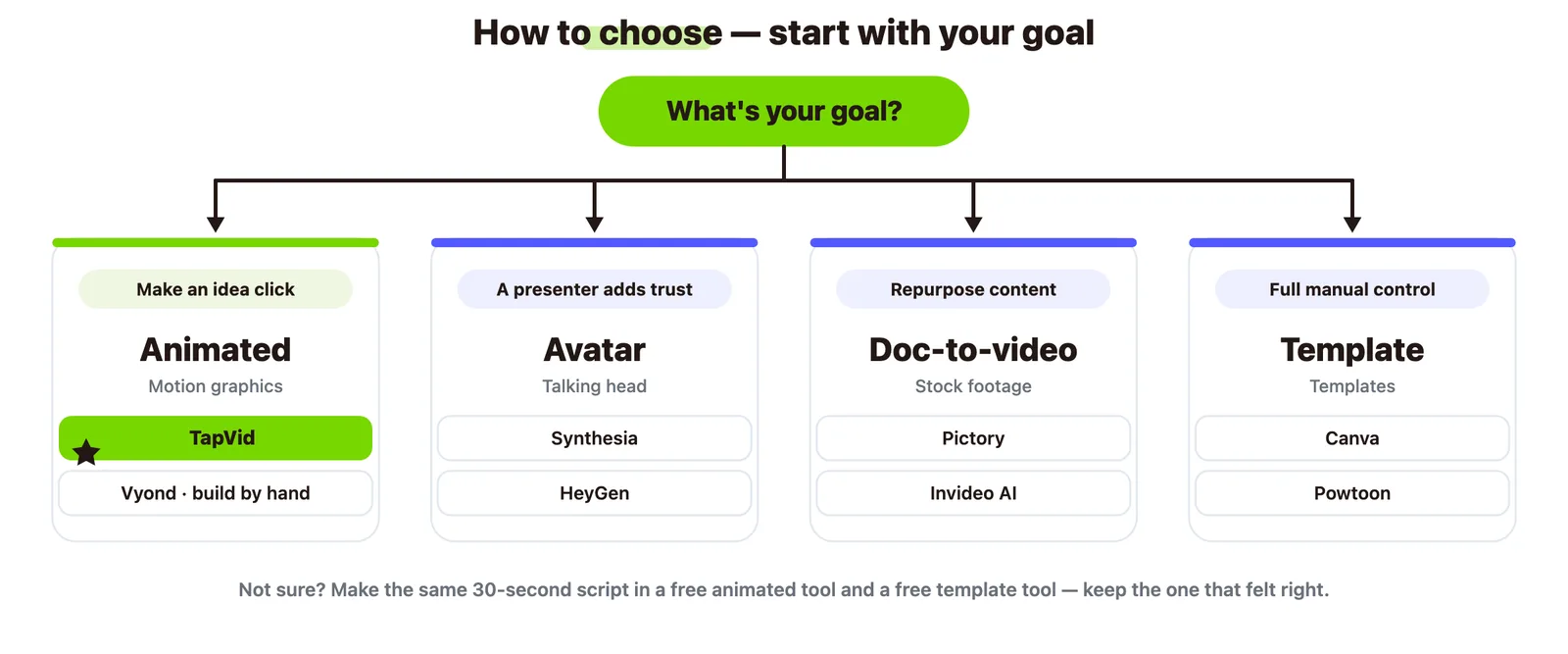
- Make an idea click — animated: TapVid, or Vyond if you want to build it by hand.
- A presenter adds trust — avatar: Synthesia or HeyGen.
- Repurpose content you already have — doc-to-video: Pictory or Invideo AI.
- Full manual control — template: Canva or Powtoon.
- Not sure and on a budget — start with a free animated tool and a free template tool, make the same 30-second script in both, and keep the one that felt right.
10
Frequently asked questions
What is the best AI explainer video maker?
There is no single best, because the categories do different jobs. For animated concept explainers, TapVid. For presenter-led training, Synthesia. For repurposing articles, Pictory. For manual control, Canva.
What is the best free AI explainer video maker?
TapVid, Invideo, and Canva all have free tiers. Free exports often carry a watermark, so check the terms before you publish.
Can I make an explainer video without a presenter?
Yes. Animated tools like TapVid and template tools like Canva need no presenter and no camera.
Which explainer tool is best for SaaS?
For an animated product explainer, TapVid. For a scripted presenter walkthrough, an avatar tool. Many SaaS teams pair an animated intro with a screen walkthrough.
Do these tools write the script too?
Most can draft a script from a prompt or a document. The draft still needs a human edit before you generate, or the video feels generic.
11
The takeaway
The best AI explainer video maker is the one whose category matches your video. Animate it when the job is to make an idea click, use an avatar when a face adds trust, go doc-to-video when you are repurposing, and pick a template tool when you want to build it yourself. To try the animated approach on your own idea, start with the AI explainer video maker.