
An AI video generator for education earns its place when a teacher can turn a lesson into a watchable video before the next class, without opening editing software. That is the only test that matters when you are grading papers at 9pm and tomorrow's lesson still needs a visual.
01
What teachers actually want from an AI video generator
I work on go-to-market at a video product, and I spend my weeks watching how teachers, course designers, and corporate trainers actually use these tools. This guide sorts the options by what you are trying to make, walks through a real lesson-to-video workflow you can copy, and states the pricing and limits plainly. Every price here was checked in July 2026.
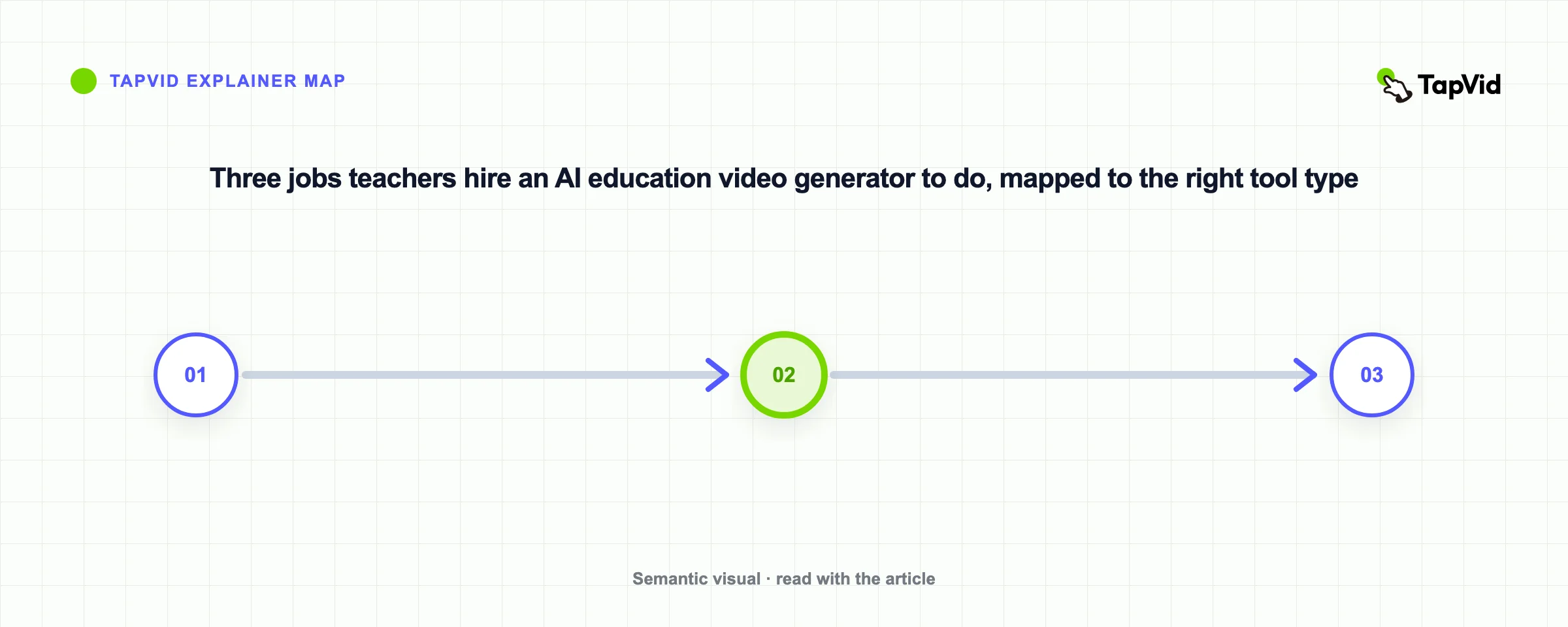
Strip away the marketing and three jobs come up again and again. Each one wants a different kind of tool.
- Animated lessons. Explain a concept with motion and narration, no presenter on screen. This suits abstract topics students struggle to picture, like a chemical reaction or a supply-and-demand curve.
- Lecture and avatar video. A presenter delivers the script on camera, often in several languages, so students can replay it at their own pace.
- Quick repurposing. Turn an existing deck, PDF, or worksheet into a narrated video in one pass.
Match the tool to the job first. That single decision shortens the trial week more than any feature comparison. If animated lessons are new to you, what is an explainer video covers the format and its main types.
02
Match the tool to your teaching setting
The same tool that fits a fifth-grade classroom can be wrong for a compliance course. Here is how the four common settings differ.
K-12 classrooms
You need short videos, safe content, and captions. Attention spans are shorter, so a two-minute animated explainer beats a ten-minute lecture. Template tools and animation tools both work here. Watch for student data rules, since anything uploaded about a minor is covered by privacy law. Free education tiers matter most in this bracket because classroom budgets are thin.
Higher education
Lectures run longer and students expect depth. An avatar presenter who can deliver a 20-minute recorded lecture in several languages fits large or international cohorts. Recorded video also lets students rewatch dense material, which is where replayable avatar or slide-based lessons pay off.
Corporate training and L&D
Consistency and scale are the point. A learning and development team producing onboarding or compliance modules wants brand-consistent output, script control, and an easy way to update a video when a policy changes. Avatar tools and template tools both serve this, and business plans usually add team seats and an LMS integration.
Flipped classrooms
Students watch the lesson at home and do the work in class. That means you are producing a steady stream of short videos, so speed and cost per video decide the winner. Animation and document-to-video tools shine here because you can feed in material you already wrote and get a video back fast.
03
Turn one lesson into a video: a workflow you can copy
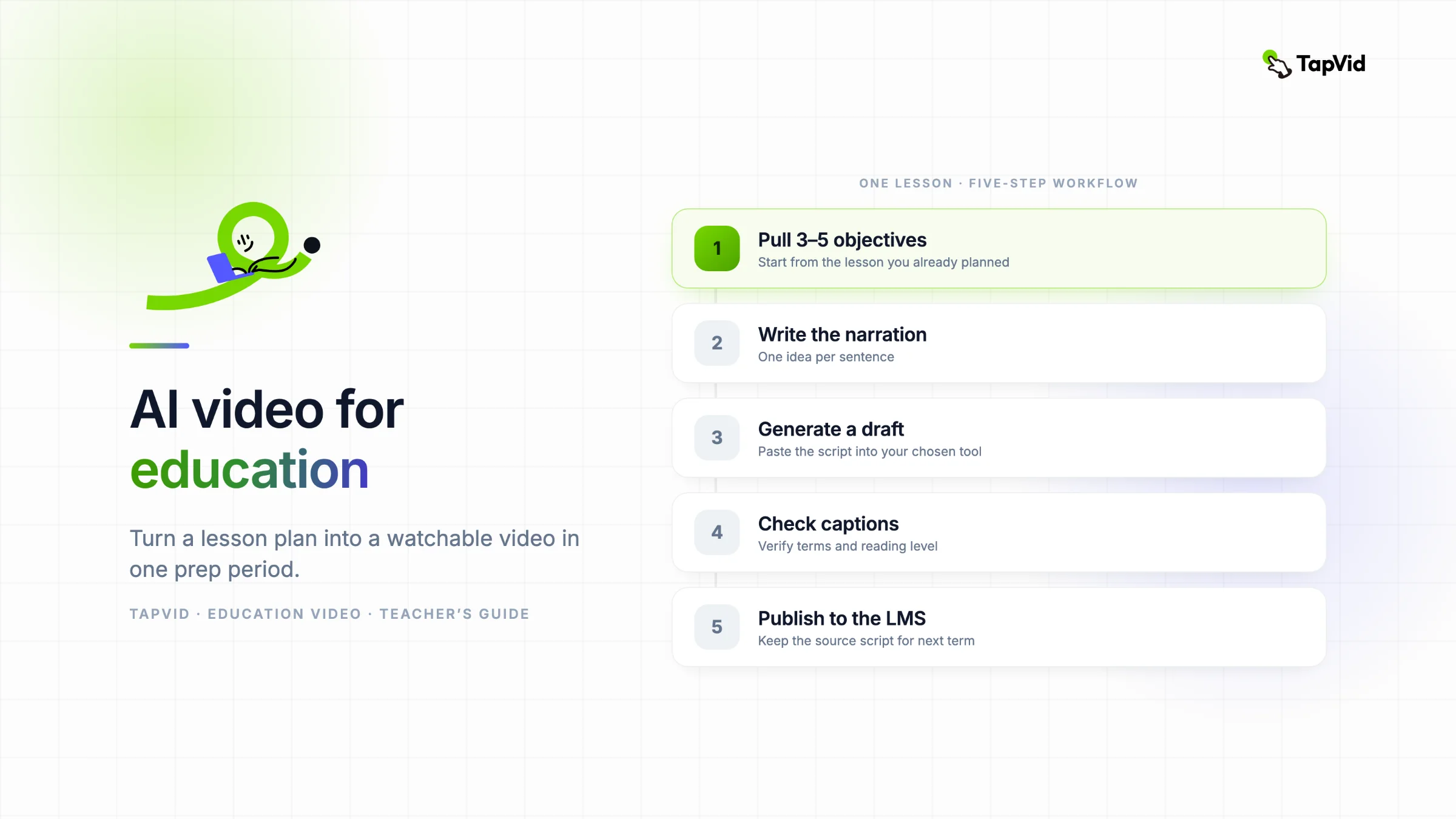
Here is the process I hand to teachers who have never made a video. It works with almost any AI video generator for education, and it takes one prep period once you have done it twice.
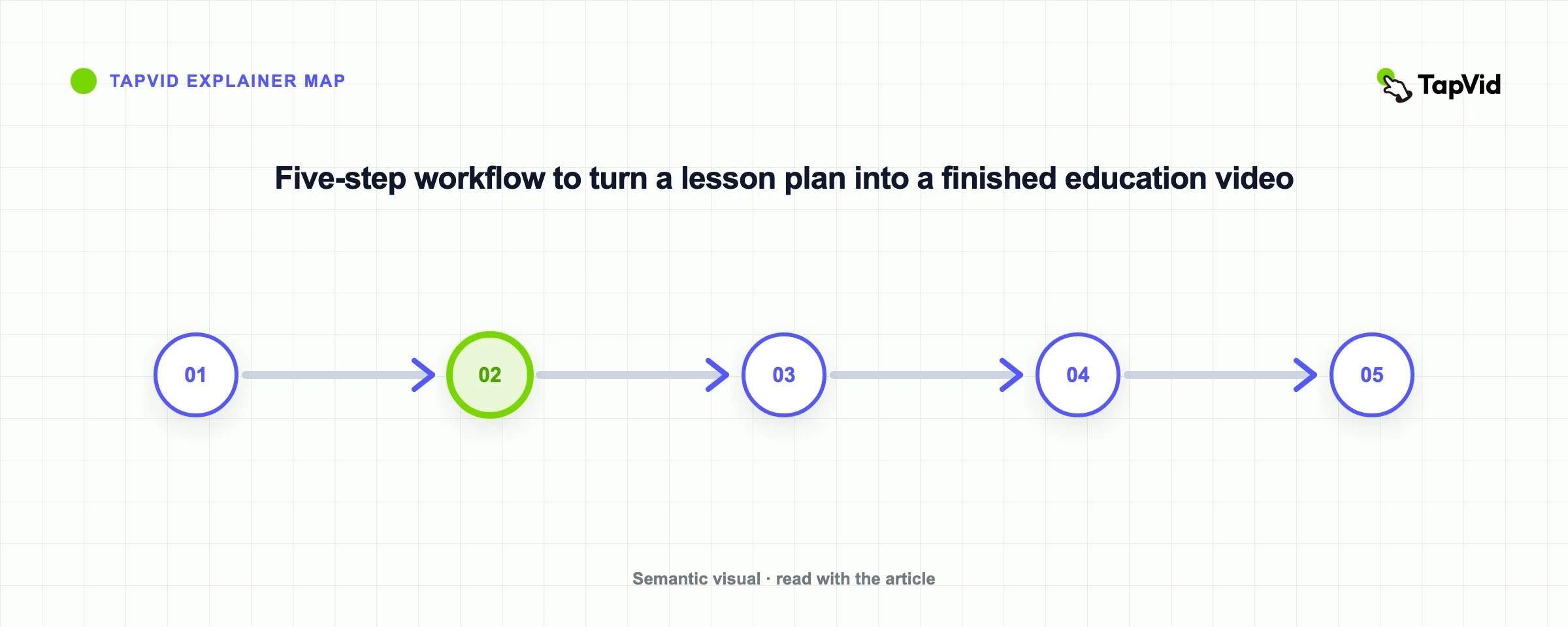
Step 1: Pull three to five learning objectives from your lesson plan. Do not start from a blank script. Open the lesson you already planned and list the points a student must leave with. Five is the ceiling for a short video. More than that and you need two videos.
Step 2: Write a tight narration script. Write it the way you talk in class, one idea per sentence, roughly 130 to 150 words per minute of finished video. A three-minute explainer is about 400 words. Read it aloud once. If you stumble, the students will too.
Step 3: Generate the video. Paste the script into your tool. An animation tool like TapVid builds the motion and narration from the text, so you are not choosing clips or keyframes. Avatar tools assign a presenter and voice. Template tools drop your text into scenes. Generate a draft, watch it, and fix the two things that bug you most rather than chasing perfection.
Step 4: Add captions and check the reading level. Turn on subtitles, then read them once for accuracy, since auto-captions still miss technical terms and names. Captions are not optional in education. They help students watching without sound and are the baseline for accessibility.
Step 5: Publish where students already are. Export and drop the file into your LMS, Google Classroom, or a shared drive. Keep the source script in a folder so next semester you edit a line and regenerate instead of rebuilding.
Once this loop is muscle memory, a single concept video takes minutes, not an evening. For a deeper walkthrough of the animated version, see our guide on how to make an AI explainer video.
04
The best AI video generators for education, by what you make
Sorted by the job, not by a leaderboard. Pricing checked July 2026. Where a number comes from a third-party source rather than the vendor's own page, I say so.
TapVid: animated concept lessons
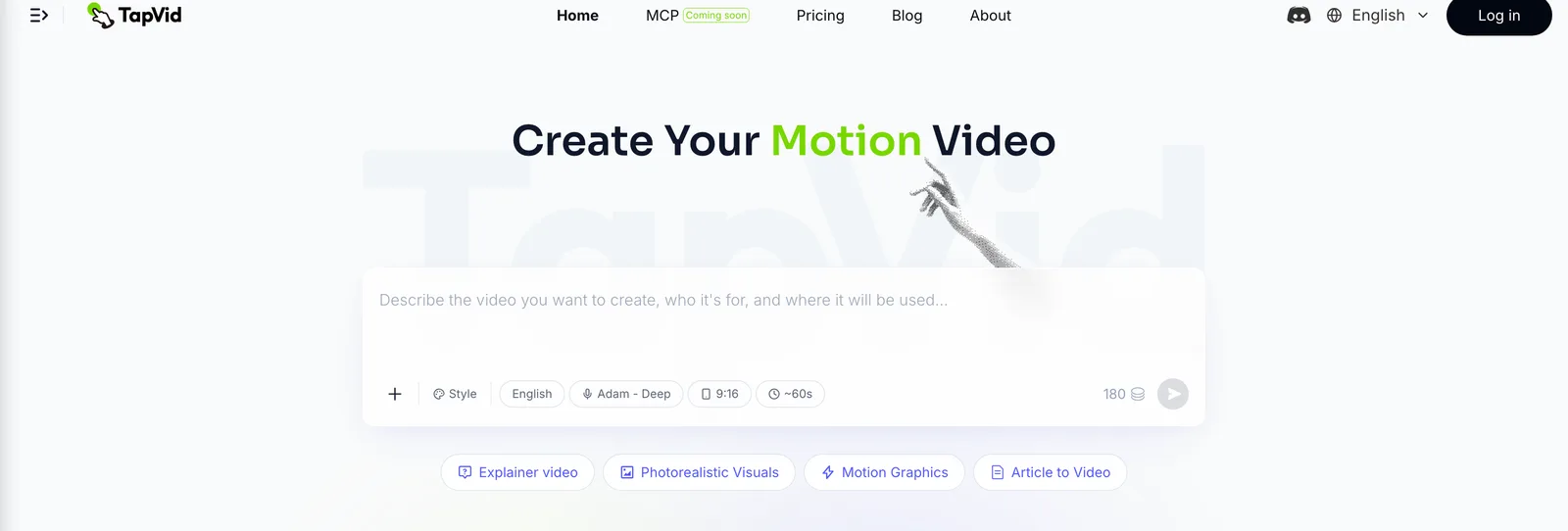
Best for: turning a concept or lesson outline into an animated explainer, with no camera and no avatar.
Some lessons are easier to show than to say. A process, a cycle, a cause and effect, these land better as motion graphics than as a person talking. With TapVid you write the lesson points or a full script, and it builds an animated video with narration and subtitles. For a teacher, that means reusing the material you already planned instead of recording yourself. It fits the flipped classroom and any abstract topic that benefits from motion, and the educational video feature is built around exactly this use.
Why it works for class content:
- Abstract ideas become visual. Things you cannot film become animated scenes.
- No on-camera time. You never have to record or appear yourself.
- Captions come built in. Subtitles support accessibility out of the box.
The honest limits:
- The free tier adds a watermark and caps clips at one minute at 720p. Clean, longer exports need a paid plan.
- No realistic human presenter. If you want a lecturer-style talking head, an avatar tool fits better.
Pricing (from tapvid.ai, checked July 2026): Free tier with watermark, 720p, one-minute clips. Basic is $19/month, or $15.20/month billed annually, which removes the watermark, unlocks 1080p, and allows clips up to three minutes. There is no education-specific plan, so teachers use the standard tiers. See pricing for the full breakdown, or the animated explainer video maker to try the lesson flow.
Synthesia and HeyGen: avatar lecturers
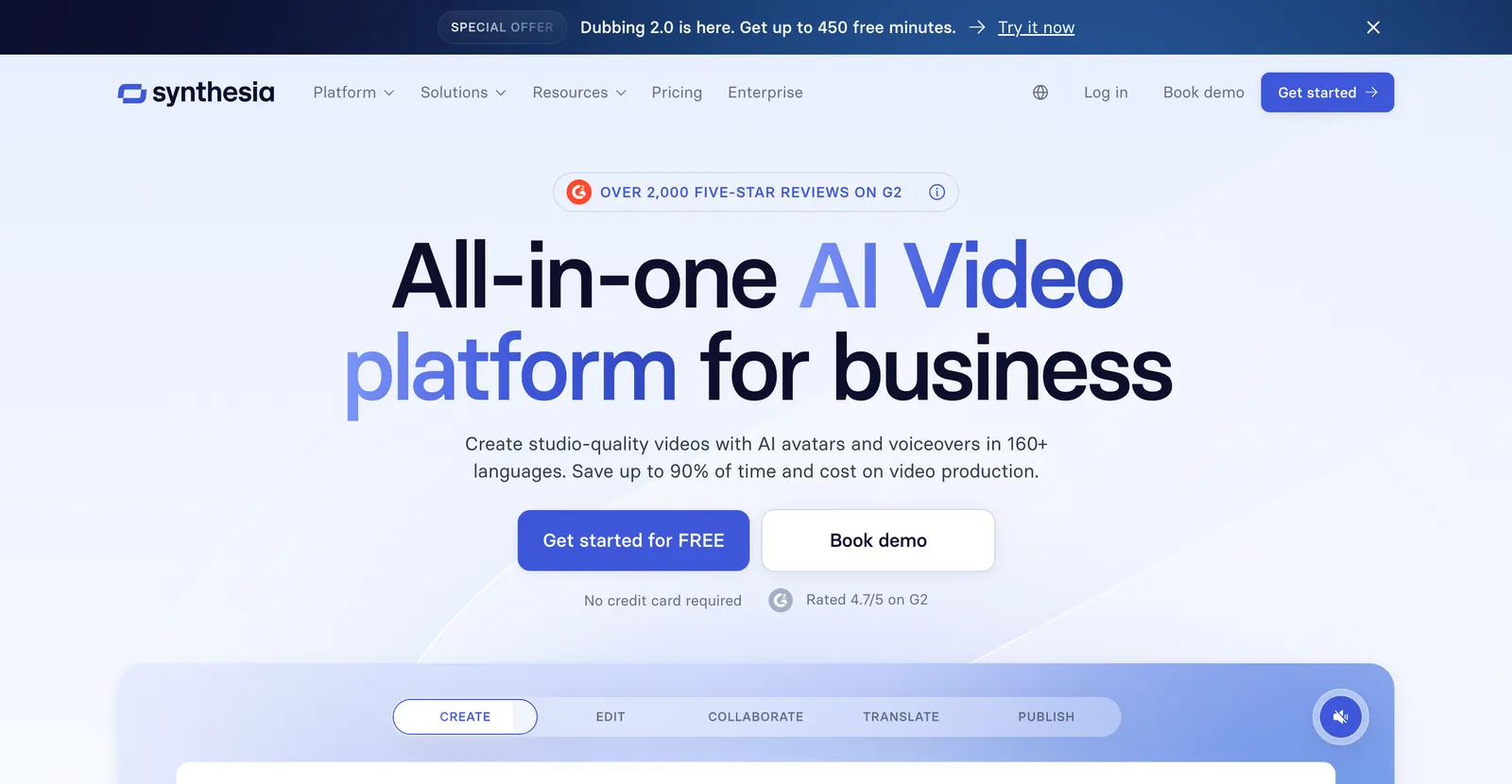
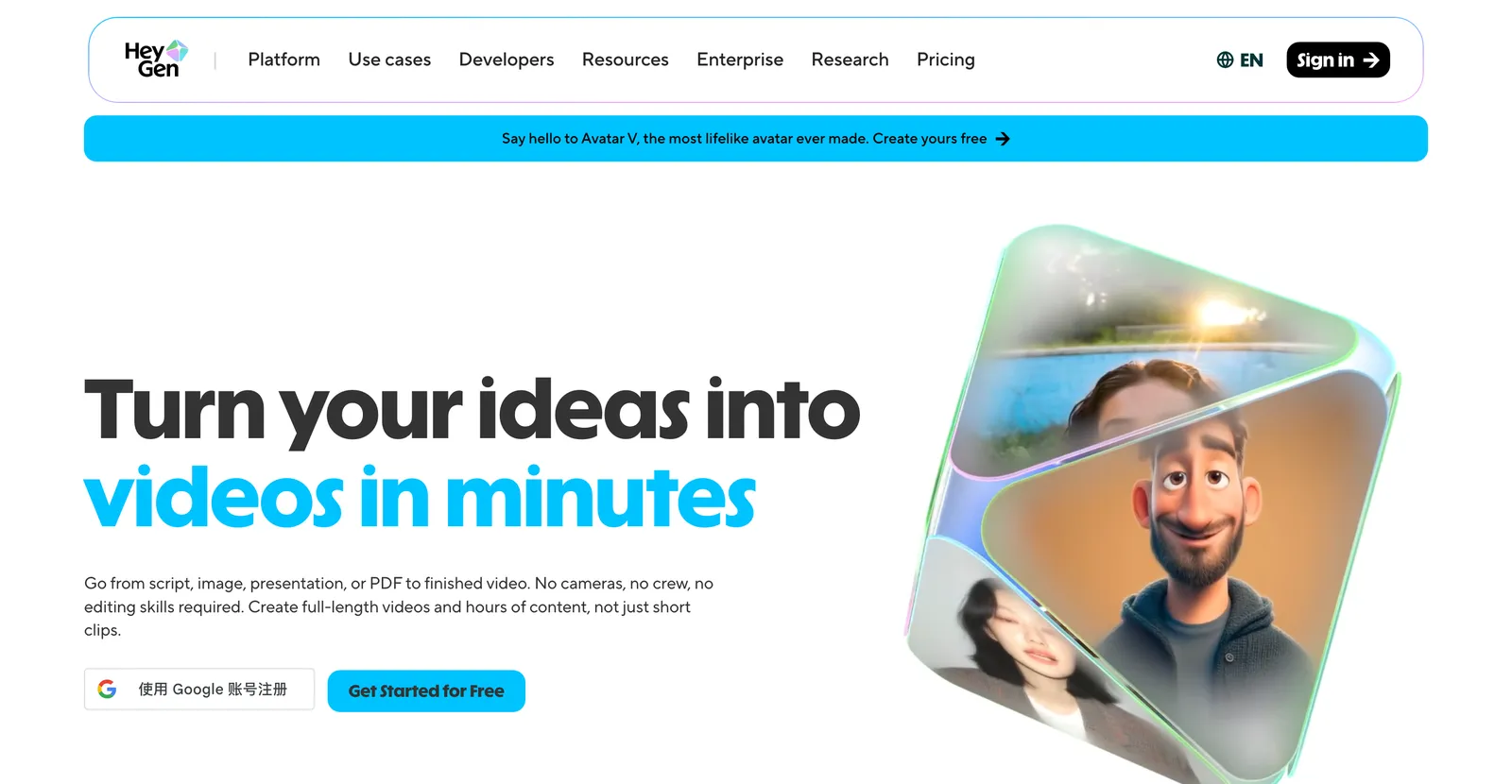
Best for: presenter-led lessons students replay, especially across languages.
When students benefit from a consistent on-screen teacher, an avatar tool delivers your script as a digital presenter. Both of these are strong for higher ed and corporate L&D, where a recorded lecture in many languages is worth more than animation.
Synthesia leans into enterprise training and localization. Pricing (checked July 2026): a free plan gives roughly 10 minutes of video per month (1,200 credits). The Starter plan is $14/month billed yearly, or $19 month to month. The Creator plan is $59/month billed yearly, or $89 monthly. Enterprise is custom. No public education discount.
HeyGen focuses on avatar realism and translation. Pricing (from heygen.com, checked July 2026): a free plan allows 3 videos per month at up to one minute each. Creator is $29/month, or $24/month annually, with 600 credits. Pro is $49/month with 1,000 credits and 4K export. Business starts at $149/month. HeyGen lists no education or nonprofit discount on its pricing page.
The honest limit on both: an avatar reading a script can feel flat for younger students, and heavy use burns credits fast. They earn their keep on lectures and multilingual reach, less so on quick classroom clips.
Canva: template-driven class videos
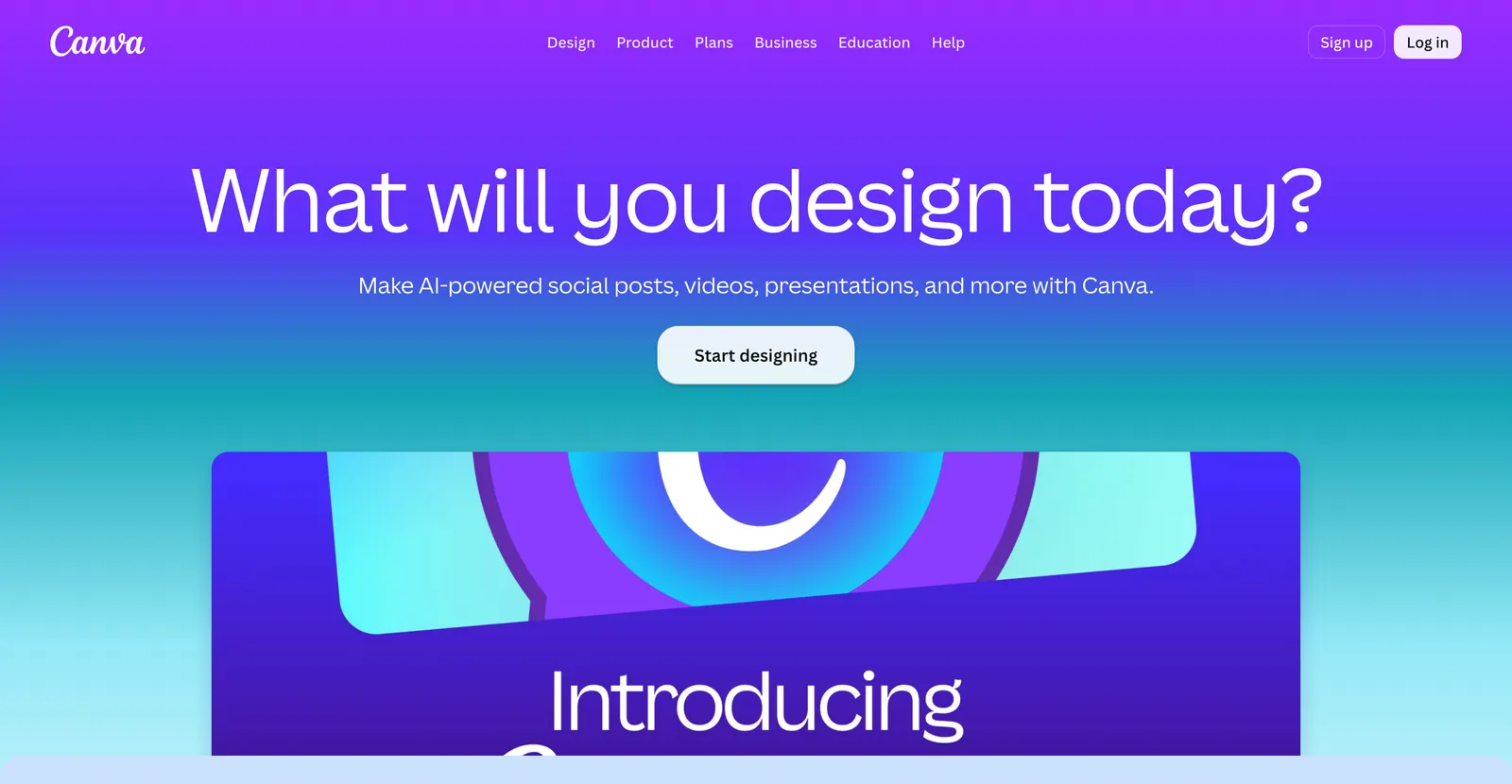
Best for: slide-to-video and template videos, especially for schools that already use Canva.
Canva is the safe pick when you want a designed video without learning design. Drag a template, drop in your slides, add text and a voiceover, and export. It will not animate a concept the way a motion tool does, but it is fast and familiar.
The pricing story here is the real reason to care. Canva Pro is $15/month or $120/year (checked July 2026, cross-referenced across current pricing trackers since the official page blocks automated checks). But Canva for Education is free for verified K-12 teachers and their students, and Canva for Nonprofits is free for eligible 501(c)(3) organizations for a team of up to 50. For K-12 especially, that free education tier makes Canva hard to ignore. Verify your eligibility on Canva's education page before you build a class workflow on it.
Golpo AI: document-to-video
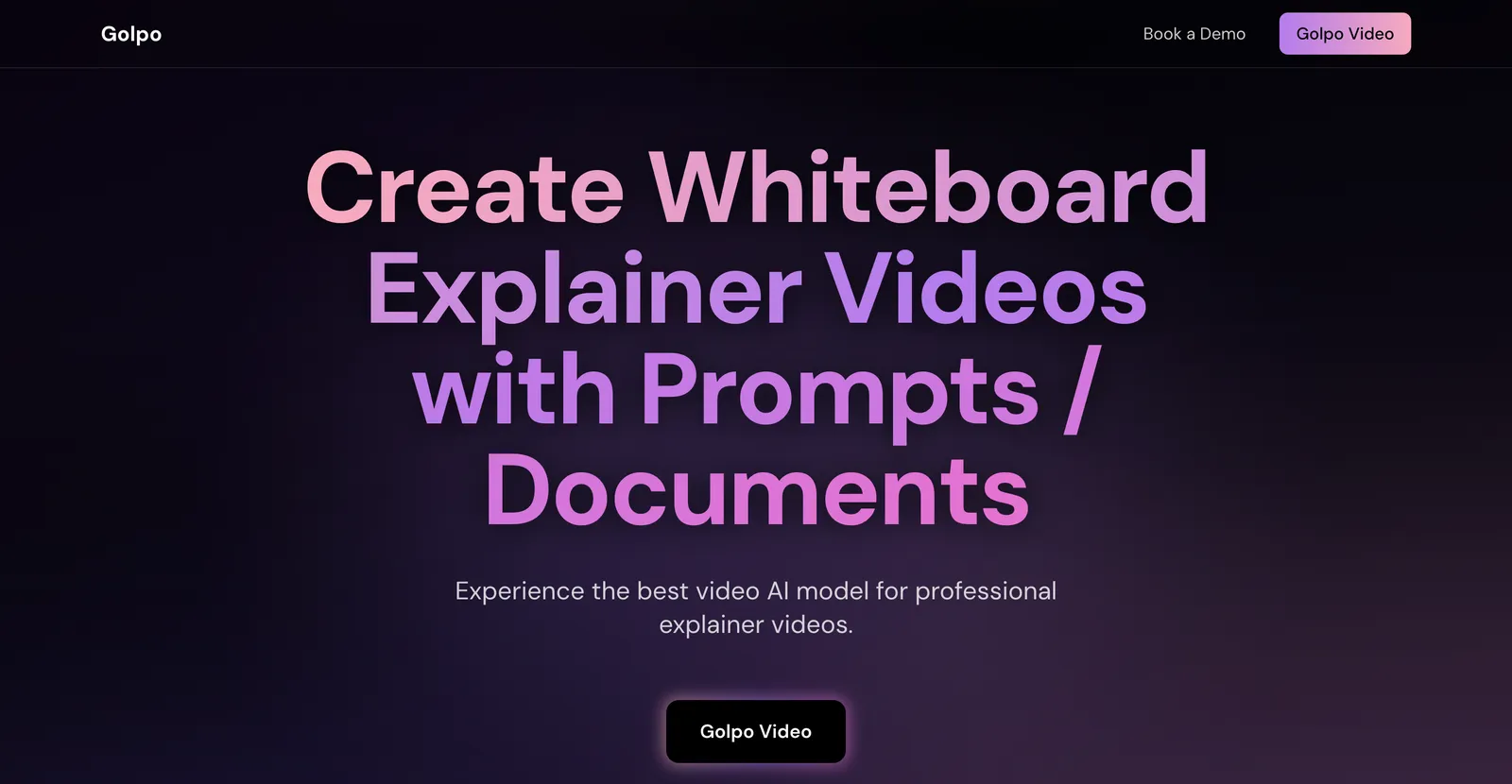
Best for: turning a PDF, worksheet, or problem set straight into a whiteboard-style video.
Document-to-video is its own category, and it fits teachers who already have the material written down. Golpo AI reads a document and produces a whiteboard animation, which suits worked solutions and exam prep. Pricing (checked July 2026, from third-party pricing breakdowns since the vendor page returned no data): the free tier lets you generate and watch a one-minute video but not download it. Paid plans start around $39.99/month for about 20 minutes of video, with Creator near $100/month and Business higher, plus a roughly 17% annual discount.
The honest limit: whiteboard style is not right for every subject, and document-to-video quality depends heavily on how clean your source file is. If your goal is a polished motion-graphics lesson rather than a whiteboard sketch, an animation tool fits better. We cover the broader approach in our document-to-video guide.
Scholarly: student-facing study video
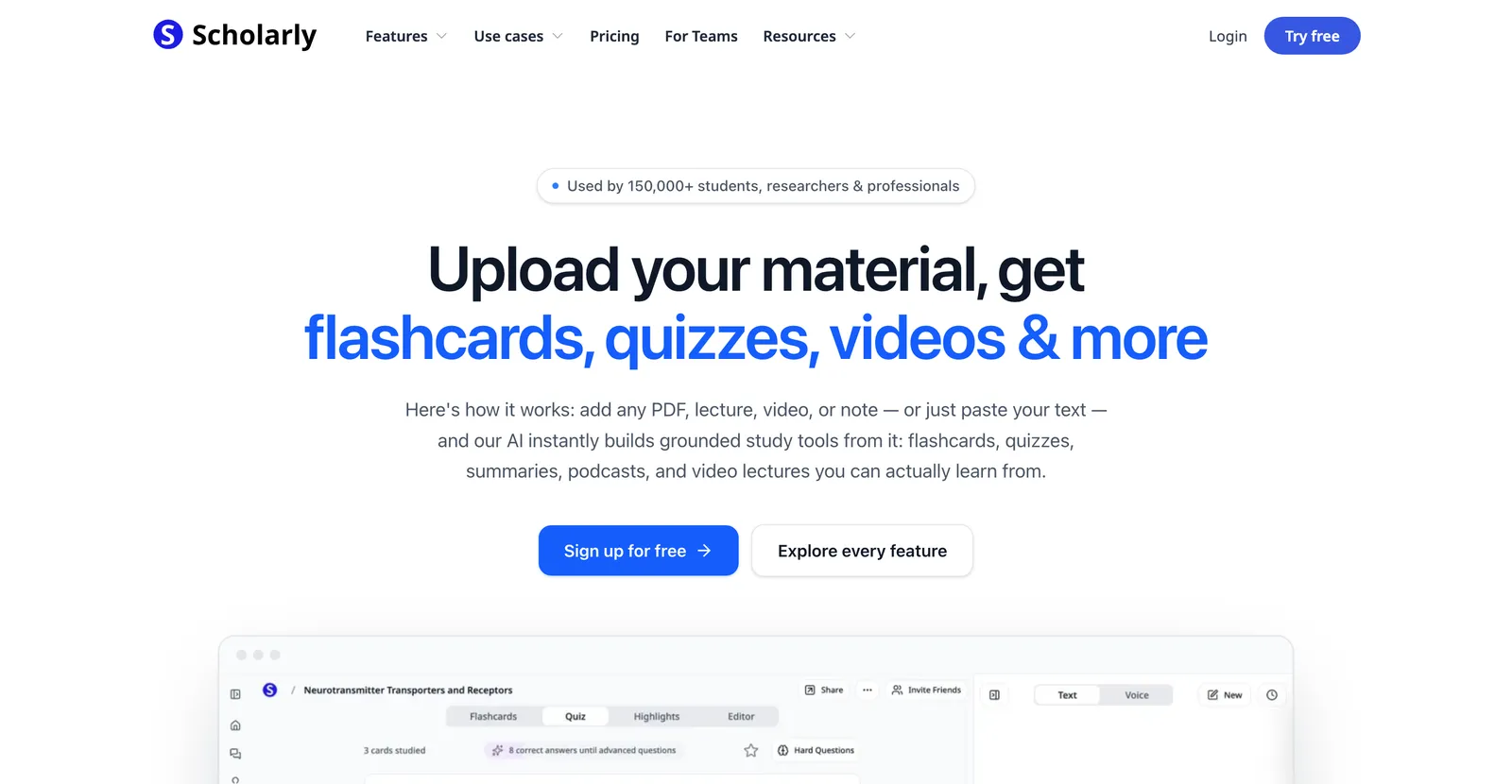
Best for: students turning their own notes and readings into review material, not teachers producing lessons.
Scholarly is worth knowing because your students may already use it. It converts notes and PDFs into flashcards, quizzes, and study aids, and it leans student-facing rather than teacher-facing. Pricing (from scholarly.so, checked July 2026): a free plan with tight caps, such as one lifetime AI creation and small file uploads. The Ultimate plan is $12/month or $144/year. A Teams plan runs $45 per seat per month with a three-seat minimum. There is no separate student discount listed, though the vendor pitches the price against tutoring cost.
05
Accessibility, captions, and multilingual reach
Accessibility is not a nice-to-have in education, it is often a legal requirement and always a learning one. Two features do most of the work.
Captions. Every tool above can add subtitles. Turn them on by default and proofread them, because auto-captions still garble names and technical vocabulary. Captions help students with hearing differences, students in noisy environments, and anyone reviewing on a phone with the sound off.
Translation and multilingual audio. Avatar tools like Synthesia and HeyGen can deliver the same lesson in many languages, which matters for international cohorts and multilingual classrooms. If a third of your students think in another language at home, a translated version is not a luxury.
One caution: machine translation and auto-captions are drafts, not final copy. For anything graded or official, have a fluent human check the output before it reaches students.
06
Student data privacy and FERPA: check before you upload
This is the part most tool roundups skip, and it is the part that can get a teacher in real trouble. In the United States, student education records are protected under FERPA, and comparable rules exist elsewhere. A few practical guardrails:
- Do not upload personally identifiable student information into a consumer AI tool unless your district has vetted and approved it. That includes names, grades, and student work tied to a student.
- Prefer school-approved or enterprise tiers for anything involving real student data, since those carry the contractual protections consumer plans do not.
- Keep the content generic. Lesson explainers about a topic carry no student data and are the safe default. Save the personalized feedback videos for approved platforms.
- Read the tool's data-use terms. Check whether your uploads train the model and whether you can delete them.
When in doubt, ask your district's technology office before you build a workflow on a tool. A free tier is not worth a privacy violation.
07
How to choose as an educator
- Explaining a concept? Use animation. TapVid fits abstract topics that benefit from motion.
- Delivering a lecture students replay? Use an avatar. Synthesia or HeyGen, especially across languages.
- Already have slides or a PDF? Use a template tool like Canva or a document-to-video tool like Golpo AI.
- Budget is the constraint? Start with free tiers. Canva for Education is free for K-12, and most tools free-trial with a watermark.
- Handling real student data? Stop and check FERPA and your district policy first.
08
Frequently asked questions
What is the best AI video generator for education?
It depends on the lesson. For animated concept explainers, TapVid. For avatar lectures students replay, Synthesia or HeyGen. For template videos, Canva, which is free for K-12 teachers. There is no single winner, only the right fit for the job.
Is there a free AI video generator for teachers?
Yes. Canva for Education is fully free for verified K-12 teachers. TapVid, Synthesia, HeyGen, and Golpo AI all have free tiers too, though free exports usually carry a watermark or a length cap.
Can I make a lesson video without appearing on camera?
Yes. An animation tool like TapVid builds the lesson from your script with no presenter at all. Avatar tools use a digital presenter, so you still stay off camera.
Can AI turn my slides or PDF into a lesson video?
Yes. Document-to-video tools read a deck, worksheet, or PDF and build a narrated video from it. Output quality tracks how clean your source file is.
Do these tools support subtitles and other languages?
Most do. Captions are standard across the tools here, and avatar tools like Synthesia and HeyGen also translate a lesson into many languages. Always proofread auto-generated captions and translations.
Is it safe to use AI video tools with student data under FERPA?
Only with care. Keep lesson content generic and free of student information, and use district-approved or enterprise plans for anything involving real student records. Check your school's policy before uploading.
How long should an educational video be?
Shorter than you think. For K-12, aim for two to four minutes per concept. For higher ed and training, chapter longer lectures into segments students can rewatch. One idea per video beats one long video covering everything.
09
The takeaway
The best AI video generator for education is the one that fits the lesson and your prep time. Animate the concepts, use an avatar for replayable lectures, lean on free education tiers while you test, and keep student data out of consumer tools. Pick one job from your next lesson and make a single video with the five-step workflow above. To try the animated approach, start with the AI explainer video generator.