
TL;DR
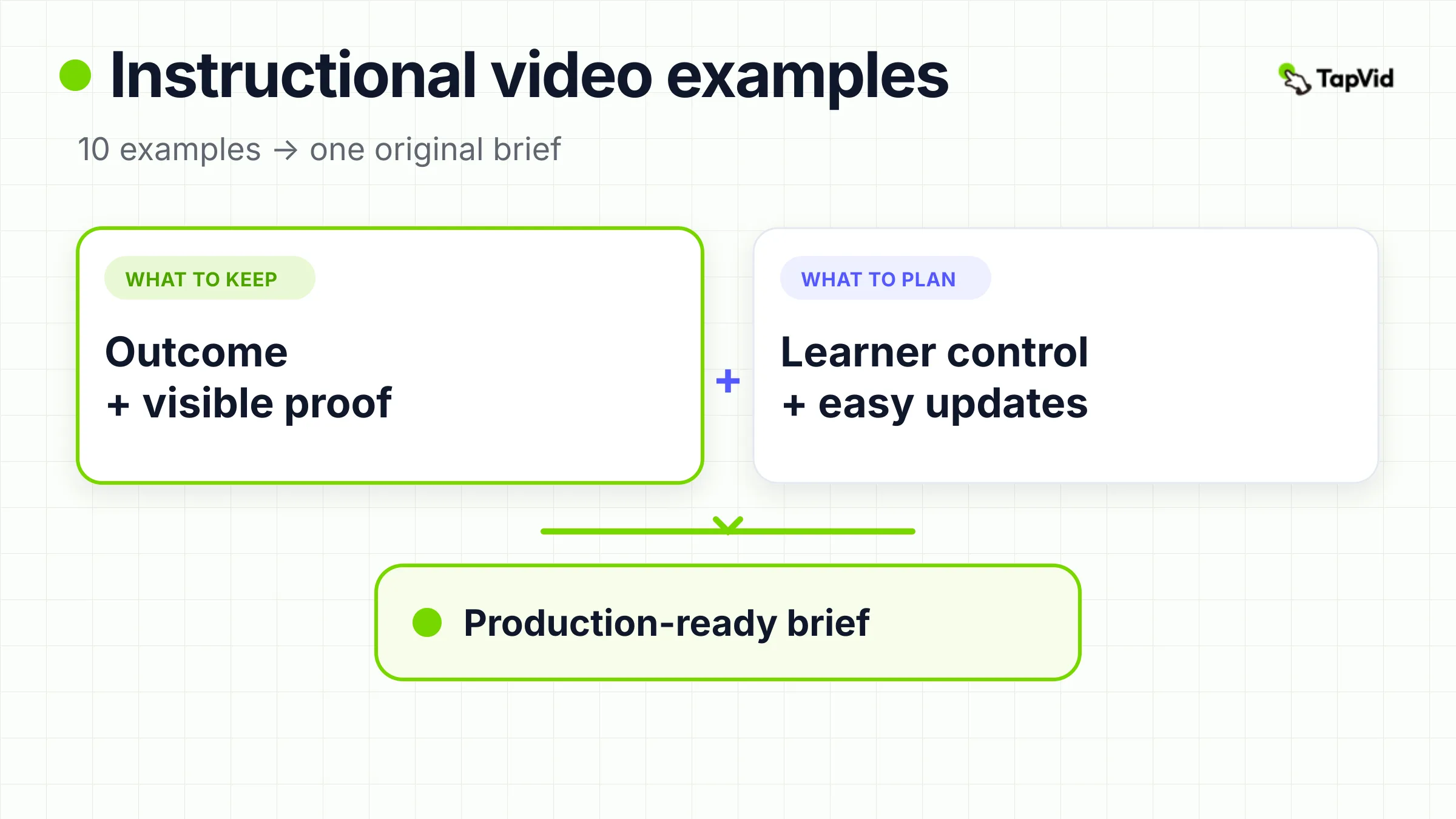
The most useful instructional video examples are not simply polished videos. They help a defined learner complete a checkable action, and they make the critical input, movement, decision, or finish state visible. That answer follows the action-oriented logic in the CDC guidance on learning objectives. Use the ten references below to study four production decisions: learner outcome, visible proof, learner control, and maintenance. A limitation matters here: inclusion shows an observable teaching mechanism, not independently measured learning impact.
Reference hunting often starts with appearance. A team saves an animation because the pacing feels modern, a tutorial because the presenter is charismatic, or a safety film because the story is memorable. Then the production brief says, "Make something like this." The reference has influenced the project, but nobody has said which part must survive.
That is how an attractive video can fail at the moment of use. The pointer is too small. The hands cover the critical motion. A returning learner cannot find the one step they need. A branch applies only to one device state. The interface changes two weeks after launch. None of those problems is solved by matching the reference's color palette.
This guide uses ten public instructional video examples across software onboarding, search, store setup, physical repair, high-stakes action, cooking, follow-along movement, compliance, device transfer, and maintenance. They are not ranked. Each one is treated as a design case: what the learner is trying to do, what the viewer must be able to see, where control belongs, what can become stale, and how to convert the useful mechanism into an original brief.
01
What Counts as an Instructional Video?
An instructional video prepares a specific learner to perform an action or make a checkable decision. The action can be physical, such as repairing a wall, positioning a tool, or assembling a product. It can also be cognitive, such as choosing the correct setup path, recognizing a risk, or interpreting a result. In both cases, success is more concrete than "the viewer understands the topic."
The CDC learning-objective guidance is a useful boundary because it asks for learner-centered, action-oriented, observable, and measurable objectives. "Understand Photoshop" does not tell a writer what to include or a reviewer what to protect. "Open an image, make one defined edit, and export the result" gives the production team an observable finish state.
Adjacent video types can include instruction, but they protect different primary jobs:
- A product demo proves that a product can do something. Buyer confidence is usually the outcome.
- An explainer video gives the viewer a mental model. It can succeed even when no immediate performance follows.
- A promotional video moves the viewer toward a campaign action such as registering, visiting, or buying.
- An instructional video organizes the content around what a learner can do, decide, or reproduce after viewing.
The categories can overlap. A setup video can lower purchase anxiety while teaching a procedure. An animated explainer can include a repeatable task. The useful question is not which label is pure. Ask which job must win when clarity, runtime, entertainment, brand style, and production cost compete.
TapVid already covers narrower adjacent jobs in its guides to corporate training videos and explainer video examples. This page owns a different decision: how to inspect teaching mechanisms across formats and turn them into a production brief without copying the surface execution.
02
How to Judge Instructional Video Examples Without Copying the Style
Use a four-part scorecard before discussing animation style, camera equipment, or editing rhythm.
1. Learner outcome. Complete the sentence, "After this video, the learner can..." Use an observable verb and one finish state. If the sentence contains three unrelated jobs, split the scope into chapters, a series, or a video plus a searchable job aid.
2. Visible proof. Name the state the viewer must be able to inspect. A software tutorial may need to show the input, selected control, resulting screen, and saved output. A physical task may need to show hand position, tool angle, pressure, alignment, texture, or the difference between incomplete and complete work. The camera is evidence infrastructure.
3. Learner control. Decide where the viewer needs to pause, replay, jump to a branch, skip a prerequisite, or resume. YouTube explains that video chapters divide a video into sections with individual previews and make portions easier to rewatch. Chapters are useful when the task has legitimate sub-jobs. They do not repair a lesson that mixes unrelated outcomes.
4. Maintenance trigger. List everything that can become stale: interface labels, policy wording, product models, safety guidance, links, narration, captions, and translated on-screen text. Assign a source owner and a review trigger. The CDC Quality Training Standards also connect objectives with suitable methods, relevant content, subject-matter review, accessibility, assessment, and a planned review or expiration date.
The scorecard changes the conversation. Instead of saying, "We like the energy," a team can say, "We need the same visible before-and-after state, but we do not need the cinematic story." Instead of copying a fifty-minute tutorial, the team can borrow its chapter logic and rebuild the sequence around a smaller learner outcome.
03
Adobe Photoshop: Design for the First Useful Win
Watch the example: How to Get Started with Adobe Photoshop from Adobe Creative Cloud.
The Adobe session is a long beginner lesson that moves between a presenter and the Photoshop interface. Section cards and many chapters give it the structure of a compact course. The most reusable decision is not the runtime. It is the attempt to organize a broad product around tasks that can end in a visible result.
Complex software often produces feature-tour scripts. The writer follows the toolbar, panels, settings, menus, and integrations because that is how an expert sees the product. A beginner usually arrives with a different question: what can I make first, and how will I know I did it correctly?
The first useful win should therefore control the scope. Establish one starting file. Show the action that changes it. Hold on the result long enough for comparison. Show the export or saved state. Optional depth can sit behind chapters after the first outcome is complete.
What to borrow: task-led organization, readable screen states, and restart points. Keep the pointer visible, avoid cuts that hide a required state change, and end on proof of completion instead of a montage of features.
Brief translation: "For a first-time editor with one image, demonstrate the minimum sequence needed to produce and export one usable change. Show the starting file, every control that materially changes the result, the final comparison, and the next optional task."
Limitation: the interface in any recorded software tutorial is historical. Borrow the teaching structure, not the old screen state. A new version needs fresh capture and an owner who triggers review when the UI changes.
04
Ahrefs: Keep the Screen Recording on One Question
Watch the example: Official Ahrefs Tutorial: How to use Ahrefs to Improve SEO from Ahrefs.
The Ahrefs tutorial combines a presenter, dashboards, tables, diagrams, and chapters. Its strongest reusable pattern is continuity between a question, an input, a result, and a next decision. The viewer can see what is being investigated, where the query enters the system, which result matters, and what to do with it.
Screen tutorials lose people when the narration, cursor, and visible data point in different directions. "Look at this result" is not enough when a dashboard contains dozens of numbers. The eye needs a proof path:
1. State the question in the learner's language.
2. Show the exact input or starting record.
3. Keep navigation visible when it explains how the learner arrived.
4. Highlight one result and interpret why it matters.
5. Show the saved output or next decision.
That sequence is more reusable than a tour of one feature area. It also gives the editor a rule for cuts. A loading interval can disappear. A selection that changes the result cannot disappear unless the transition is clearly labeled.
What to borrow: question-led continuity and synchronized attention. Use a realistic example, leave enough dashboard context for interpretation, and make callout, cursor, and narration agree.
Brief translation: "For a marketer investigating one page, show the exact query, the result used for the decision, and the next action. Keep cursor, callout, and narration synchronized. End with the saved output or decision, not a dashboard montage."
Limitation: mutable dashboards increase update cost. Keep script, narration, captions, and captures modular so a changed label does not force a full rebuild.
05
Shopify: Use Chapters When the Job Is Genuinely Long
Watch the example: The OFFICIAL Shopify Tutorial For Beginners from Learn With Shopify.
The Shopify beginner tutorial runs for almost fifty minutes and divides the work into many chapters. The host sets context, then the lesson moves through screen demonstrations, arrows, captions, and section boundaries. Its length is not automatically a defect. Setting up a store contains dependent tasks, and pretending the whole job fits into a three-minute clip would hide choices that matter.
The real risk is forcing every learner through one linear path. A first-time owner may need the full sequence. A returning owner who only needs one setting should not scrub through a general introduction. Chapters create restart points, but only if their labels match learner actions.
"Add your first product" is a better chapter title than "Catalog overview." The first label describes a job and implies a finish state. The second describes an internal information architecture. Each chapter should restate its local goal, identify prerequisites, show the complete action, and confirm the state that permits the next chapter.
What to borrow: one course-level promise with locally complete, action-named chapters. A returning learner should be able to use one chapter without replaying the full lesson.
Brief translation: "For a first-time store owner, divide setup into action-named chapters. At each opening, state what must already be available, show the complete task, confirm the finished state, and point to the next dependent step."
Limitation: long recordings multiply maintenance exposure. Separate stable concepts from screens likely to change, and capture modules so one changed branch can be replaced without rebuilding the course.
06
The Home Depot: Plan Camera Angles From Likely Errors
Watch the example: How-To Workshops - How To Repair Drywall from The Home Depot.
The workshop uses presenters, tool and supply cards, wide workspace views, hand close-ups, surface close-ups, live demonstration, and recap slides. It makes a basic point that is easy to miss in polished physical how-to content: the proof angle matters more than presenter polish.
A wide shot establishes workspace, body position, and orientation. It rarely shows pressure, edge alignment, surface texture, or a small error. A close-up can show technique but make the learner forget where the part belongs. Good coverage plans the relationship between those views instead of choosing a favorite focal length.
Start the shot list with likely mistakes. If learners select the wrong tool, show the options together and identify the decision. If material thickness matters, show a readable comparison. If a hand blocks the critical action, move the camera or repeat the step from another angle. If the finish is judged by texture or level, hold on that state before cutting away.
What to borrow: coverage designed around error prevention and finish-state verification. Use a wide shot for orientation, a close shot for the irreversible move, and a return to context for completion.
Brief translation: "For a homeowner repairing one defined type of damage, show preparation, tool choice, each irreversible action, the surface at key state changes, and the finished condition. Every likely error must have a corresponding close-up, warning, or comparison."
Limitation: a workshop can provide depth but may be inefficient for urgent retrieval. A chaptered full lesson plus short task-specific clips may serve the learner better than one asset trying to cover every use context.
07
American Heart Association: Raise the Review Standard With the Risk
Watch the official example on YouTube: Hands-Only CPR Instructional Video from the American Heart Association. Use the current AHA Hands-Only CPR page for authoritative context and resources.
The short video uses a narrow two-step structure, an uncluttered setting, full-body context, and close views of hand placement. The reusable lesson is restraint. A high-stakes video cannot trade away source fidelity because a faster cut, warmer line, or more entertaining sequence feels better.
Risk should change the workflow. The script comes from the approved source, not from a writer's memory. A qualified reviewer checks both wording and demonstration. Scope and audience are explicit. A link beside the video points to the current authority. Sequence changes require renewed review rather than ordinary copy approval.
This creates a simple risk ladder. Low-consequence instruction can be reviewed by the content owner and a competent user. High-consequence instruction requires source binding, domain review, stricter change control, and a clear statement of what the video does not replace.
What to borrow: narrow scope, authoritative source ownership, unobstructed technique, and a separate review class for consequential actions.
Brief translation: "For the exact audience and situation defined by the authority, reproduce only the approved actions and boundaries. Show the technique from the angle required for verification. Link to the current source and define the event that triggers renewed review."
Limitation: this example is analyzed for communication structure. This article does not replace medical training, current AHA guidance, supervised practice, or emergency advice.
08
Tasty: Show the State Change, Not Just the Motion
Watch the example: Mango Lime Cheesecake from Tasty.
The short recipe uses an overhead view, hands-only action, ingredient and step labels, and visible changes in mixture, texture, and assembly. The work occupies the frame, so much of the sequence remains legible without a presenter.
The key teaching unit is not the hand movement by itself. It is the relationship between action and state. Show the ingredient before it enters. Show the action while it changes the material. Hold on the result long enough for the learner to compare their bowl, surface, or assembly with the example. A fast cut that hides the state may keep the edit energetic while removing the information the learner needs.
Visual-first clarity is useful, but it is not the same as accessibility. W3C's accessible media guidance distinguishes captions, transcripts, descriptions of important visual information, sign language, and accessible player support. On-screen labels do not automatically cover every audience need.
What to borrow: action-state pairing, clean visual priority, and labels attached to the exact state they describe. Remove decoration that competes with the ingredient, tool, hand, or finish condition.
Brief translation: "For a viewer following with the sound off, show each ingredient, action, and state change in order. Use short labels for orientation, provide a complete text recipe or transcript, and hold long enough for comparison."
Limitation: speed can hide quantities, waiting periods, safety details, or recovery from an error. A short social cut should point to a complete source when the task needs more precision.
09
Yoga With Adriene: Deliver the Cue Before the Movement
Watch the example: Yoga For Complete Beginners - 20 Minute Home Yoga Workout from Yoga With Adriene.
The session uses a stable full-body view and continuous spoken cues across a follow-along lesson. Unlike a demonstration watched before action, follow-along instruction asks the learner to listen, interpret, and move while the presenter moves. Words, framing, and pace become one timing system.
A cue that arrives after the presenter completes the motion may be too late. A tight shot can clarify facial expression while hiding alignment. An energetic edit can remove the pause a beginner needs. The production question is not simply how to keep attention. It is when the learner needs information relative to the action.
Script cues on a performance timeline. Give preparation before movement, direction during transition, and confirmation after the learner reaches the state. Keep the relevant body, tool, or interface area visible for the full interval. When an approved alternative or pause matters, introduce it before the learner is committed to the motion.
What to borrow: advance cues, continuous proof framing, and pacing based on learner action rather than edit energy.
Brief translation: "For a beginner following in real time, state the next movement before it begins, demonstrate it at the learner's pace, keep the complete required form visible, and provide an approved pause or alternative at the decision point."
Limitation: a creator's follow-along format is not individualized health guidance. Exercise, rehabilitation, or ergonomic instruction needs appropriate domain review and clear audience boundaries.
10
Air New Zealand: Let Story Support the Required Action
Watch the example: The Most Epic Safety Video Ever Made from Air New Zealand.
Air New Zealand places safety demonstrations inside a cinematic fantasy. Required behaviors remain visible, but the entertainment layer is deliberately prominent. That makes it a valuable boundary case, not an automatic model for every training or compliance project.
Story can create attention, emotional context, and a memorable frame. It can also make a required action harder to retrieve later. A compliance reviewer should therefore evaluate two layers separately:
- Does the story hold attention and support the intended tone?
- Can a learner locate, recognize, and reproduce each required behavior without depending on a joke, character, or reference?
Success in the first layer does not prove success in the second. Map the required actions before writing the story. Give each one an unobstructed proof moment. Use repeated visual cues to distinguish required behavior from narrative decoration. Review the cut once for the full experience and once only for action visibility and sequence.
What to borrow: story as connective tissue around an already protected action map. The mandatory behavior remains the source of truth for the scene.
Brief translation: "For the defined compliance audience, preserve every approved behavior and sequence. Story may connect the moments, but no required action can depend on recognizing a character, joke, or cinematic reference. Test whether a reviewer can locate and verify every action."
Limitation: this example demonstrates a creative trade-off. It does not, by itself, prove that spectacle improves safety learning, recall, or behavior.
11
Apple Support: Branch on the Learner's Starting State
Watch the example: How to transfer your data and set up your new iPhone from Apple Support.
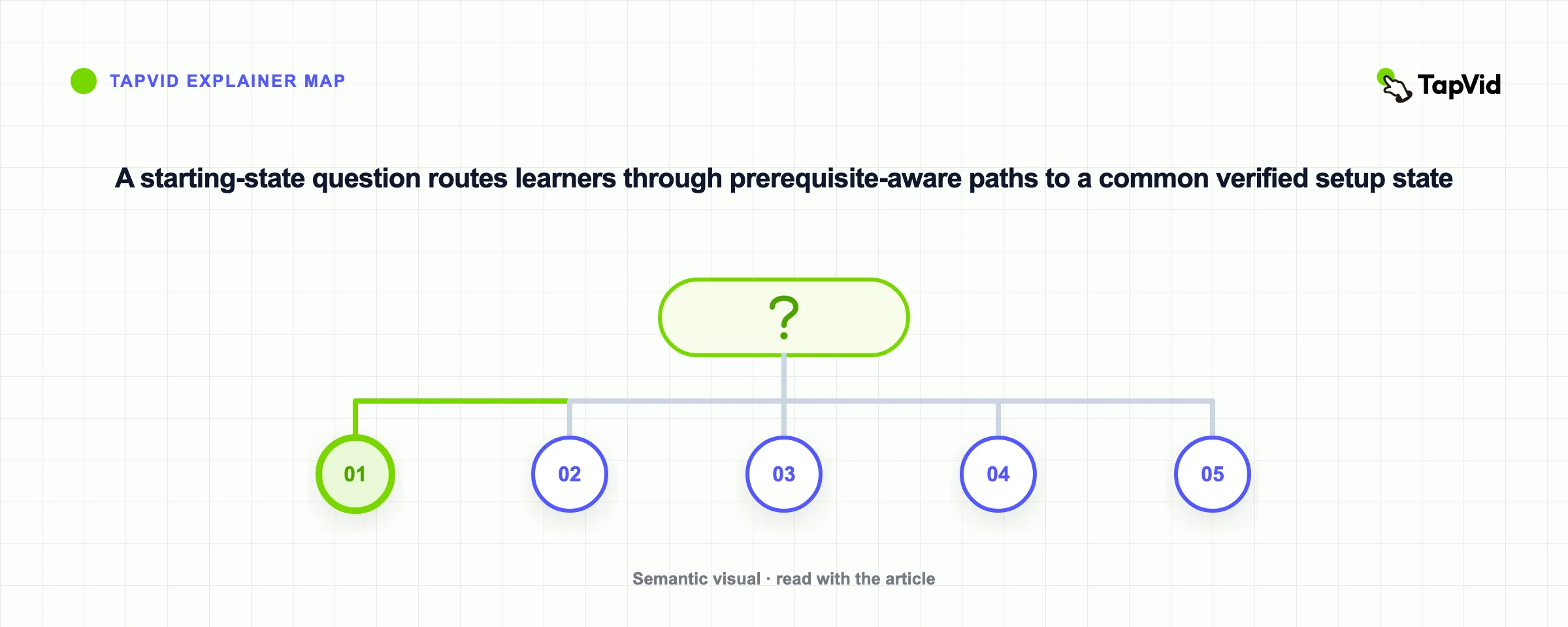
Apple Support uses device diagrams, side-by-side screens, labels, and chapters to separate transfer paths. The lesson does not pretend that every learner begins with the same device, account, backup, or permission state.
Many setup videos fail exactly at the branch. The presenter follows one path while viewers in another state wait for an explanation that never arrives. A useful branching lesson identifies the prerequisite before the shared sequence diverges.
Start with a decision the learner can answer using language visible on their device or in the current documentation. State what each path requires. Then show one complete route at a time. Do not jump back and forth between branches merely to keep the video short. All valid paths should end at a clearly defined common setup state.
What to borrow: a starting-state decision, explicit prerequisites, complete paths, and a shared finish state. This structure can work in chapters, separate clips, or a text decision tree that routes to the right video.
Brief translation: "For a new-device owner, identify the current device and backup state first. Present the available routes and prerequisites using current approved documentation. Show one complete path at a time and finish at the same verified setup state."
Limitation: device screens and transfer options change. Use current Apple Support documentation for a real transfer. The public video is evidence for branching structure, not a promise that every historical screen is current.
12
Nespresso: Make the Finish State Observable
Watch the example: Nespresso Lattissima One - Descaling from Nespresso.
The model-specific video uses locked-off product views, hand close-ups, control-panel states, container placement, water-tank changes, and a final reset. The machine remains the visual reference, which lets the owner compare its current state with the example.
Maintenance videos frequently show actions but omit verification. The viewer sees buttons pressed and parts moved, yet cannot tell whether the device has exited a special mode, been reassembled, or become safe to use. The finish state must be written into the brief.
A reliable maintenance sequence includes preparation, entry state, ordered actions, checkpoints, exit state, cleanup, and model scope. Close-ups show changed controls or components. Orienting shots show where those parts belong. The current manual stays next to the video because a model-specific demonstration should not become a universal instruction through omission.
What to borrow: state-based sequencing with visible checkpoints and a verified reset. Treat the final condition as part of instruction, not an editing afterthought.
Brief translation: "For the exact model owner, show required materials and preparation, every control-panel or component state, the condition that permits the next step, and the verified reset. Place the model identifier and current manual next to the video."
Limitation: product maintenance is model-specific. A historical clip cannot replace a current manual, safety information, manufacturer support, or qualified service when required.
13
Turn a Reference Into a Production Brief
Do not ask a producer to make something like a reference. Extract the teaching mechanism and rebuild it around material you own, a learner you understand, and a source you can verify.
1. Learner and moment of use: Name the person, prior knowledge, device, language, environment, and reason they need the instruction now.
2. Observable action: Complete the sentence, "After this video, the learner can..." Add the condition and acceptable finish state.
3. Starting state and prerequisites: List accounts, tools, materials, permissions, safety conditions, and earlier steps. If several starting states exist, define the branch before the procedure.
4. Source of truth: Link the approved interface, manual, policy, subject-matter source, or recipe. Record the owner, current revision, and review date.
5. Error points: Identify mistakes that block success or create risk. Each important error should change the script, shot list, cue, warning, or review checklist.
6. Required proof: Specify what must be readable: cursor target, field value, hand position, tool angle, component state, before-and-after result, or decision criterion.
7. Learner control: Mark pause points, chapters, branches, replayable clips, and any step that needs a downloadable checklist or searchable text alternative.
8. Accessibility package: Plan captions, transcript, description of essential visual information, readable on-screen text, accessible playback, and language versions for the real audience. Do not assume one artifact covers every need.
9. Reviewer and update trigger: Name the subject-matter reviewer. Define what starts a review: interface release, policy date, model change, safety update, broken link, or scheduled expiration.
10. Success check: Decide how the learner proves the action. A completed view is not the same as successful performance. Use an observed task, saved artifact, state check, scenario, or decision when the context justifies it.
A compact brief can use this structure:
> For [learner in starting state], demonstrate [observable action] using [approved source]. Make [critical input, action, or state] visible, protect against [error points], provide [learner controls and accessibility assets], and confirm success through [observable check]. [Owner] reviews the instruction when [trigger] changes.
This is the difference between borrowing a useful mechanism and copying an execution. A team can take chapter logic from Shopify, proof-angle logic from The Home Depot, branching logic from Apple, or finish-state logic from Nespresso without imitating brand language, footage, design, or unsupported claims.
14
Choose the Format by Learning Job, Risk, and Update Cost
Format follows what the learner must perceive and how expensive the source is to keep true.
| Learning job | Best starting format | Required proof | Update pattern | Use something else when... |
|---|---|---|---|---|
| Complete a software task | Screen recording with a readable pointer and callouts | Input, control, result, and decision | Capture mutable UI in modules | One stable searchable answer solves the problem faster |
| Perform a physical procedure | Live action with planned wide and close proof angles | Tools, position, movement, state changes, finish | Review when equipment or procedure changes | Qualified live coaching must observe performance |
| Follow in real time | Continuous demonstration with advance cues | Full required form and cue timing | Re-record when the approved sequence changes | The learner needs individual feedback or adaptation |
| Choose among starting states | Branching or chaptered setup | Prerequisites, decision point, complete path | Replace the affected branch where possible | A text decision tree solves the choice without motion |
| Maintain a product | Model-specific demonstration plus current manual | Materials, control states, finish and reset | Strong model and version ownership | The manufacturer requires qualified service |
| Learn a high-stakes behavior | Authority-controlled demonstration with narrow scope | Approved action, boundary, and reviewer | Immediate review on authority change | Certification, supervised practice, or assessment is required |
| Recall controlled compliance content | Direct demonstration; story only when actions stay retrievable | Every mandatory action and sequence | Review against the controlled policy | Exact language belongs in the policy, not only in video |
Video is not always the right format. Text is better for commands that must be copied, values that change frequently, and steps that need scanning. A checklist is better when the learner already knows the technique and needs a reminder. Live coaching is better when judgment, feedback, or observed physical performance is essential. Video earns its maintenance cost when movement, timing, state change, or spatial relationship materially improves the learner's ability to act.
15
Frequently asked questions
What is an example of an instructional video?
A software walkthrough that helps a user complete one task, a close-up repair demonstration, a recipe that shows visible state changes, or a follow-along movement lesson can all be instructional videos. The shared feature is a defined learner action that can be checked after viewing.
What are the main types of instructional videos?
Common types include screen tutorials, physical how-to videos, product setup and maintenance, follow-along demonstrations, safety and compliance instruction, and chaptered training lessons. Choose the type by what the learner must see and do, not by a style label.
How long should an instructional video be?
Long enough to show the complete action and its important boundaries, but no longer than the learner job requires. A narrow high-stakes demonstration may be short. A complete store setup may need chapters. If people will return for one step, make that step independently findable.
What makes an instructional video effective?
A clear learner outcome, visible proof of the action, accurate content, useful learner control, appropriate accessibility support, and a way to verify performance. Production polish cannot compensate for a vague action or stale source.
What is the difference between an instructional video and an explainer video?
An explainer primarily helps the viewer understand an idea or mechanism. An instructional video primarily prepares the learner to perform an action or make a checkable decision. One video can do both, but the brief should identify which outcome has priority.
How do you turn a reference video into an original brief?
Extract the teaching mechanism, such as chapters, branching, proof angle, cue timing, or state comparison. Rebuild it around your own learner, approved source, prerequisites, error points, accessibility needs, reviewer, update trigger, and success check. Do not copy the reference's footage, brand assets, or claims.
16
Build From the Required Proof
Pick one real learner task and write the observable finish state. Attach the current source. List the likely errors. Decide what the screen recording or camera must prove. Then choose the instructional video examples whose teaching mechanisms solve those exact problems.
If those decisions remain unresolved, production software only makes the uncertainty more expensive. If they are clear, the format, runtime, chapter plan, coverage, review process, and update strategy become easier to defend. That is the point of a useful reference: not to give your video a look, but to make the learner's success visible.