
TL;DR
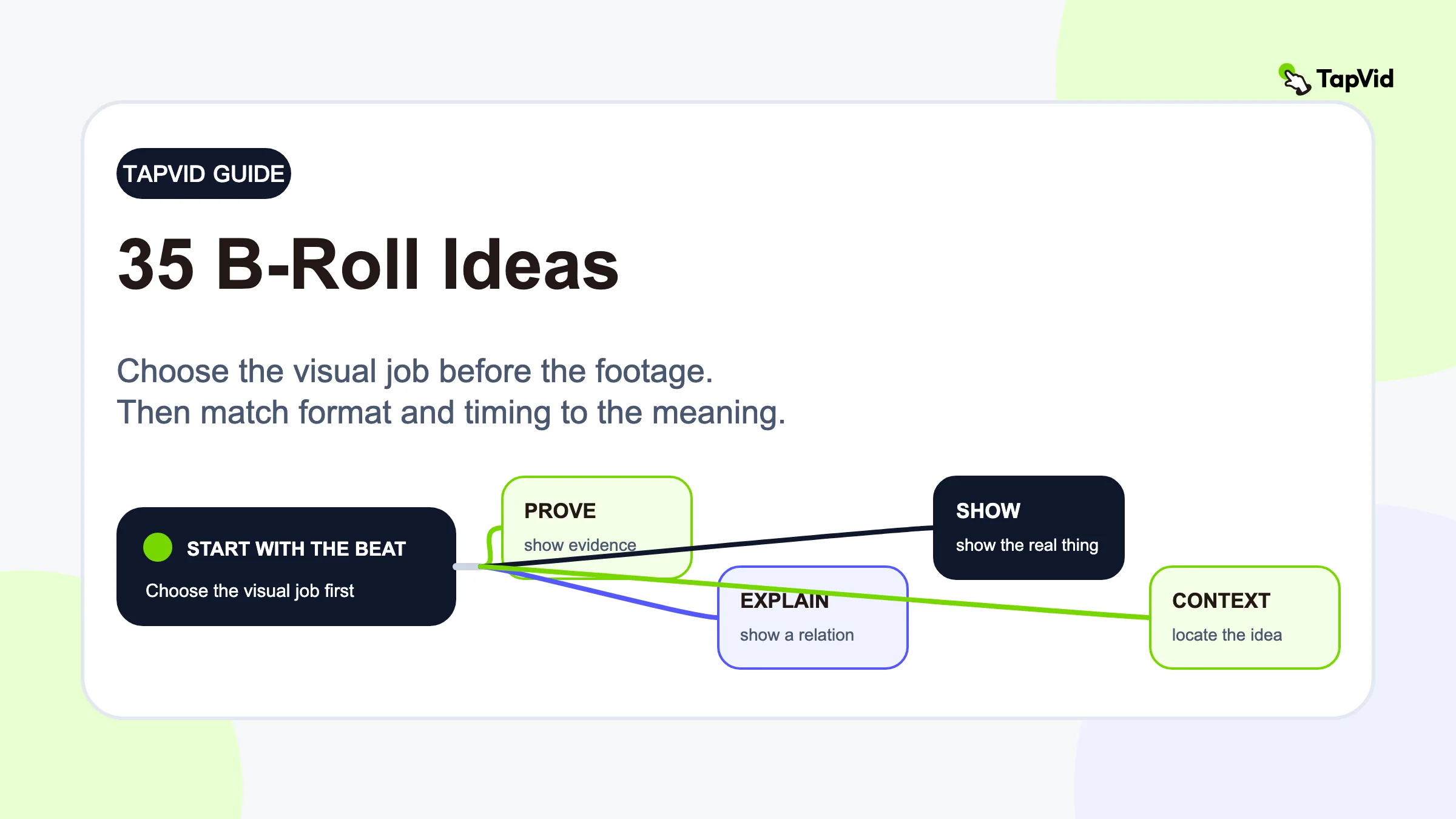
The strongest B-roll ideas come from the job each moment in your video is doing. Use a chart for a number, a screen recording for a product action, a side-by-side visual for a comparison, and a concrete scene for an example or story. Place each visual when the relevant phrase or action begins, then remove it before the subject changes. The goal is not to cover every second. It is to make each cutaway clarify, prove, demonstrate, compare, or add context.
B-roll is supporting footage or imagery that appears around your main story. In an interview or talking-head video, the speaker is usually the A-roll. In a tutorial, Reel, or product video, the A-roll may be the main demonstration or performance. The screenshots, cutaways, diagrams, close-ups, product clips, and contextual scenes that make the main story easier to follow are B-roll. Most lists start with objects: film your desk, make coffee, walk outside, type on a laptop. Those shots are easy to capture, but they are not automatically useful. A coffee shot adds little when the speaker is explaining customer acquisition cost. A simple chart may do far more. The practical question is not, “What footage do I have?” It is, “What does the viewer need to see at this moment?” This guide answers that question with 35 adaptable B-roll ideas, a format-selection matrix, a planning workflow, and clear rules for deciding when a cutaway helps or distracts.
01
The fastest way to choose B-roll is to start with the story beat
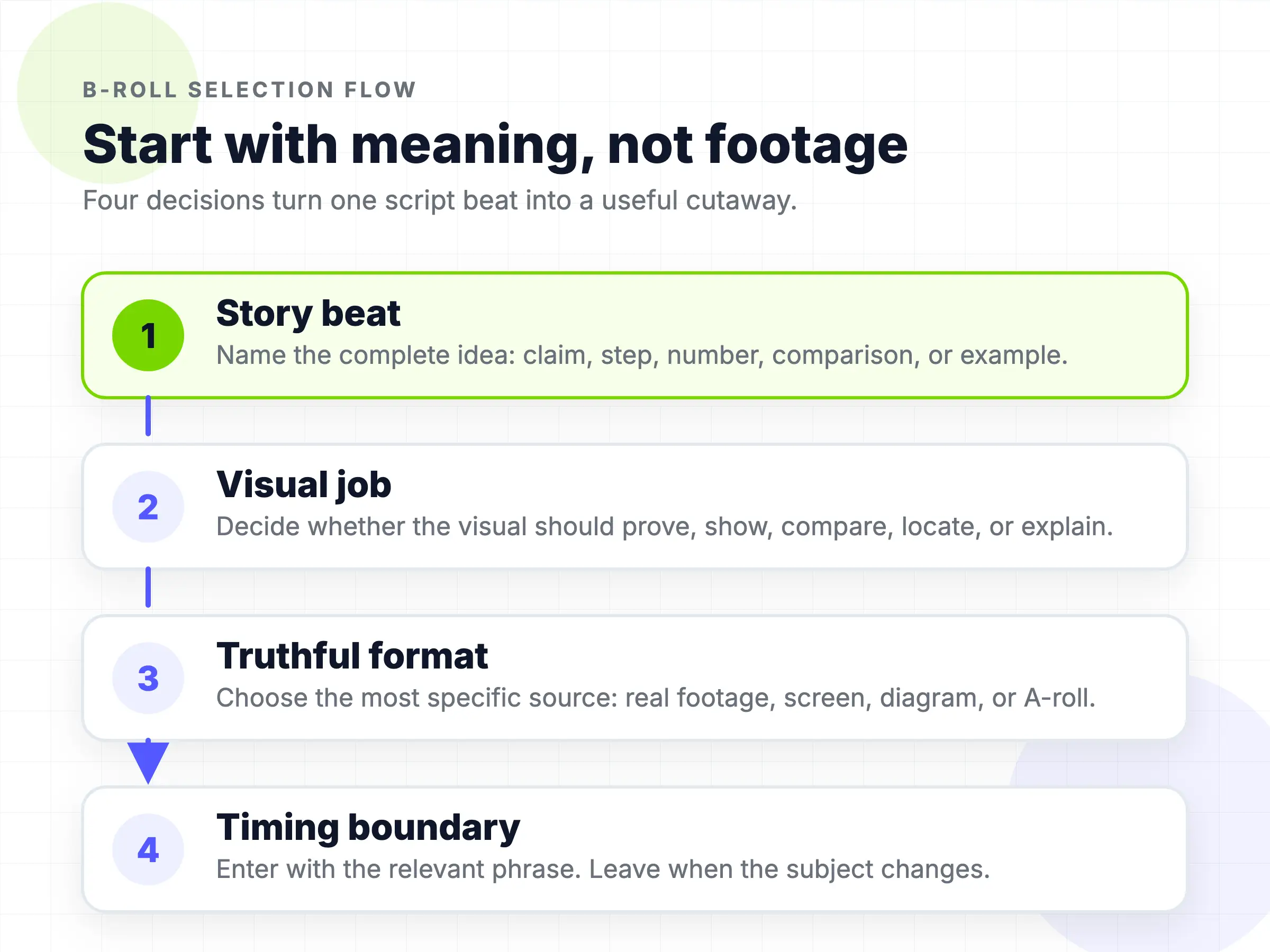
Start by dividing the script into semantic beats. A beat is one complete idea that can be understood on its own, such as a claim, a number, a step, a comparison, or an example. One sentence may contain one beat. A long sentence may contain two or three.
For each beat, make four decisions:
- Name the sentence’s job. Is the speaker proving something, explaining a process, describing a place, showing a product, or asking the viewer to act?
- Choose the visual job. The visual should prove, demonstrate, locate, compare, simplify, or create context. It should not merely decorate the frame.
- Choose the most truthful format. Use a real screen recording for a product action, a sourced chart for data, owned footage for personal proof, or an illustration for an abstract concept.
- Set the timing boundary. Bring the visual in as the relevant phrase starts. Remove or change it when the spoken subject changes.
A useful B-roll idea passes three quick tests:
- Semantic match: Can a viewer explain why this visual belongs with these words?
- Information gain: Does it make the idea clearer, more credible, or easier to remember?
- Timing match: Does it appear while the viewer is hearing the idea it supports?
If the answer to all three is no, keep the speaker on screen. The face is not empty space that must constantly be covered.
The same logic works for scripted explainers, interviews, tutorials, product demos, and short-form videos. When there is no narration, treat the main action as the beat. A hand reaching for a tool, a product changing state, or a person arriving at a location can each create a clear reason for the next supporting shot.
02
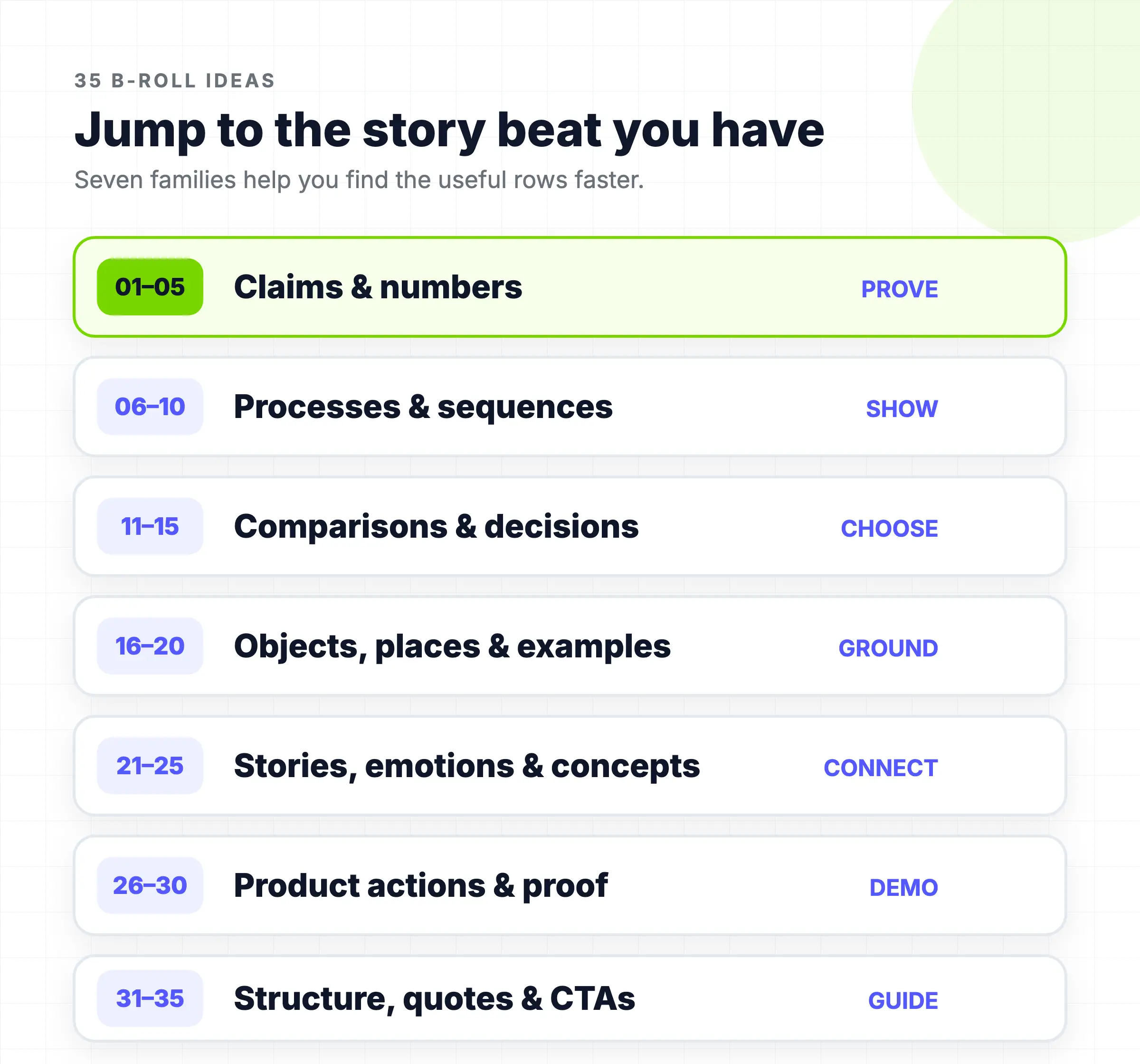
35 B-roll ideas matched to common story beats
Use this table as a script annotation sheet or shot-list builder. Find the type of line, action, or story beat in your video, then adapt the suggested visual to your topic and available source material. The timing notes are starting rules, not frame-accurate prescriptions. Speech pace, visual complexity, camera movement, and platform format still matter.
| # | Spoken beat | B-roll idea | Why it helps | Timing note |
|---|---|---|---|---|
| 1 | A headline statistic | Animate the number beside the speaker with a short source label | Makes the magnitude visible without replacing the speaker | Enter on the number, hold through its meaning, then exit |
| 2 | A trend over time | Show a simple line chart with only the relevant period highlighted | Turns direction and scale into something viewers can inspect | Reveal as the trend is named, not during the setup sentence |
| 3 | A before-and-after result | Use matched before and after frames from the same source | Gives the claim a concrete comparison | Show “before” first, then switch on the word “after” |
| 4 | A percentage or ratio | Use a proportional bar, ring, or 100-unit grid | Helps viewers understand part-to-whole relationships | Keep it visible long enough to read the label once |
| 5 | A claim with evidence | Display the original source, report excerpt, or product result | Connects the assertion to verifiable proof | Highlight only the line that supports the spoken claim |
| 6 | A three-step process | Build a numbered 1-2-3 sequence one step at a time | Preserves order and reduces working-memory load | Add each item when the speaker says it |
| 7 | A physical workflow | Show hands completing the actual task from start to finish | Demonstrates motion that words alone may leave ambiguous | Cut on meaningful actions, not every hand movement |
| 8 | A digital workflow | Record the exact clicks, fields, and result on screen | Lets the viewer connect instructions to the interface | Zoom or crop to the active control as it is mentioned |
| 9 | A timeline | Use a horizontal sequence with dates or milestones | Makes duration and dependency easy to scan | Move the emphasis marker with the narration |
| 10 | A checklist | Tick items only after the speaker completes each point | Reinforces completion without showing a generic to-do list | Avoid checking future items before they are explained |
| 11 | Option A versus option B | Use a balanced split screen with one label on each side | Keeps the comparison visible in one frame | Introduce both sides before highlighting the winner |
| 12 | Old method versus new method | Show the old workflow compressed beside the simpler new flow | Visualizes what has changed, not merely that it changed | Switch emphasis as the narration moves from old to new |
| 13 | A price or resource trade-off | Use a two-axis matrix for cost and effort | Shows that the decision has more than one dimension | Hold through the conclusion so viewers can verify the choice |
| 14 | A good and bad example | Present two matched examples with concise annotations | Makes quality criteria observable | Reveal the bad example first, then contrast it with the fix |
| 15 | A decision rule | Animate a small flowchart with yes and no branches | Converts advice into an action the viewer can repeat | Follow only the branch discussed in the narration |
| 16 | A named object | Show the actual object or a faithful close-up | Grounds an abstract explanation in a recognizable thing | Enter when the noun is first spoken |
| 17 | A named place | Use owned location footage or an accurate establishing shot | Provides geographic and situational context | Avoid unrelated skyline footage that only matches the country |
| 18 | A person or organization | Show an authorized portrait, logo, or official page | Helps viewers identify the subject | Keep attribution visible and avoid implying endorsement |
| 19 | A concrete example | Show the real artifact, output, or scenario being discussed | Replaces generic illustration with specific evidence | Stay on the artifact while its relevant detail is explained |
| 20 | A category with several examples | Use a fast, labeled sequence of three representative items | Defines the category through variation | Give each item enough time to register before the next one |
| 21 | A personal memory | Use self-owned footage, a photo, or a restrained reenactment | Adds context without pretending the memory was documented live | Signal reenactments clearly when realism could mislead |
| 22 | A frustration or obstacle | Show the actual failure state, error, queue, or repeated action | Makes the problem specific instead of melodramatic | Let the problem appear before revealing the solution |
| 23 | An emotional turning point | Stay on the speaker or use one meaningful contextual detail | Preserves human connection at the most personal moment | Do not interrupt the facial expression with rapid montage |
| 24 | An abstract metaphor | Use a simple visual analogy, such as a bottleneck or bridge | Gives the audience a mental model | End the visual when the narration returns to literal explanation |
| 25 | Cause and effect | Animate two linked events with a directional connector | Makes the proposed relationship explicit | Never imply causation if the source only shows correlation |
| 26 | A product feature | Record the feature performing the exact action discussed | Demonstrates behavior better than a static marketing screenshot | Begin before the click and hold through the result |
| 27 | A user input and output | Place the original input beside the generated or edited output | Shows transformation while preserving provenance | Label both sides and keep settings visible when relevant |
| 28 | A prompt or command | Show the exact text being entered, then the resulting state | Makes the workflow reproducible | Do not hide qualifiers that materially affect the result |
| 29 | A proof point from analytics | Show the relevant dashboard range with private data removed | Grounds performance language in an observable record | Highlight the metric and date range together |
| 30 | A limitation or failure | Show the mismatch, artifact, or unsupported case directly | Builds trust and helps viewers recognize the boundary | Pair it immediately with the explanation or workaround |
| 31 | A transition to a new topic | Use a short section card or visual reset | Signals structure without pretending to add evidence | Keep it brief, usually shorter than the surrounding B-roll |
| 32 | A direct quote | Put the exact short quote on screen with speaker and source | Preserves wording and attribution | Reveal with the quote, then return to the speaker’s analysis |
| 33 | A summary | Rebuild the key points as a compact recap | Helps viewers consolidate what they just heard | Use the same labels introduced earlier in the video |
| 34 | A call to action | Show the exact next screen, button, document, or destination | Removes ambiguity about the next step | Display only after the value and limitation are clear |
| 35 | A closing promise | Return to the strongest result or final transformed state | Gives the ending visual continuity with the video’s central claim | Hold through the last sentence instead of adding a new montage |
The table includes many visuals that are not literal footage. That is intentional. A chart, diagram, annotation, or screen recording may serve the viewer better than stock footage. “B-roll” is often used as shorthand for any supporting visual layer, but the editor’s real job is to choose the format that best explains the current beat.
One source can also produce several cuts. A long product recording might supply a close-up for a feature claim, a full-interface view for a workflow, and an input-output comparison for the result. If you are repurposing a longer source into several formats, the broader social media video workflow explains how to preserve one message while adapting the cut.
03
Which visual format fits each B-roll idea
Do not default to the easiest format. Choose the format that gives the clearest truthful answer with the least unnecessary production.
| Visual format | Best for | Main strength | Main risk |
|---|---|---|---|
| Owned footage | Personal stories, locations, physical processes, original proof | High specificity and clear provenance | Requires planning, filming, and permission management |
| Screen recording | Product actions, tutorials, settings, digital workflows | Reproducible and concrete | Can expose private data or become outdated after UI changes |
| Diagram or motion graphic | Processes, systems, comparisons, abstract ideas | Simplifies relationships that cameras cannot record | Can imply unsupported precision or causation |
| Stock footage | General context, atmosphere, common activities | Fast access to polished footage | Often feels generic and may only match a keyword, not the meaning |
| AI-generated clip | Impossible, costly, illustrative, or stylized scenes | Flexible visual concepting | May introduce factual errors, visual inconsistency, or disclosure duties |
| Speaker-only A-roll | Emotion, opinion, trust, sensitive claims, transitions | Preserves eye contact and authenticity | Can feel static if every section uses the same framing |
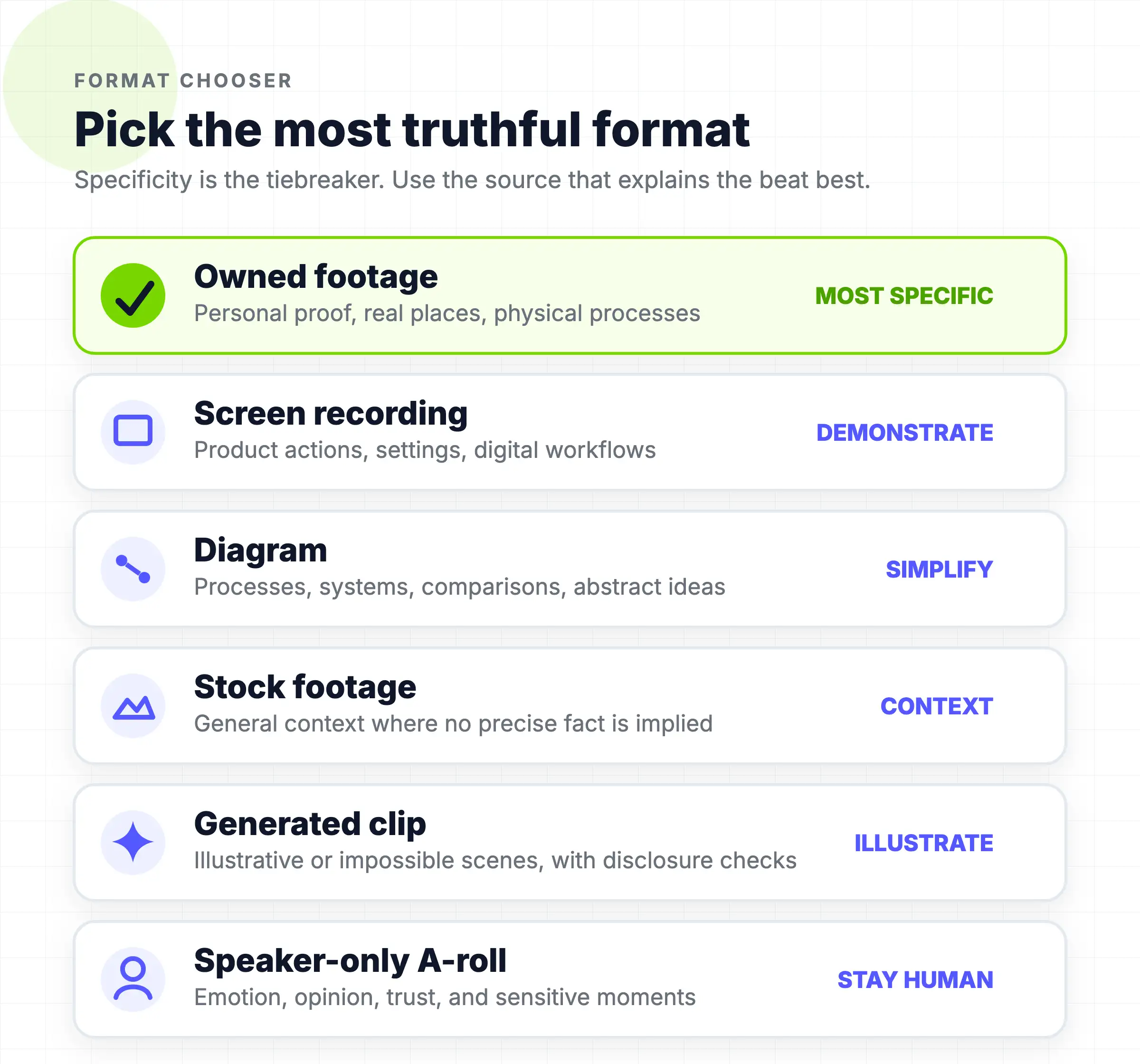
Use specificity as the tiebreaker. If the speaker says, “Click Export, choose vertical, and enable captions,” a real screen recording is better than footage of someone typing. If the speaker explains why three systems depend on one database, a diagram is better than footage of a server rack. If the speaker shares a difficult personal lesson, the speaker’s face may be better than any cutaway.
For AI-generated realistic imagery, add a disclosure check to the workflow. YouTube’s official guidance says creators must disclose realistic altered or synthetic content that viewers could mistake for a real person, place, scene, or event. Clearly unrealistic animation and production assistance are treated differently, so review the current YouTube altered-content guidance for the platform where you publish.
04
A practical workflow for planning B-roll before and after recording
Use this workflow to turn a rough script or outline into a focused B-roll shot list.
For a longer or more complex production, turn the marked beats into a simple board before filming. This animation storyboarding guide shows how to define the purpose, duration, and transition of each scene before production starts.
- Lock the message before collecting visuals. Write or transcribe the narration, then remove repeated ideas. B-roll cannot rescue a script that changes subjects every few seconds without clear transitions.
- Mark semantic beats. Put a line break after each complete claim, step, comparison, example, or emotional turn.
- Assign a visual job. Label each beat prove, demonstrate, compare, locate, simplify, contextualize, or none.
- Choose provenance before style. Decide whether the visual must come from owned footage, an official source, a screen recording, licensed stock, or generated media. Record permission and attribution while sourcing it.
- Select one dominant visual language. A video can mix footage and graphics, but recurring ideas should use recurring visual rules.
- Place visuals against words, not empty timeline space. Start at the phrase the visual supports. Trim when the beat ends.
- Review in three passes. First check factual and semantic accuracy. Next check timing and readability. Finally check rhythm, style, face coverage, captions, and mobile legibility.
If you are recording an interview, ask for complete answers that name the object, place, person, or process being discussed. Specific language gives the editor something concrete to show. For an unscripted Reel or tutorial, add markers to the rough cut whenever the main action changes, then source B-roll for those marked beats instead of collecting random shots first.
During the edit, use a rejection checklist for every inserted visual:
- Does it support the sentence’s meaning, not just one keyword?
- Could it imply a fact, location, result, or endorsement that is not true?
- Does it arrive before the viewer hears the relevant phrase or stay after the subject changes?
- Does it cover the speaker’s face, captions, product controls, or source labels?
- Does its visual style conflict with the surrounding graphics and footage?
- Is it redundant with what the speaker and captions already communicate?
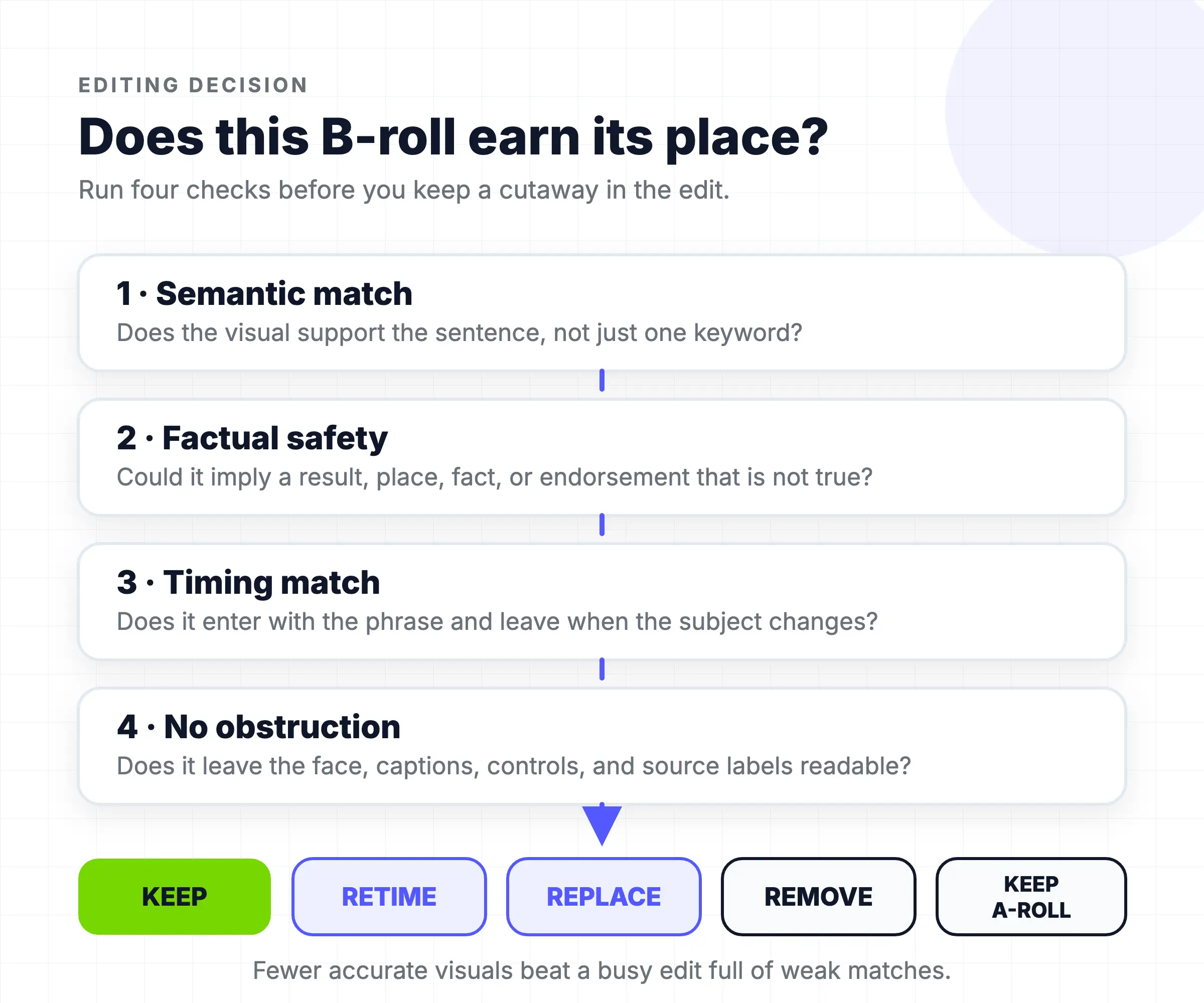
Replace, retime, or remove any visual that fails one of the first four checks. A simpler video with fewer accurate visuals is stronger than a busy video filled with plausible but weak matches.
05
When not to add B-roll
B-roll is useful when it carries information or context. It becomes distracting when it treats every pause as a vacancy.
Keep the speaker visible during a personal admission, an important opinion, a sensitive qualification, or a moment where facial expression is part of the meaning. Eye contact can be the evidence that the audience needs.
Do not add a generic visual to a precise factual claim. Footage of a crowded office does not prove productivity. A city skyline does not identify the correct city. A rising chart does not validate growth unless the data and scale are real.
Avoid changing visuals faster than the audience can understand them. A simple object may register in a second, while a chart, interface, or multi-step diagram needs more time. Cutting every one or two seconds is not automatically engaging if the viewer is still decoding the previous frame.
Remove B-roll when it competes with captions or covers the important part of a screen recording. On vertical video, the safe area is already constrained by the speaker, subtitles, platform controls, and overlays. Supporting visuals must fit the available attention as well as the available pixels.
Finally, leave out a visual when its source or rights are uncertain. A relevant-looking clip is not ready for publication until you know where it came from, what it depicts, and whether you can use it.
06
B-roll ideas FAQ
The core rule is simple: every supporting visual needs a reason to appear at that moment. Start with the story beat, choose the most truthful visual job, and let each piece of B-roll earn its place in the final video.
What is B-roll in a talking-head video?
B-roll is supporting footage or imagery shown over or alongside the main talking-head recording. It can include cutaways, screen recordings, charts, diagrams, annotations, photos, and contextual footage. Its purpose is to clarify, prove, demonstrate, or add context to what the speaker is saying.
How do I find B-roll ideas from a script?
Split the script into semantic beats, then label each beat as a claim, number, step, comparison, example, place, object, emotion, product action, or call to action. Choose a visual that performs a clear job for that beat, such as proving a claim, demonstrating a step, comparing options, or showing context.
What are good B-roll ideas when I have no extra footage?
Start with supporting visuals you can create from material you already control: crop details from the main recording, capture a relevant screen, animate a short quote or number, build a simple diagram, photograph an object mentioned in the story, or record one close-up after the main shoot. If none of those adds useful information, keep the A-roll instead of adding a generic clip.
How often should B-roll appear?
There is no universal interval. Add B-roll when a sentence benefits from proof, demonstration, comparison, explanation, or context. Keep the speaker visible when the face carries the meaning or when a new visual would be redundant. Let the complexity of the visual determine how long it stays on screen.
Should I use stock footage or create my own?
Use your own footage when specificity, provenance, or personal proof matters. Use stock footage for general context that does not imply a precise fact. Prefer screen recordings for product actions and diagrams for systems or abstract relationships. Use AI-generated clips when the scene is illustrative and difficult to capture, then review accuracy, consistency, rights, and disclosure requirements.
What B-roll shots should I capture for an interview?
Record the interviewee entering or using the location, their hands performing a relevant action, details of meaningful objects, the wider environment, interactions with other people, and any process or result mentioned in the interview. Capture wide, medium, and close versions where possible so the editor can vary scale without inventing a new subject.