
TL;DR
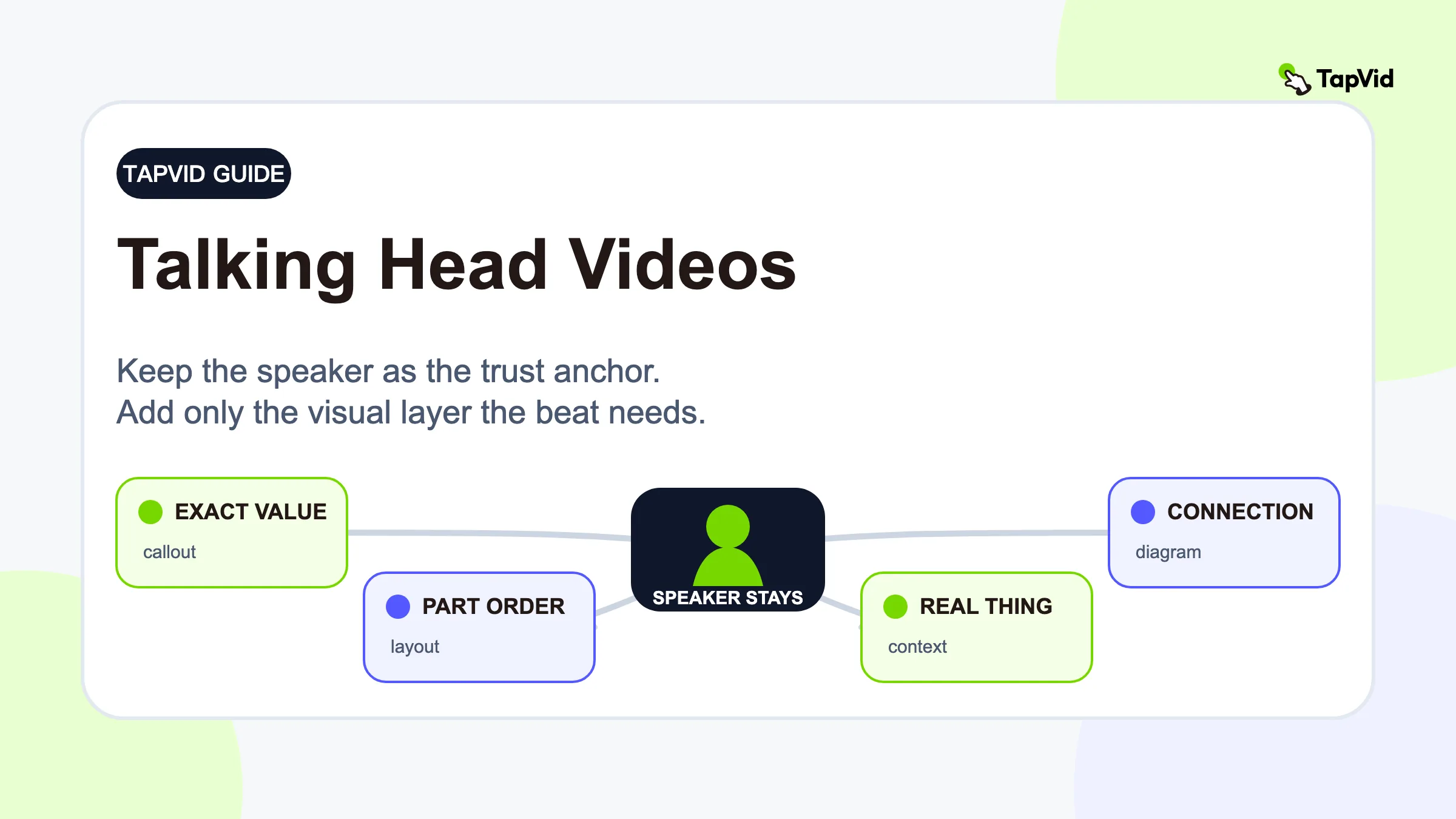
Make talking head videos more engaging by keeping the speaker as the trust anchor and adding a visual only when it answers a reader question the face alone cannot answer. Use a callout to quantify a claim, a structured layout to reveal a list, a diagram to explain a relationship, and relevant B-roll to show concrete context. These four jobs come from the information inside the spoken beat, not from a fixed editing cadence. This is a decision framework, not a rule to change the frame every few seconds. If a visual does not make the spoken idea easier to verify, organize, understand, or picture, leave it out.
Talking head videos are effective because a real person can carry tone, conviction, and nuance in a way that a slide deck cannot. The format becomes dull when the picture stops contributing to the explanation. That is an information problem, not simply a lack of motion.
01
What Makes a Talking Head Video Work?
A talking head is a face-to-camera or interview-style video in which the speaker carries most of the narrative. The speaker might teach a process, explain an idea, review a product, answer a question, or tell a story. The camera can show more than the head and shoulders, but the defining feature is the same: a person is the primary source of the message.
That person gives the format three useful properties.
First, the viewer can read delivery. A pause, a change in expression, or a shift in emphasis helps communicate what matters. Second, the speaker gives the information an owner. Viewers know who is making the claim and can judge the claim in context. Third, production can stay relatively simple. One well-framed recording can carry an entire lesson or product explanation.
These strengths suggest a useful editing principle: do not treat the presenter as empty space waiting to be covered. The presenter's face is often the most informative visual on screen, especially during a personal opinion, a sensitive point, or a moment where credibility depends on delivery.
Supporting visuals should therefore act like evidence and explanation around the speaker. A price should appear when the speaker states the price. A three-part framework should become a visible three-part structure. A causal relationship should become a simple diagram. A reference to a physical place, interface, or action can become relevant B-roll. In each case, the visual has a job.
02
Why Talking Head Videos Start to Feel Boring
A static frame is not automatically boring. A clear, emotionally specific story can hold attention with almost no editing. The problem begins when the information changes but the visual does not.
Imagine a presenter saying, "We cut the process from six steps to three, first by removing approval loops, then by standardizing the brief, and finally by reviewing one draft." The sentence contains a comparison, a number, and a three-part sequence. If the frame remains unchanged, the viewer must hold all of that structure in working memory while also following the next sentence.
Now imagine the opposite mistake. Every noun triggers stock footage, every sentence gets a zoom, and large captions repeat the entire narration. The frame moves constantly, but the viewer still has to determine which element matters. Motion has increased while clarity has fallen.
Most weak edits fit one of four patterns:
- Unsupported abstraction. The speaker names a system, relationship, or process that the viewer cannot see.
- Hidden structure. A list, contrast, sequence, or hierarchy is spoken but never organized on screen.
- Unverified specificity. A number, quote, interface state, or result is stated without a visible anchor.
- Decorative interruption. An effect changes the frame without adding meaning and competes with the speaker.
This gives you a better diagnosis than "the video needs more B-roll." Ask where the picture has stopped helping the viewer process the message. That location is a candidate for a visual layer. It is not yet a command to add one.
03
Map the Transcript Before You Edit
The transcript is the fastest route from a finished recording to a defensible visual plan. You do not need a detailed storyboard. You need a beat map that marks sentences where the viewer has a specific visual question.
Read the transcript once without choosing effects. Mark only the spoken beats that contain one of these signals:
| Beat type | Signal in the script | Viewer question | Likely visual job |
|---|---|---|---|
| Quantity | Number, percentage, date, price, comparison | "What is the exact value or difference?" | Quantify with a callout or compact chart |
| Structure | List, sequence, framework, hierarchy | "How are these parts organized?" | Reveal structure with cards, steps, or a labeled layout |
| Relationship | Cause, flow, dependency, contrast, feedback loop | "How do these ideas connect?" | Explain with a diagram or side-by-side comparison |
| Concrete reference | Product, place, object, screen, action, event | "What does that look like?" | Add relevant B-roll, a screen capture, or a source image |
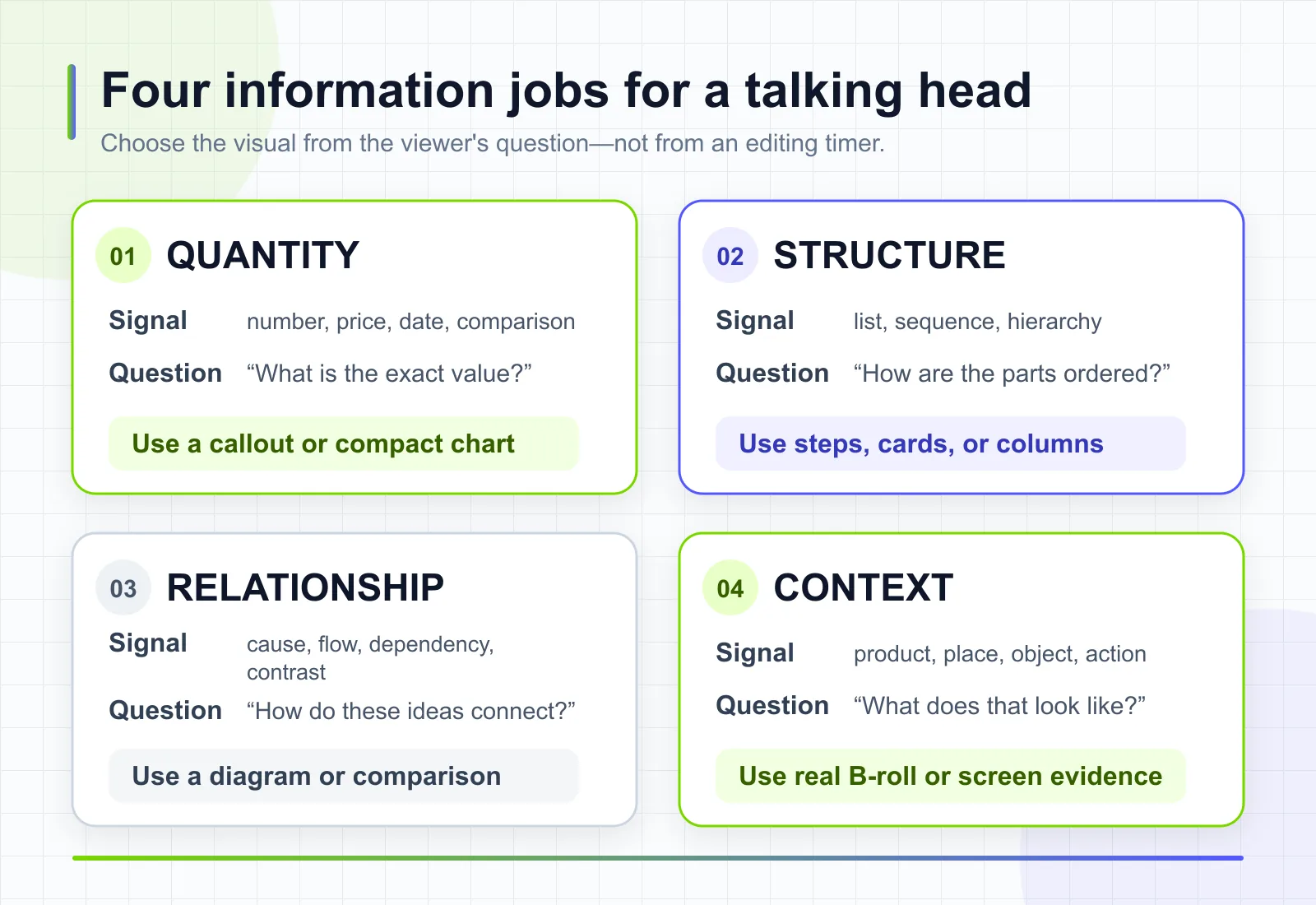
*Start with the viewer's question. Quantity needs an exact value, structure needs visible order, relationships need connections, and concrete references need real context. The job determines the visual; a timer does not.*
Do not mark every sentence. A sentence such as "I was nervous before the launch" may be more effective on the speaker because the face carries the meaning. A sentence such as "The launch had three approval stages" contains structure that a visible three-step layout can clarify.
Next, give each marked beat a short visual brief. A useful brief names the spoken line, the viewer question, the minimum visible signal, and the return point. For example:
Spoken line: "The workflow has three checks: message, evidence, and delivery." Viewer question: "What are the three parts?" Minimum signal: three labeled items in the same order. Return point: back to the speaker after the third item.
This brief prevents an editor or an AI tool from solving the wrong problem. "Add something engaging" invites decoration. "Show these three checks in order while preserving the speaker" defines an outcome that can be reviewed.
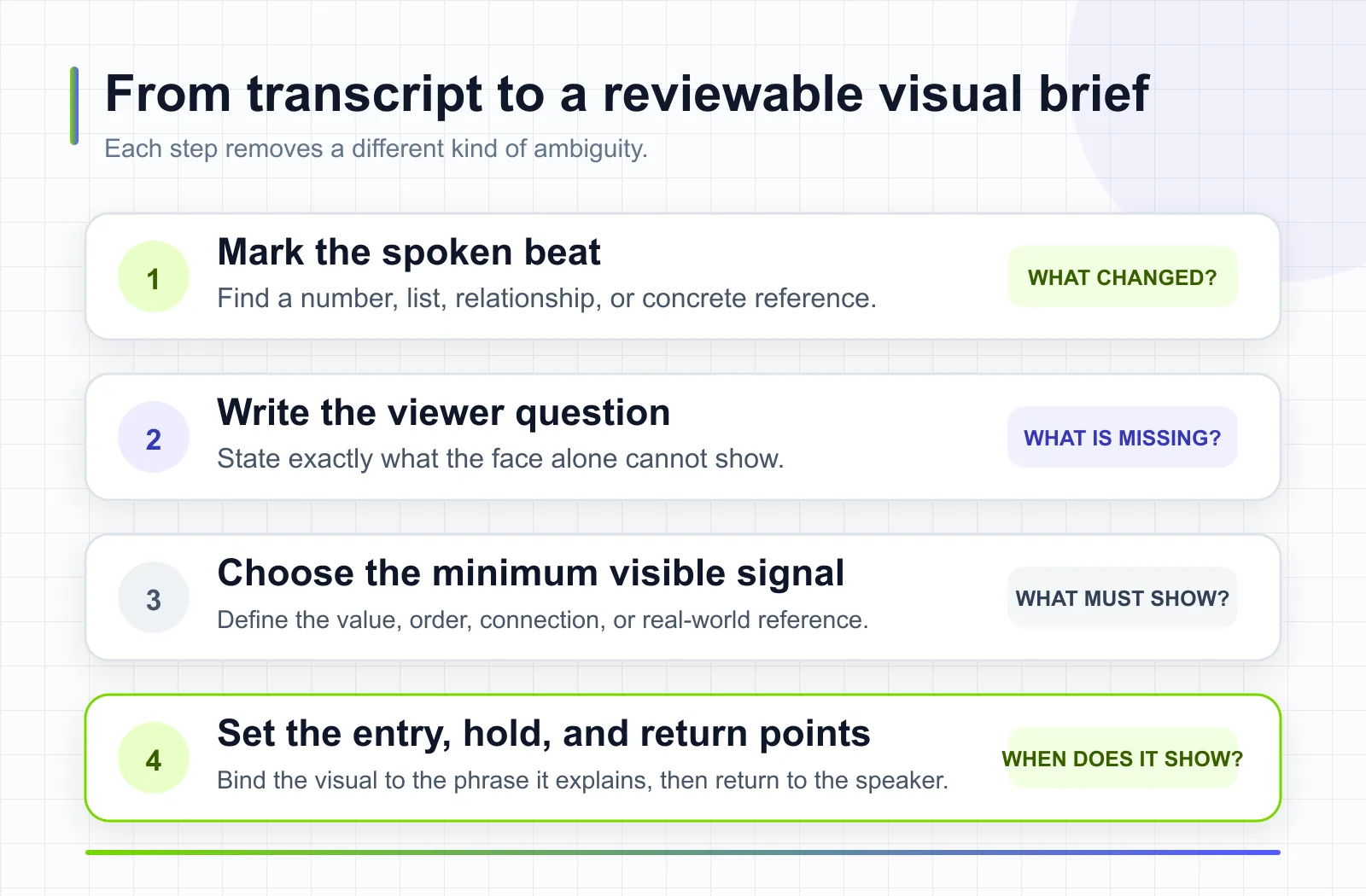
*A reviewable visual brief records four decisions: the spoken beat, the viewer question, the minimum visible signal, and the exact entry, hold, and return points. Each decision removes a different kind of ambiguity.*
04
Choose the Right Visual for Each Spoken Beat
The format should follow the information job. Start with the smallest visual that makes the beat clear, then add complexity only if the smaller option cannot carry the meaning.
Use a callout for an exact fact. A number, date, name, or short comparison usually needs a concise label, not a full-screen animation. Keep the value readable and visible long enough to register. If the number is evidence, include its source near the claim or in the surrounding content. Styling cannot turn an unsupported figure into proof.
Use a structured layout for a list or framework. Cards, columns, numbered steps, and progress states make relationships within a set visible. Preserve the speaker's order. If the presenter says "first, second, third," the layout should not reveal the third item first because it happens to look more dynamic.
Use a diagram for an abstract relationship. A diagram is justified when the viewer needs to see direction, dependence, grouping, or change over time. Keep only the nodes and connectors needed for the spoken beat. A complex diagram shown for two seconds is not an explanation. It is visual noise.
Use B-roll for concrete context. Relevant B-roll shows the object, action, interface, or environment being discussed. It should narrow ambiguity. If the speaker says "review the mobile checkout," a capture of that checkout can help. Generic footage of someone typing usually cannot.
Use captions for access and language support. Captions are not merely a retention effect. The W3C Web Accessibility Initiative defines captions as synchronized text for speech and the non-speech audio needed to understand media, and notes that prerecorded video with necessary audio needs captions for accessibility. Automatic captions should be checked because recognition errors can change meaning. A designed keyword callout can coexist with captions, but it should not obscure them or pretend to replace a complete caption track.
Use screen evidence when the claim depends on an interface. If you say a setting exists, show the actual state or link the current official documentation. Crop only enough to make the state legible. Preserve the identifiers needed to understand the evidence while removing private account data.
One sentence may contain more than one beat type. Do not stack every possible layer at once. Choose the job that most affects understanding, then decide whether a second visual is necessary later in the sentence.
05
Keep the Speaker Visible Without Making the Frame Static
The speaker can remain present while the layout changes around them. A side-by-side composition, a picture-in-picture frame, or a temporary lower panel can make room for evidence without breaking continuity. The key is visual hierarchy.
At any moment, decide what the viewer should look at first. During a personal claim, that is usually the face. During a three-step explanation, the structured list may become primary while the speaker stays visible at a smaller size. During a screen demonstration, the interface may take over, with the speaker returning after the action is complete.
Use entry and exit timing to communicate that shift. Bring in a visual as the relevant phrase begins, keep it through the phrase it explains, and remove it when the narration moves on. Early visuals can spoil a reveal. Late visuals force the viewer to reconcile a previous sentence while listening to a new one.
Avoid using speed as a substitute for hierarchy. Rapid cuts can create energy, but they can also remove the exact frame a viewer needs to inspect. A result, a quote, or a diagram may require a longer hold than a decorative transition. Let the information determine the duration.
The same restraint applies to captions. Large animated words can emphasize a key phrase, but full narration repeated in a second competing style often creates two reading layers. Keep the accessibility caption treatment consistent. Use separate emphasis text only when it contributes a distinct signal, such as the number in a comparison.
06
A Practical Talking Head Video Editing Workflow
You can apply this workflow in a conventional editor, a transcript-based editor, or a tool that adds synchronized visual layers. The review logic stays the same.
1. Lock the message before adding visuals. Watch the source clip once. Confirm that the take communicates the intended point and that the audio is usable. Visual layers cannot repair a missing argument, a factual error, or an unclear conclusion.
2. Clean only what the chosen workflow supports. Remove unusable mistakes or select the intended take in your main editor. If the next tool preserves the original video and audio, do not assume it will also remove pauses, change the performance, color-grade the footage, or repair sound. Keep those tasks in the editing stage that actually supports them.
3. Generate or review the transcript. Correct names, numbers, product terms, and negations before using the transcript as a plan. A wrong transcript can produce the wrong callout and a misleading visual.
4. Mark quantity, structure, relationship, and context beats. Use the four-job table. Leave emotional, testimonial, and connective beats unmarked unless a visual is necessary for comprehension.
5. Write one visual brief per selected beat. State what must be visible and what must remain true. For a comparison, specify both values. For a list, preserve order. For a diagram, specify nodes and direction. For B-roll, name the concrete referent rather than a mood.
6. Create the first visual pass. Add the minimum visual for each selected beat. Keep the speaker visible when delivery remains important. Do not polish transitions yet.
7. Review three ways. First, watch with sound and check synchronization. Second, mute the video and ask whether each added visual still communicates the intended signal without inventing a new claim. Third, view at the smallest target size and check whether text, connectors, and interface details remain legible.
*The three passes test different failure modes. Sound reveals timing errors, muted playback exposes unsupported visual claims, and the smallest delivery size reveals illegible labels or relationships.*
8. Remove visuals that fail the job test. A visual fails if it repeats the narration without clarifying it, introduces an unsupported claim, appears too late, disappears too early, blocks captions, or looks relevant only at a superficial keyword level.
9. Check the full experience. Verify audio, captions, pacing, layout, and exports in the destination aspect ratio. A visual plan can be semantically correct and still fail because the text is unreadable on a phone.
Keep a simple review ledger while you work. For each selected beat, record the line, timecode, visual job, chosen asset, pass or fail result, and any correction. This turns subjective feedback such as "make it pop" into an actionable note. An editor can see whether the issue is wrong timing, weak evidence, illegible text, or a mismatched visual. The ledger also makes later revisions safer because you can replace one failed beat without rebuilding the entire visual plan.
For a content team, agency, or brand producing recurring videos, the same ledger also makes revision cycles easier to audit. Reviewers can identify the exact scene, source item, and visual decision that changed instead of rebuilding the full video or returning vague feedback that creates another round of interpretation.
When several people review the video, ask them to comment against the same jobs. One reviewer might disagree with a color or transition, but everyone can answer whether the number is correct, the list is complete, the diagram matches the relationship, and the B-roll depicts the reference. Resolve meaning and legibility first. Treat style preferences as a separate pass.
TapVid is an Explainer Video Engine for this kind of workflow. For an existing clip, TapVid's talking-head workflow treats the recording, original audio, approved copy, and supplied assets as the source of truth while adding synchronized callouts, diagrams, captions, layouts, and relevant B-roll around them. That makes it suitable for the visual-layer stage described here. The boundary matters: it does not replace specialized color correction, audio repair, footage editing, or selection of a better take, and it should not be described as writing or replacing the creator's message.
If you are building a broader production process that starts before recording, see TapVid's step-by-step AI video workflow. The editing guidance in this article still assumes that a valuable talking-head recording already exists. The authenticated TapVid run below used a frozen prompt rather than uploaded source footage because the account did not contain a rights-cleared talking-head clip. It is therefore a prompt-to-video audit of generated visual claims, not proof of source-footage preservation.
07
When Not to Add More Visuals
More visual information can weaken the exact moments that make a talking head worth watching. Keep the speaker primary when the face is part of the proof.
Personal stories often depend on expression and pacing. Covering the speaker with stock footage can make a specific memory feel generic. Testimonials also deserve restraint. If viewers are judging whether a person appears sincere and comfortable, a full-screen overlay removes information they need.
Sensitive statements can require the same treatment. An apology, a difficult admission, or a nuanced qualification should not automatically trigger a visual change. Let the viewer see the delivery. Add a source or concise label only if it is necessary to understand the claim.
You should also avoid a visual when the asset is weaker than the spoken reference. Generic B-roll of an office does not explain a specific approval workflow. An invented dashboard does not prove an actual result. A diagram with unreadable text does not clarify a relationship. In all three cases, staying on the speaker is more honest.
Use this quick rejection test:
- Does the visual answer a precise viewer question?
- Does it preserve the meaning and order of the spoken line?
- Can a viewer read or recognize the critical signal at the target size?
- Is the visual allowed for public use and free of private data?
- Does it avoid making a stronger claim than the narration supports?
If the answer to any required question is no, revise the asset or remove it.
08
Talking Head vs. Avatar vs. Faceless Explainer
These formats solve different production problems. Choose based on what carries trust and what must be shown, not on which style currently appears most automated.
| Format | Best when | Main input | Trust anchor | Common limitation |
|---|---|---|---|---|
| Real talking head | The speaker's identity, experience, opinion, or delivery matters | Recorded human performance | The real speaker | Visual variety must be added carefully around the performance |
| AI avatar presenter | Consistency, localization, or script delivery matters more than a specific recorded performance | Script plus avatar and voice choices | The selected presenter identity and production system | It does not preserve the nuance of a real source performance because there is no original performance to preserve |
| Faceless explainer | The mechanism, product, process, or evidence should remain primary | Script, screen material, diagrams, footage, or assets | The explanation and its evidence | It may feel less personal when authorship or lived experience matters |
A creator with a strong recorded take should not switch to an avatar merely because the original frame feels static. The first question is whether the existing performance is valuable. If it is, improve the explanatory layer around it. If the source performance is not needed and repeatable scripted delivery is the goal, an avatar may be a better fit. If the viewer must inspect a workflow, interface, or mechanism, a faceless explainer may give the subject more space.
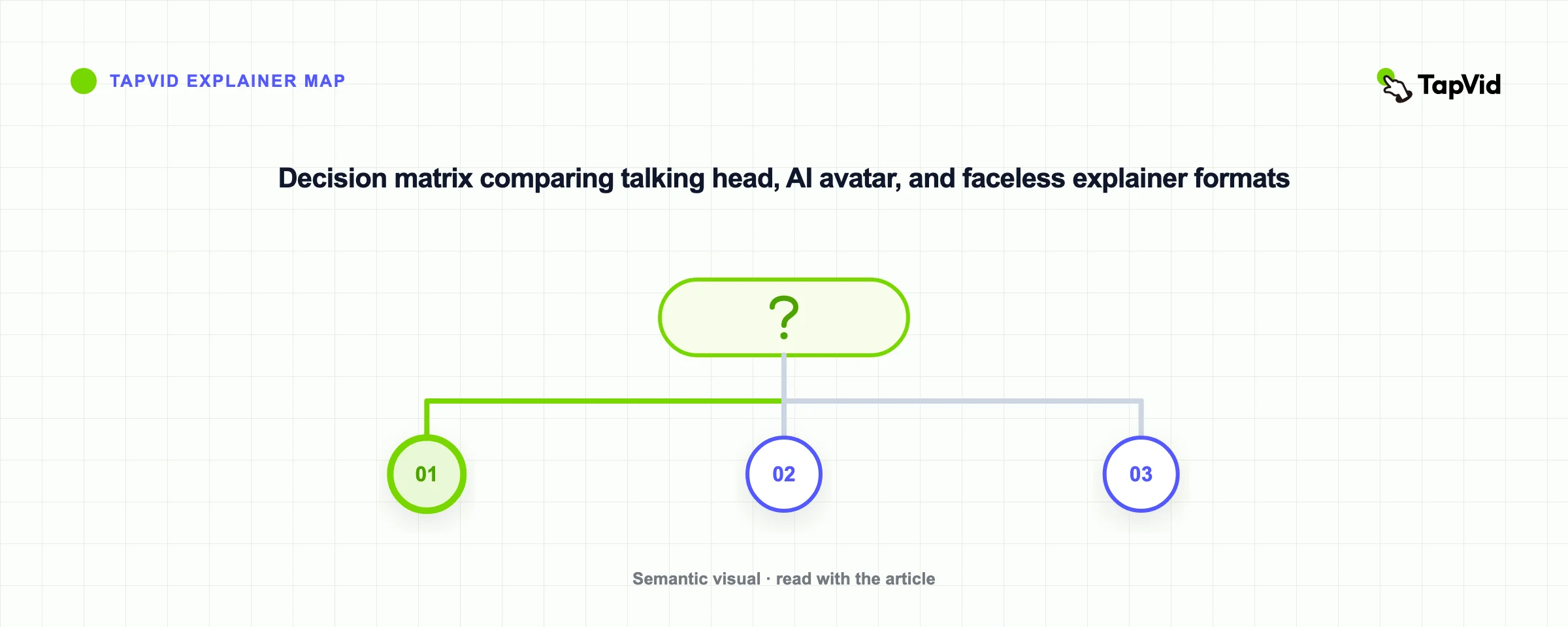
This article supports the first path. It does not rank avatar products or claim that one format is universally better.
09
What an Accuracy Review Caught Before Delivery
Accuracy in this workflow is a review standard, not an assumption that every generated frame is correct. The approved script, source assets, and intended correspondence between them define what the scene is allowed to say and show. Any generated number, axis, or evaluative claim that is absent from those sources must be rejected before delivery.
To test the decision framework without changing the request after seeing the result, I ran one frozen prompt in the authenticated TapVid product app. The 30-second, 16:9 request asked for four visual jobs: an 8–12 second pacing rule, an orient-prove-reset structure, a diagram placed beside the sentence it explains, and a product interface revealed when the speaker names it. It also asked for restrained motion, readable captions, clear before-and-after framing, and no decorative stock footage.
The run did not use an uploaded talking-head recording. It generated a motion-graphics companion around a labeled speaker proxy, so it cannot support a claim about preserving a real source clip, voice, expression, or camera take. It can still answer a narrower question: when the prompt asks for a relationship visual, what claims appear in the rendered frame?
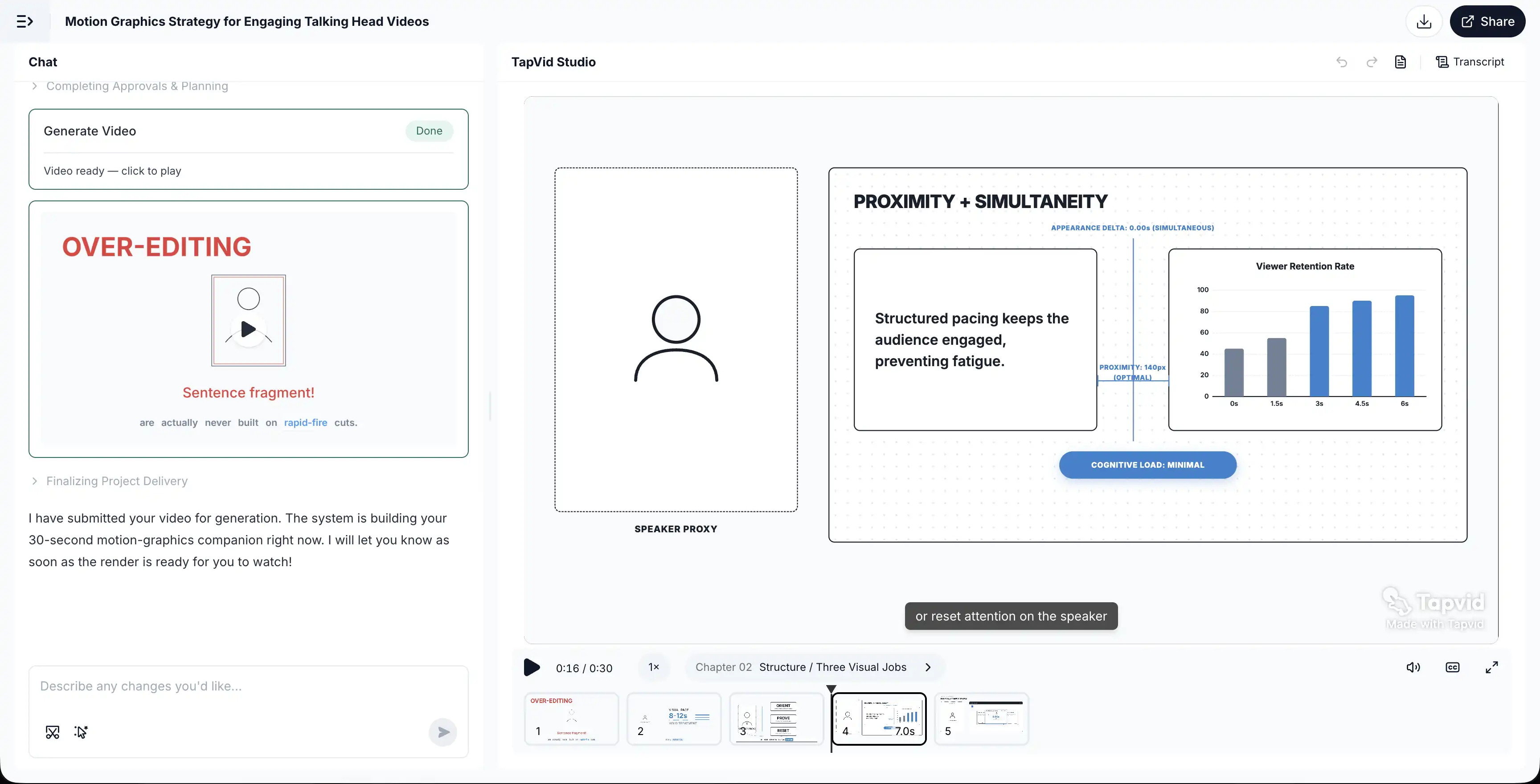
At first glance, the result follows the requested composition. A speaker proxy remains on the left, explanatory material appears beside it, and the scene is labeled around proximity and simultaneity. The problem appears when you inspect the claims inside that material. The frame adds a five-bar “Viewer Retention Rate” chart, labels a 140-pixel gap as “OPTIMAL,” and declares “COGNITIVE LOAD: MINIMAL.” No source, measurement method, or underlying data is shown.
That changes the verdict on the scene. It passes a layout check: the relationship is placed beside the speaker. It fails the muted truth check because the visual makes stronger claims than the prompt or evidence supports. Synchronization does not make a chart true, and a polished label does not turn an invented threshold into a measured result.
The correct action is to reject the unsupported quantitative layer and revise or rerun that scene, not to accept it because the composition looks polished.
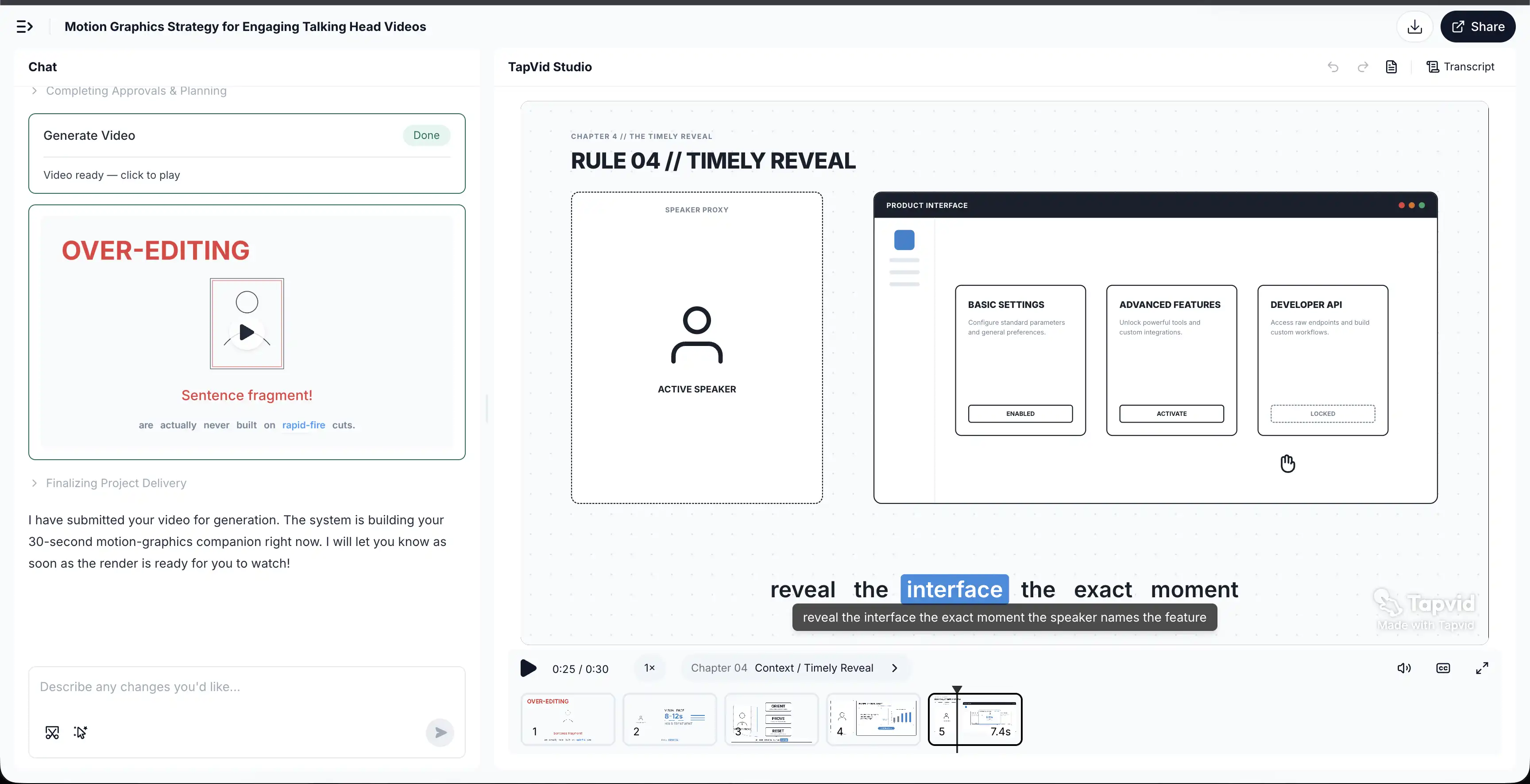
A second frame from the same run shows the timely-reveal scene at 0:25 inside the full TapVid Studio workspace. Unlike an output-only crop, it keeps the project, Chat state, player controls, chapter label, and timeline visible. That context proves which product and workflow state produced the frame; it does not validate claims inside the video.
Use this as a practical review rule for any AI-assisted talking-head edit. Compare every number, axis, quote, interface state, and evaluative word such as “best,” “optimal,” or “minimal” with the transcript and the approved sources. Remove unsupported additions even when the composition looks useful. In this run, the high-level visual job survived, but the generated quantitative layer did not.
The evidence boundary is narrow. This prompt-to-video run shows that a generated visual can preserve the requested relationship while adding unsupported specificity. It does not establish audience retention, cognitive-load reduction, source-video preservation, or the quality of a finished enhancement applied to a real talking-head clip.
10
Talking Head Video FAQs
How long should a talking head video be?
There is no single ideal length. Match the duration to one clear viewer job, then remove repetition and unsupported detours. Compare retention for videos with similar topics, audiences, and distribution contexts instead of importing a universal number from a different format.
How often should I add B-roll to a talking head video?
Add B-roll when the narration points to a concrete object, action, interface, place, or event that viewers benefit from seeing. Do not add it on a fixed timer. A personal story may stay on the speaker for an extended passage, while a product walkthrough may need frequent screen context.
Do talking head videos need captions?
Prerecorded video with necessary audio needs accurate captions for accessibility. Captions should include the speech and relevant non-speech audio, remain synchronized, and be checked for errors. Keyword animations and decorative subtitles do not replace a complete caption track.
What background works best for a talking head video?
Use a background that keeps the speaker legible and supports the context without competing for attention. Check separation, clutter, private information, and brand relevance. A plain background is not automatically better than a contextual one, but every visible object should be intentional or harmless.
Should I replace a real speaker with an AI avatar?
Not when the original performance, identity, or lived experience is central to the message. An avatar is useful for repeatable scripted delivery and localization, but it solves a different production problem. If your real recording is already strong, add explanatory visuals around it instead.
Can AI make a talking head video more engaging without changing the performance?
Yes, when the workflow treats the existing recording as the source instead of generating a replacement presenter. TapVid is an Explainer Video Engine whose talking-head workflow is designed to keep the original video and audio while adding synchronized visual layers around them. Verify the result beat by beat. Check that callouts are correct, diagrams match the narration, B-roll is relevant, captions are accurate, and the tool has not changed anything outside its stated scope.
11
Turn Your Existing Talking Head Video into a Visual Explainer
The best talking head videos do not move for the sake of movement. They keep the speaker as the trust anchor and make the explanation visible when the narration introduces a quantity, structure, relationship, or concrete reference.
Start with the transcript. Mark the beats that create a real viewer question, assign the smallest useful visual, review synchronization and legibility, then remove anything that does not improve comprehension. This gives you an editing system you can reuse across tutorials, founder videos, product explanations, lessons, and social clips.
If you already have a recording and an approved message, bring them to TapVid's Explainer Video Engine to build synchronized visual layers around the original performance.