
You already have the content. It's sitting in a PDF report, a slide deck, a one-pager nobody reads to the end. Rewriting it isn't the problem. The problem is that people skim a wall of text and actually watch a video. So the practical question for 2026 is: how do you turn a PDF into a video without rebuilding the whole thing by hand?
01
TL;DR
I ran a real document through this start to finish and wrote down what actually happened. Here's how the workflow goes, what the output looked like, how long it took, and which tools suit which job.
Disclosure: this guide is written by the TapVid team. We tested the PDF to video workflow ourselves and have tried to describe the competing tools fairly.
- AI PDF to video tools read your document, write a narration script from it, and build the animated scenes for you.
- A simple text doc takes 2-5 minutes. Pages that are mostly charts need a manual review pass.
- The one real decision is animation (no presenter) versus an avatar (a presenter on screen). If you want an animated explainer with no talking head, TapVid fits.
02
What "PDF to video" actually means in 2026
An AI PDF to video tool reads your document, pulls out the structure and the main points, writes a narrated script, and builds animated scenes to match. What you get back is a finished MP4 with visuals, voiceover, and subtitles, and you never open a timeline editor.
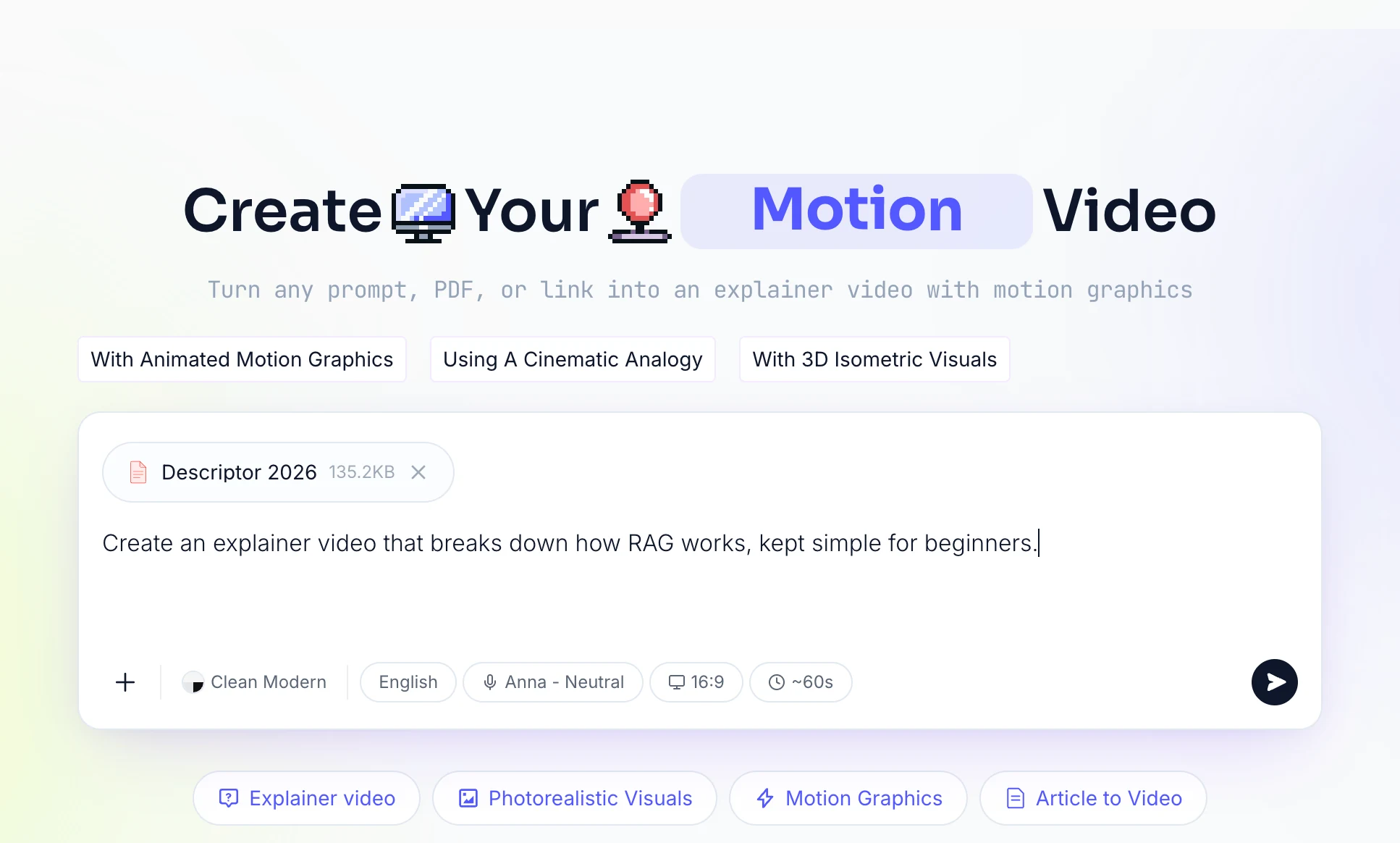
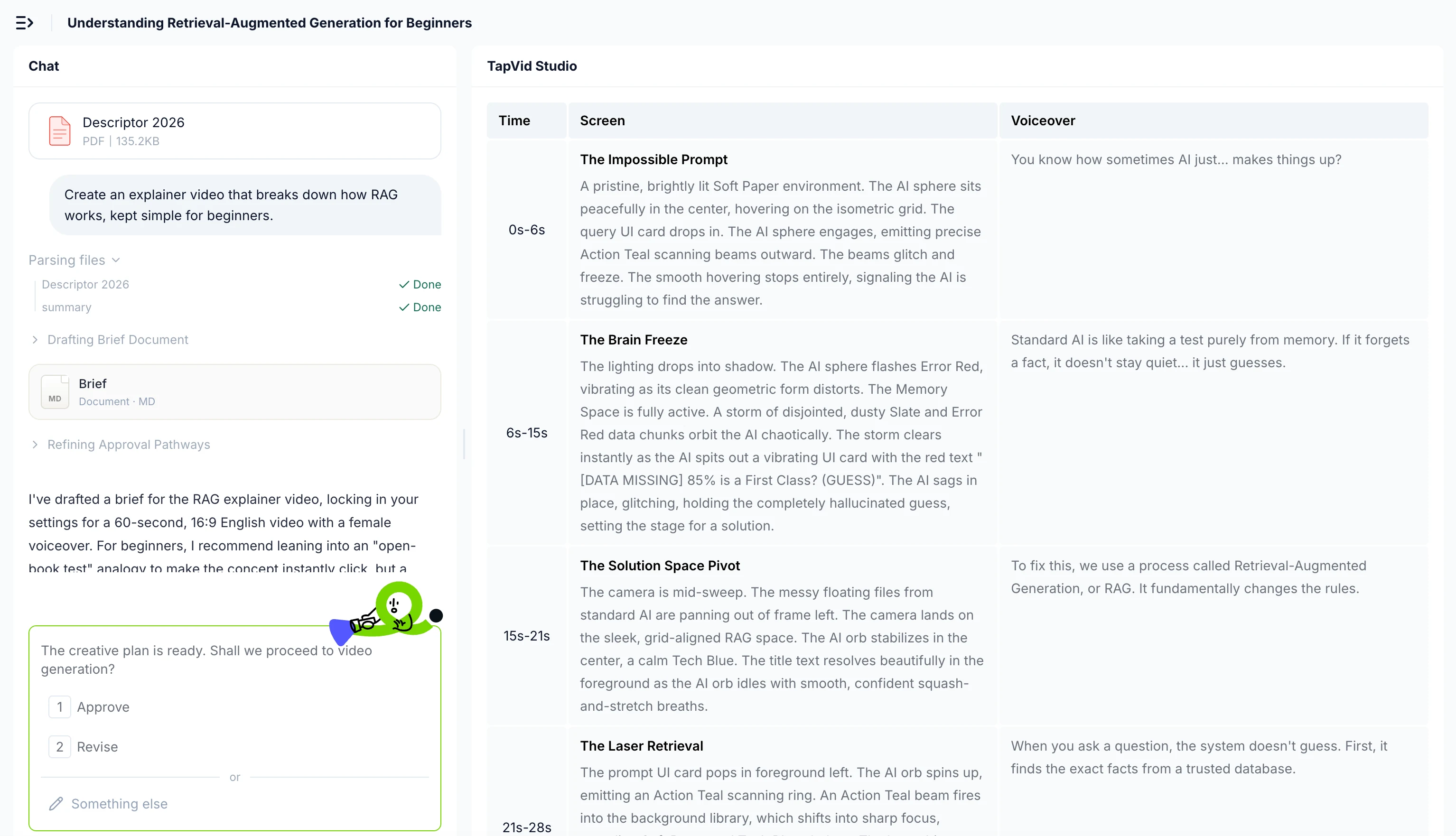
Two things get lumped together here, and they're worth pulling apart.
Document to video starts from what's already in your file. It reads a PDF or PPT and rebuilds it as a paced, narrated video. That's the one you want for a report, a lesson, or a slide deck.
Text to video starts from a prompt you type. It's useful, but it ignores the document you already have.
If your content lives in a file, go the document-to-video route. The whole point is to reuse what you already wrote.
03
How to turn a PDF into a video, step by step
Here's the workflow I followed. It's about the same across the better tools.
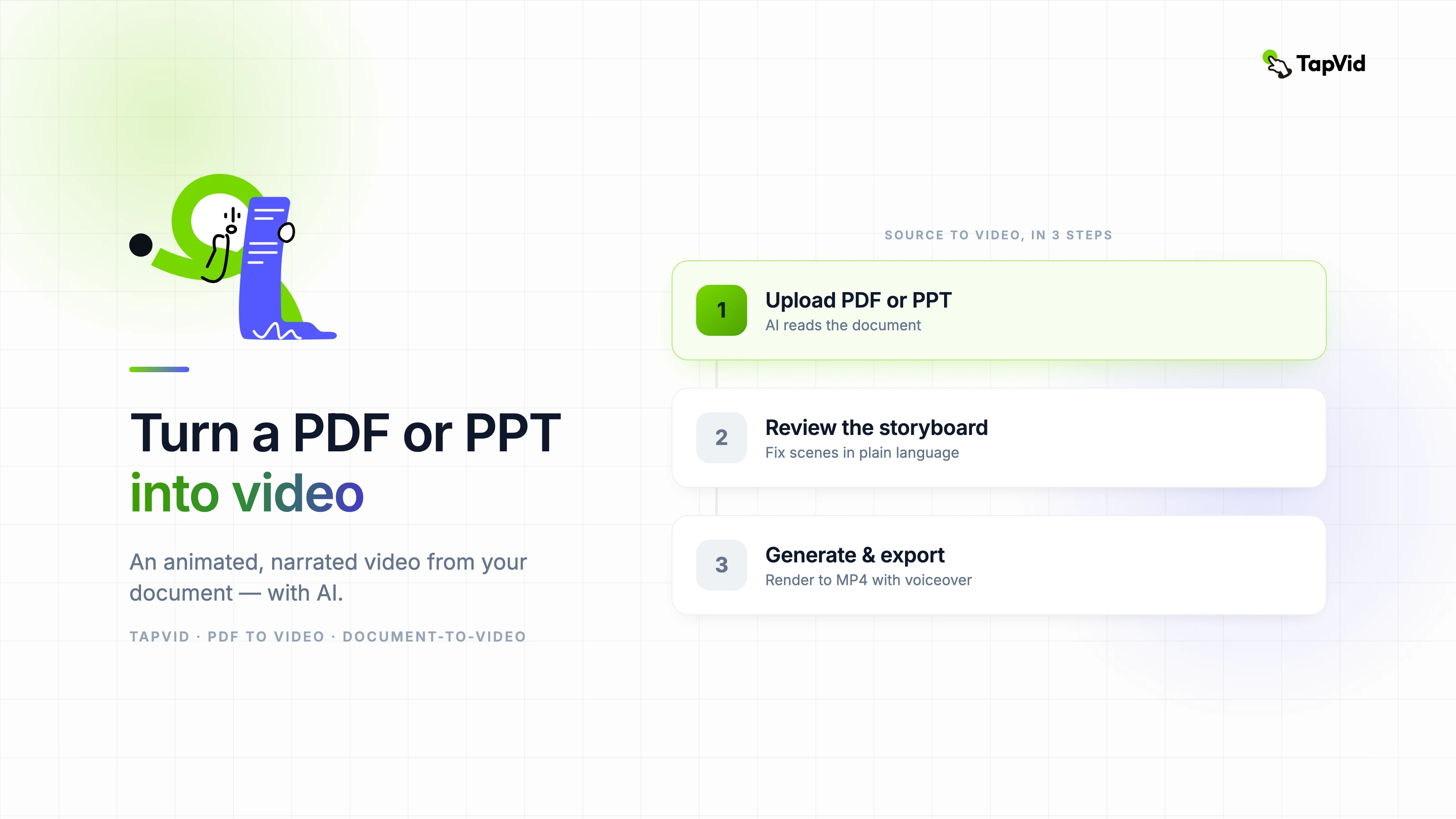
- Upload the PDF or PPT. Drop the file in. Good tools take both, and PPT works the same way since slides are already structured.
- Let the AI read it and draft a script. It picks out headings, key points, and order, then writes the narration. This is the step that saves the most time. You're editing what the AI pulled from your own content instead of writing from a blank page.
- Review the storyboard. You get scenes laid out with text and suggested visuals. You fix them in plain language instead of dragging clips around.
- Pick a voice and a style. Choose the voiceover, the look, and turn subtitles on.
- Generate and export. The tool renders it, and you export to MP4.
04
What I got: a real test
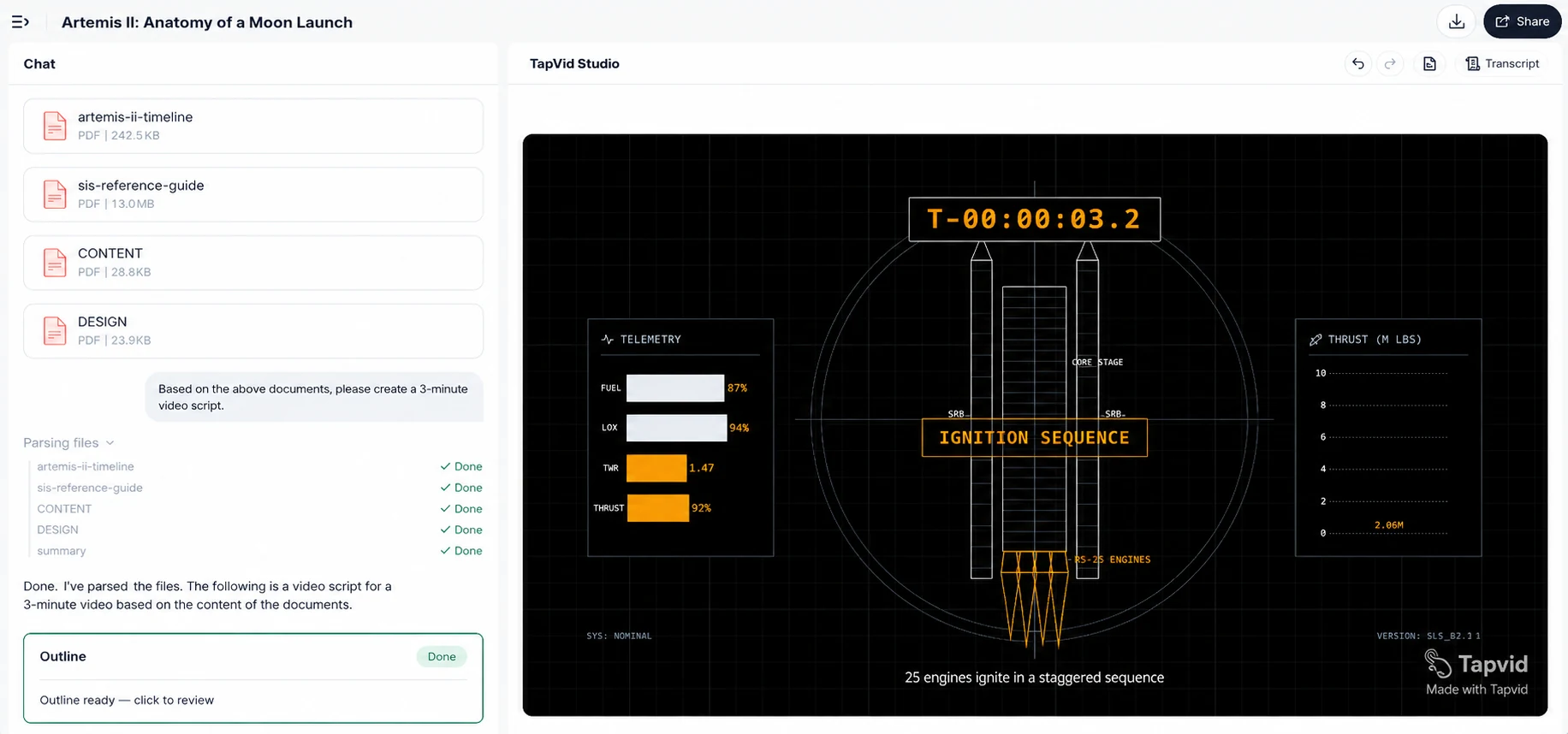
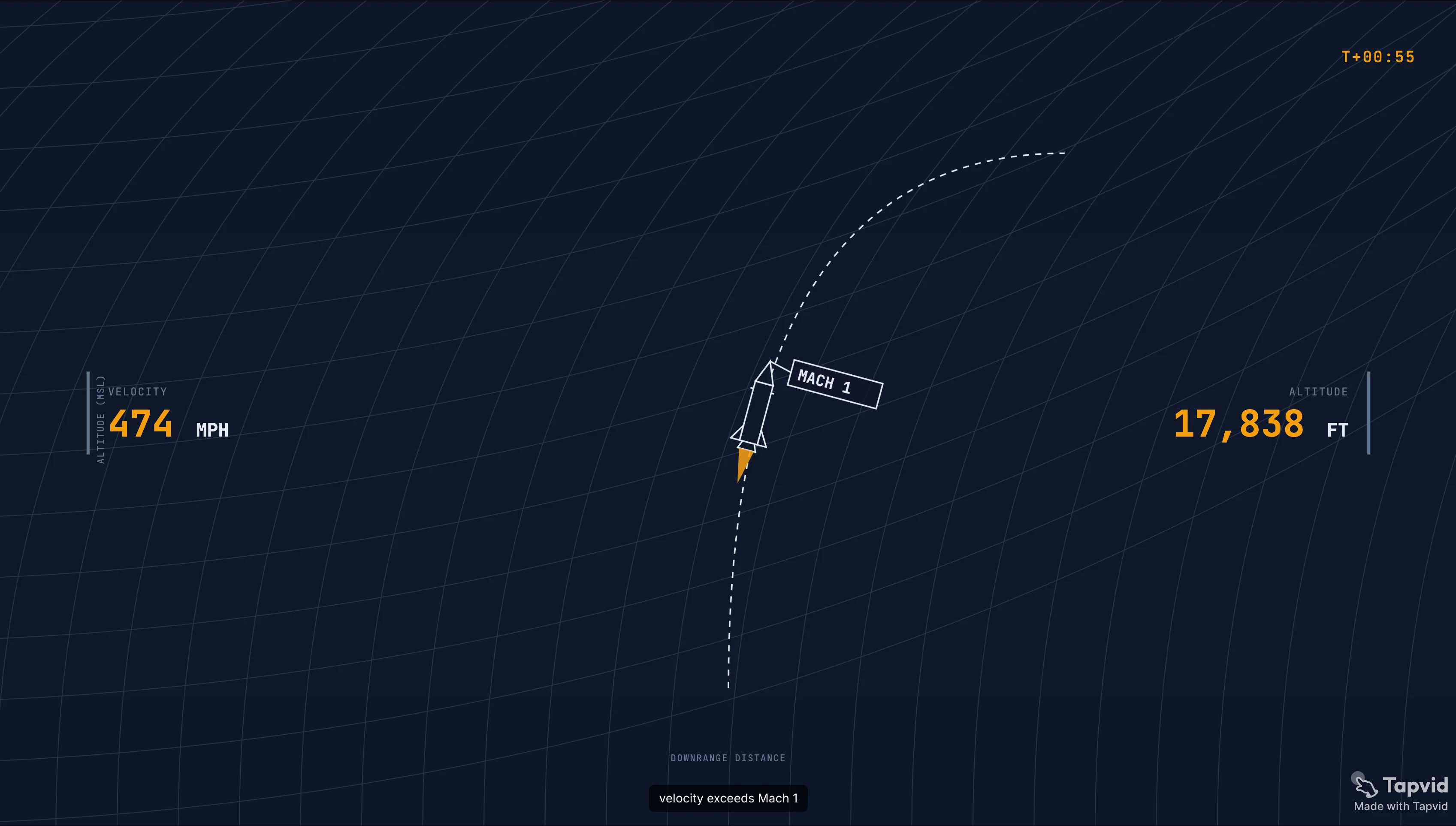
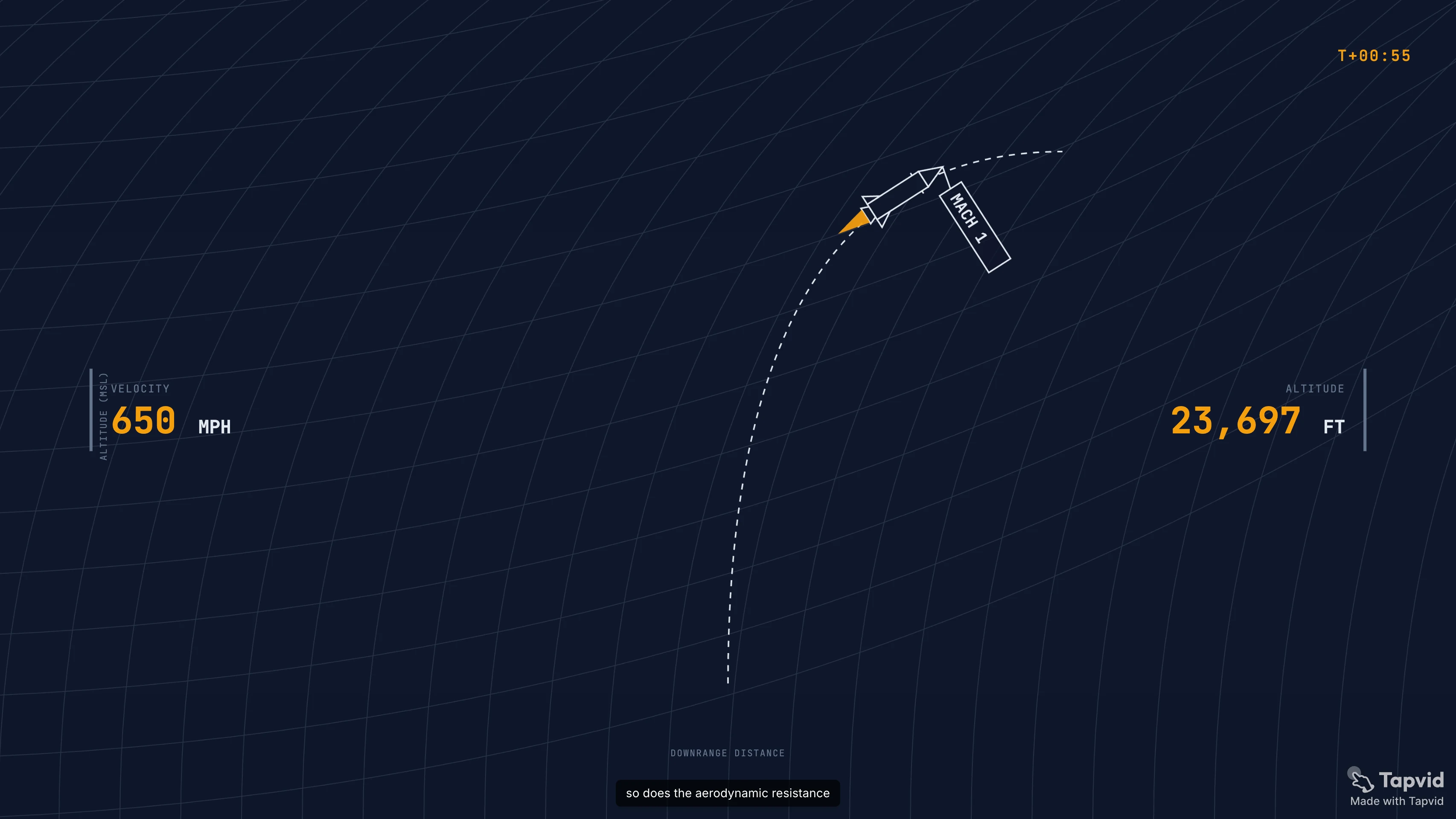
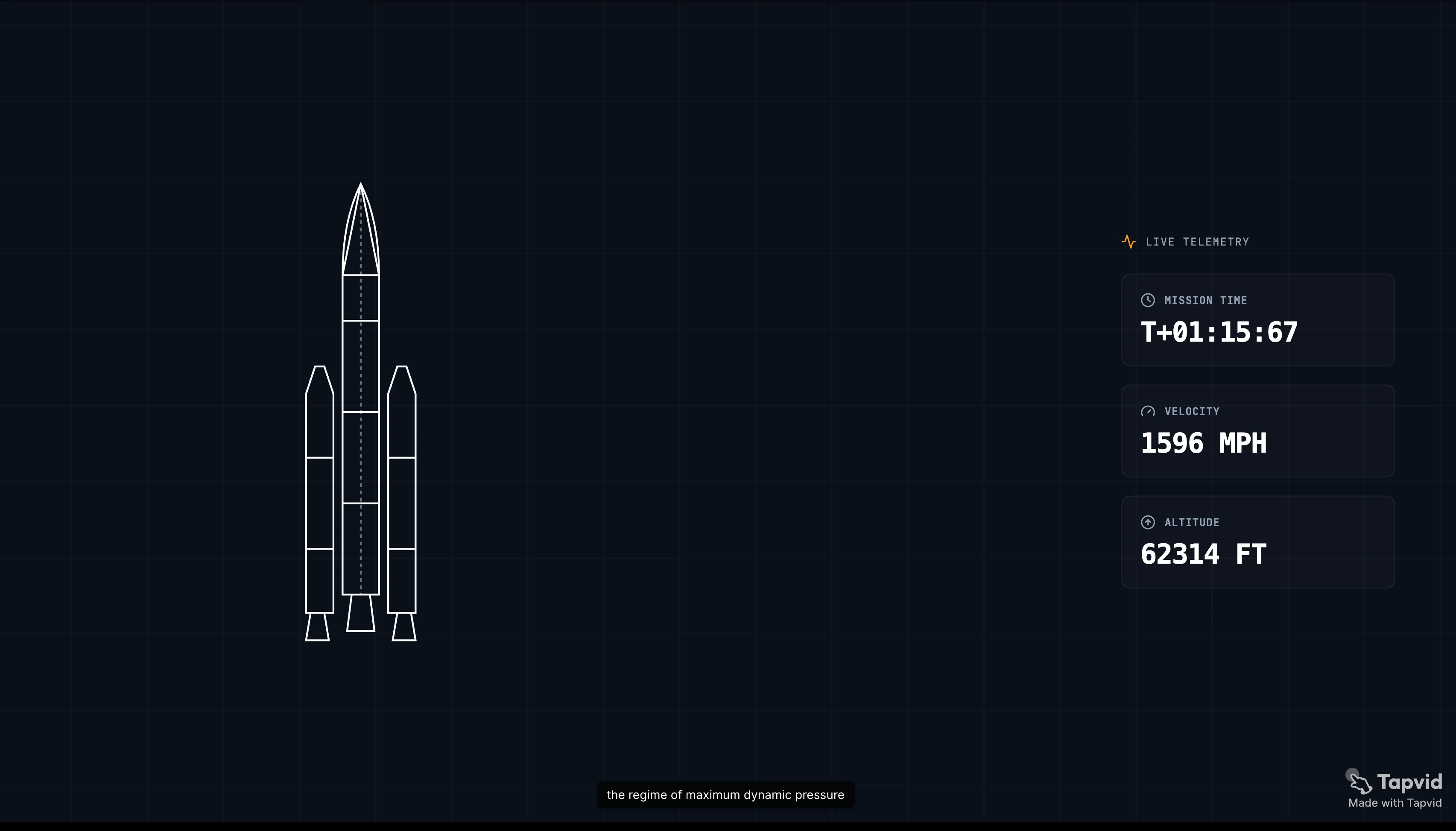
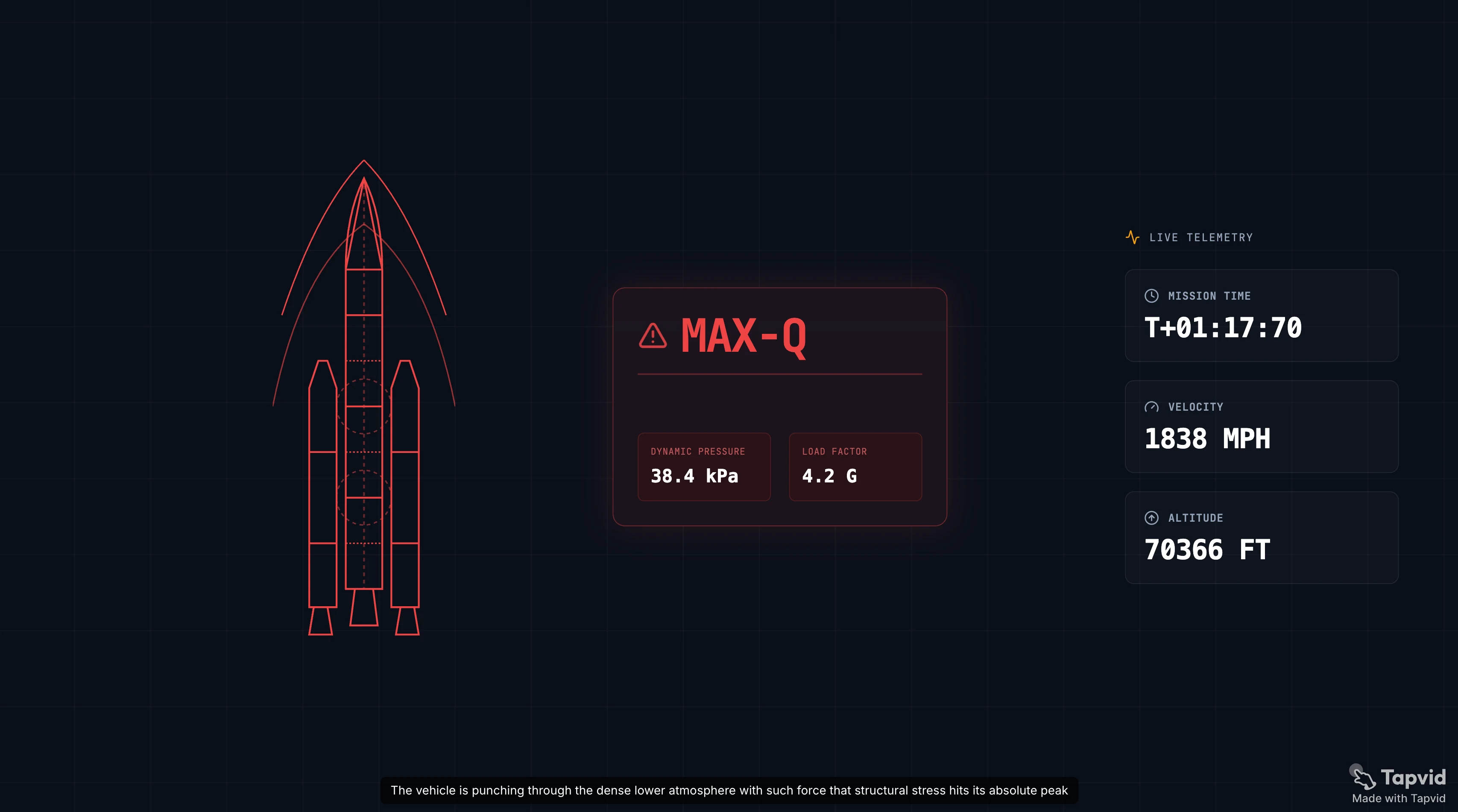
I ran a real multi-page report through it. Here's what came back, in plain numbers.
- Time from upload to first cut: 3 minutes
- Output resolution: 1080p
- Voiceover quality: natural pacing, didn't sound robotic
- What I had to fix by hand: one chart page. The AI read it as plain text, so I rewrote that scene description myself
- Watermark: the free tier exports with one; a clean export needs a paid plan
My honest read: the script and pacing were usable on the first pass. The pages that needed work were the dense, chart-heavy ones. AI turns prose into narration well and struggles to read a complicated figure, so budget time to review those pages in particular.
05
How long does PDF to video conversion take?
| Document type | Typical generation time | Notes |
|---|---|---|
| Simple text PDF (5-10 pages) | 2-5 minutes | Script and render time |
| Slide deck (20 slides) | 3-7 minutes | Slides are pre-structured, so parsing is faster |
| Dense report with charts | 5-10 minutes | Chart parsing slows it down |
| Long document (50+ pages) | 10+ minutes | AI summarizes instead of covering everything |
The slow part is usually the render, not the script. Once you approve the storyboard, the rest is mostly waiting.
06
What file formats does PDF to video support?
| Format | Support |
|---|---|
| Universal, all major tools | |
| PPT / PPTX | Most tools, slides are the easiest input |
| DOCX | Some tools, depends on how complex the layout is |
| Google Slides | Export to PPT first, then upload |
| Scanned PDF (image-based) | Limited, needs OCR, accuracy varies |
The most reliable inputs are structured documents: decks with clear headings, reports with section breaks. A scanned legal PDF or a wall of unbroken prose gives the AI less to work with, so the storyboard comes out weaker.
07
Best PDF to video tools in 2026
| Tool | Best for | Avatar or animation | Free tier |
|---|---|---|---|
| TapVid | Animated explainers from a doc, no presenter | Animation | Yes, with watermark |
| Synthesia | Avatar-led training and sales from a PDF | Avatar | Limited |
| Vidnoz | Quick avatar videos with music | Avatar | Yes |
| Canva | Template-driven, design-led decks to video | Neither | Yes |
| VEED | Editing and subtitles after conversion | Optional | Yes, with watermark |
08
When to pick an animation tool like TapVid for PDF to video
If the document is a concept, a report, or a lesson and you don't want a talking head, an animation tool is the better fit. TapVid turns the PDF into a motion graphics video: animated scenes, narration, and subtitles, no avatar. It's the right call when you want to make an idea clear and watchable. It's the wrong call when you specifically need a presenter on camera, and that's where Synthesia wins.
Try it on your own document with the TapVid AI explainer video generator, or check the pricing page for the plan details.
09
Good use cases for PDF to video and PPT to video
| Use case | Input document | Ideal output |
|---|---|---|
| Employee onboarding | SOP PDF | Short narrated animation per section |
| Education | Lesson PDF or deck | Animated concept video, 3-5 min |
| Sales enablement | Product one-pager | 60-second explainer for email or social |
| Internal comms | Policy deck | 2-minute summary video for Slack or intranet |
| Marketing reports | Research PDF | Shareable video summary for LinkedIn |
10
Tips for better PDF to video results
Keep the source document structured. Clear headings and short paragraphs produce better storyboards than a wall of text. If your PDF is a scanned image, convert it to searchable text first.
Put the key point up top. The AI summarizes from the beginning, so if your most important finding is on page 8, move it into the executive summary. It'll get weighted higher.
Check the chart pages yourself. Dense tables and charts are the most likely to come back as generic visuals, so plan to rewrite those scene descriptions after the first storyboard.
Watch the length. A 20-page PDF doesn't need a 20-minute video, and the AI will condense on its own. If it isn't condensing enough, trim the source doc or set a target length in the settings.
11
Frequently asked questions
Can I convert a PDF to an animated video?
Yes. Animation tools like TapVid read the PDF and build animated scenes with narration, and no avatar is required.
Is PPT to video the same process?
Yes. Slides are already structured, so the AI reads a deck the same way it reads a PDF and builds a video from it. PPT often comes out better because the structure is cleaner.
What is the best document to video tool?
For animated explainers without a presenter, TapVid. For avatar-led training video, Synthesia or Vidnoz. For template decks, Canva.
How is document to video different from text to video?
Document to video starts from a file you already have and rebuilds it as a video, keeping your structure and content. Text to video starts from a prompt you type from scratch. If your content is already written, document to video saves far more time.
Can I convert a PDF to video for free?
Most tools have a free tier, TapVid included, though free exports carry a watermark. A clean, watermark-free export needs a paid plan.
How accurate is the AI narration from a PDF?
It's accurate on prose-heavy documents and less reliable on charts, tables, and images, so plan to review and edit the storyboard. The script will be usable on the first pass for text, but chart-heavy pages usually need a manual correction.
How long does it take to turn a PDF into a video?
About 2-5 minutes for a simple text document, 5-10 minutes for dense reports with charts, and 10+ minutes for long documents over 50 pages. The render step, after you approve the storyboard, takes most of that.
12
The bottom line
Turning a PDF or PPT into a video isn't a rebuild anymore. You upload the file, let the AI draft the script and storyboard, fix the chart-heavy pages, and export. The only real choice is presenter or no presenter.
Try TapVid on your own PDF and see how far the first pass gets you. It's an animated explainer from a document, no avatar required. The pricing page has the plan details.