
TL;DR
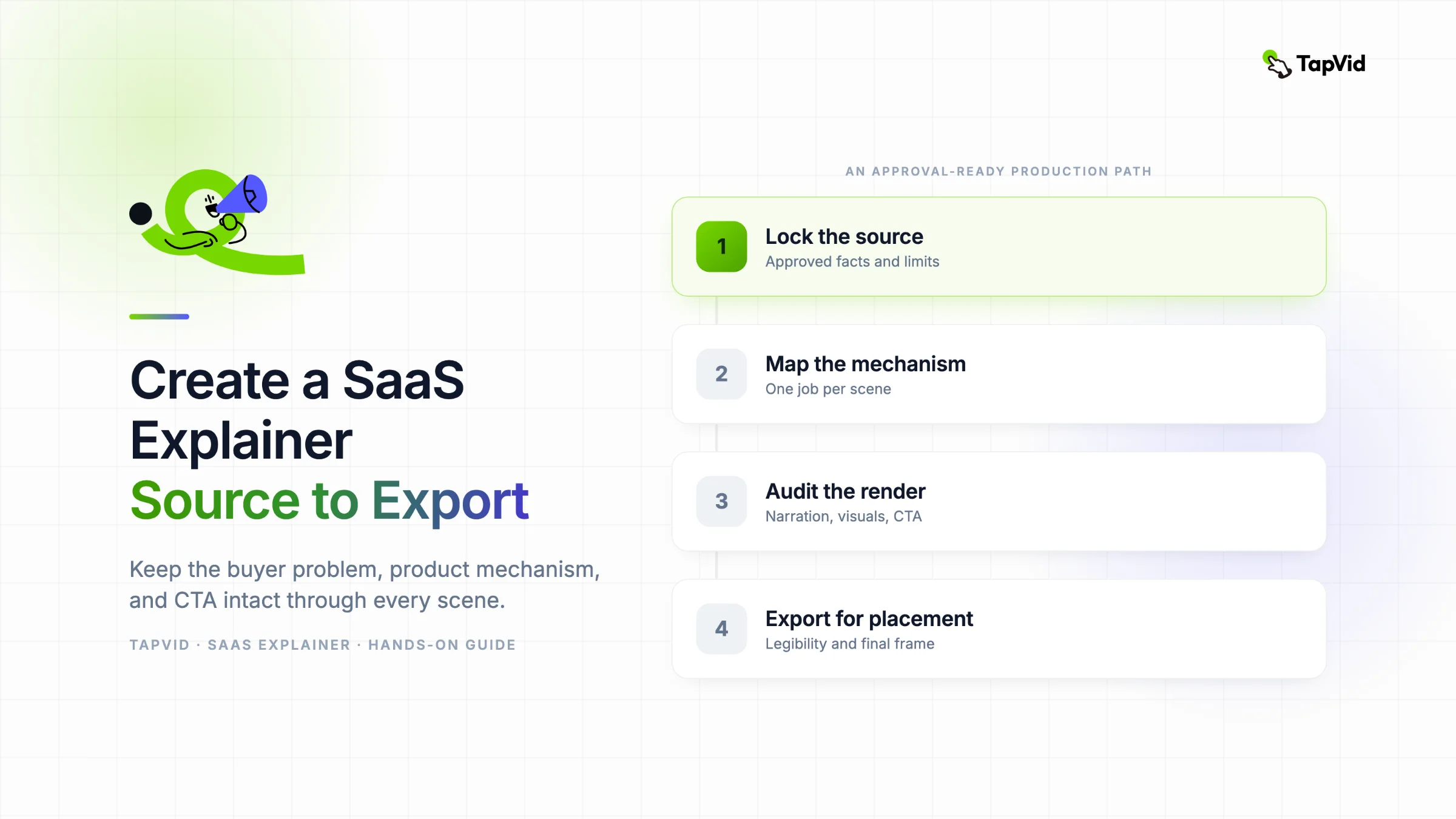
To create a SaaS explainer video, lock an approved source brief, define one audience and CTA, map each claim to a visible state change, review the scene plan, then audit the exported file for timing, identity, readable copy, captions, and CTA hold. In our TapVid test, the first cut changed the sample customer and added unapproved values. A revision corrected the record but still exported at 16.83 seconds instead of the requested 35 seconds. Approve the artifact, not the success message.
This guide shows the full production loop, not just the prompt that starts it. The example uses InvoiceFlow, a fictional SaaS product created only for this test, not a real company, customer, or endorsement. TapVid acts as the Explainer Video Engine: you bring existing product copy, a script, an article, or another approved source, then decide what is true, what the viewer needs to understand, and whether the finished cut proves what it says.
Create a SaaS explainer video with TapVid
01
1. Choose the placement, audience, and one next action
Do not begin with a list of features. Begin with the page or channel where the video will appear.
A homepage explainer usually needs to answer three questions quickly:
- Who is this for?
- What problem does the product help them understand or handle?
- What should they do after watching?
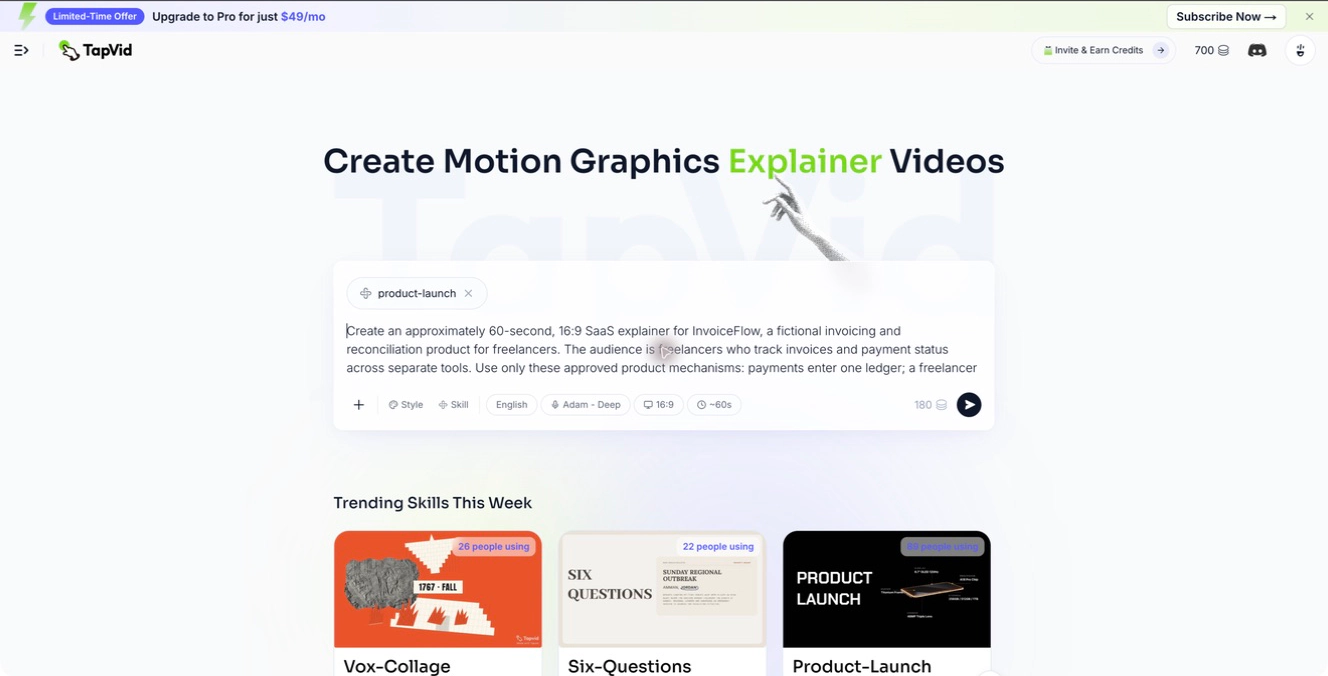
For the InvoiceFlow test, the audience was a freelancer who tracks invoices across separate tools. The story had one job: show an invoice moving from creation to payment status to a monthly summary. The CTA was fixed as: See your month in one place.
That boundary prevents the video from turning into a tour of every possible dashboard. It also gives you an acceptance test. If a scene does not help the viewer follow that path, it does not belong in this cut.
Placement also affects pacing. A homepage video can leave several seconds for a product action to register. A paid social cut may need faster scene changes. An onboarding video can spend longer on exact controls. Pick the placement before you choose a target duration.
02
2. Build a source-of-truth brief
Your source brief should separate approved facts from creative direction. This is more useful than one long descriptive prompt because it tells the video system what it may explain and what it must not invent.
For a SaaS explainer, include:
- The viewer and placement.
- The approved product actions.
- The exact CTA.
- Sample data that must stay consistent.
- Claims, values, and interface labels that must not appear.
- Format, language, voiceover, and approximate duration.
The approved mechanism for this test was intentionally small:
A freelancer creates and sends one invoice from one place. When the payment comes in, the same invoice enters one ledger. A monthly summary shows paid and outstanding work.
The sample record was also fixed: Client A, INV-001, $1,200. Treating those three values as one identity matters. If a later scene changes the client or invoice number, the viewer is no longer following the same record.
This is where a visible-copy whitelist helps. It is a short list of the words and values the motion graphics may display. A blacklist tells the system a few things to avoid. A whitelist sets a much clearer boundary.
TapVid's SaaS explainer video creator can structure supplied material into scenes and narration. Give it enough product truth to build the story, but do not ask it to fill gaps that should be answered by your product team.
03
3. Turn the story into visible state changes
A scene outline should describe what changes on screen, not only what the narrator says.
The InvoiceFlow story used five beats:
| Scene | Narration job | Required visible change |
|---|---|---|
| Problem | Show scattered work | Separate cards connect into one path |
| Create and send | Show one invoice action | Client A, INV-001, and $1,200 appear, then the send action completes |
| Ledger | Show the payment entering one record | The same invoice changes from Sent to Paid |
| Monthly summary | Show where the same record ends up | Paid and outstanding categories appear without invented totals |
| CTA | Give one next action | The product name and exact CTA remain readable |
Notice that each row contains a state change. "Show a dashboard" is not enough. "Change the same invoice from Sent to Paid when the payment arrives" can be checked in the final video.
The narration should stay equally narrow. In the approved script, the middle lines were:
From one place, you create and send an invoice.
When payments come in, they enter one ledger.
The visuals carry the mechanism while the voiceover keeps the viewer oriented. If the narration names three product actions in one sentence, the scene will often become a collection of tiny cards.
04
4. Review the plan before you spend a render
Before generating the video, inspect the scene table and script together. Look for timing, continuity, unsupported language, and text density.
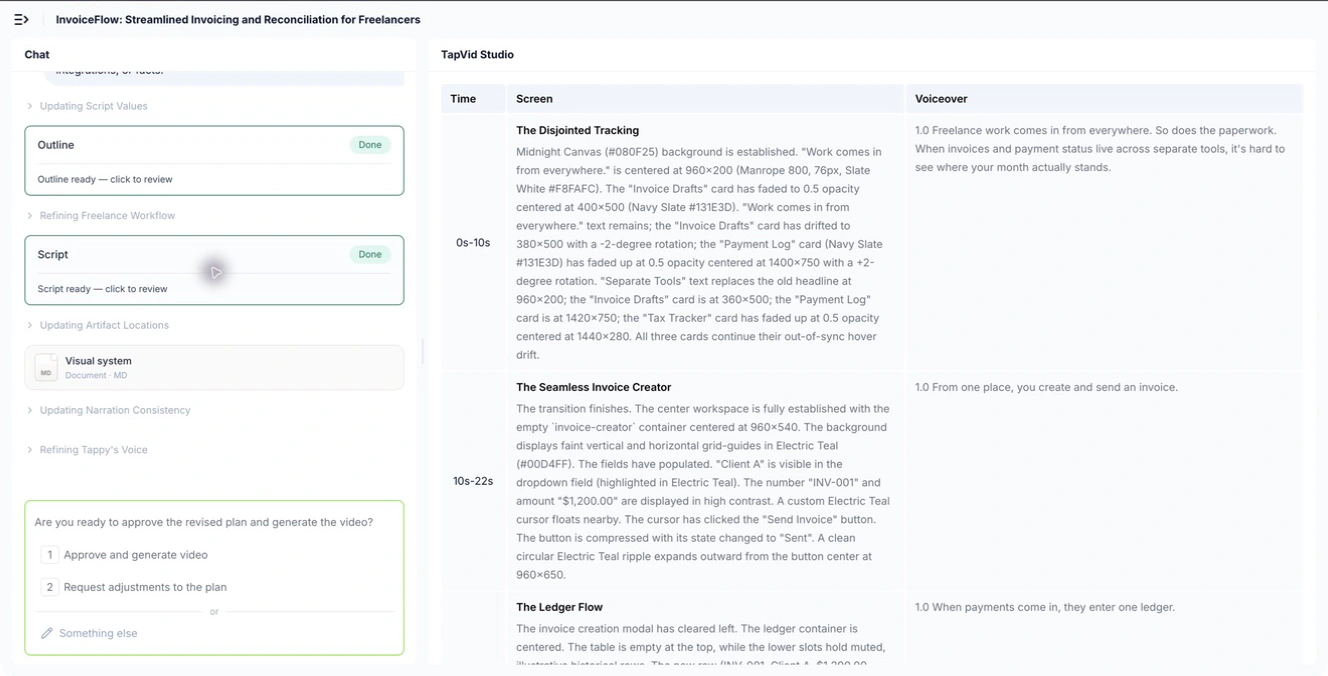
Use this pre-render checklist:
- Does every scene have one primary idea?
- Does the sample data remain the same across scenes?
- Does each spoken claim have a visible action that can support it?
- Is any line too long for the allocated seconds?
- Is the CTA exact, not a paraphrase?
- Will the main interface occupy enough of a 16:9 frame to remain readable in an embed?
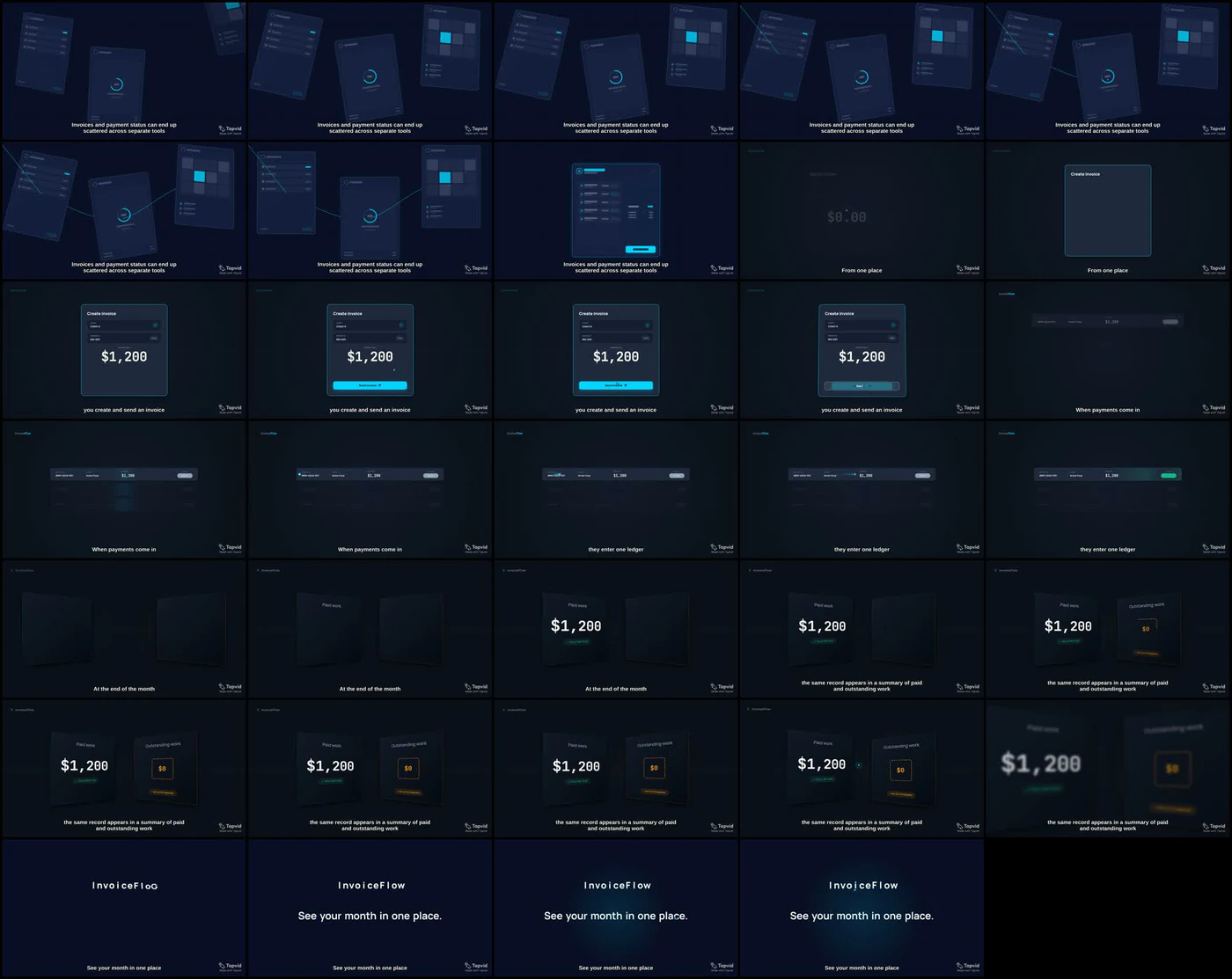
In this run, the first proposed problem narration contained about 39 words for a six-second scene. That could not be spoken clearly at a normal pace. We replaced it with: Invoices and payment status can end up scattered across separate tools.
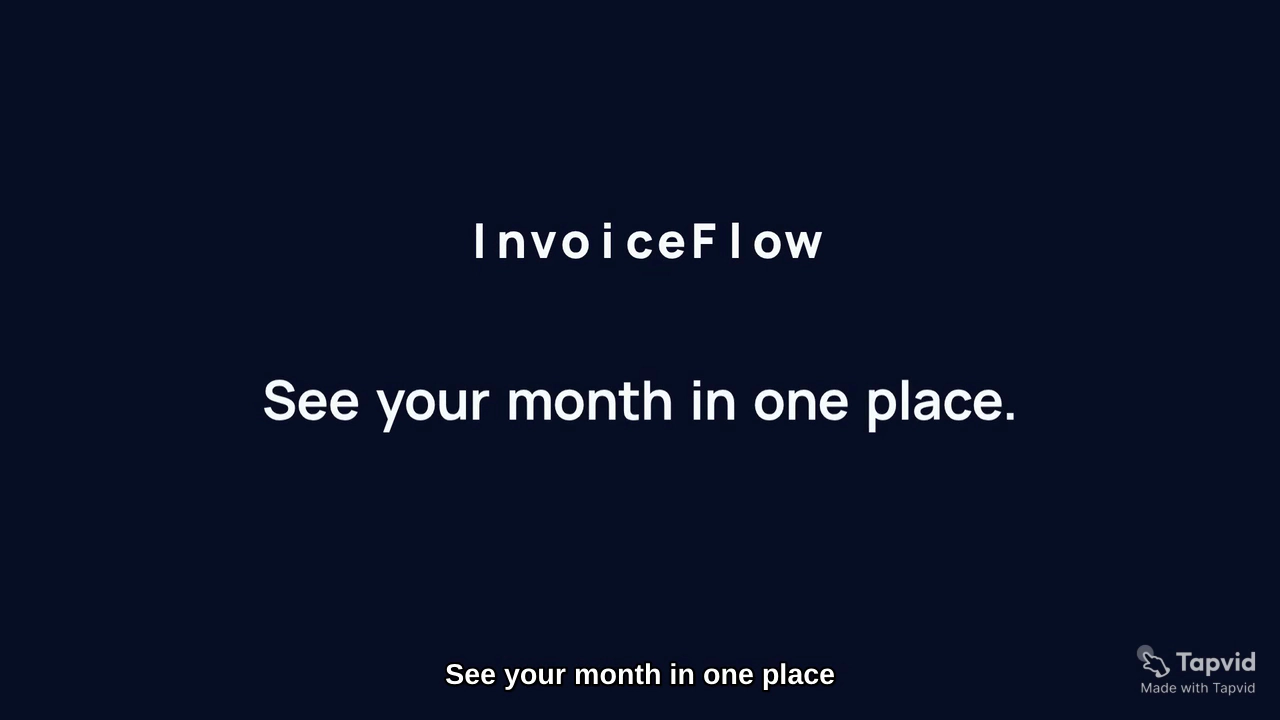
We also replaced the closing narration with the exact CTA. Those script changes worked. The final transcript contained all five approved lines in the correct order.
That did not make the render correct. Script approval and video approval are separate gates.
05
5. Generate the video, then inspect the real cut
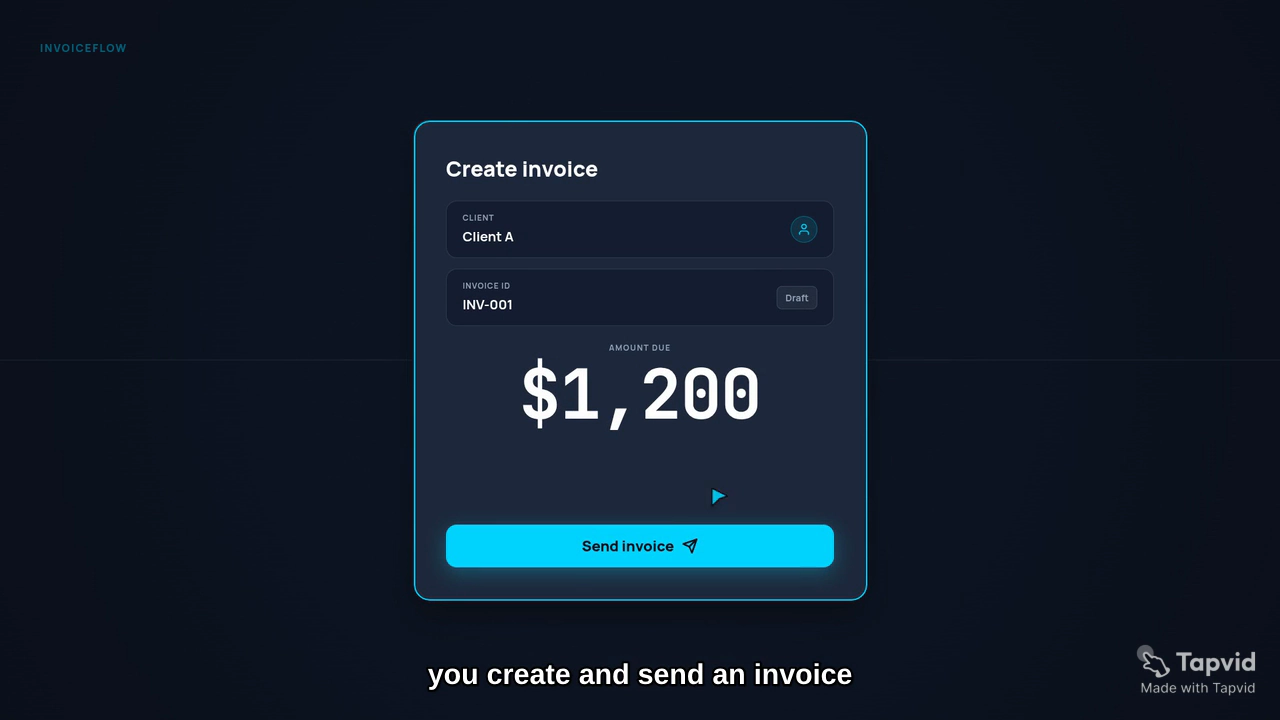
The generated cut was 1280 by 720 at 30 fps with mono AAC audio. Its measured duration was 16.83 seconds. All five narration lines were present, but the planned timing had been compressed into five chapters ranging from 1.9 to 4.9 seconds.
The create-and-send scene looked clean at first glance. The primary card was large enough to read, and the approved client, invoice, amount, and button were visible.
Look closer and the scene also includes Draft, field labels, and an intermediate $0.00 state earlier in the animation. Those were outside the visible-copy whitelist. This does not make the whole visual unusable, but it means the render did not follow the approved data boundary.
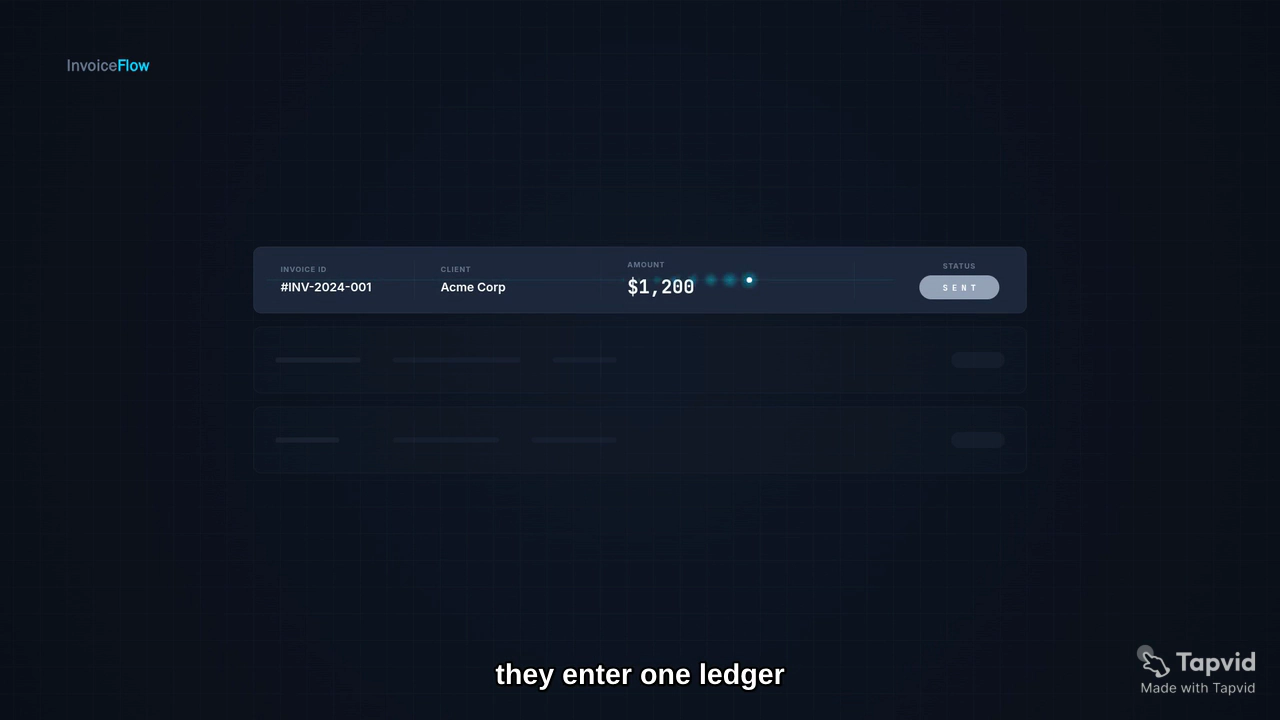
The more serious continuity failure appeared in the next scene. The ledger changed the record to Acme Corp and #INV-2024-001.
The amount remained $1,200, but matching one value is not enough. A viewer sees a different invoice. The intended causal path from create to send to paid is broken.
The monthly summary added another set of unsupported outcomes: $0, FULLY SETTLED, and NO OUTSTANDING.
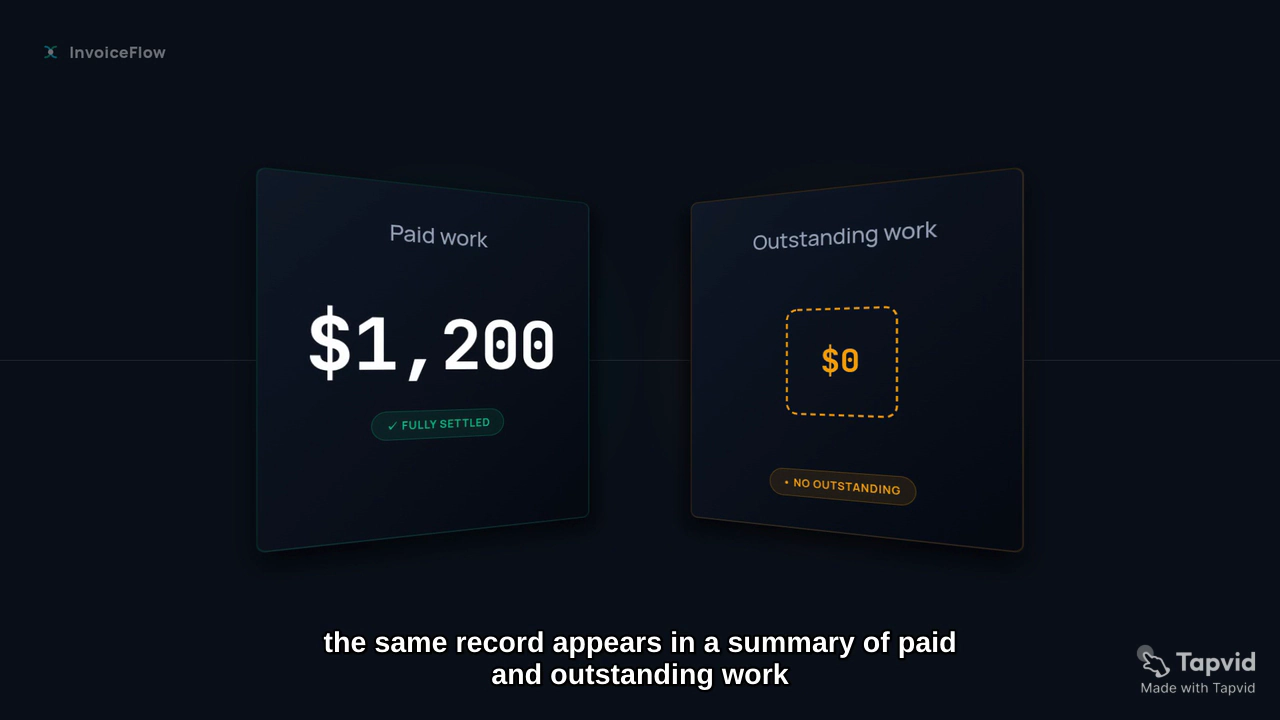
These additions sound harmless, but they change the claim. "Show paid and outstanding work" does not prove that there is no outstanding work or that everything is fully settled.
This is why you should review a finished explainer as a sequence, not a set of attractive frames. Watch it once without pausing, then check each mechanism scene for exact names, values, state changes, and transitions.
06
6. Reject weak output and write a render-specific revision
The correct response to a flawed first cut is not always "make it better." That instruction gives the system room to change the script, style, and data again.
Separate the revision into four locks:
Timing lock. Assign a fixed duration to each scene. For the next version, we requested 6, 8, 8, 9, and 4 seconds, for a 35-second total. The final four seconds were reserved for the CTA.
Identity lock. State the only record that may appear: Client A, INV-001, $1,200. Require the same row to move from Sent to Paid.
Visible-copy lock. List the words and values that may appear, then explicitly remove the incorrect copy found in the real cut. This is stronger than repeating the original brief because it responds to observed failure.
Composition lock. Set a readable size target. We asked for the primary interface to occupy 55 to 70 percent of the frame, with no tiny floating cards and no second record competing for attention.
Here is the useful pattern:
Keep the current transcript unchanged. Re-render the same five scenes with fixed durations. Use one record only: [client], [invoice], [amount]. Show [state A] changing to [state B] on that same record. Display only this approved copy: [whitelist]. Remove these observed errors: [actual incorrect labels and values]. Hold the exact CTA for [seconds].
The CTA frame itself was clear, but its chapter lasted only 1.9 seconds, which was shorter than the requested hold.
Do not approve a cut because the last frame looks good. Approve it only when the full path remains accurate and readable.
The next render shows why a revision needs its own acceptance check. The corrected cut kept the approved record in the create-invoice scene and carried that identity into the ledger.
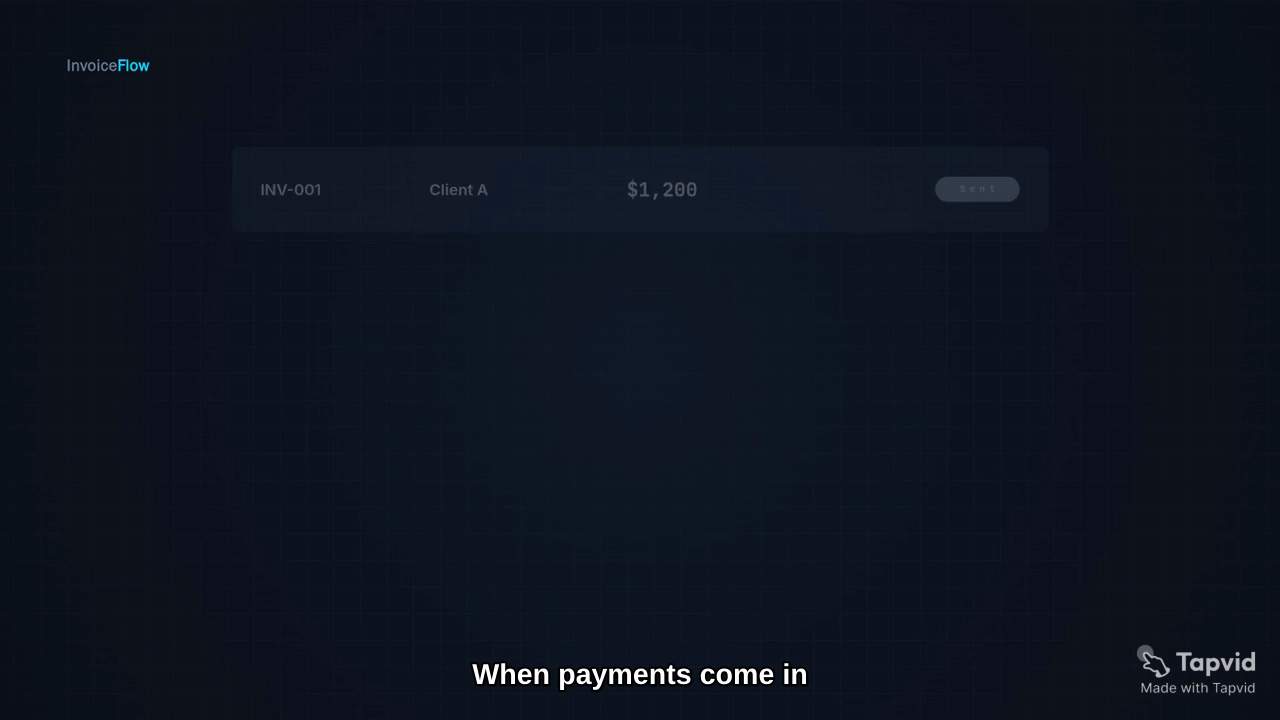
The ledger then used the same invoice rather than switching to a second fictional customer. In the revised monthly summary, the approved record appeared under Paid work, while the Outstanding work category remained visible without an invented total or a "fully settled" claim.
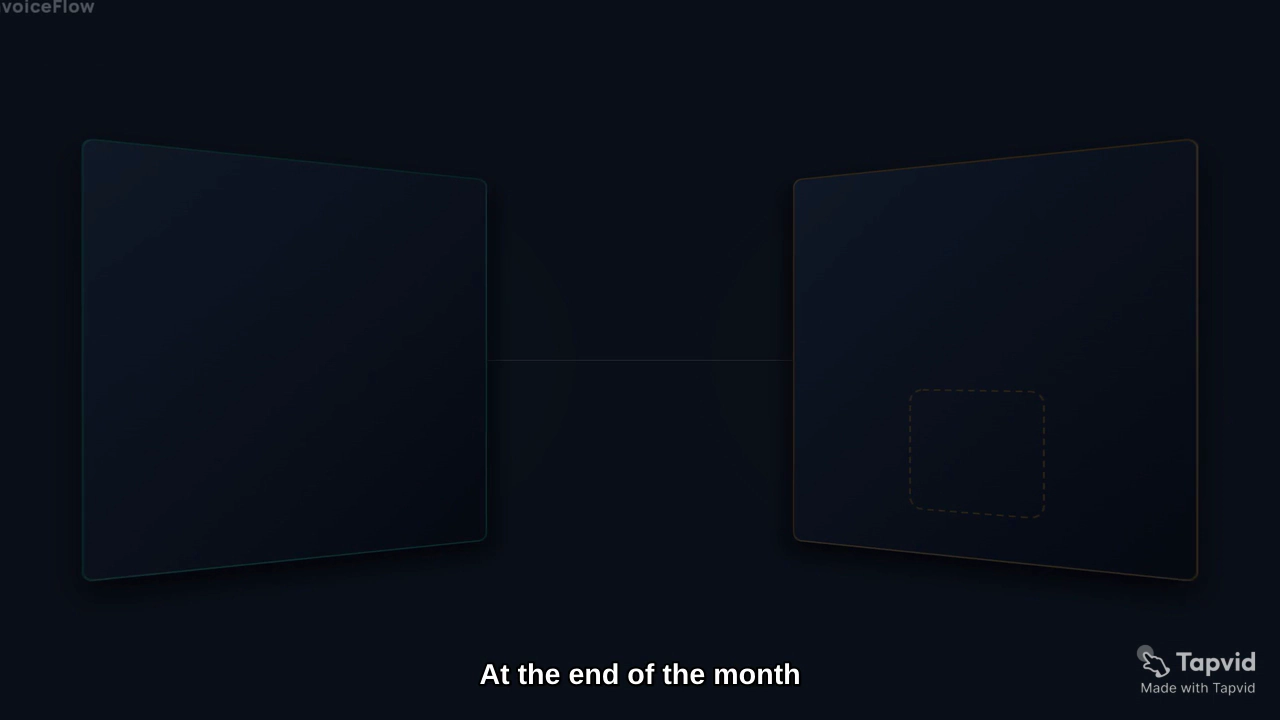
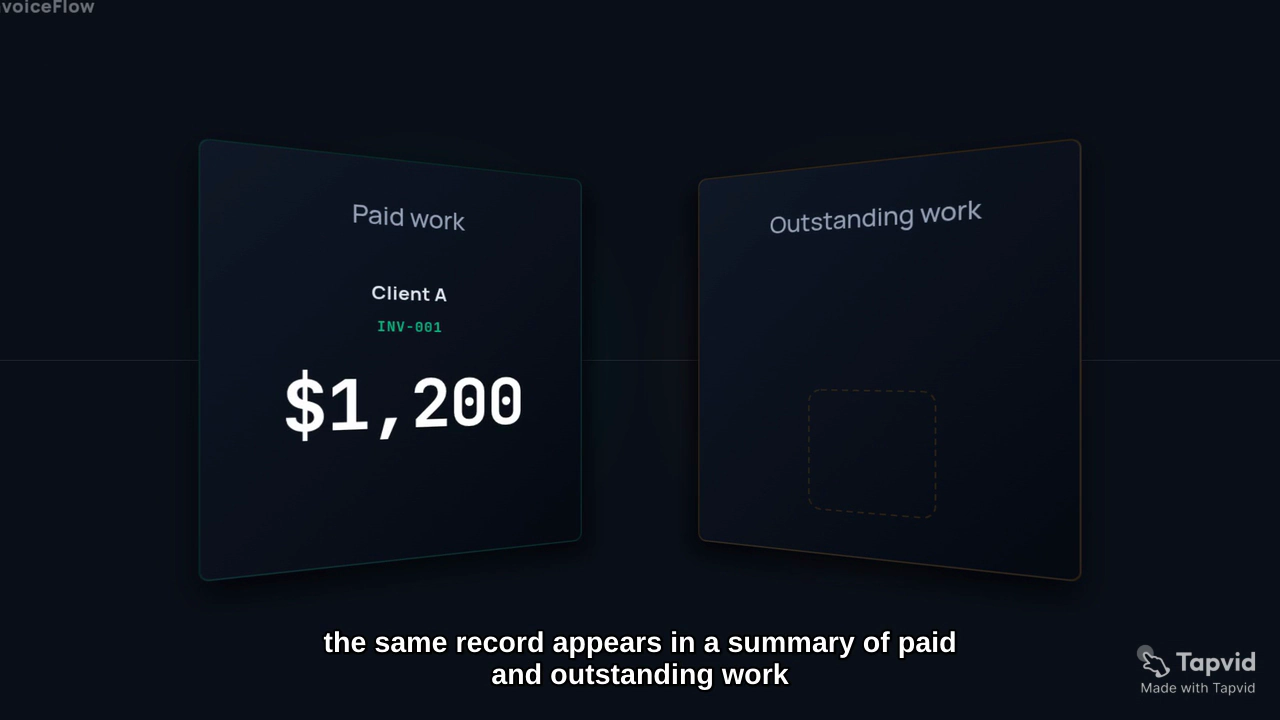
Those are meaningful improvements. The visible-copy and identity locks worked. The timing lock did not.
TapVid's project chat described the revision as a 35-second render with scene durations of 6, 8, 8, 9, and 4 seconds. The downloaded MP4 measured 16.833 seconds, and the player still presented the compressed five-chapter cut. The file was new: its checksum and size differed from the previous render, so this was not an old download. The revision engine changed the visuals but did not apply the requested pacing.
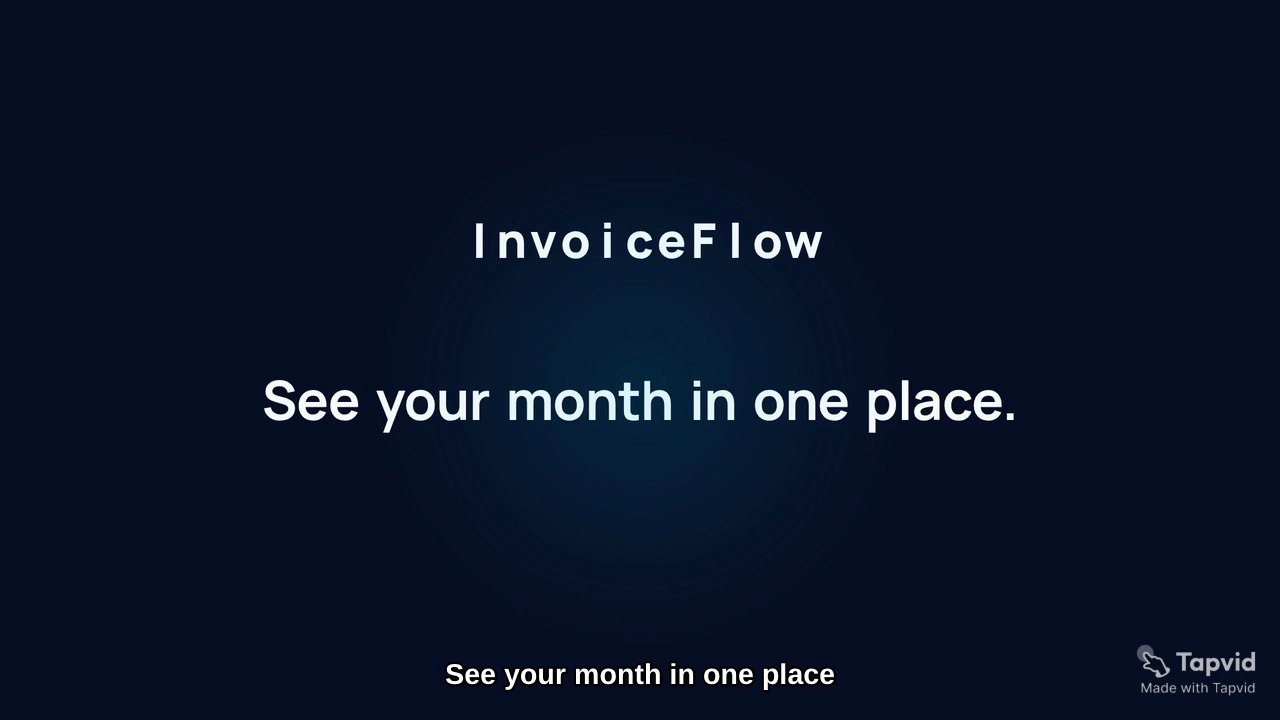
That makes the latest version useful as revision evidence, but not a final approved homepage explainer. When an editor reports that a constraint was applied, verify the exported duration, chapter timing, and full playback before treating the result as publishable.
07
7. Export and test the placement
Once a version passes content review, export it and inspect the actual file. Check the duration and resolution rather than relying only on the editor label.
Before publishing, verify:
- The aspect ratio matches the placement.
- Voiceover and captions say the same thing.
- Captions remain synchronized and do not cover key controls.
- Product labels are readable at the real embed size.
- The same sample data survives every scene.
- The CTA wording is exact and holds long enough to register.
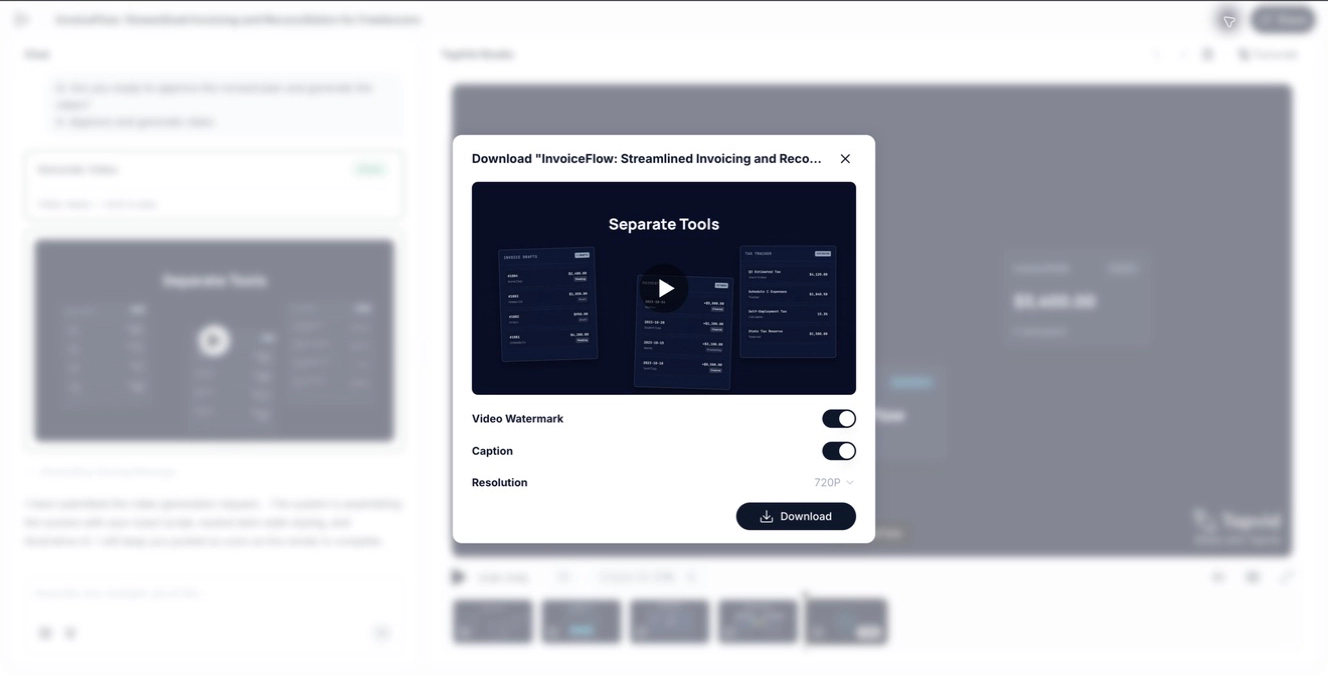
- Watermark, caption, and resolution settings match the intended channel.
For prerecorded media accessibility, captions should represent the spoken information and remain synchronized. The W3C Web Accessibility Initiative caption guidance explains the role of captions for people who cannot hear the audio.
Finally, watch the video on the page where it will live. A scene that is legible in a large editor may be too small inside a homepage column or mobile viewport. If the interface becomes hard to read, simplify the composition or create a placement-specific cut.
08
A reusable SaaS explainer brief
Copy this structure for your next project:
Create a [duration] [aspect ratio] SaaS explainer for [specific audience] using this approved source material: [paste or attach source]. The viewer should understand [one product path] and take this action: [CTA]. Show these visible state changes: [scene actions]. Use only these sample names, values, and statuses: [whitelist]. Do not add claims, totals, integrations, outcomes, or customer data. Return the scene plan and narration for review before rendering.
Then review in this order: source brief, scene actions, narration, first render, full playback, file metadata, and placement. That order makes it easier to tell whether a problem came from the source, the script, or the renderer.
If you already have product copy or a script, you can start with TapVid's AI explainer video generator and keep the source-of-truth brief beside the project during review.
09
How to create a SaaS explainer video you can actually publish
The safest workflow is simple: treat every generated video as a draft until the exported file passes the same checks as the script. The source brief should control product truth. The scene plan should make every important claim visible. The final review should confirm identity, state changes, timing, readable copy, captions, and CTA wording in the actual MP4.
Our test also shows why revision quality matters more than the number of attempts. The second render corrected the sample record and removed unsupported outcome labels, but it still ignored the requested 35-second timing plan. That result confirmed that every revision still needs full artifact QA.
If you use a SaaS explainer video creator, give it approved source material and precise constraints, then keep editorial approval with a human reviewer. That is how to create a SaaS explainer video that explains a real product without turning generated details into accidental claims.
10
Frequently asked questions
| Review question | Safe default |
|---|---|
| Is the source approved? | Do not render until product facts and sample data are fixed. |
| Is the script correct? | Approve narration separately from the video. |
| Is the render correct? | Check the exported file scene by scene before publishing. |
What should a SaaS explainer video include?
Include one viewer problem, a small number of visible product actions, consistent sample data, and one CTA. Each scene should make one new part of the product path easier to understand.
How long should a SaaS explainer video be?
Choose the duration from the placement and the number of visible actions. Do not stretch a simple story to reach a round number, but do not compress the scenes until labels, state changes, and the CTA become difficult to read.
Can a SaaS explainer video creator write the narration?
It can structure supplied product material into narration, but you should verify terminology, claims, timing, and the final CTA before rendering. Keep the source material authoritative.
Why can a correct script still produce a weak video?
The visual renderer may add interface copy, change sample data, compress scene timing, or show a completed state before the narration explains the cause. Review the actual video independently from the approved script.
Should I use a screen recording or motion graphics?
Use a screen recording when exact interface steps are the proof. Use motion graphics when the main job is to explain a product flow or relationship. A hybrid works when each format has a clear purpose.
What should I include in a revision prompt?
Name the failed scene, the observed error, the required replacement, fixed data, timing, and the exact copy that may appear. Preserve any parts that already passed, such as the transcript or visual direction.
Do I need to rebuild the whole video after one bad scene?
Not always. Use a scene-level revision when the audience, story, and CTA still work. Rebuild the whole video when the target viewer, product promise, or causal path has changed.