
TL;DR
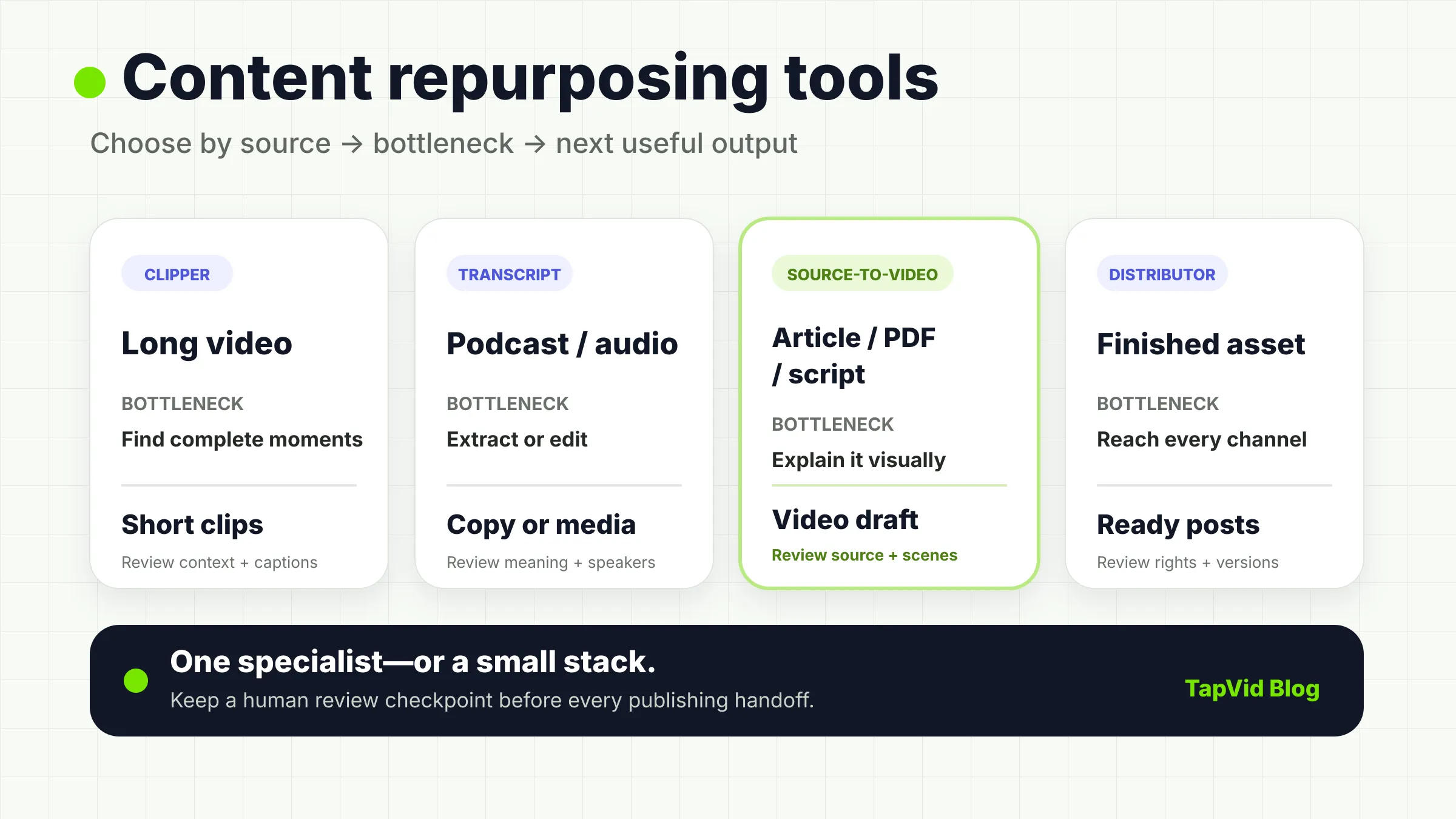
The best content repurposing tool depends on what you already have and where the work is getting stuck. Choose OpusClip or Vizard when a long video needs short clips. Choose Castmagic when a podcast needs written assets, or Descript when the recording still needs transcript-led editing. Choose TapVid or Lumen5 when the source is an article, PDF, or approved script that needs to become a video. Choose Repurpose.io or ContentStudio only after the asset is finished and distribution is the bottleneck. Most professional workflows need one specialist tool—or a small stack—not an all-in-one promise.
Compare content repurposing tools by the source asset you already have, the next useful output, and the human review work that remains.
01
The best content repurposing tool depends on what you start with
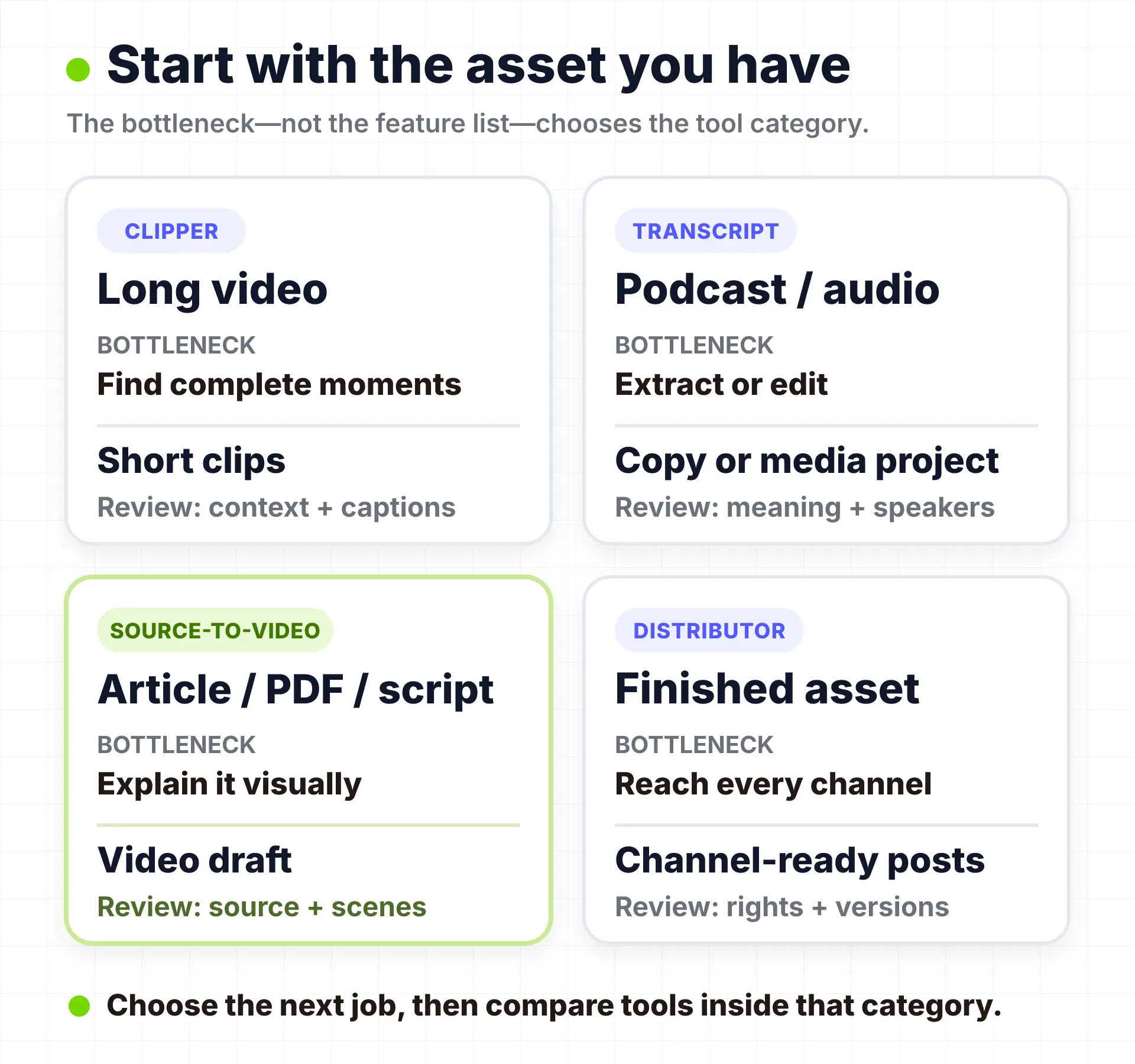
“Content repurposing tool” sounds like one software category. It is really a label for several different jobs.
A webinar may need complete moments reframed for vertical video. A podcast may need a transcript, show notes, or an editable media project. An article may need a new visual explanation. A finished clip may simply need to reach six channels without six manual uploads.
Those jobs share a goal, but not the same input, output, or quality test. A scheduler cannot rescue a weak clip. A clipper cannot turn a PDF into a coherent explanation. Buying the product with the longest feature list can leave the actual bottleneck untouched.
Use this order instead:
- Identify the source asset you already own.
- Name the bottleneck that prevents the next useful output.
- Define the target format and channel.
- Decide how much human review the first draft can tolerate.
- Add distribution automation only after the asset is ready.
This article compares eight tools across four workflow categories. It does not assign a “best overall” winner because the categories are not interchangeable.
02
How we evaluate content repurposing tools
Feature checklists confirm that a function exists, but reveal little about the work left after the first draft. Use the same six questions across all four categories:
- Source fidelity: Does the workflow keep the output traceable to the original recording, article, PDF, or approved script?
- Selection quality: When the software chooses a clip or idea, does it preserve a complete thought? This requires a real run or a method-disclosed independent review; a vendor promise is not enough.
- Editability: Can a creator correct the transcript, structure, visuals, captions, timing, or export before handoff?
- Review burden: What still needs a person to verify, repair, or approve?
- Distribution depth: Does the tool export a file, schedule a post, or run rules across several channels?
- Handoff friction: How many files, links, exports, and manual copy-paste steps sit between this tool and the next one?
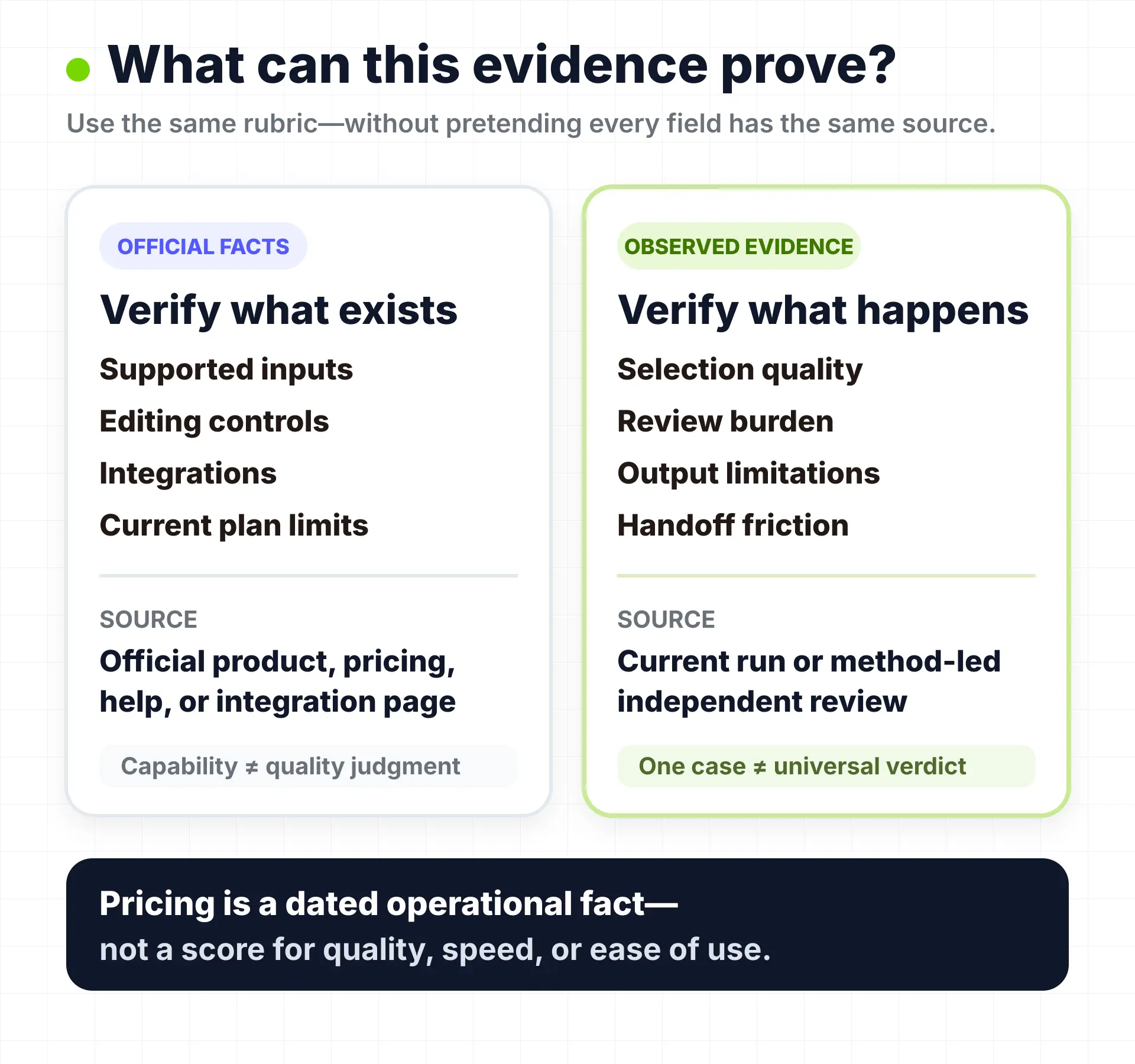
Pricing is a dated operational fact, not a quality score. Official pages support capability and plan claims. Public reviews can expose friction, but one reviewer is one case—not a consensus. Output quality, ease, speed, virality, and time saved are not assumed without a current test record.
03
Quick comparison by source, output, and stopping point
| Tool | Start with | Primary output | Strongest workflow role | Stopping point |
|---|---|---|---|---|
| TapVid | Article, PDF, approved script, prompt, or link | Structured motion-graphics explainer | Turning owned knowledge into a new visual video | Highlight extraction from long footage and social scheduling |
| OpusClip | Long video | Short social clips | Automatic moment selection, reframing, captions | Human review of clip boundaries, claims, framing, and captions |
| Vizard | Long video | Editable short clips | High-volume candidates plus a browser editor | Fine control and publishability still require review |
| Castmagic | Podcast, audio, or video | Transcript-derived written assets and clips | Show notes, summaries, posts, newsletters, prompts | Final copy editing and downstream publishing |
| Descript | Recorded audio or video | Editable media project and clips | Transcript-led correction and media editing | Dedicated scheduling or broad distribution |
| Lumen5 | Article, text, outline, or PDF | Stock/template-led video | Fast illustration of written marketing content | Technical visual explanation and media-match cleanup |
| Repurpose.io | Finished video, audio, image, or social asset | Cross-platform posts | Rule-based redistribution and scheduling | Upstream creation, rewriting, and clip selection |
| ContentStudio | Finished content plus a publishing plan | Scheduled posts and managed campaigns | Multi-account planning, approvals, analytics, and automation | Specialist media production and deep editing |
A useful shortlist should get smaller after this table. If the input column does not match your source, remove the tool. If the stopping point describes the work you cannot absorb, remove it again.
04
Best tools for long-video clipping
Long-video clippers find candidate moments, cut them into shorter units, reframe the subject, and add captions. The hard part is finding clips that begin with enough context, reach a payoff, and do not distort the speaker.
OpusClip — best for automatic first-pass clip candidates. OpusClip's current pricing page describes AI clipping, captions, reframing, a Virality Score, editing, and direct social publishing on eligible plans. The Free plan currently includes 60 credits per month, watermarked output, limited editing, and a three-day export window. Starter is listed at $15 per month, while higher plans add broader editing, branding, aspect ratios, scheduling, and integrations.
Its natural job is to reduce a long recording into several candidates, not deliver an editorial verdict. Check whether the opening is understandable, the ending completes the thought, names and numbers survived the caption pass, and the crop preserved the subject. Current G2 reviews include time-saving reports and cases where selection, titles, captions, or formatting needed adjustment. They support a human-review boundary, not a universal quality estimate.
Choose OpusClip when the source is already a long video and the first bottleneck is finding possible shorts. Skip it when the only source is written material, or when every selection decision must remain with an editor from the beginning.
Vizard — best for a high-volume clipper with a fuller browser editor. Vizard's official pricing page currently documents AI-generated clips, a full video editor, 60 monthly credits on the Free plan, 720p exports, and three-day storage. One uploaded source minute consumes one credit. Paid plans add watermark-free output, 4K export, longer source limits, storage, scheduling, shared workspaces, and brand controls; verify the client-rendered price in the current checkout before buying.
The editor matters when automatic selection is only the beginning: teams can repair captions, framing, or layout without immediately moving to a desktop editor. Vizard's G2 review page includes reviewers who value fast clipping and others who report that selection, captions, framing, rendering, or fine control can require intervention.
Choose Vizard when candidate volume, a minute-based allowance, and in-browser repair are useful. Skip it when a professional timeline, detailed audio post-production, or fully manual editorial selection is non-negotiable.
05
Best tools for podcast and transcript repurposing
Podcast repurposing contains two jobs: extracting transcripts, summaries, show notes, and copy; or editing the recording itself. Castmagic leans toward the first. Descript leans toward the second.
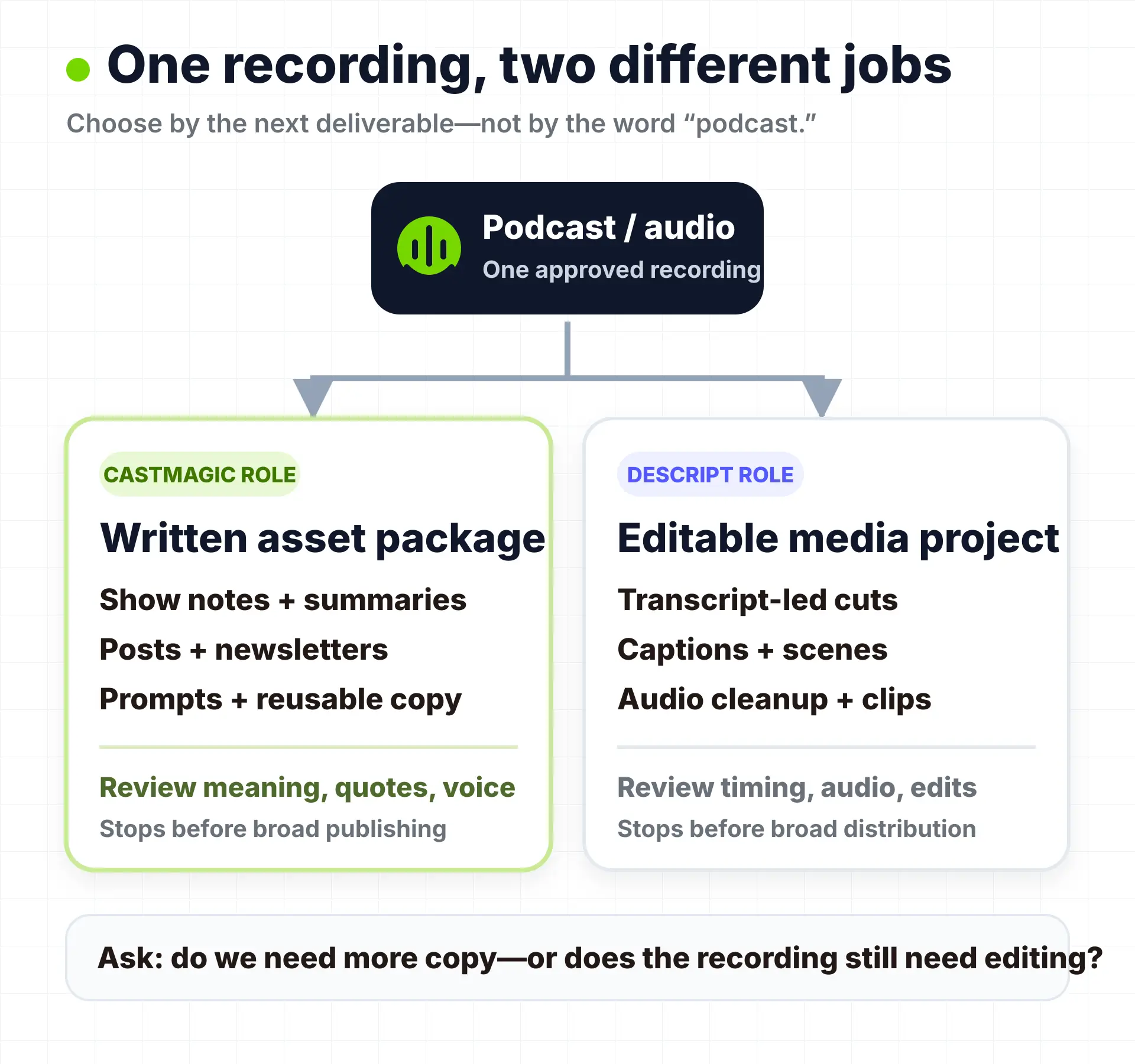
Castmagic — best for turning recurring recordings into a written asset package. Castmagic accepts audio and video, then uses the transcript as the basis for summaries, show notes, posts, newsletters, long-form copy, prompts, clips, and audiograms. Its current pricing page lists Hobby at $19 per month when billed annually, Starter at $48, and Team at $139, with different transcription libraries, storage, spaces, seats, and API access. The same page lists RSS, Zoom, Google Drive, Zapier, and social-media import routes.
This is useful when every weekly episode creates the same writing queue. Templates can make output more consistent, but an editor still must verify meaning, quotations, speaker attribution, and voice. Castmagic is not a multitrack editor or cross-platform publisher.
The independent review sample is relatively small. Capterra currently shows nine Castmagic reviews. Reviewers describe value in show notes, chapter markers, and marketing assets, while individual cases mention export or direct-integration gaps. Treat those as user cases, not a market-wide conclusion.
Choose Castmagic when the recurring burden starts after recording and ends in several written formats. Skip it when the main job is precise audio/video repair or direct scheduling across many channels.
Descript — best when the recording still needs transcript-led editing. Descript turns the transcript into the editing interface: deleting or rearranging words changes the audio or video, and the project can continue into captions, scenes, layouts, audio cleanup, and short clips. Its Create Clips page places clipping inside the same editable project rather than treating every result as a finished black-box export.
The current Descript pricing page separates media hours from AI credits. The Free plan currently includes one media hour and 100 AI credits per month. Hobbyist is listed at $24 month to month or $16 per person per month with annual billing; it includes ten media hours, 400 AI credits, watermark-free 1080p export, and AI tools such as Create Clips. Creator adds more media hours, credits, 4K export, and a broader AI tool set.
Importing media and running AI features are different forms of usage. G2's Descript reviews represent the appeal of transcript editing, but also include learning-curve, performance, resource-use, and heavy-edit friction. Choose Descript when editability matters more than distribution; skip it when the asset is already finished.
06
Best tools for turning articles, PDFs, and scripts into video
Written-source-to-video tools create a new video from an article, document, link, outline, or approved script. A stock/template workflow illustrates narration quickly. A structured motion-graphics workflow is more relevant when visuals must explain the logic.
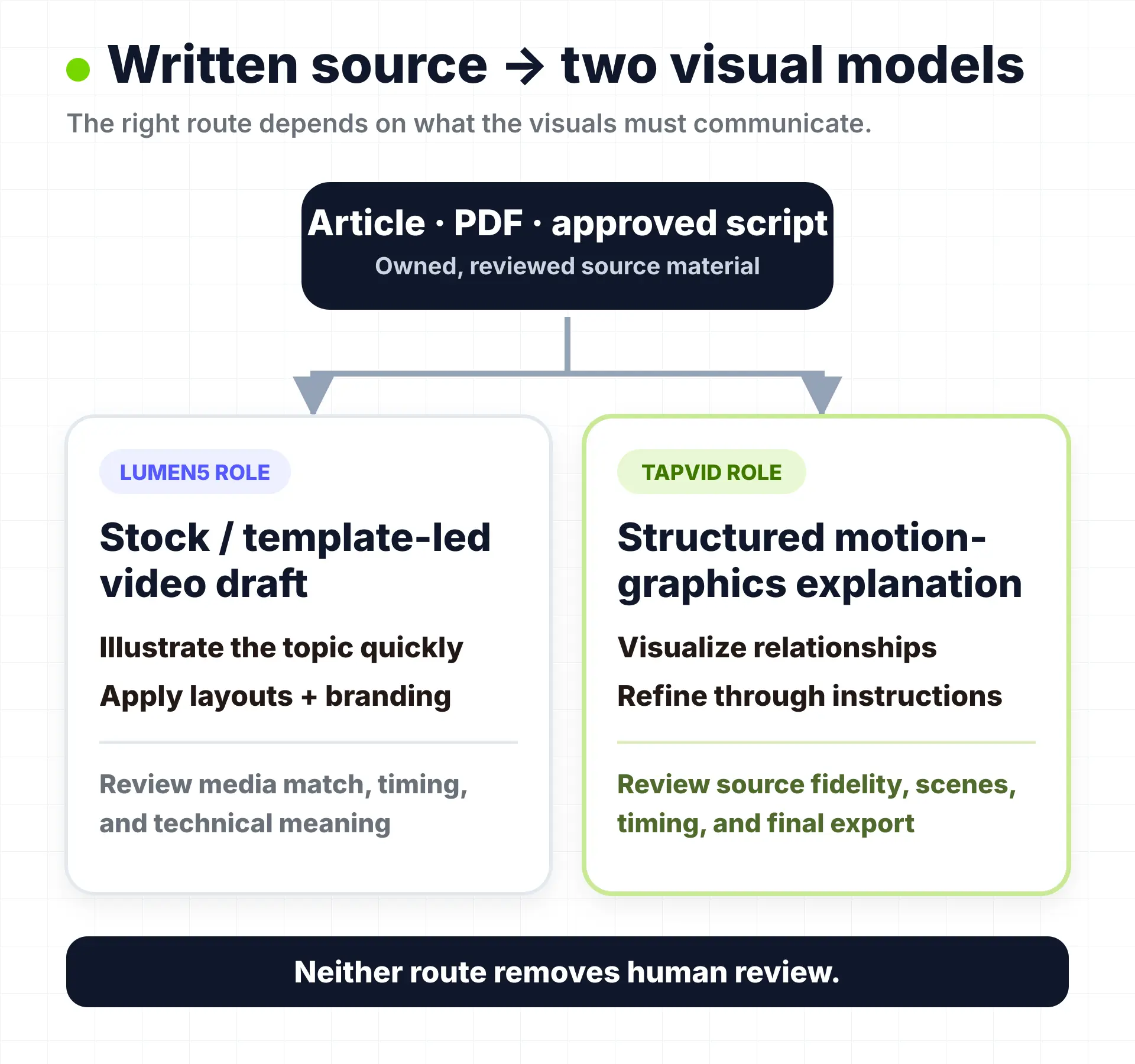
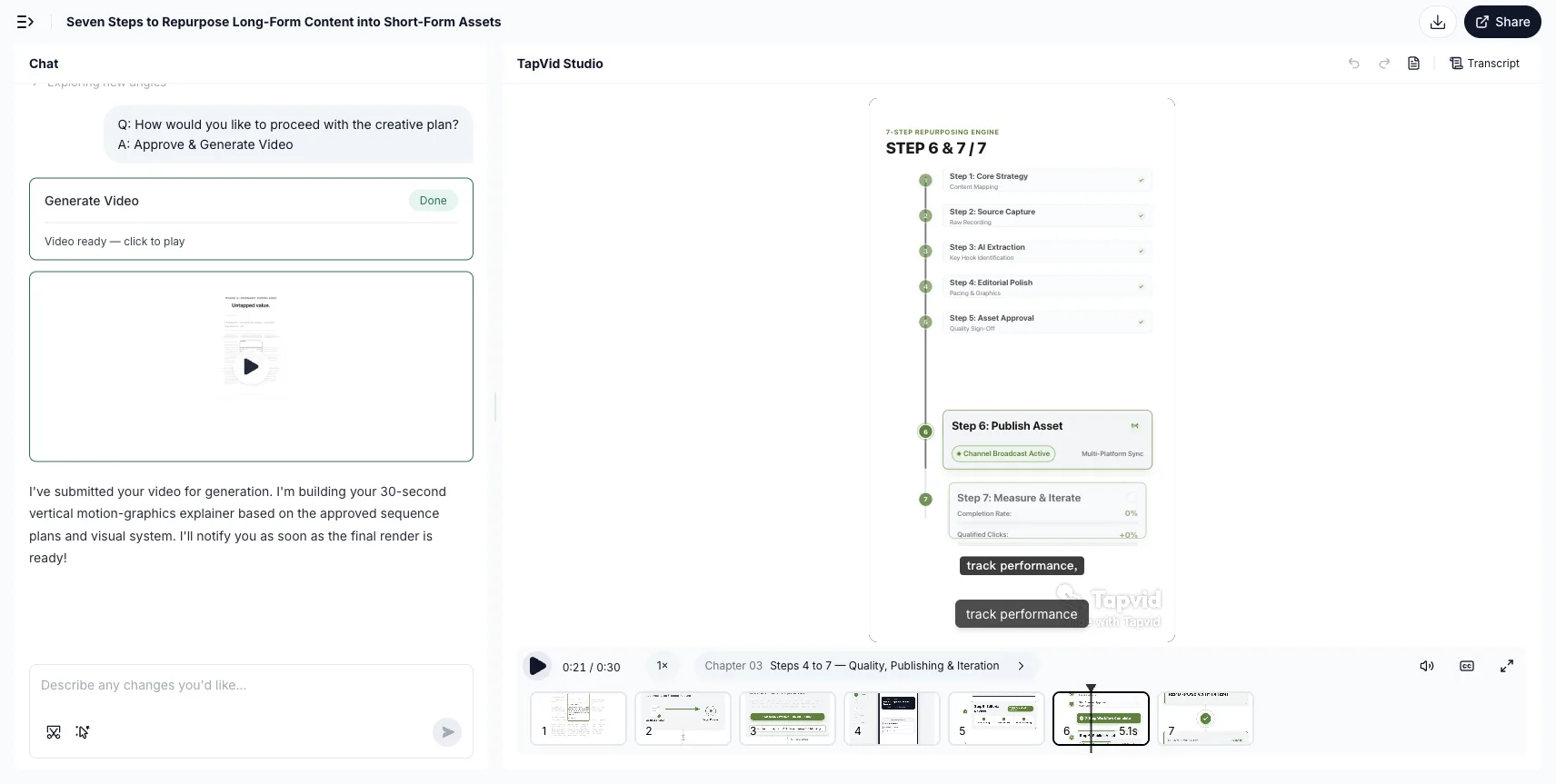
TapVid — best for a structured motion-graphics explainer from owned source material. TapVid's current public product page supports prompts, PDFs, and links as inputs for motion-graphics explainer videos. The workflow can build an outline, script, visuals, voiceover, and subtitles, then accept natural-language refinement. This makes TapVid relevant when a small team already has approved knowledge—such as an article, product document, PDF, or script—but does not want to build every visual scene on a timeline.
The category boundary is important. TapVid is not being evaluated here as a long-video clipper, podcast host, RSS ingestion tool, social scheduler, generic AI writer, or all-in-one repurposing suite. If the source is a 60-minute interview and the job is to find the strongest 45 seconds, start with a clipper. If the finished video needs automatic cross-posting, hand it to a distribution tool.
TapVid also requires human review. A source-grounded workflow is not a zero-error promise. The creator should check that claims remain faithful to the source, scenes explain the intended point, duration fits the channel, supplied assets are used correctly, and the final export is the approved version. The current pricing page lists Pro at $49 per month with 2,000 credits and watermark-free 1080p exports. It also lists a $4.99 one-video, 24-hour trial for new users and states that actual output count depends on length, with usage calculated per successfully rendered second.
No mature independent TapVid review corpus is used in this comparison, and vendor testimonials are not a substitute. The final evidence package therefore requires a bounded article-specific run showing both the source/setup state and a distinct result or limitation state before this item can pass the Truth Gate.
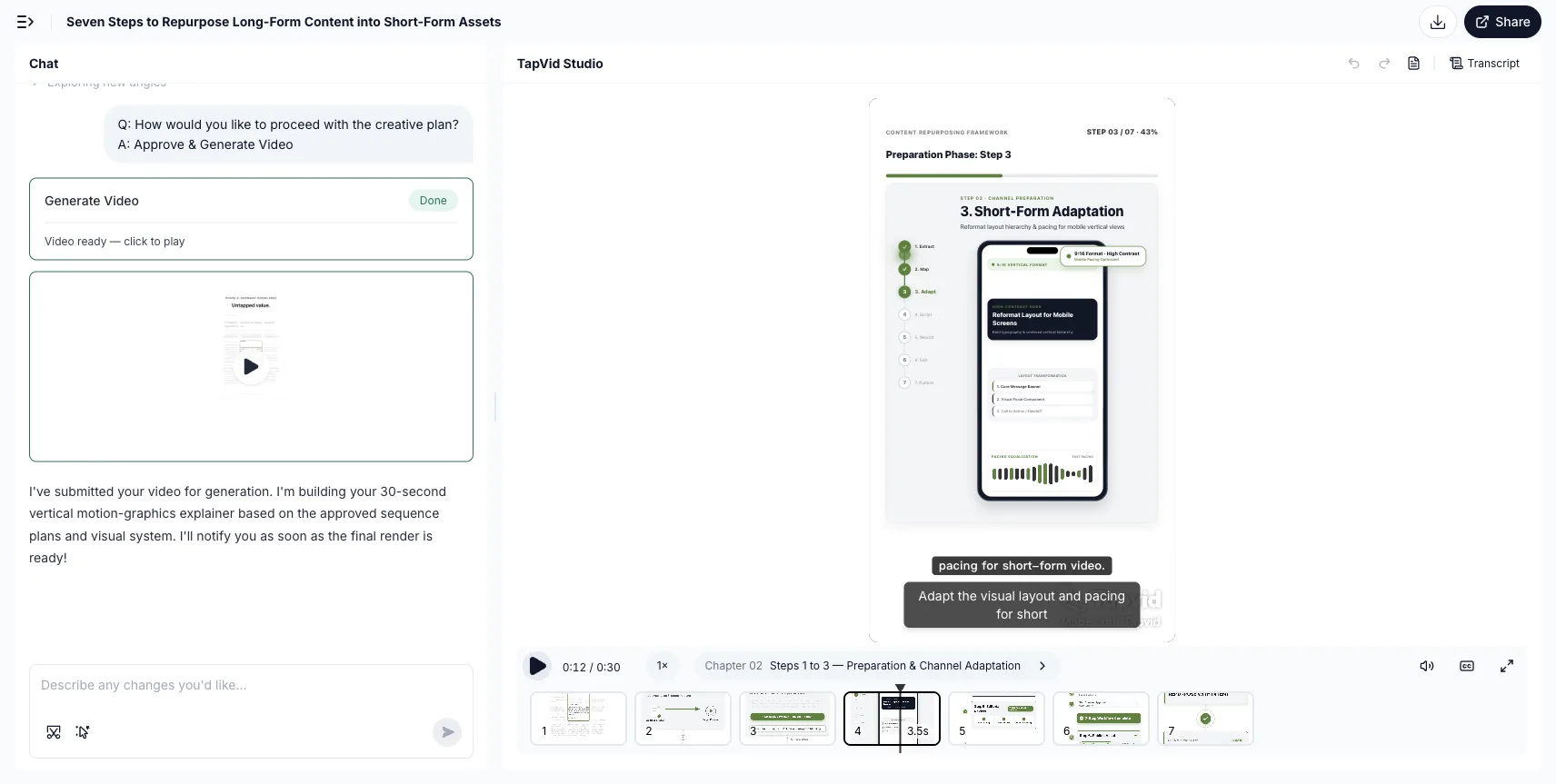
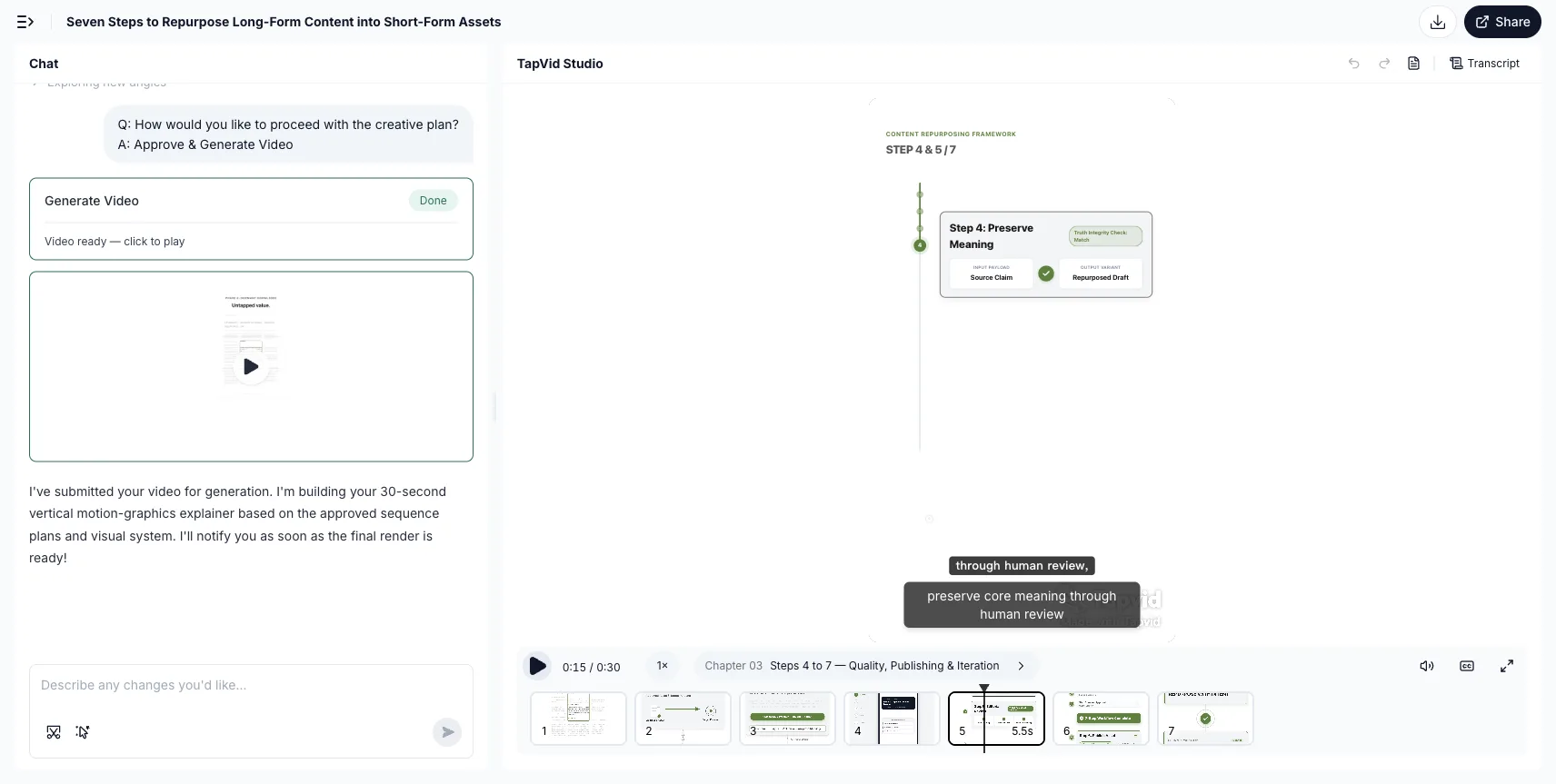
Choose TapVid when the source is written and the desired result is a structured visual explanation. Skip it when the work begins with long footage, depends on a professional manual timeline, or ends with distribution automation.
Lumen5 — best for stock/template-led video from written marketing content. Lumen5's Blog to Video workflow is built around turning written content into a draft video, pairing selected text with media, timing, layouts, branding, and voiceover options. It remains a clear fit when the goal is to illustrate an article quickly with stock footage and branded templates.
The stopping point appears when the visuals must carry technical meaning. A stock clip can suggest “growth” or “remote work,” but it may not explain a pricing model, process, data relationship, or product architecture. Media matching can also be topically related while missing the sentence's actual point. That does not make the workflow bad; it tells the buyer when manual replacement becomes part of the cost.
The official Lumen5 pricing guide should be checked at purchase because plan access and features can change. Independent G2 reviews and Capterra reviews commonly praise the accessible interface and fast text-to-video process, while individual reviewers also describe rendering time, advanced-feature limits, pricing concerns, and visual matches that need correction.
Choose Lumen5 when stock-led illustration is acceptable and speed to a branded draft matters. Skip it when the visual layer must teach the source's logic rather than decorate or illustrate it.
07
Best tools for distribution automation
Distribution tools should enter the workflow late. They are most valuable after the clip, episode asset, article derivative, or video has passed editorial review. Their job is to move approved assets between channels, adapt delivery settings, schedule posts, and reduce repetitive uploads.
Repurpose.io — best for rule-based redistribution of finished media. Repurpose.io's official product page describes automated workflows that connect source and destination platforms, resize assets, remove supported platform watermarks, back up media, and schedule or publish automatically. The product currently supports video, audio, images, carousels, slideshows, and Stories across a broad set of social and cloud destinations.
The current pricing page lists Starter at $35 per month, Pro at $79, and Agency at $179. Its trial allows up to ten published videos within 14 days without a credit card. Account limits differ by plan, so teams should map every source and destination profile before choosing a tier.
Repurpose.io's strength is also its boundary: it assumes there is an asset worth distributing. It does not decide which moment in a webinar is editorially complete, rewrite a podcast into a strong article, or turn a PDF into a new explanation. A public review route has been identified, but an item-level review has not yet been frozen for this article. Until that record is complete, this section relies only on official workflow and pricing facts.
Choose Repurpose.io when repeated manual uploading is the bottleneck. Skip it when creation, selection, or rewriting is still unresolved upstream.
ContentStudio — best for teams that need planning, approvals, and multi-account operations. ContentStudio combines a content calendar, smart scheduling, post customization, analytics, an asset library, AI-assisted creation, and multi-network publishing. Its current pricing page lists Standard at $29 month to month or $19 per month with annual billing, Advanced at $69 or $49, and Agency Unlimited at $139 or $99. It offers a seven-day trial but no free-forever plan.
Choose it over a simpler distributor for operational depth: higher tiers add workspaces, approvals, social inboxes, RSS auto-posting, bulk scheduling, reports, and client management. That fits teams coordinating brands and approvers, not just sending one clip to three channels.
The extra surface area can be unnecessary for a solo creator with a straightforward posting routine. ContentStudio's G2 reviews include praise for scheduling and multi-profile management, alongside individual requests for stronger mobile or dashboard behavior. Those cases help define buyer fit but do not prove that every team will save the same amount of time.
Choose ContentStudio when distribution includes planning, approvals, analytics, and several accounts. Skip it when a narrow automation rule or a specialist production tool would solve the real problem more directly.
08
When one tool is not enough: build a small repurposing stack
Professional repurposing often works as a short chain of specialist jobs. Keep the stack small and give each handoff a clear owner.
Long-form recording stack: Use OpusClip or Vizard to generate candidate shorts. Keep a human approval step for idea completeness, claims, captions, and framing. Send only approved clips to Repurpose.io when automatic redistribution is needed, or to ContentStudio when scheduling requires a calendar, approvals, and analytics.
Podcast knowledge stack: Use Castmagic when the valuable output is a package of show notes, posts, newsletters, and summaries. Use Descript when the audio or video itself still needs transcript-led repair. Add a distribution platform only after the copy and media have been edited for their destination.
Written-source video stack: Use TapVid when an article, PDF, or approved script needs a structured motion-graphics explanation. Use Lumen5 when a stock/template-led interpretation is sufficient. Review the video before handing the final asset to a scheduler. Neither source-to-video tool should be judged by how many social accounts it can manage, because that is a different job.
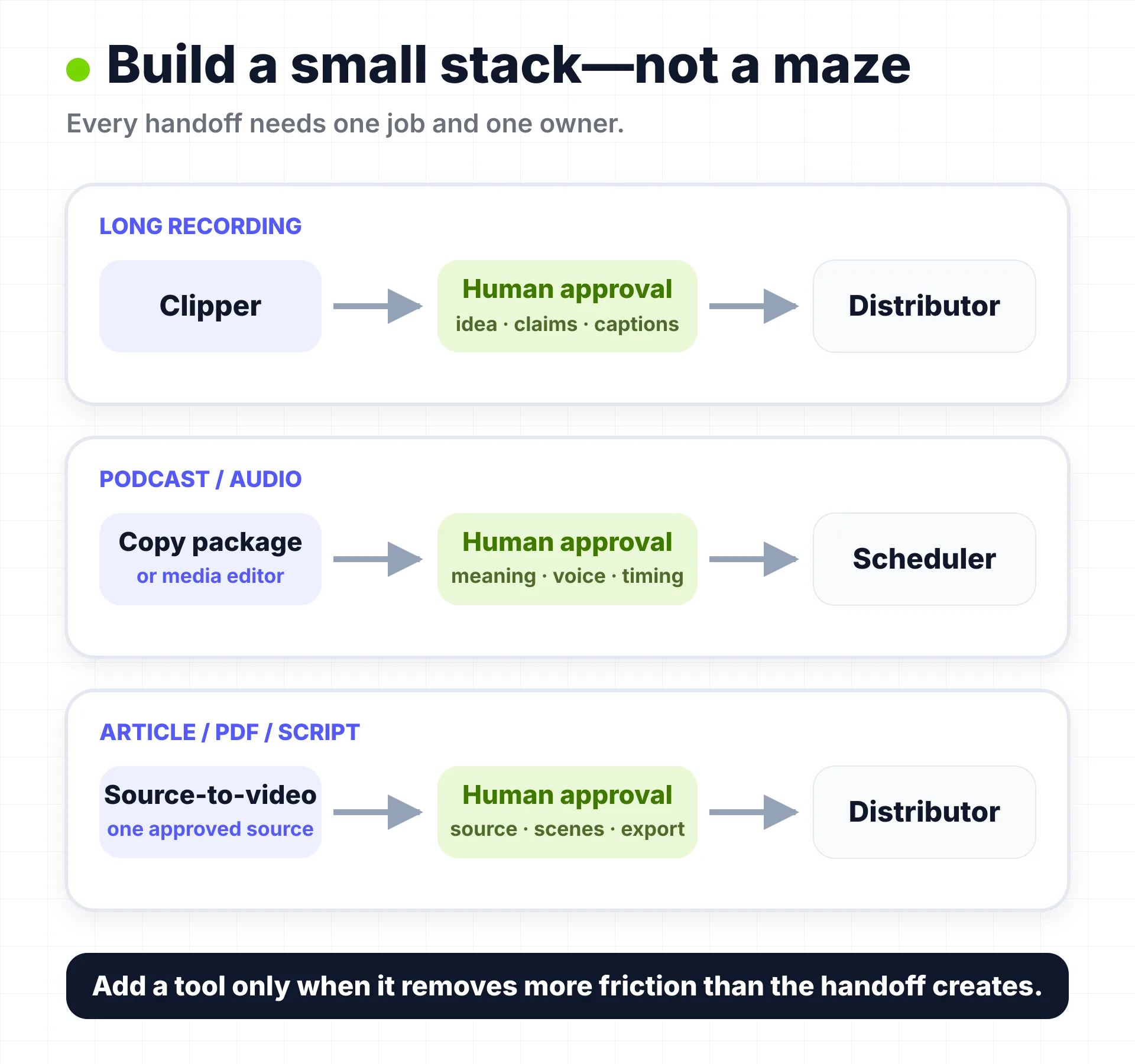
Every additional tool creates handoff friction: exports, naming, aspect ratios, caption files, duplicate storage, brand settings, permissions, and version confusion. Add a tool only when it removes a repeated bottleneck that is more expensive than the handoff it creates.
09
How to choose in five questions
- Is the source a long video? Start with OpusClip or Vizard. Choose based on the amount of automatic selection and in-browser repair you need.
- Is the source a podcast or audio recording? Choose Castmagic for a written asset package. Choose Descript when the media itself still needs editing.
- Is the source an article, PDF, approved script, or link? Choose TapVid for a structured motion-graphics explainer. Choose Lumen5 for a stock/template-led video.
- Is the asset already approved? If not, stay in the creation or editing category. If yes, consider Repurpose.io for automation rules or ContentStudio for team operations.
- Where must a person still review the work? If the answer is unclear, the tool has not removed the bottleneck—it has hidden it.
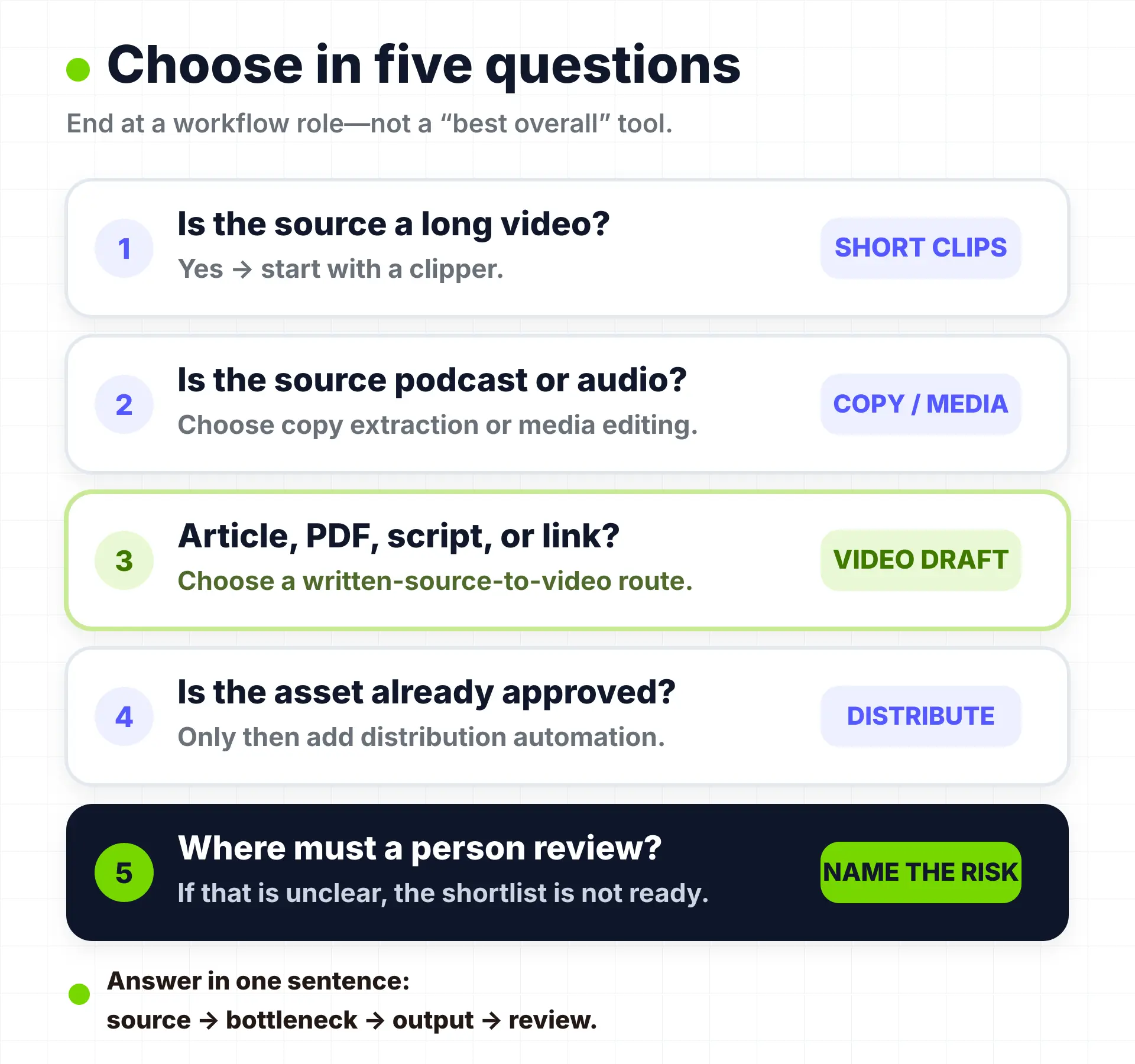
The final choice should be easy to explain in one sentence: “We start with this asset, this step is slow, this tool produces the next useful output, and a person reviews these exact risks.” If the explanation begins with a long feature list, return to the source asset and bottleneck.
10
Frequently asked questions
The practical choice is not the tool that claims to repurpose everything. It is the tool that solves the next specific job without hiding the review work that follows.
What is a content repurposing tool?
A content repurposing tool turns an existing asset into another useful format or helps move it into another channel. The term includes distinct categories such as long-video clippers, podcast/transcript tools, written-source-to-video tools, and distribution automation.
What is the best content repurposing tool for long videos?
OpusClip and Vizard are relevant when a webinar, interview, podcast video, or other long recording needs short-form candidates. The better choice depends on source limits, editing control, plan restrictions, and how much manual review your team can perform.
What is the best tool for repurposing a podcast?
Choose Castmagic when the main output is show notes, summaries, posts, newsletters, and other transcript-derived assets. Choose Descript when the recording still needs transcript-led audio or video editing. A dedicated clipper may be better when automatic highlight extraction is the main job.
Can AI turn an article or PDF into a video?
Yes. TapVid and Lumen5 both support written-source-to-video workflows, but they create different kinds of drafts. TapVid is relevant to structured motion-graphics explanation; Lumen5 is relevant to stock/template-led illustration. Both still require source and output review.
Do I need an all-in-one content repurposing platform?
Usually not. One specialist tool may be enough for a narrow pipeline. When the workflow crosses creation, editing, and distribution, a small stack often makes responsibilities and review points clearer than one broad platform promise.
What should a content repurposing workflow review before publishing?
Check source fidelity, complete ideas, quotations and numbers, speaker attribution, captions, visual framing, brand assets, rights, destination-specific formatting, and the final approved version. Automation should make these checks more focused, not remove accountability.