
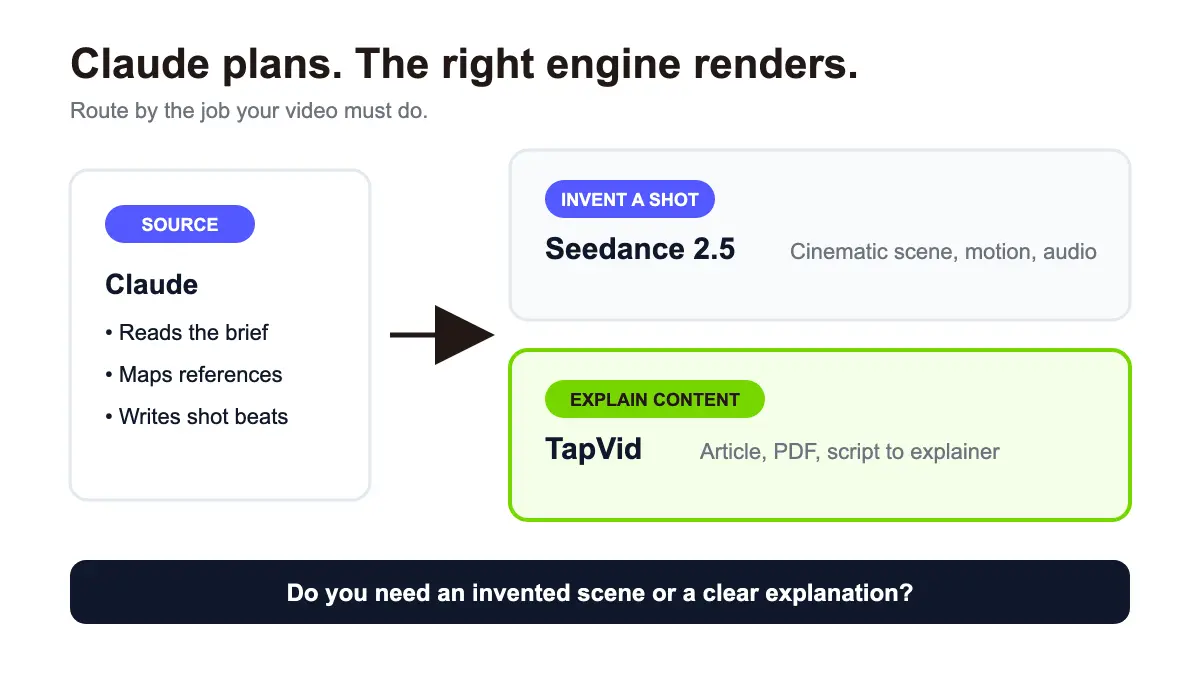
Claude video generation is not a button inside Claude that renders an MP4. Claude is useful earlier in the workflow. It can read your brief, organize a script, turn a scene into production instructions, label reference assets, and review a draft against a checklist. A separate video tool still has to create the pixels. That distinction matters more now that Seedance 2.5 can generate up to 30 seconds in one pass and accept a large reference set. A detailed brief from Claude can drive a cinematic Seedance shot. The same Claude conversation can also prepare an article, PDF, script, or product document for TapVid when the real goal is a structured explainer video rather than an invented scene. The useful question is not, "Can Claude make a video?" It is, "Which part of my video should Claude direct, and which engine should render it?"
Create an explainer video with TapVid
01
Quick answer: can Claude generate videos?
Claude does not natively produce image or video files in chat. Anthropic's support guidance describes Claude as a text-based assistant, while its creative work guide explains how Claude can connect creative applications, write scripts for existing tools, and move structured information between parts of a production pipeline.
In practice, Claude can do five jobs before rendering:
- Extract the message, audience, and constraints from your source material.
- Convert an idea into a timed script or shot brief.
- Create a reference manifest that says what every image, video, and audio file controls.
- Rewrite a brief for the syntax expected by a video model.
- Check the generated result against the original intent.
Claude cannot replace the renderer. For a cinematic or realistic shot, connect the brief to a generative model such as Seedance 2.5. For a complete explainer built from material you already own, send the approved content to an Explainer Video Engine such as TapVid.
02
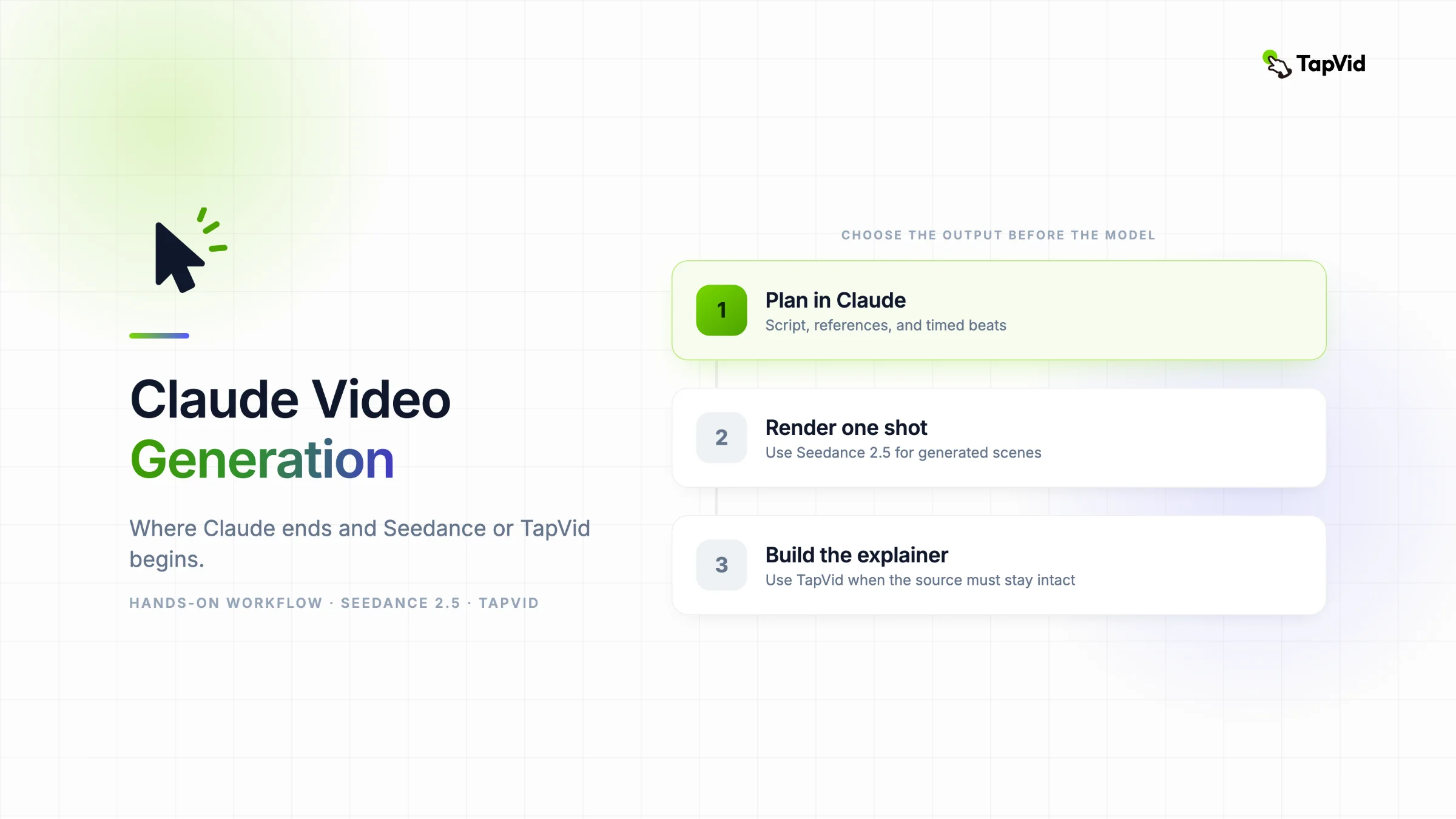
Start by choosing the output, not the model
The fastest way to waste video credits is to open the newest model before deciding what the finished asset must communicate. I use a two-question check before writing any prompt.
First, does the video need to invent a scene that never existed? A product floating through a glass tunnel, a medieval city at dawn, or a continuous camera move through several rooms belongs in a generative video model. Seedance 2.5 is built for that kind of audio-video generation, reference control, and shot editing.
Second, does the video need to explain material that already exists? A research summary, tutorial, product release, PDF, or spoken script needs a message hierarchy that stays accurate across several scenes. That is an explainer problem. The source content should remain the authority, while the video engine handles visual structure, narration, captions, and motion.
This choice changes the role Claude plays. With Seedance, Claude behaves like a preproduction assistant. With TapVid, Claude can help clean the source, but the creator's article, PDF, script, or product copy remains the input.
03
Workflow 1: use Claude with Seedance 2.5 for a cinematic shot
ByteDance describes Seedance 2.5 as a joint audio-video generation model for stories up to 30 seconds, with reference control and editing. Runway's Seedance 2.5 guide exposes four modes: Reference, Keyframe, Edit, and Extend. On Runway, the model accepts text, images, video, and audio, with output settings from 4 to 30 seconds at 480p or 720p.
Those controls are powerful, but they also create more ways to send contradictory directions. Claude helps by separating the creative decision from the syntax.
04
Step 1: give Claude a real creative brief
Do not begin with "write me a Seedance prompt." Give Claude the job, viewer, platform, duration, must-show details, and anything that must not change.
Use a request like this:
Turn the brief below into a 15-second video direction. Preserve every product fact. Separate subject, action, camera, environment, lighting, audio, references, and exclusions. Do not add claims or objects that are absent from the brief. Brief: [paste brief].
The output should be a production brief, not a paragraph full of adjectives. If Claude adds a camera move that fights the action, remove it. One readable movement is usually easier to control than three simultaneous moves.
05
Step 2: make a reference manifest
Seedance 2.5 on Runway accepts up to 50 references per generation: as many as 30 images, 10 videos, and 10 audio clips. More slots do not mean every slot should be filled.
Ask Claude to produce a small manifest:
| Reference | Role | Preserve | Ignore |
|---|---|---|---|
| Image 1 | Product identity | Shape, label, colors | Studio background |
| Image 2 | Actor identity | Face, hair, clothing | Original location |
| Video 1 | Camera movement | Speed and arc | Subject and color grade |
| Audio 1 | Rhythm | Beat and duration | Any embedded voice |
This table prevents the common mistake of uploading several attractive assets without telling the model which one controls the subject, setting, motion, or sound.
06
Step 3: write the prompt in timed beats
A 30-second generation needs more structure than a five-second beauty shot. Write an opening state, a change, and a clear end state. Claude can turn the brief into beats, but you should approve the sequence before compressing it into a prompt.
For example:
0 to 4 seconds: locked medium shot of the closed notebook on a clean desk. 4 to 10 seconds: the cover opens as diagrams lift from the page. The camera begins a slow push forward. 10 to 15 seconds: the diagrams organize into one clear solar-system model above the notebook. Warm desk lamp, quiet room tone, no music, no on-screen text.
The timestamps are planning aids. Runway's FAQ warns that timestamps do not guarantee exact frame-level timing, so review the generated clip as a performance, not as a deterministic timeline.
07
Step 4: generate one controlled test
Start at 720p only when you need to judge fine visual detail. For an early motion test, a shorter 480p generation costs fewer credits on Runway. Keep the first test simple enough that you can diagnose it.
Check four things after generation:
- Did the subject stay recognizable?
- Did the main action happen in the intended order?
- Did the camera support the action instead of hiding it?
- Did the sound match the visible event?
Change one variable at a time. If identity drifts, strengthen the subject reference and reduce motion. If the shot stalls, simplify the environment and make the action more concrete.
08
What happened in my paid Seedance 2.5 notebook test
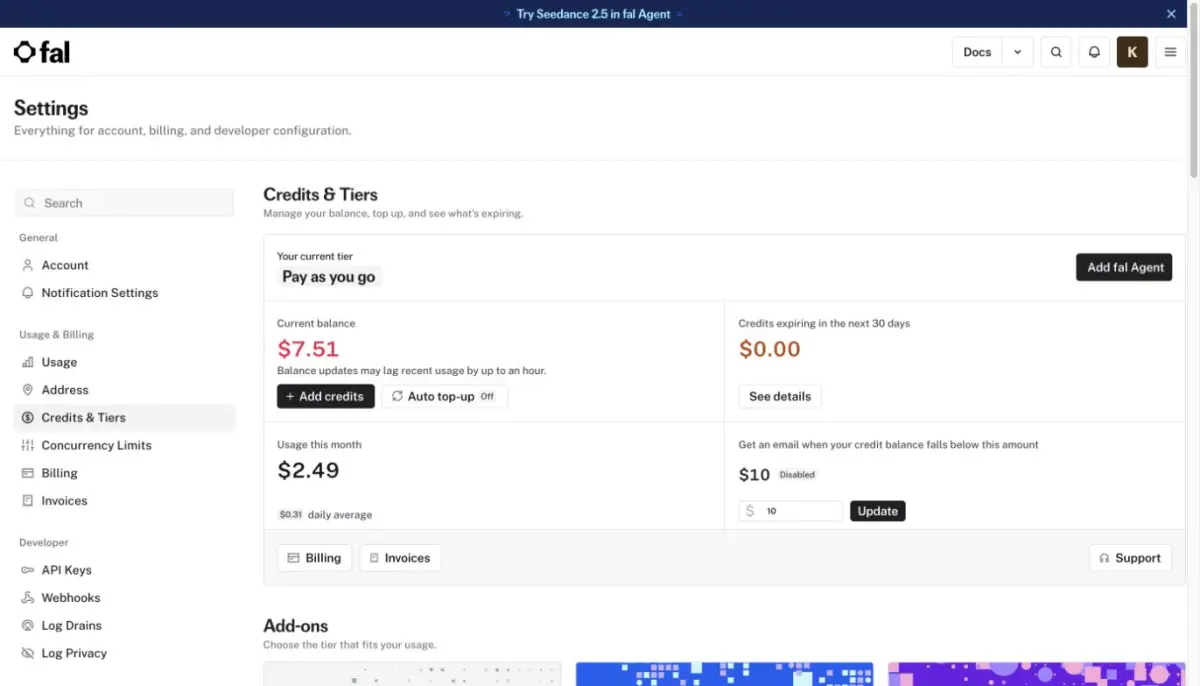
I ran this workflow on August 8, 2026 through fal's official ByteDance Seedance 2.5 image-to-video endpoint. I used fal because it offered the lowest verified entry cost I found: a $0 monthly pay-as-you-go account, a $10 one-time credit purchase, and no need to buy a Runway or Dreamina subscription. The playground quoted about $0.2205 per output second at 480p, or approximately $0.88 for four seconds. After all three four-second tests in this article cluster finished, the balance had moved from $10 to $7.51. The actual combined charge was $2.49, which averages $0.83 per run. Auto top-up remained off.
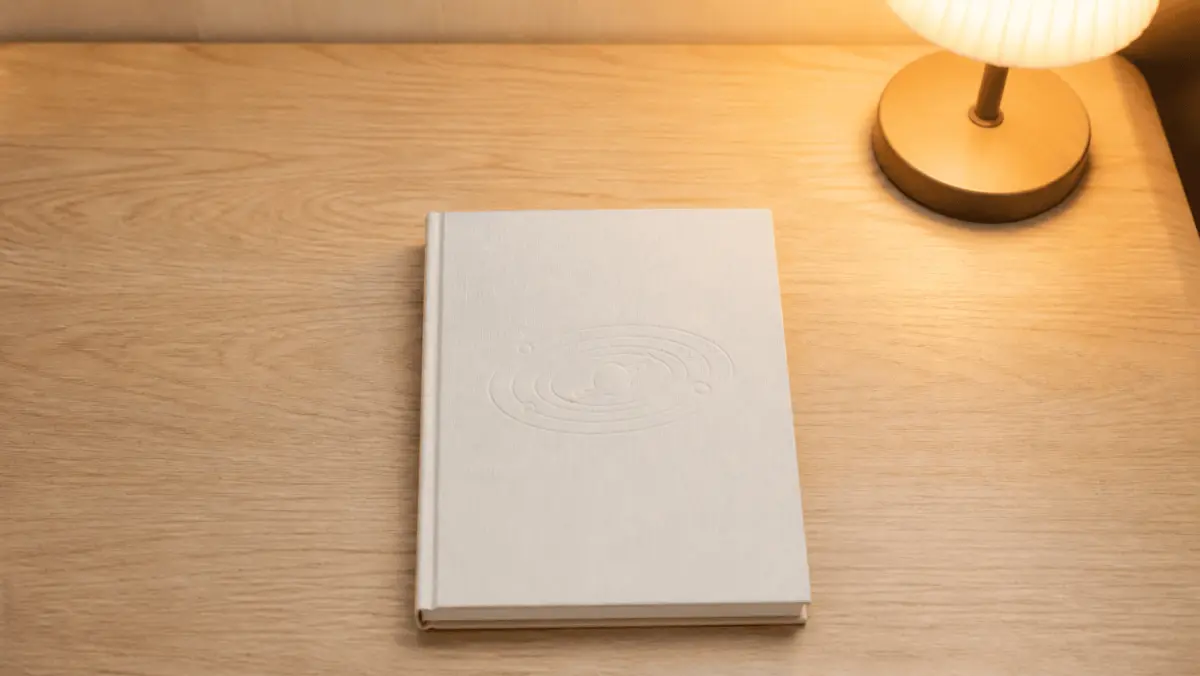
I uploaded the cream notebook reference, set 480p, four seconds, and native audio, then used the same ordered brief described above. The prompt asked for a closed notebook, a natural cover opening, paper diagrams rising into a solar-system model, one slow forward camera push, warm room ambience, and a stable final composition.
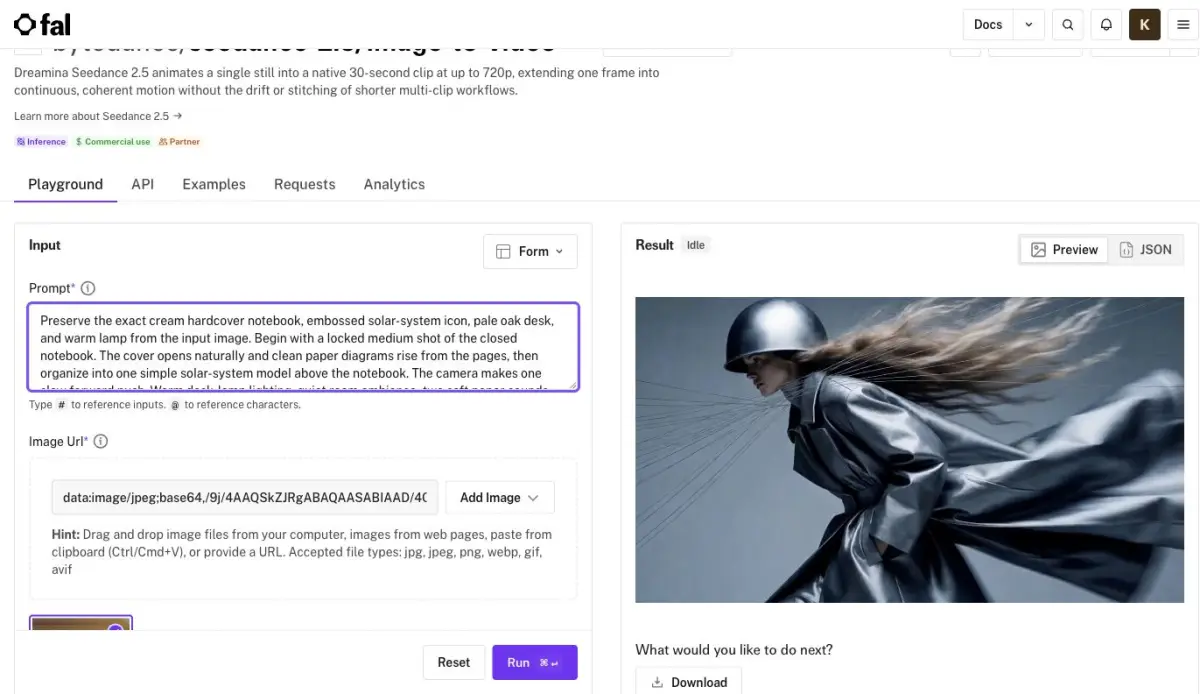
The downloaded MP4 was 854 by 480 pixels, 24 fps, and 4.064 seconds long. It contained H.264 video and an AAC audio track. The file was not silent, although I did not treat waveform volume as proof that every requested paper sound landed on the exact intended frame.
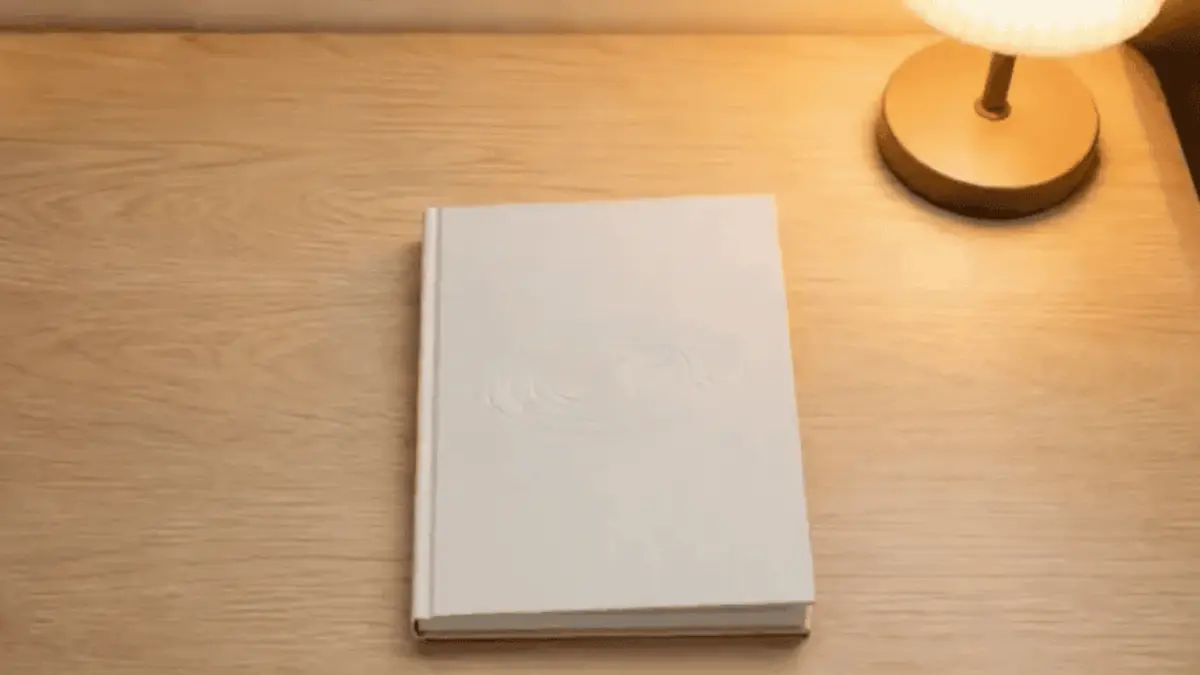
The opening frame stayed close to the reference. The notebook, pale oak desk, lamp position, and warm color temperature all remained recognizable. The embossed cover icon became faint, so fine low-contrast surface details still need a stronger reference or a closer crop.
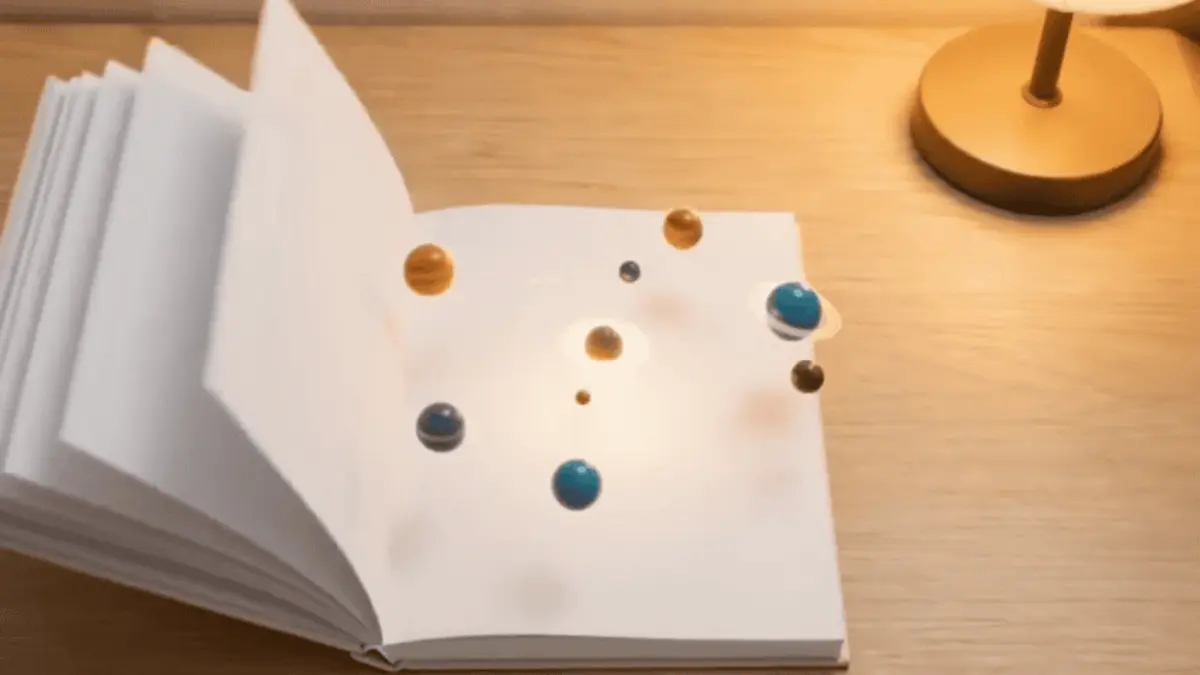
The temporal instruction worked well. The cover opened before the planets rose, and the camera moved forward without hiding the action. I did not see a hard cut or a sudden background replacement.
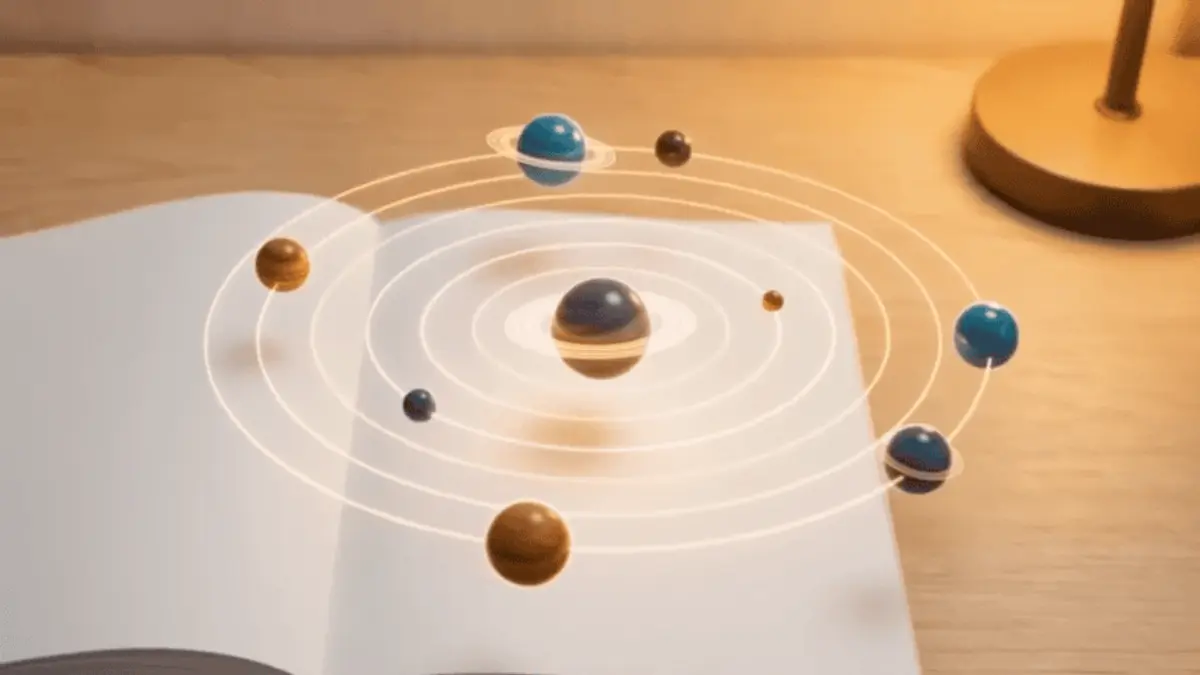
The final frame delivered the requested idea: an open notebook with a stable solar-system model centered above the pages. The result is useful evidence that a detailed Claude brief can control a compact visual sequence. It is not evidence that every surface detail or sound cue will survive perfectly.
For comparison, authenticated free accounts on Runway and Dreamina both let me configure Seedance 2.5 but opened a paid upgrade screen when I submitted the job. No credits were deducted there. If you only need a short diagnostic, fal's pay-as-you-go route was the cheapest working option I verified in this test.
09
Workflow 2: use Claude with TapVid for a complete explainer
A Seedance shot can be impressive and still fail to explain a topic. Educational, product, and knowledge videos usually need a sequence of claims, examples, transitions, and a conclusion. Thirty seconds of continuous generated footage is not the same as a structured multi-scene explanation.
TapVid is an Explainer Video Engine. It starts with content the creator already owns, such as an article, PDF, script, PRD, or product copy, then turns that material into a polished explainer video. The input is not a vague visual prompt. The input is the thing you need to communicate.
10
Step 1: keep the source attached
If you use Claude to clean a draft, paste the revised version beside the original and verify every claim. Do not ask Claude to invent supporting facts. For a research explainer, keep citations and labels in the source. For a product launch, keep approved feature language and remove roadmap items that are not public.
11
Step 2: state the viewer and outcome
Add a one-line instruction above the source:
Audience: independent creators who understand editing but not motion design. Outcome: explain why reference control changes an AI video workflow, in under 90 seconds.
That line helps the video system decide what deserves screen time. It is more useful than requesting a generic "professional style."
12
Step 3: let the explainer engine organize scenes
The engine should turn the source into a narrative sequence with motion graphics, narration, captions, and visual examples. Review whether each scene advances the explanation. Remove any scene that merely repeats the voiceover as decoration.
If you already have a script, try TapVid's AI explainer video generator. If your input is a product brief, the AI product demo video generator is the closer starting point.
13
Step 4: add generative clips only where they earn their place
You can still use a Seedance clip inside a larger explainer. A short reconstruction, visual metaphor, or product mood shot may improve the opening. Keep the factual explanation in structured scenes, and use generative footage as evidence or atmosphere rather than asking it to carry the whole lesson.
14
Claude to Seedance prompt template
Copy this into Claude and replace the brackets:
Act as a video preproduction assistant. Turn my approved brief into one Seedance 2.5 generation prompt. Output: objective, duration, aspect ratio, reference manifest, timed action beats, camera direction, lighting, audio, end state, and no more than five exclusions. Preserve all product and identity details. Do not invent claims. If the brief asks for more than one coherent shot can carry, stop and propose a shot split. Approved brief: [paste].
Then review the result manually. A prompt that is longer is not automatically more controllable. Remove any direction that cannot be seen or heard.
15
Claude to explainer video template
Use this when the source is an article, PDF, lesson, or product document:
Prepare this source for a 60 to 90-second explainer video. Preserve the author's facts and viewpoint. Return a title, one-sentence viewer outcome, scene-by-scene outline, narration, on-screen text, and a list of claims that require manual verification. Do not add facts. Source: [paste or attach].
After checking the draft, use the approved source in TapVid. Claude helps you prepare the message, while TapVid turns that content into the explainer.
16
Common mistakes in Claude video generation
17
Treating Claude as the renderer
Claude can generate instructions and code, but a rendering or video-generation tool still produces the media file. If a tutorial claims Claude created every visual by itself, check which connected tools were involved.
18
Asking one prompt to make a full campaign
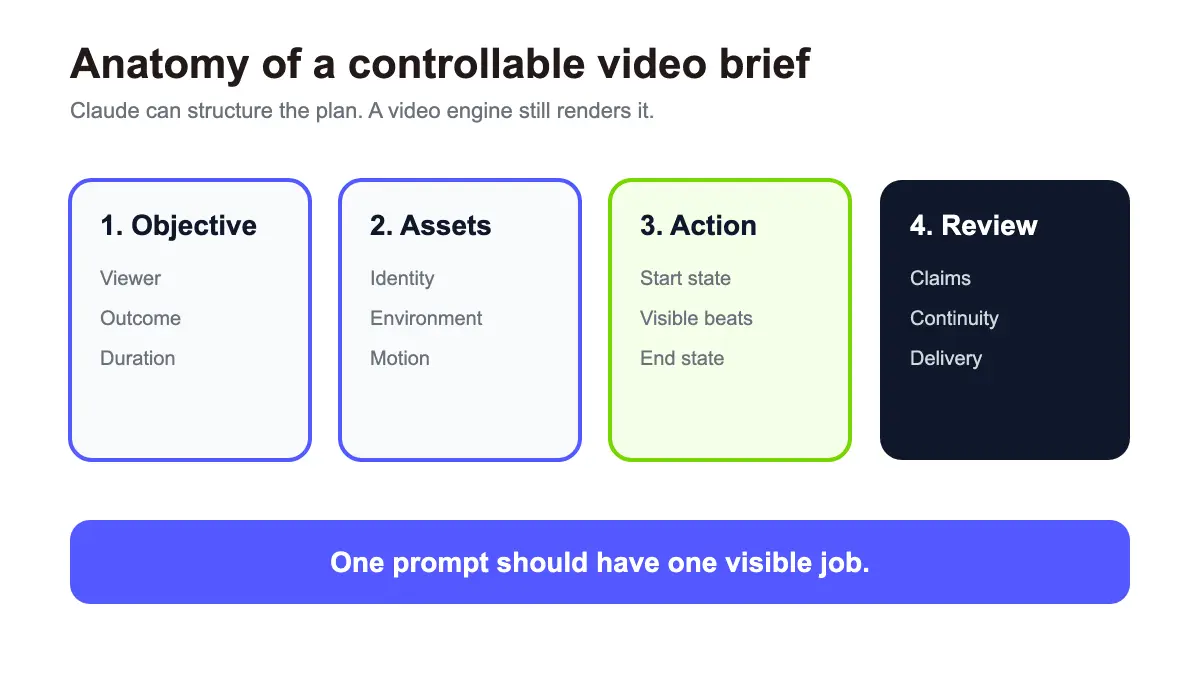
One prompt should have one visible job. Split a campaign into approved shots or into a structured explainer sequence. Reusing a reference manifest is safer than rewriting identity details from memory each time.
19
Mixing a lesson with a cinematic shot
A beautiful shot can introduce a concept. It rarely teaches several linked ideas with exact wording. Decide whether the asset must make someone feel something or understand something. Many projects need both, but they should not be forced through the same generation step.
20
Skipping factual review
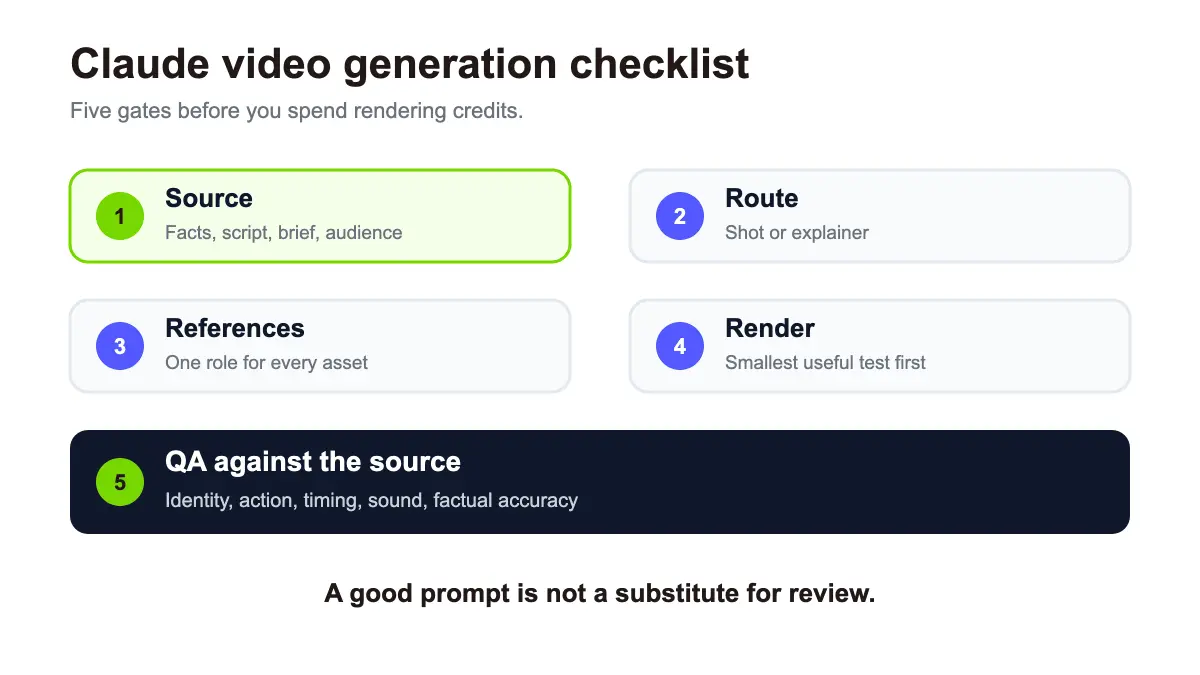
Claude can reorganize source material, and video models can invent visual details. Neither should be the authority for product claims, research findings, quotations, or numbers. Compare the final narration and on-screen text against the approved source.
21
Which workflow should you choose?
| Your starting point | Desired output | Use Claude for | Render with |
|---|---|---|---|
| A visual idea | One cinematic shot | Brief and reference roles | Seedance 2.5 |
| Product photos and a sample clip | Controlled ad shot | Shot plan and exclusions | Seedance 2.5 |
| Article, PDF, or lesson | Multi-scene explanation | Source cleanup and review | TapVid |
| Product copy or PRD | Launch or demo explainer | Message hierarchy | TapVid |
| Full explainer plus one dramatic opening | Mixed format | Plan both asset types | Seedance 2.5 plus TapVid |
22
Final recommendation
Claude video generation works best as orchestration. Use Claude to turn messy intent into a clear brief, reference map, or verified script. Send cinematic shots to Seedance 2.5. Send existing content that must become a clear, complete explanation to TapVid.
If you already have the article, PDF, script, or product copy, you do not need to begin with an empty prompt. Register for TapVid and turn that material into an explainer video, then add generative footage only where it supports the message.
23
Frequently asked questions
Can Claude generate an MP4 video directly?
No. Claude can write, analyze images, create code, and use connected tools, but another application must render the video file.
Can Claude write Seedance 2.5 prompts?
Yes. Claude can turn a creative brief into a shot plan, reference manifest, and model prompt. You still need to review the prompt and generate the clip in a platform that provides Seedance 2.5.
Is Seedance 2.5 better than TapVid?
They solve different jobs. Seedance 2.5 generates and edits audiovisual shots. TapVid turns existing text, articles, PDFs, scripts, and product material into structured explainer videos.
How long can Seedance 2.5 videos be?
ByteDance states that Seedance 2.5 supports a single generation up to 30 seconds. Runway offers durations from 4 to 30 seconds and an Auto option.
What should I use for an educational or product explainer?
Use an explainer workflow when accuracy and multi-scene structure matter. A generative clip can support the video, but your approved source should control the narration and on-screen message.