
TL;DR
Open captions stay in the image; closed captions depend on the player. Either can contain errors. Keep a clean master, reviewed timed text, and any required open-caption version as clearly matched deliverables.
Open vs closed captions is a choice about how text appears in a video. Open captions are part of the picture and stay visible. Closed captions are separate timed text that a compatible player can display or hide. That choice does not tell you whether a person checked the words. For a business video, decide both the display format and the review process, then deliver the assets that the destination can actually use.
01
Open vs closed captions: how do they differ?
Open captions are burned into the video image. A viewer cannot turn them off through a caption toggle because they are already part of the picture. Closed captions remain separate from the image and are displayed by a player that supports them. The viewer can usually enable or disable that layer. The exact controls, appearance, and supported file types depend on the destination.
The W3C Web Accessibility Initiative caption guidance makes this display distinction. It also explains that captions represent speech and meaningful non-speech audio. A caption can identify a speaker or a relevant sound, such as an alarm that changes the meaning of a scene. Text that only repeats a headline is not necessarily a full caption track for the video's audio.
For a producer, the distinction changes what can be revised. An error in burned-in text usually means making another video export from the editing source. A separate caption track may be replaceable without changing the underlying picture, if the destination supports that workflow. Keep that condition explicit: a player feature is not guaranteed merely because your caption file exists.
The University of South Carolina also explains that open captions are embedded in the picture and can become harder to read when a video is reduced in size. Use its open and closed captioning guide for the format distinction. Platform support changes, so verify the current destination instead of treating an older list of supported social apps as a permanent rule.
02
Captions, subtitles, and transcripts do different jobs
Captions aim to provide the audio information needed to understand the video. They can include dialogue, speaker identification, and meaningful sounds. Subtitles often refer to translated speech for someone who can hear the audio but does not understand its language. W3C notes that terminology varies by country. Do not use the file's label alone to decide whether it contains all of the required information.
A transcript puts the spoken or other relevant content into readable text outside the timed playback. It can help someone search for a term or review a passage without replaying the video. A plain transcript does not tell the player when each line should appear. To create timed captions, the text must be divided and aligned with the corresponding moments in the audio.
Consider an illustrative training clip with two off-screen speakers and a warning tone. A translation of dialogue may convey the sentences but omit who is speaking and why the tone matters. The caption brief should state which of those cues the viewer needs. Avoid adding every background sound simply because it exists; include audio information that contributes to understanding the scene.
When requesting another language, name both the language and the intended use. 'Spanish timed captions with speaker labels' is more precise than 'Spanish subtitles' if those labels matter. Keep terminology clear within your own team even when a platform uses a different name. For the broader language workflow, see video localization, including how changes to the source can affect every translated version.
03
Choose accuracy and display format separately
Treat format and review as two separate axes. You can have reviewed open captions, unreviewed open captions, reviewed closed captions, or unreviewed closed captions. Burning text into the picture does not correct it. Uploading a separate track does not make it automatic or untrustworthy. What matters is how the words, timing, and needed audio cues were checked against the actual video.
W3C warns that automatically generated captions need attention to accuracy. A plausible sentence can still contain a wrong product name, number, or negation. 'Do not disconnect' and 'do disconnect' differ by one small word with a large effect on meaning. Review those details against the source audio, rather than trusting a clean-looking text file or a high-level confidence label.
The review also needs time alignment. A correct sentence that appears after the relevant action may confuse a viewer. Check whether the line arrives with the speaker, stays long enough to read, and changes at a sensible point. Then inspect line breaks. A phrase split badly across two lines can be harder to follow even when every word is spelled correctly.
Assign a named reviewer for the subject matter and, when needed, someone who understands the target language. Record which video version they checked. This is a practical production checklist, not a claim that this article or a software tool has completed that review for you. If a caption track remains unreviewed, keep that status visible in the handoff instead of letting 'closed' or 'open' stand in for an approval.
04
Build a caption package for each destination
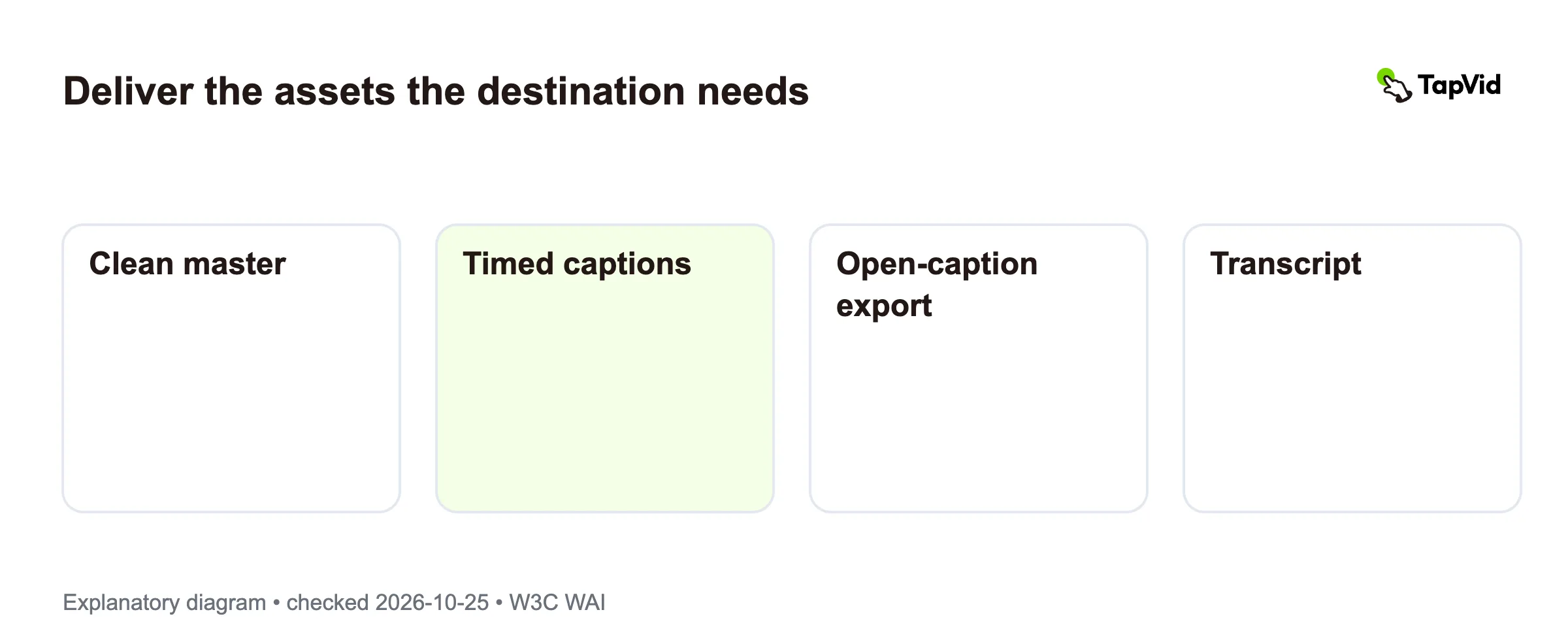
Start with a clean video master without burned-in captions when your workflow permits it. Pair it with reviewed timed text in a format accepted by the destination. Keep a transcript when it serves a separate reading or search need. Make an additional open-caption export when the placement calls for text that is always present. These assets have different jobs and should not overwrite one another.
A website with a caption-capable player may use the clean master and a separate track. A training library may need that pair plus a transcript and language identifiers. A social edit may use a burned-in version after checking the platform's current options. This is a delivery-planning matrix, not a claim that every website, learning system, or social platform accepts the same file or exposes the same controls.
Name each asset with a shared video version and a clear language code. For example, an illustrative package might use 'orientation-v3-en' for related picture, caption, and transcript files. Add the caption-review date and destination in the handoff notes. A reviewer should be able to tell whether the text belongs to the current cut before uploading anything.
If you revise a product name, narration line, or scene order, check every dependent asset. A transcript can be accurate for an earlier cut and wrong for the new one. The same applies to another language. Video version control explains the broader dependency problem. Keep approval tied to the video and text together, not to a folder whose contents can change without anyone noticing.
05
Review the actual playback, not just the text file
Open the final video in its intended player. For closed captions, confirm that the track is available, the language label is clear, and the toggle works. Check that the chosen track belongs to the current video version. For open captions, watch the full frame and make sure the text remains legible after the actual export and upload process.
Test on a phone as well as a larger display. Look for text that covers a product label, a speaker's face, or an essential step. Destination controls can occupy space too. Do not adopt an old pixel margin from a forum as a universal safe zone. Preview the real player interface and move the text or scene elements when the message becomes obscured.
Watch for duplicate captions. A burned-in export can show its own text while a player also displays an enabled caption track. That does not mean the two asset types can never be used in the same campaign; it means the playback combination needs review. Decide which asset belongs at each destination and test the default state that viewers will encounter.
TapVid's talking-head editing page is a relevant starting point when you are working with supplied footage. This guide does not establish that TapVid exports a particular sidecar caption format. Confirm your required export and player support before committing the delivery plan. No single format, automated transcript, or checklist on its own establishes accessibility compliance; the scope here is a clearer production and review decision.
06
Open and closed caption questions
Are closed captions always generated automatically?
No. Closed describes how the player displays the text. People can write, edit, or review a separate caption track, and automatic tools can produce text that is later burned into a video. Ask how the words and timing were checked instead of using the display format as a proxy for accuracy.
Can I use open and closed captions together?
You can prepare both asset types for different destinations. If a single player displays both at once, the duplicate text may cover the picture or make reading harder. Test the final playback and its default caption state. Keep the clean master and burned-in version clearly named so the wrong combination is not uploaded.
Where should burned-in captions sit on mobile video?
Place them where they are readable and do not hide information needed to understand the scene. Check the actual destination's controls and preview the whole video on a phone. There is no universal pixel margin established by this guide. Move the text or rebuild the composition when the scene and player interface compete for space.