
TL;DR
Choose the destination first. Keep shape separate from pixel count. Crop only when the remaining frame still tells the whole story; fit or rebuild when important information would disappear.
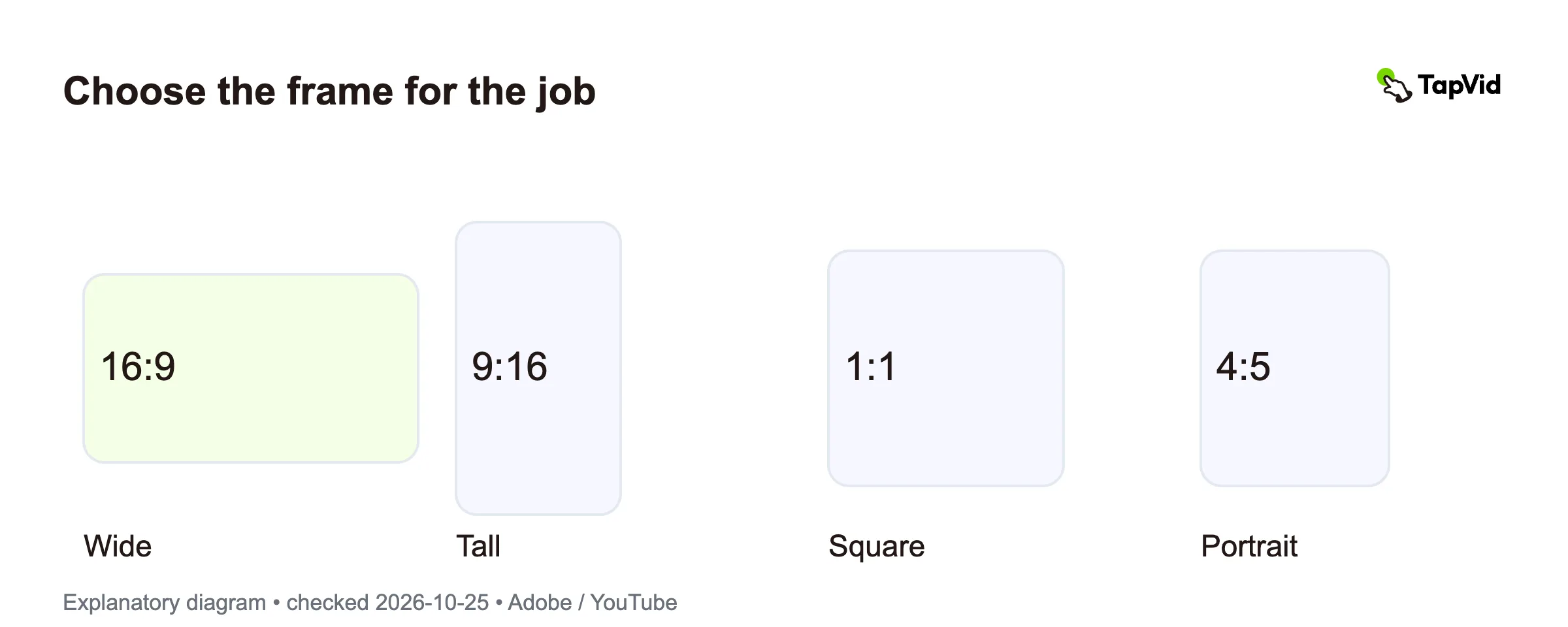
Video aspect ratio is the relationship between a frame's width and height. A 16:9 frame is wide; a 9:16 frame is tall. The ratio describes the shape, not image quality. For a business video, the useful question is which shape keeps the product, words, and next action clear in the place people will watch. Decide that before you export, especially when one source needs both landscape and portrait versions.
01
What does video aspect ratio mean?
Read the first number as width and the second as height. A 16:9 rectangle has sixteen units across for every nine units down. Those units could be pixels, centimeters on a display, or any equal measure. The same relationship holds at different sizes. A 1:1 frame is square, while a 4:5 frame is slightly taller than it is wide. None of these shapes is a quality rating.
A useful way to choose is to imagine the edges as a boundary around the message. A wide software view may need room for a menu, a working area, and a result at once. A portrait invitation may need only a headline, a speaker, and a registration instruction. Pick the shape that holds the necessary information; do not pick it solely because another campaign used it.
Adobe explains aspect ratio as width relative to height and discusses how framing changes composition. Composition means the arrangement of things inside the picture. If you change the outer shape, that arrangement may need to change too. Adobe's aspect-ratio guide supports this basic distinction. It does not establish that one ratio will produce better sales or engagement for your audience.
Keep display shape separate from camera orientation. Turning a phone can change what you capture, but a file may also be cropped or placed inside a different canvas later. Before approving an edit, inspect the exported picture itself. A tall player containing a small landscape image is still a different viewing experience from a portrait composition that fills the available space.
02
Aspect ratio and resolution answer different questions
Aspect ratio answers: what shape is the frame? Resolution answers: how many pixels does it contain? Both 1920 × 1080 and 1280 × 720 simplify to 16:9. They share a shape, but they do not contain the same amount of picture detail. Likewise, 1080 × 1920 describes a portrait frame even though it uses the same two numbers as 1920 × 1080. Their order matters.
This distinction helps when a reviewer asks for a 'higher-quality vertical version.' That request contains two separate decisions: a taller composition and a suitable pixel size. Increasing the pixel count cannot recover a label removed by cropping. Changing the shape cannot restore detail missing from the original. Ask which problem the viewer actually sees before producing another export.
YouTube lists 1920 × 1080 and 1280 × 720 among its 16:9 resolutions. Its standard computer player is 16:9, and the player adapts to other video dimensions. YouTube also advises against adding padding or black bars directly to make the video fit its player. These are YouTube playback details, not a rule for every destination. Check the current YouTube guidance for the intended upload.
Record the shape and pixel size in separate fields of your brief. For example, 'portrait, 9:16, 1080 × 1920' is clearer than 'mobile HD.' Also keep frame rate, file type, and compression requirements separate. They affect delivery, but they are not alternate names for aspect ratio. This small naming habit makes a handoff easier to review and prevents a shape problem from turning into a vague quality discussion.
03
Choose the frame for the viewing job
Start with the actual destination: a website player, a presentation, a training system, or a named social placement. Then check its current specifications. A platform can have several placements with different layouts. The feed, full-screen viewer, and embedded player may not show the same amount of usable space. A general list of popular dimensions cannot replace that destination check.
For a desktop walkthrough, protect the parts of the interface that explain the action. If the viewer must read a menu choice and see its result, a wide frame may preserve their relationship. If the same message becomes a phone teaser, the better approach may be separate close-ups. Keeping every desktop panel visible in a narrow frame can make the relevant words too small to read.
For an event invitation, list what must remain visible: event name, date, time zone, and next action. Treat a logo or speaker portrait as another element with a purpose, rather than something that must always occupy the same corner. If the destination adds buttons or captions, preview that interface over the edit. There is no single safe-margin number established here for every platform.
For mixed delivery, make a simple version map before production. Name the destination, frame shape, essential information, and reviewer for each version. Build the script so that the key sentence works in both frames. For the wider production process, see how to make social media videos. That workflow comes after the framing decision; it does not remove the need to review each export.
04
Choose between cropping, fitting, and rebuilding
Cropping removes part of the source picture. Fitting preserves the full picture inside a different canvas and leaves unused space around it. Rebuilding rearranges the message for the new frame, often by changing shot order, text placement, or the number of elements visible at once. Stretching is different: it changes proportions and can distort a face, product, or interface. Do not treat stretching as a harmless shortcut.
Here is a geometric example, not a measured TapVid result. Start with a 1920 × 1080 landscape image. Keep its full height and crop to a 9:16 shape. The retained width is 1080 × 9 ÷ 16 = 607.5 pixels, about 31.6% of the original width. Actual export dimensions use whole pixels. The lesson is the large loss of horizontal space, not a recommendation to export a fractional-pixel file.
Use a frame-risk check. If one centered product remains whole, cropping may work. If a UI label at the edge explains the action, fit the source or use a focused shot. If two people must remain visible together, inspect whether a crop breaks their exchange. If a title and CTA compete for space, rebuild the layout. These are editorial decisions based on what must survive, not automatic quality scores.
Fitting can be appropriate when the whole source must stay visible, but it may make small text harder to read. Rebuilding takes another edit but can give each idea room. Compare the actual result at viewing size before deciding. A source-based screenshot-to-video workflow can help prepare a new explanation from real interface assets; that does not mean TapVid automatically reframes every existing video or restores content outside a crop.
05
Put framing decisions in the delivery brief
Give each deliverable its own row in the brief. Include the destination, source canvas, output canvas, pixel dimensions, language, and file version. Add a short list of information that cannot be removed. A reviewer should be able to compare that list with the exported frame without guessing why a particular logo, label, or number matters. Include the required review device as well. A desktop approval should not silently stand in for a phone check when small interface text is central to the message.
Specify what happens when the source does not fit. For example: 'Keep the complete product visible. Move the heading to a separate scene if needed. Do not stretch the image.' This is more useful than 'make it work vertically.' If you already have approved narration, script to video is a relevant next step for creating a new version from that source. Keep factual wording stable while changing the visual layout.
Review the beginning, middle, and end of every export. A centered opening does not prove that a moving subject stays inside the crop later. Check captions, product edges, small labels, and the final CTA on an actual phone and in the intended player. Play the result as well as checking still frames, because motion can reveal a framing problem that a cover image hides.
Finally, keep the approved source and the delivery versions together. Name the framing choice and record any removed content. If the product screen or event details change, the team can identify which versions need another review. The practical outcome is a clear delivery contract: the viewer gets the whole required message, and the editor knows which compromises are allowed before another export is made.
06
Video aspect ratio questions
Can I make a landscape video vertical without cropping?
Yes. You can fit the full landscape image inside a portrait canvas, leaving space around it, or rebuild the composition into separate shots. Fitting preserves all of the picture but may reduce text legibility. Rebuilding changes the layout. Preview the result at its real viewing size; stretching the image changes proportions and is a different operation.
Does 16:9 mean 1080p?
No. The ratio describes shape. Both 1280 × 720 and 1920 × 1080 are 16:9, but their pixel dimensions differ. Ask for both the ratio and the required resolution when defining an export. A ratio alone is not a complete delivery specification.
Should every social video use the same ratio?
No universal choice follows from the format alone. Check the particular placement and how people will view it, then protect the information the scene must communicate. A landscape walkthrough and a portrait invitation can need different layouts. This article makes no claim that one ratio always performs better.