

Your product, clearly explained
Turn the real product story into an animated sequence. Use movement to introduce a feature, reveal a detail, or connect a workflow step, with the actual product assets remaining recognizable.
Keep your product assets and approved wording intact. Turn them into an animated explainer with clear motion, diagrams, and voiceover. Review the scene plan, then change one shot without rebuilding the rest.
See animated explanations in action
Explore real TapVid outputs: product overviews, feature stories, and visual explanations. Open an example to watch the full video.
See it in action
What it is
An animated explainer video uses motion, text, diagrams, and narration to make one idea easier to understand. For a product explanation, it connects the problem, the relevant feature, and the next step without making viewers piece the story together.
TapVid is an explainer video engine for the materials you already have. Bring product images, screenshots, and approved copy; review how they fit each scene before delivery. The animation supports your message while the supplied assets and facts stay tied to their source.
What TapVid adds
Turn the real product story into an animated sequence. Use movement to introduce a feature, reveal a detail, or connect a workflow step, with the actual product assets remaining recognizable.
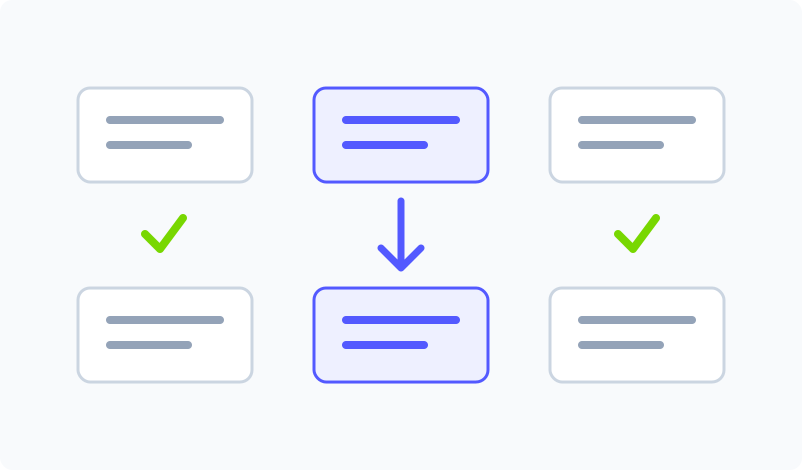
Replace a screenshot or revise a line in the affected scene. Keep the other scenes in place and compare versions, so a small product update does not mean rebuilding the whole video.
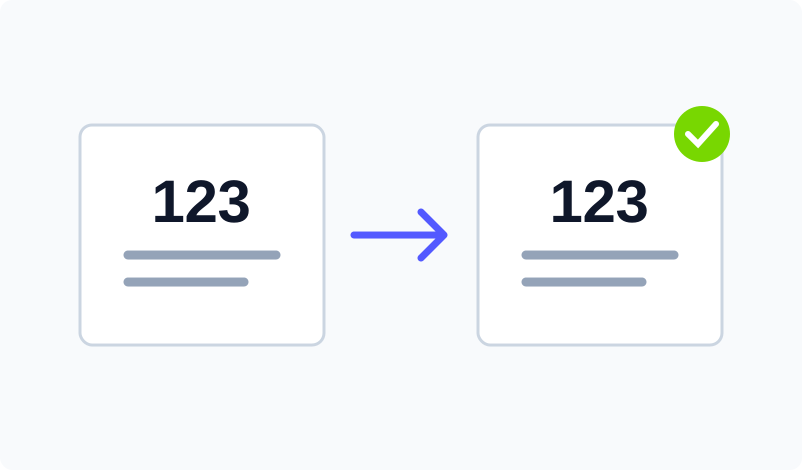
Names, numbers, specifications, and approved claims are supplied by you. Keep that wording in the video rather than asking animation to invent the facts or rewrite the offer.
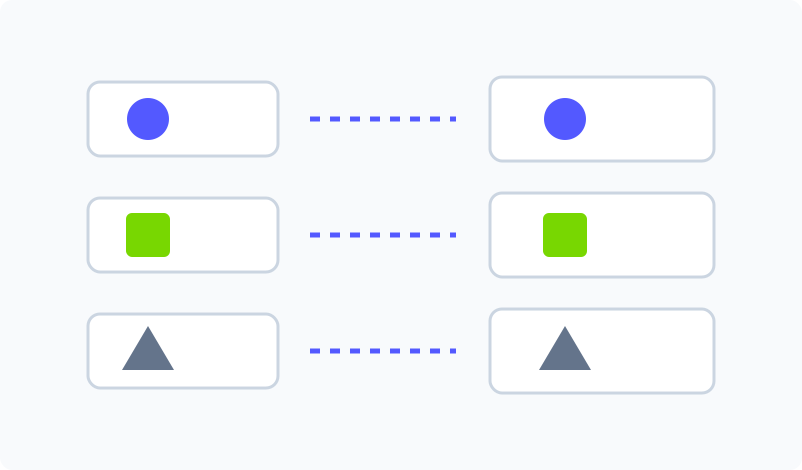
Read the script, scene plan, and voiceover before delivery. Check that a feature is paired with the right image and that the visual sequence follows the explanation you intend.
Use animated text, diagrams, and transitions where they make the product easier to understand. Start with the message, then choose visual emphasis for each scene instead of forcing every point into one layout.
Check the finished video as well as the plan. If a scene needs work, describe the correction and review the new version.
Keep the approved script and current assets together. Reuse them for the next feature explanation while checking what has changed.
Connect recurring production through the TapVid API or an MCP client. Confirm access and capacity for your intended workflow.
How it works
FAQ
You can start from assets and approved wording, then review the scene plan and request changes in plain language. The important preparation is deciding what the viewer should understand and providing the correct source material.
Supply the wording and facts that need to stay exact. Review the script and scene plan before delivery, especially product claims, figures, and required wording.
Provide the product screenshots or UI captures, logo, and approved script or product copy that should appear. The clearer the source package, the easier it is to check each scene.
Supplied product assets are placed into the video instead of being regenerated as a different interface. Review the scene plan and final frames before delivery.
Yes. Update the affected scene and keep the other scenes in place, then compare the revised version before delivery.
Plans and credit rules can change, so use the current pricing page for the latest amounts and limits.
Check the current TapVid Terms of Service and your agreement for commercial-use and rights terms.
More ways to start
Keep your product assets and approved wording intact. Turn them into an animated explainer with clear motion, diagrams, and voiceover. Review the scene plan, then change one shot without rebuilding the rest.