
교육용 AI 영상 생성기가 진짜 가치를 갖는 순간은, 교사가 편집 프로그램을 열지 않고도 다음 수업 전에 수업 내용을 볼 만한 영상으로 바꿀 수 있을 때입니다. 밤 9시에 채점을 하면서 내일 수업에 쓸 시각 자료가 아직 없는 상황이라면, 의미 있는 기준은 그것뿐입니다.
01
교사가 AI 영상 생성기에 실제로 바라는 것
저는 영상 프로덕트에서 go-to-market을 담당하며, 교사, 코스 설계자, 기업 교육 담당자가 이런 도구를 실제로 어떻게 쓰는지 매주 지켜봅니다. 이 가이드는 만들려는 것을 기준으로 선택지를 정리하고, 그대로 따라 할 수 있는 실제 수업-영상 워크플로를 안내하며, 가격과 한계를 있는 그대로 밝힙니다. 여기 실린 모든 가격은 2026년 7월에 확인한 것입니다.
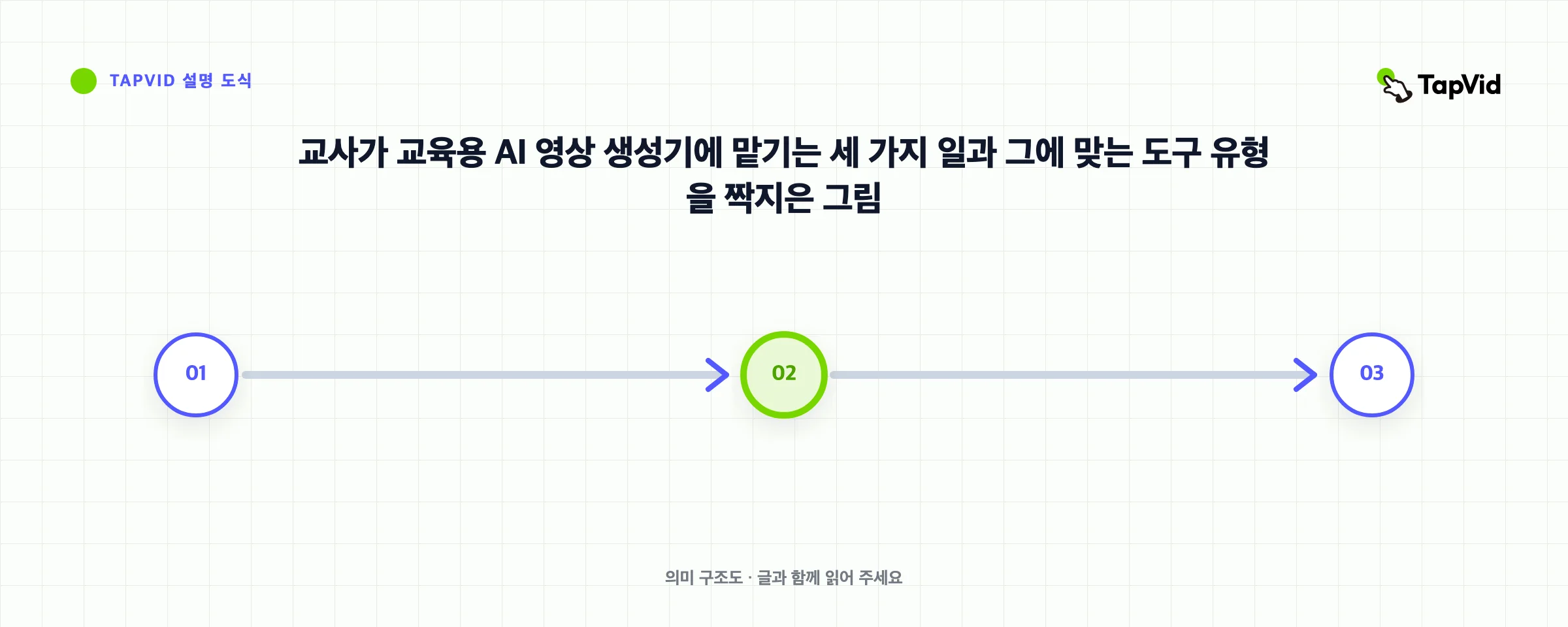
마케팅을 걷어내면 반복해서 등장하는 일은 세 가지입니다. 각각 필요한 도구의 종류가 다릅니다.
- 애니메이션 수업. 화면에 발표자 없이 모션과 내레이션으로 개념을 설명합니다. 화학 반응이나 수요-공급 곡선처럼 학생들이 머릿속에 그리기 어려운 추상적인 주제에 잘 맞습니다.
- 강의·아바타 영상. 발표자가 카메라 앞에서 대본을 전달하며, 여러 언어로 제공되는 경우가 많아 학생들이 자기 속도로 다시 볼 수 있습니다.
- 빠른 재활용. 기존 슬라이드, PDF, 학습지를 한 번에 내레이션이 입혀진 영상으로 변환합니다.
먼저 도구를 할 일에 맞추세요. 이 결정 하나가 어떤 기능 비교보다 체험 기간을 더 단축해 줍니다. 애니메이션 수업이 처음이라면 설명 영상이란에서 형식과 주요 유형을 확인하세요.
02
교육 환경에 맞는 도구 고르기
초등 5학년 교실에 딱 맞는 도구가 컴플라이언스 교육에는 틀린 선택일 수 있습니다. 흔한 네 가지 환경은 이렇게 다릅니다.
K-12 교실
짧은 영상, 안전한 콘텐츠, 자막이 필요합니다. 집중 시간이 짧기 때문에 2분짜리 애니메이션 설명 영상이 10분짜리 강의를 이깁니다. 템플릿 도구와 애니메이션 도구 모두 여기서 통합니다. 학생 데이터 규정에 주의하세요. 미성년자에 관한 업로드는 모두 개인정보 보호법의 적용을 받습니다. 교실 예산이 빠듯하기 때문에 무료 교육 요금제가 이 구간에서 가장 중요합니다.
고등교육
강의는 길어지고 학생들은 깊이를 기대합니다. 20분짜리 녹화 강의를 여러 언어로 전달할 수 있는 아바타 발표자는 대규모 또는 국제 집단에 잘 맞습니다. 녹화 영상은 학생들이 어려운 내용을 다시 볼 수 있게 해 주는데, 반복 시청이 가능한 아바타·슬라이드 기반 수업이 빛을 발하는 지점이 바로 여기입니다.
기업 교육과 L&D
핵심은 일관성과 규모입니다. 온보딩이나 컴플라이언스 모듈을 만드는 L&D 팀은 브랜드에 일관된 결과물, 대본 통제, 정책이 바뀌었을 때 영상을 쉽게 업데이트할 방법을 원합니다. 아바타 도구와 템플릿 도구 모두 이 일을 해내며, 비즈니스 요금제에는 보통 팀 시트와 LMS 연동이 추가됩니다.
거꾸로 교실
학생들은 집에서 수업 영상을 보고 교실에서 과제를 합니다. 즉 짧은 영상을 꾸준히 대량 생산해야 하므로, 속도와 영상당 비용이 승자를 결정합니다. 이미 써 둔 자료를 넣으면 영상이 빠르게 나오는 애니메이션 도구와 문서-영상 변환 도구가 여기서 빛납니다.
03
수업 하나를 영상으로: 그대로 따라 할 수 있는 워크플로
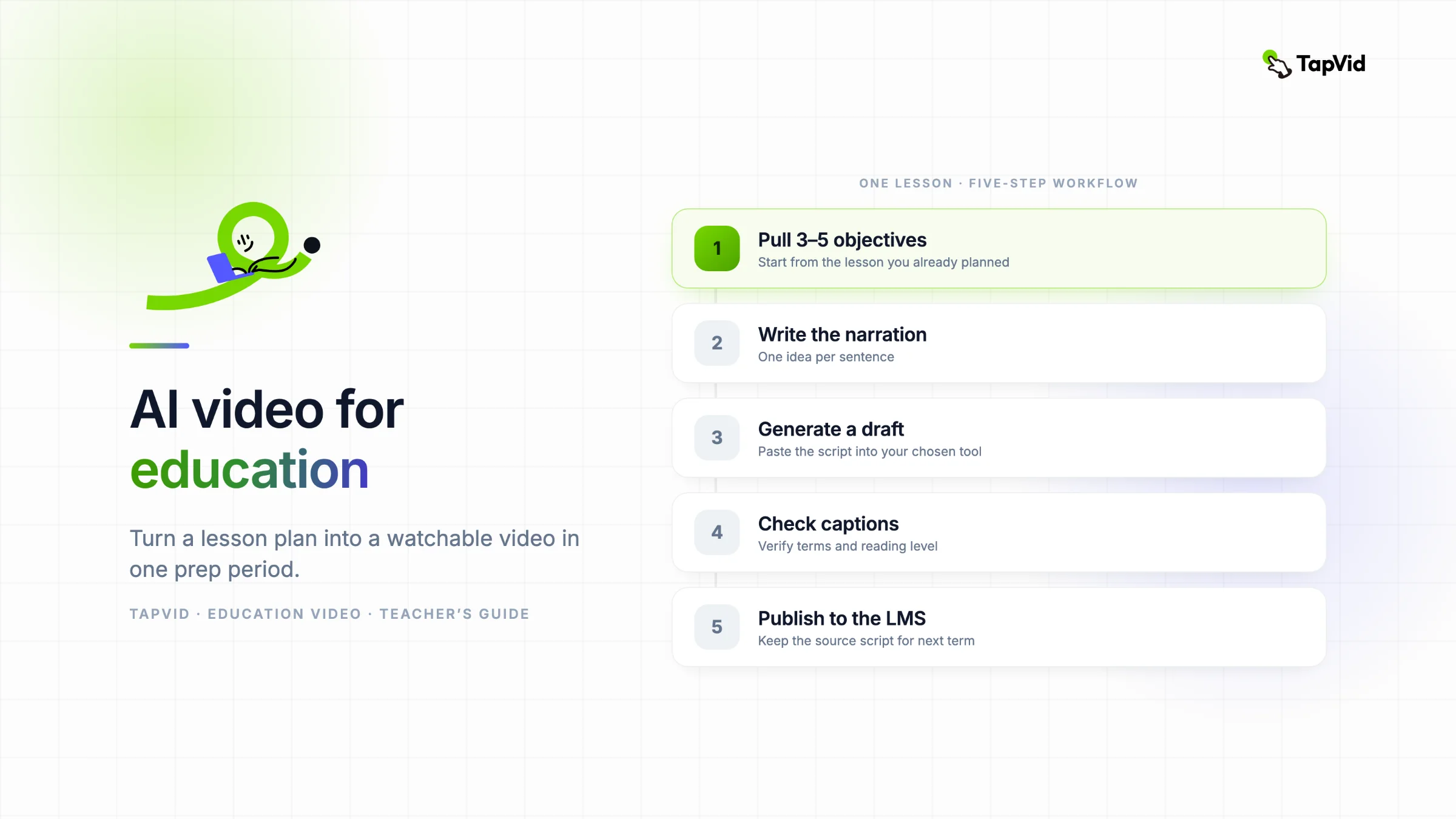
영상을 한 번도 만들어 본 적 없는 교사에게 건네는 프로세스입니다. 거의 모든 교육용 AI 영상 생성기에서 통하고, 두 번만 해 보면 공강 시간 하나면 충분해집니다.
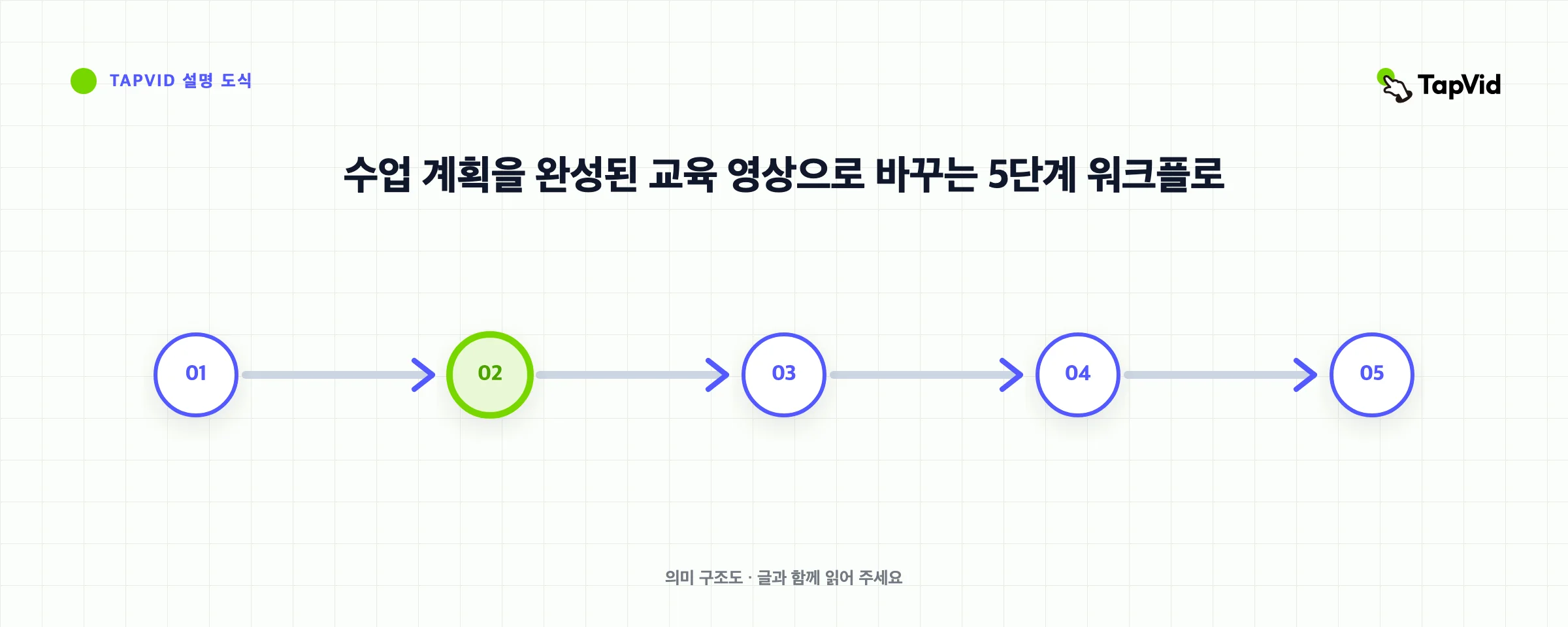
1단계: 수업 계획에서 학습 목표 3~5개를 뽑으세요. 빈 대본에서 시작하지 마세요. 이미 계획한 수업을 열고 학생이 반드시 가져가야 할 포인트를 나열합니다. 짧은 영상이라면 5개가 상한입니다. 그보다 많으면 영상이 두 개 필요합니다.
2단계: 간결한 내레이션 대본을 쓰세요. 교실에서 말하는 그대로, 문장 하나에 아이디어 하나, 완성 영상 1분당 대략 130~150단어로 씁니다. 3분짜리 설명 영상이면 400단어 정도입니다. 한 번 소리 내어 읽어 보세요. 당신이 막히면 학생들도 막힙니다.
3단계: 영상을 생성하세요. 대본을 도구에 붙여 넣습니다. TapVid 같은 애니메이션 도구는 텍스트로부터 모션과 내레이션을 만들어 주므로 클립이나 키프레임을 고를 필요가 없습니다. 아바타 도구는 발표자와 목소리를 배정합니다. 템플릿 도구는 텍스트를 장면에 배치합니다. 초안을 생성해 보고, 완벽을 좇는 대신 가장 거슬리는 두 가지만 고치세요.
4단계: 자막을 넣고 읽기 수준을 확인하세요. 자막을 켠 뒤 정확한지 한 번 읽어 보세요. 자동 자막은 여전히 전문 용어와 이름을 놓칩니다. 교육에서 자막은 선택이 아닙니다. 소리 없이 시청하는 학생을 돕고, 접근성의 기본이기도 합니다.
5단계: 학생들이 이미 있는 곳에 게시하세요. 내보낸 파일을 LMS, Google Classroom, 공유 드라이브에 올립니다. 원본 대본은 폴더에 보관해 두세요. 다음 학기에는 한 줄만 고쳐 다시 생성하면 되고, 처음부터 다시 만들 필요가 없습니다.
이 루프가 몸에 익으면 개념 영상 하나에 드는 시간은 하룻저녁이 아니라 몇 분입니다. 애니메이션 버전의 더 자세한 과정은 AI 설명 영상 만드는 법 가이드를 참고하세요.
04
만드는 것 기준으로 고른 최고의 교육용 AI 영상 생성기
순위표가 아니라 할 일 기준으로 정렬했습니다. 가격은 2026년 7월에 확인했습니다. 수치가 공급사 페이지가 아닌 제3자 출처에서 온 경우에는 그렇게 밝힙니다.
TapVid: 애니메이션 개념 수업
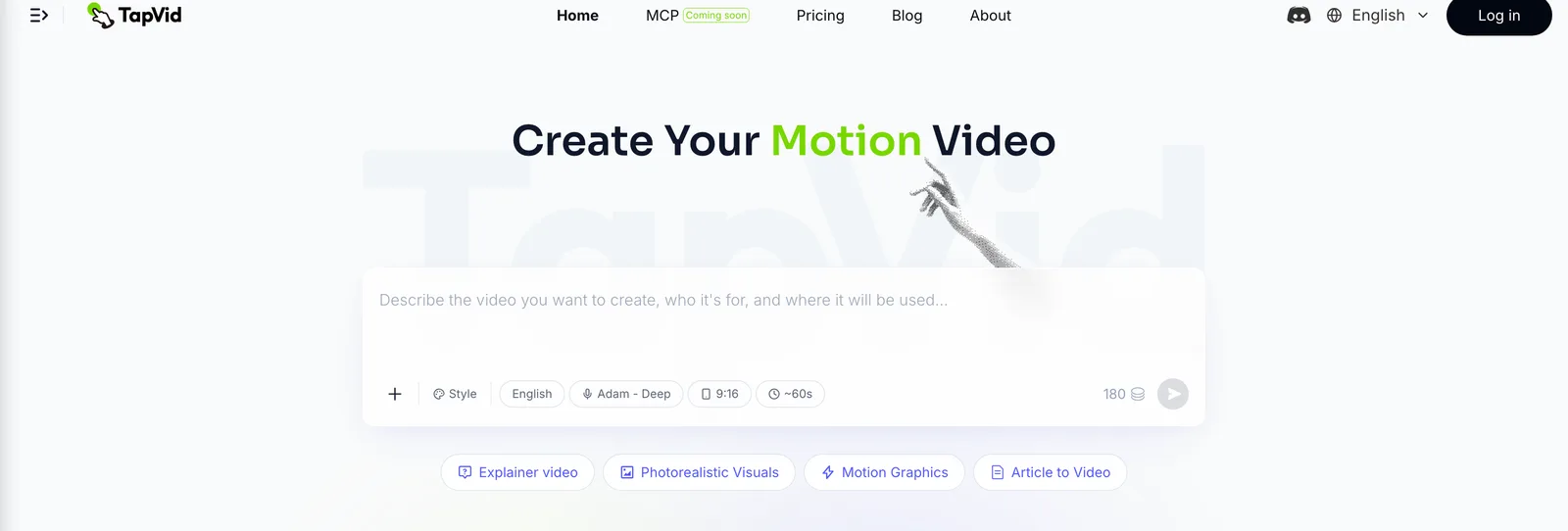
이런 경우에 최적: 카메라도 아바타도 없이, 개념이나 수업 개요를 애니메이션 설명 영상으로 바꾸고 싶을 때.
말로 하기보다 보여 주는 편이 쉬운 수업이 있습니다. 과정, 순환, 인과 관계 같은 것은 사람이 말하는 것보다 모션 그래픽으로 전달할 때 더 잘 와닿습니다. TapVid에서는 수업 포인트나 전체 대본을 쓰면 내레이션과 자막이 있는 애니메이션 영상이 만들어집니다. 교사 입장에서는 자신을 촬영하는 대신 이미 계획해 둔 자료를 재활용한다는 뜻입니다. 거꾸로 교실과, 움직임이 이해를 돕는 모든 추상적 주제에 잘 맞으며, 교육 영상 기능은 정확히 이 용도를 중심으로 만들어졌습니다.
수업 콘텐츠에 통하는 이유:
- 추상적인 아이디어가 시각화됩니다. 촬영할 수 없는 것이 애니메이션 장면이 됩니다.
- 카메라 앞에 설 필요가 없습니다. 자신을 녹화하거나 화면에 나올 일이 전혀 없습니다.
- 자막이 기본 내장입니다. 자막이 처음부터 접근성을 뒷받침합니다.
솔직한 한계:
- 무료 요금제는 워터마크가 붙고 클립이 720p 1분으로 제한됩니다. 워터마크 없는 더 긴 내보내기에는 유료 요금제가 필요합니다.
- 사실적인 사람 발표자가 없습니다. 강의식 발표자 화면을 원한다면 아바타 도구가 더 잘 맞습니다.
가격(tapvid.ai 기준, 2026년 7월 확인): 무료 요금제는 워터마크, 720p, 1분 클립. Basic은 월 19달러, 연간 결제 시 월 15.20달러이며 워터마크가 사라지고 1080p가 열리며 클립이 최대 3분까지 허용됩니다. 교육 전용 요금제는 없어서 교사는 표준 요금제를 사용합니다. 전체 내역은 가격에서, 수업 흐름을 직접 써 보려면 애니메이션 설명 영상 메이커에서 확인하세요.
Synthesia와 HeyGen: 아바타 강사
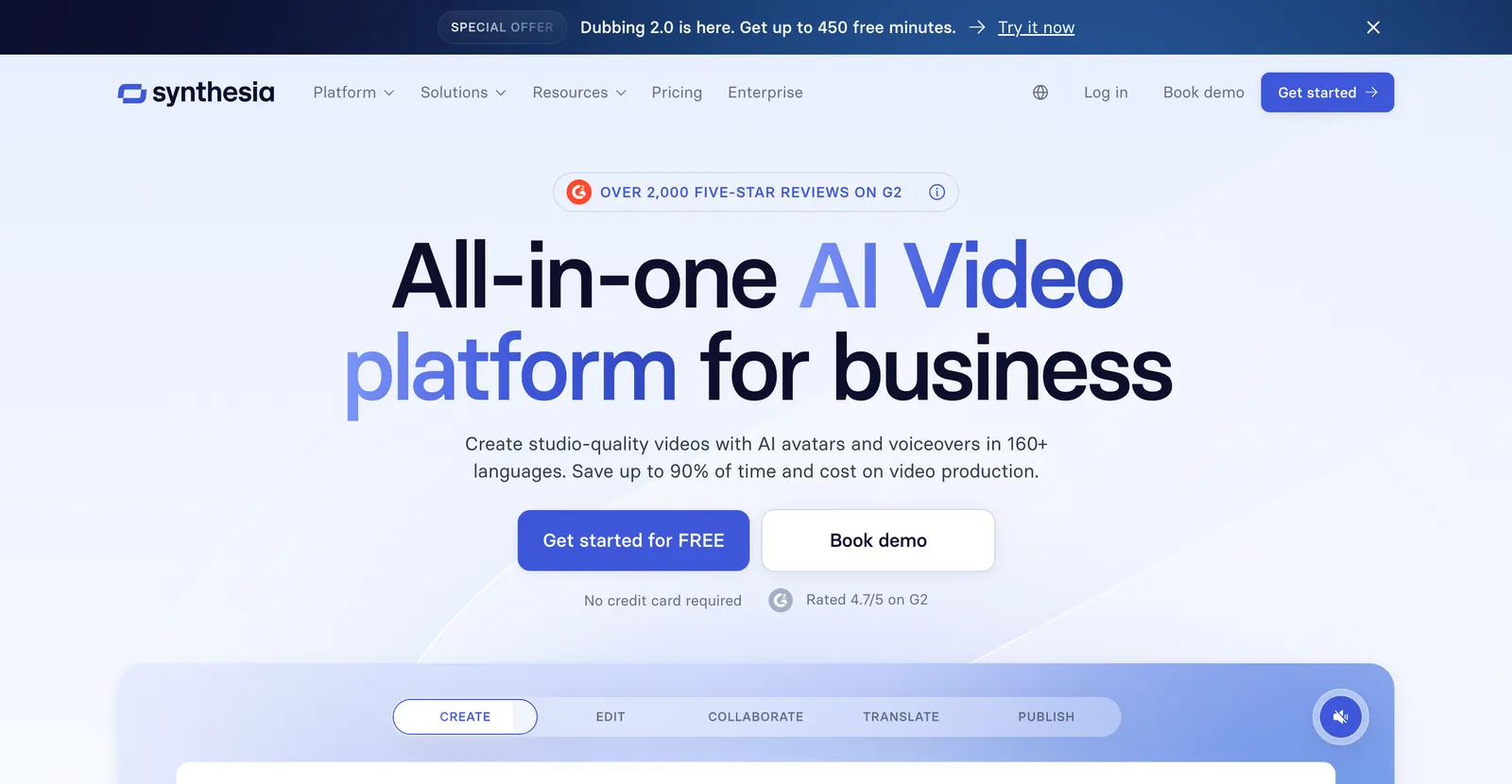
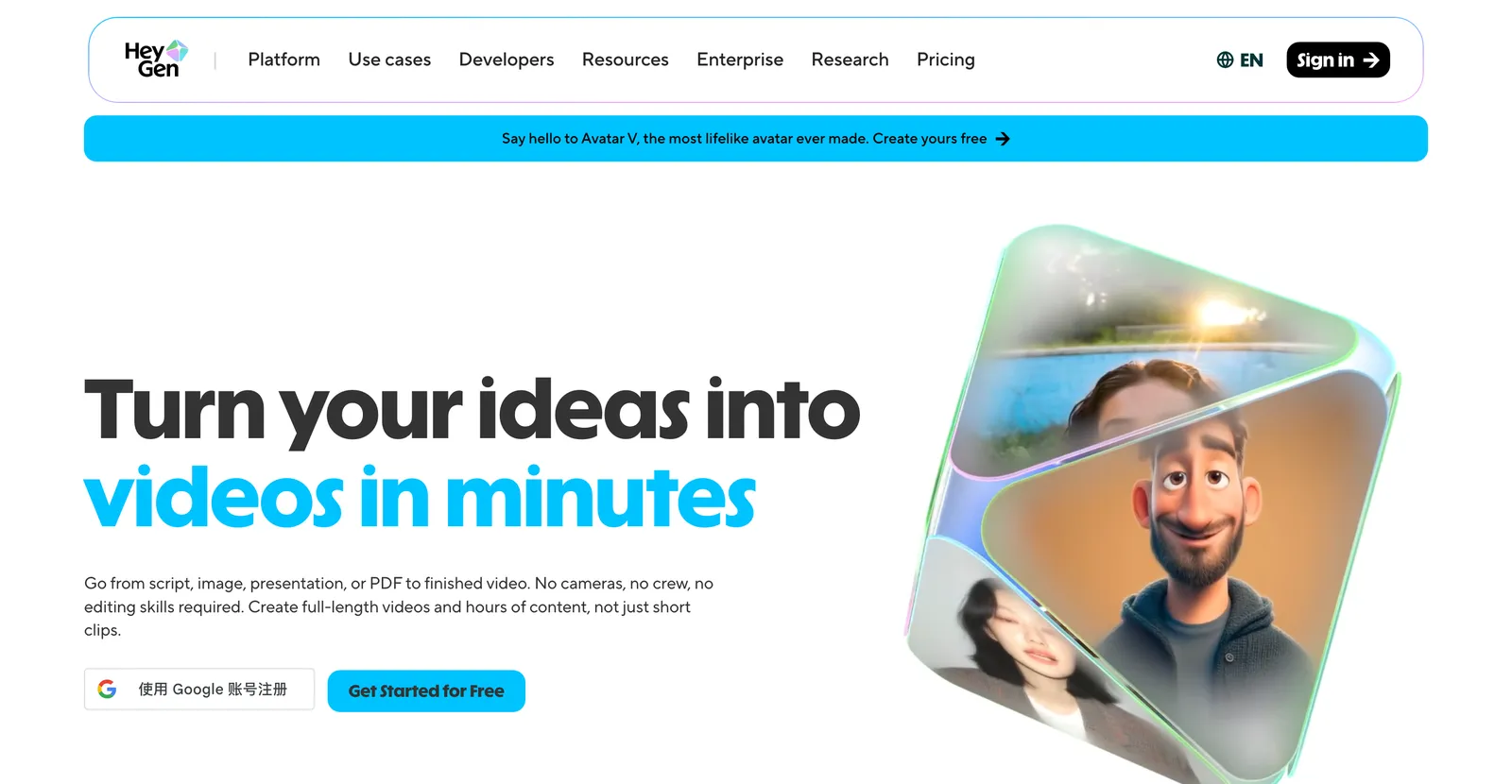
이런 경우에 최적: 학생들이 반복해서 보는 발표자 중심 수업, 특히 여러 언어로 제공할 때.
화면 속 일관된 교사가 학생에게 도움이 되는 경우, 아바타 도구는 당신의 대본을 디지털 발표자로 전달합니다. 두 도구 모두 고등교육과 기업 L&D에 강하며, 여러 언어로 녹화된 강의가 애니메이션보다 더 가치 있는 영역입니다.
Synthesia는 엔터프라이즈 교육과 현지화에 집중합니다. 가격(2026년 7월 확인): 무료 요금제는 월 약 10분 분량의 영상(1,200크레딧)을 제공합니다. Starter 요금제는 연간 결제 시 월 14달러, 월간 결제 시 19달러. Creator 요금제는 연간 결제 시 월 59달러, 월간 결제 시 89달러. Enterprise는 맞춤형입니다. 공개된 교육 할인은 없습니다.
HeyGen은 아바타의 사실감과 번역에 집중합니다. 가격(heygen.com 기준, 2026년 7월 확인): 무료 요금제는 월 3개, 각 1분까지 허용합니다. Creator는 월 29달러, 연간 결제 시 월 24달러이며 600크레딧 제공. Pro는 월 49달러로 1,000크레딧과 4K 내보내기를 제공합니다. Business는 월 149달러부터. HeyGen의 가격 페이지에는 교육·비영리 할인이 없습니다.
두 도구 모두의 솔직한 한계: 대본을 읽는 아바타는 어린 학생에게 밋밋하게 느껴질 수 있고, 많이 쓰면 크레딧이 빠르게 소진됩니다. 강의와 다국어 확산에서 제값을 하고, 빠른 교실용 클립에는 덜 어울립니다.
Canva: 템플릿 중심의 수업 영상
이런 경우에 최적: 슬라이드-영상 변환과 템플릿 영상, 특히 이미 Canva를 쓰는 학교.
디자인을 배우지 않고도 디자인된 영상을 원한다면 Canva가 안전한 선택입니다. 템플릿을 끌어다 놓고, 슬라이드를 넣고, 텍스트와 보이스오버를 추가한 뒤 내보내면 됩니다. 모션 도구처럼 개념을 애니메이션으로 만들어 주지는 않지만, 빠르고 익숙합니다.
여기서 진짜 주목할 것은 가격 이야기입니다. Canva Pro는 월 15달러 또는 연 120달러입니다(2026년 7월 확인, 공식 페이지가 자동 확인을 차단해 최신 가격 트래커들과 교차 검증). 하지만 Canva for Education은 무료로, 인증된 K-12 교사와 그 학생들이 쓸 수 있고, Canva for Nonprofits는 자격을 갖춘 501(c)(3) 단체라면 최대 50인 팀까지 무료입니다. 특히 K-12에서는 이 무료 교육 요금제 때문에 Canva를 무시하기 어렵습니다. 수업 워크플로를 Canva 위에 세우기 전에 교육 페이지에서 자격을 확인하세요.
Golpo AI: 문서를 영상으로
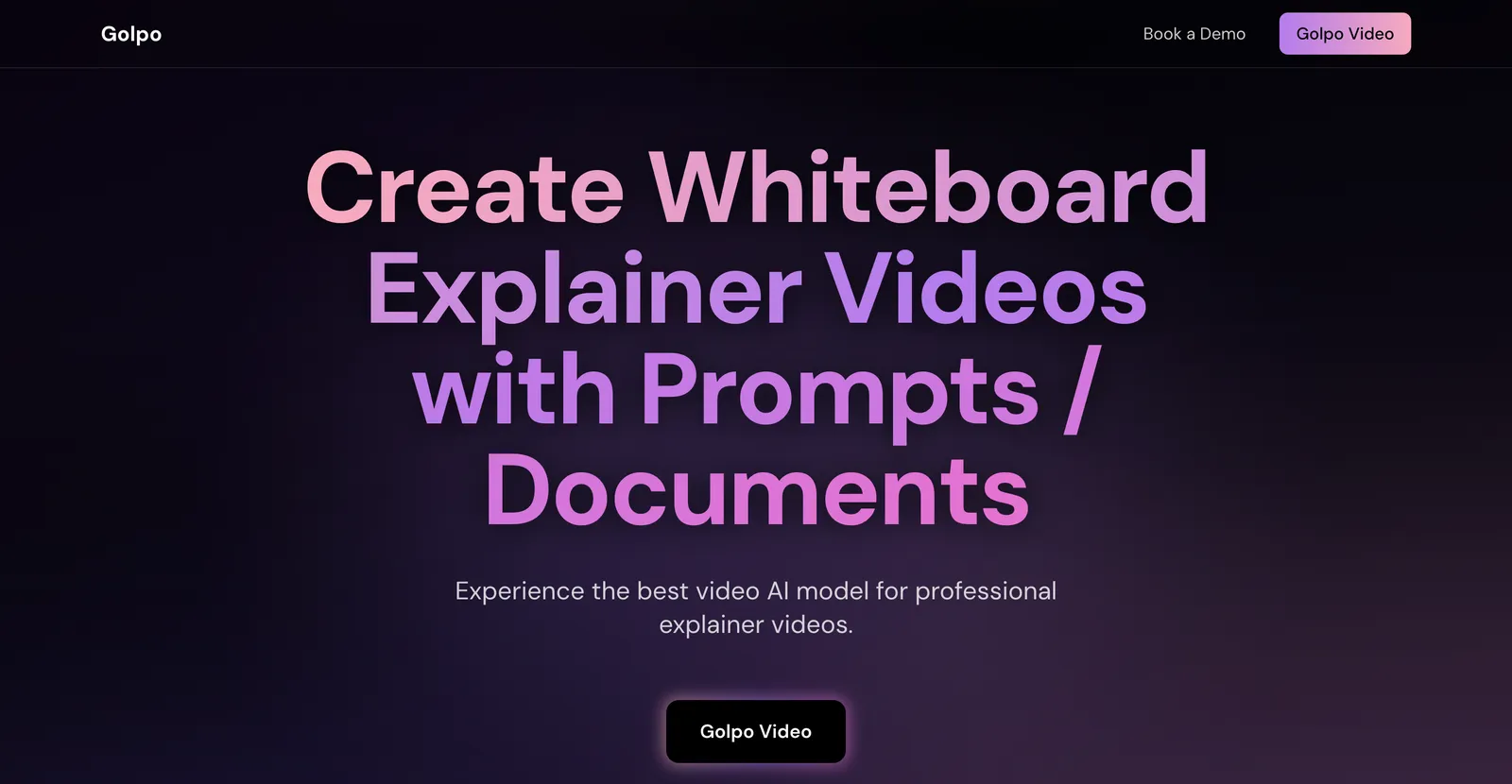
이런 경우에 최적: PDF, 학습지, 문제 세트를 곧바로 화이트보드 스타일 영상으로 바꿀 때.
문서-영상 변환은 그 자체로 하나의 카테고리이며, 자료를 이미 글로 갖고 있는 교사에게 맞습니다. Golpo AI는 문서를 읽어 화이트보드 애니메이션을 만들어 주는데, 풀이 과정 설명과 시험 대비에 잘 어울립니다. 가격(2026년 7월 확인, 공급사 페이지가 데이터를 반환하지 않아 제3자 가격 분석 기준): 무료 요금제는 1분짜리 영상을 생성해 볼 수는 있지만 다운로드는 안 됩니다. 유료 요금제는 영상 약 20분 분량에 월 39.99달러 정도부터 시작하고, Creator는 월 100달러 안팎, Business는 그 이상이며, 연간 결제 시 약 17% 할인이 있습니다.
솔직한 한계: 화이트보드 스타일이 모든 과목에 맞는 것은 아니고, 문서-영상 품질은 원본 파일이 얼마나 깔끔한지에 크게 좌우됩니다. 화이트보드 스케치가 아니라 다듬어진 모션 그래픽 수업이 목표라면 애니메이션 도구가 더 맞습니다. 더 넓은 접근법은 문서-영상 변환 가이드에서 다룹니다.
Scholarly: 학생용 학습 영상
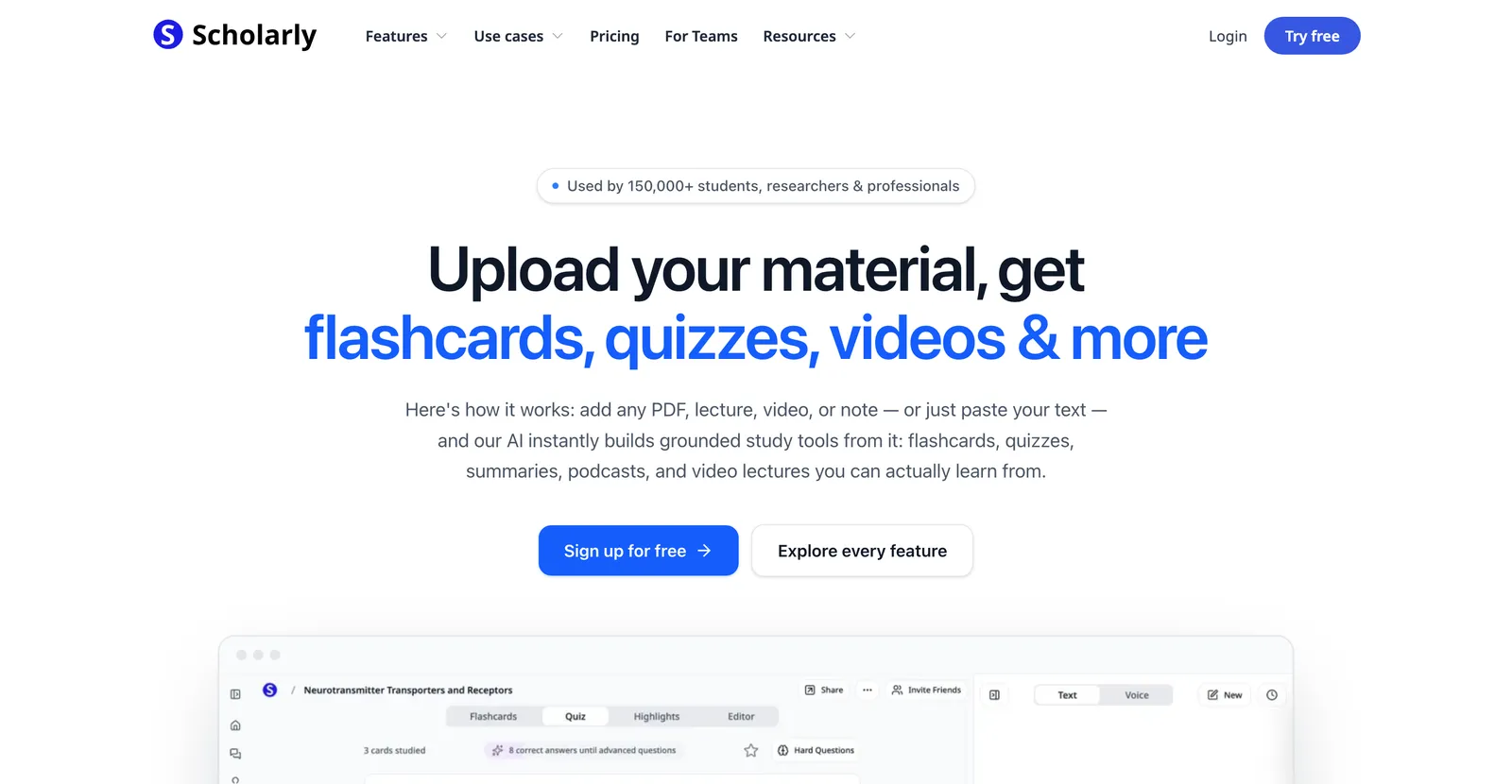
이런 경우에 최적: 학생이 자기 필기와 읽기 자료를 복습 자료로 바꿀 때. 교사가 수업을 제작하는 용도가 아닙니다.
Scholarly를 알아 둘 가치가 있는 이유는 학생들이 이미 쓰고 있을 수 있기 때문입니다. 필기와 PDF를 플래시카드, 퀴즈, 학습 보조 자료로 변환하며, 교사보다는 학생을 향한 도구입니다. 가격(scholarly.so 기준, 2026년 7월 확인): 무료 요금제는 평생 AI 생성 1회, 소용량 파일 업로드 같은 빡빡한 제한이 있습니다. Ultimate 요금제는 월 12달러 또는 연 144달러. Teams 요금제는 시트당 월 45달러에 최소 3시트부터입니다. 별도의 학생 할인은 없지만, 공급사는 과외 비용과 비교하며 가격을 내세웁니다.
05
접근성, 자막, 다국어 도달 범위
교육에서 접근성은 있으면 좋은 것이 아닙니다. 법적 요건인 경우가 많고, 언제나 학습의 문제입니다. 일의 대부분을 해내는 기능은 두 가지입니다.
자막. 위의 모든 도구가 자막을 추가할 수 있습니다. 기본으로 켜 두고 반드시 교정하세요. 자동 자막은 여전히 이름과 전문 용어를 뭉갭니다. 자막은 청각에 차이가 있는 학생, 시끄러운 환경의 학생, 소리를 끄고 휴대폰으로 복습하는 모든 사람에게 도움이 됩니다.
번역과 다국어 오디오. Synthesia와 HeyGen 같은 아바타 도구는 같은 수업을 여러 언어로 전달할 수 있고, 이는 국제 집단과 다국어 교실에서 중요합니다. 학생의 3분의 1이 집에서는 다른 언어로 생각한다면, 번역본은 사치가 아닙니다.
한 가지 주의: 기계 번역과 자동 자막은 초안이지 최종본이 아닙니다. 성적에 반영되거나 공식적인 것이라면, 학생에게 전달되기 전에 그 언어에 능통한 사람이 결과물을 확인하게 하세요.
06
학생 데이터 프라이버시와 FERPA: 업로드 전에 확인하세요
대부분의 도구 정리 글이 건너뛰는 부분이자, 교사를 진짜 곤경에 빠뜨릴 수 있는 부분입니다. 미국에서는 학생의 교육 기록이 FERPA로 보호되며, 다른 곳에도 유사한 규정이 있습니다. 몇 가지 실용적인 가드레일:
- 학생을 식별할 수 있는 개인정보를 업로드하지 마세요. 교육구가 검증하고 승인한 경우가 아니라면 일반 소비자용 AI 도구에 넣으면 안 됩니다. 이름, 성적, 학생과 연결된 과제물이 모두 포함됩니다.
- 실제 학생 데이터가 관련된 일에는 학교 승인 요금제나 엔터프라이즈 요금제를 우선하세요. 소비자용 요금제에는 없는 계약상 보호 장치가 있기 때문입니다.
- 콘텐츠는 일반적인 내용으로 유지하세요. 주제를 설명하는 수업 영상에는 학생 데이터가 없으니 안전한 기본값입니다. 개인 맞춤 피드백 영상은 승인된 플랫폼에서만 만드세요.
- 도구의 데이터 사용 약관을 읽으세요. 업로드가 모델 학습에 쓰이는지, 삭제할 수 있는지 확인하세요.
확신이 없으면 워크플로를 도구 위에 세우기 전에 교육구 기술 부서에 문의하세요. 무료 요금제는 프라이버시 침해를 감수할 만한 가치가 없습니다.
07
교육자로서 고르는 법
- 개념을 설명하나요? 애니메이션을 쓰세요. TapVid는 움직임이 이해를 돕는 추상적 주제에 맞습니다.
- 학생들이 반복해서 볼 강의를 전달하나요? 아바타를 쓰세요. Synthesia나 HeyGen, 특히 여러 언어가 필요할 때.
- 이미 슬라이드나 PDF가 있나요? Canva 같은 템플릿 도구나 Golpo AI 같은 문서-영상 변환 도구를 쓰세요.
- 예산이 제약인가요? 무료 요금제부터 시작하세요. Canva for Education은 K-12에 무료이고, 대부분의 도구는 워터마크가 붙은 무료 체험을 제공합니다.
- 실제 학생 데이터를 다루나요? 멈추고 FERPA와 교육구 정책부터 확인하세요.
08
자주 묻는 질문
교육용으로 가장 좋은 AI 영상 생성기는 무엇인가요?
수업에 따라 다릅니다. 애니메이션 개념 설명 영상이라면 TapVid, 학생들이 반복해서 보는 아바타 강의라면 Synthesia나 HeyGen, 템플릿 영상이라면 K-12 교사에게 무료인 Canva입니다. 단 하나의 승자는 없고, 할 일에 맞는 도구가 있을 뿐입니다.
교사를 위한 무료 AI 영상 생성기가 있나요?
있습니다. Canva for Education은 인증된 K-12 교사에게 완전 무료입니다. TapVid, Synthesia, HeyGen, Golpo AI에도 무료 요금제가 있지만, 무료 내보내기에는 대개 워터마크나 길이 제한이 붙습니다.
카메라에 나오지 않고 수업 영상을 만들 수 있나요?
가능합니다. TapVid 같은 애니메이션 도구는 발표자 없이 대본만으로 수업을 만들어 줍니다. 아바타 도구는 디지털 발표자를 쓰므로 역시 카메라 앞에 설 필요가 없습니다.
AI가 제 슬라이드나 PDF를 수업 영상으로 바꿔 줄 수 있나요?
가능합니다. 문서-영상 변환 도구는 슬라이드, 학습지, PDF를 읽어 내레이션이 있는 영상을 만들어 줍니다. 결과물 품질은 원본 파일이 얼마나 깔끔한지를 따라갑니다.
이 도구들은 자막과 다른 언어를 지원하나요?
대부분 지원합니다. 여기 소개한 도구들에서 자막은 표준 기능이고, Synthesia와 HeyGen 같은 아바타 도구는 수업을 여러 언어로 번역하기도 합니다. 자동 생성된 자막과 번역은 항상 교정하세요.
FERPA 하에서 학생 데이터로 AI 영상 도구를 써도 안전한가요?
조심해서만 가능합니다. 수업 콘텐츠는 학생 정보 없이 일반적인 내용으로 유지하고, 실제 학생 기록이 관련된 일에는 교육구 승인 요금제나 엔터프라이즈 요금제를 쓰세요. 업로드 전에 학교 정책을 확인하세요.
교육 영상은 얼마나 길어야 하나요?
생각보다 짧아야 합니다. K-12는 개념당 2~4분을 목표로 하세요. 고등교육과 기업 교육은 긴 강의를 학생이 다시 볼 수 있는 구간으로 나누세요. 영상 하나에 아이디어 하나가, 모든 것을 담은 긴 영상 하나를 이깁니다.
09
핵심 정리
최고의 교육용 AI 영상 생성기는 수업과 당신의 준비 시간에 맞는 도구입니다. 개념은 애니메이션으로 만들고, 반복 시청할 강의에는 아바타를 쓰고, 테스트하는 동안에는 무료 교육 요금제를 활용하고, 학생 데이터는 소비자용 도구에 넣지 마세요. 다음 수업에서 일 하나를 골라 위의 5단계 워크플로로 영상 한 편을 만들어 보세요. 애니메이션 접근법을 시험해 보려면 AI 설명 영상 생성기부터 시작하세요.